Debugging
The editor can show the path a configuration took during its last execution, which makes it much easier to find out why a flow does not behave as expected. For a simpler way of checking values, see Warning as a debugging aid.
Enabling debugging
After configuring the debugLogStorageField setting (see App settings) AND setting the log level to DEBUG, an extra button will be available in the editor.

Viewing the last run
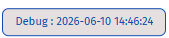
Each execution of the configuration will save the debug information in the configured field. After clicking the button the execution date and time will be shown in the button:
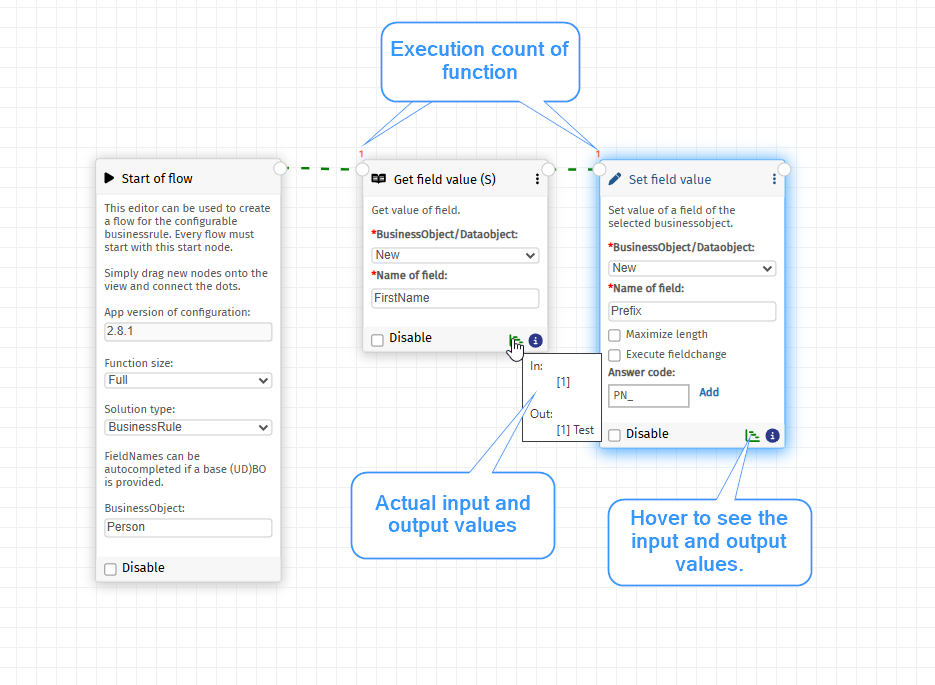
The path of the last run will be shown in the editor. Each line which has been executed will be marked green.
Errors
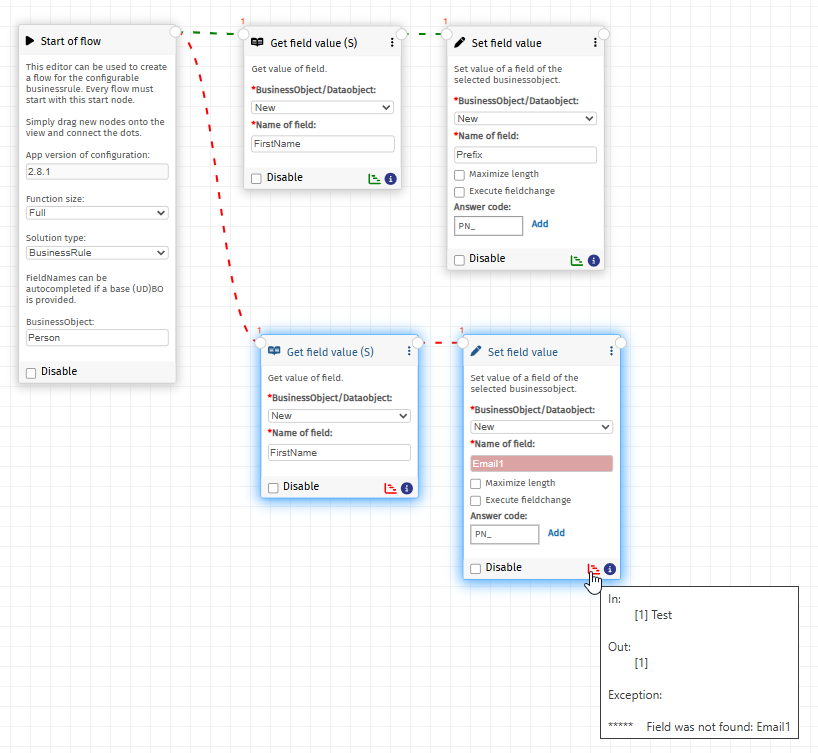
In case of an error, the error path will be shown with red lines. The debug icons on the functions will also turn red. When hovering over the debug icons the error will be shown:
Without a storage field
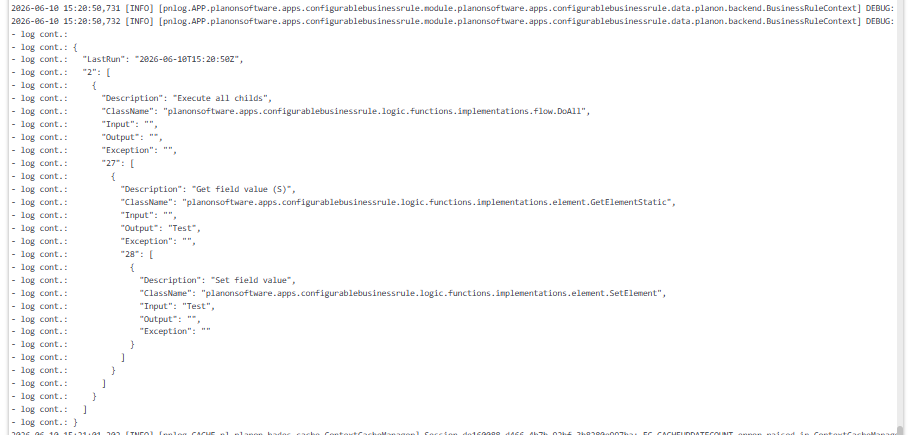
If no debugLogStorageField is set, the debug output will be shown in the WildFly/Tomcat log: