Installation
This page describes the steps required to install the app on your Planon environment.
Install the app
There are two ways to install the app.
Install via the marketplace
In case your environment is configured to use the Planon appstore, the only thing required to install the app is to add the app license in the AppCenter TSI. Planon will automatically download and install the app.
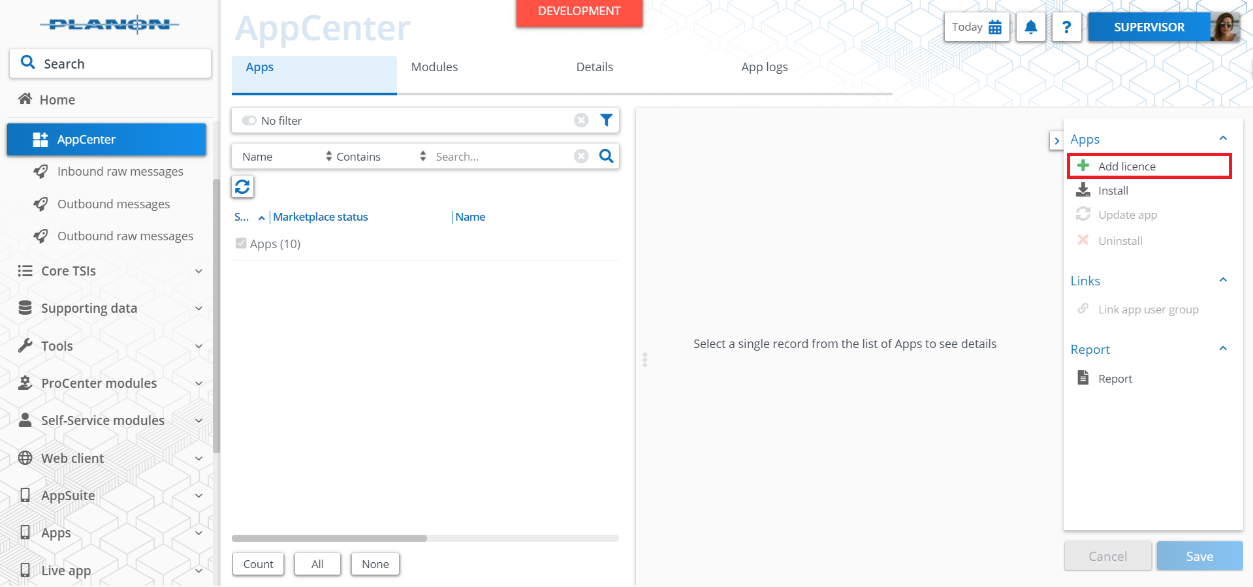
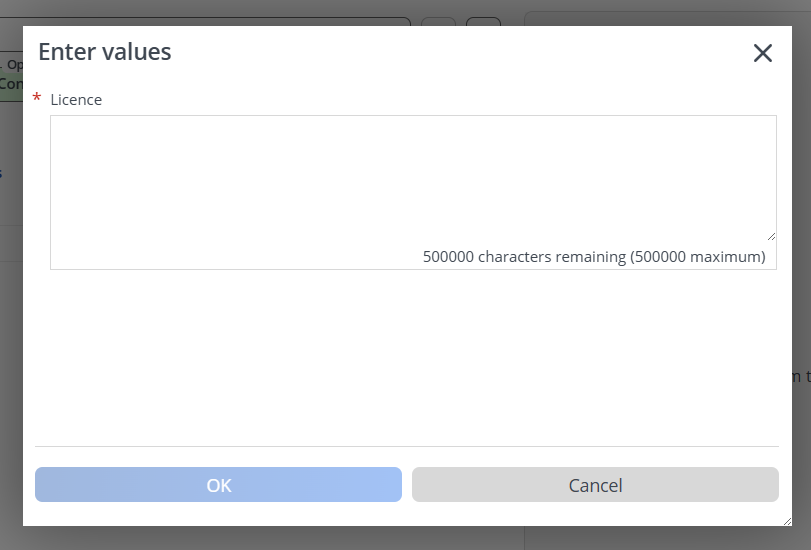
A popup will be showed where the license code can be entered:
Manual installation (alternative)
In case you want to perform a manual installation, follow the steps below.
Open the AppCenter TSI from the Planon webclient and click on install from the action menu.
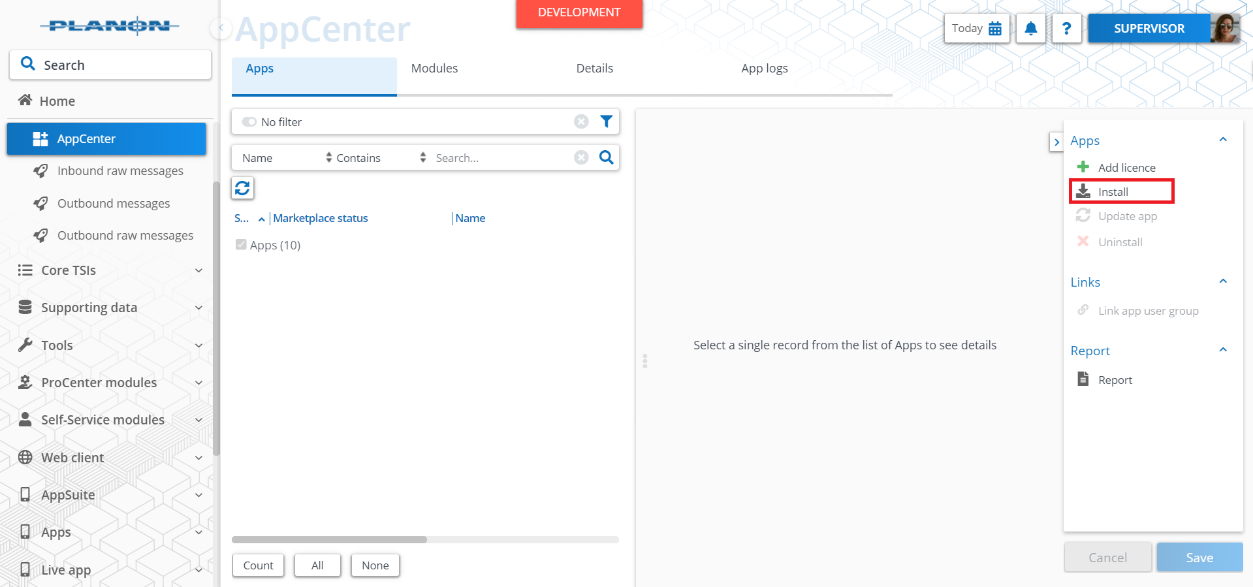
Browse for the .ppk file.
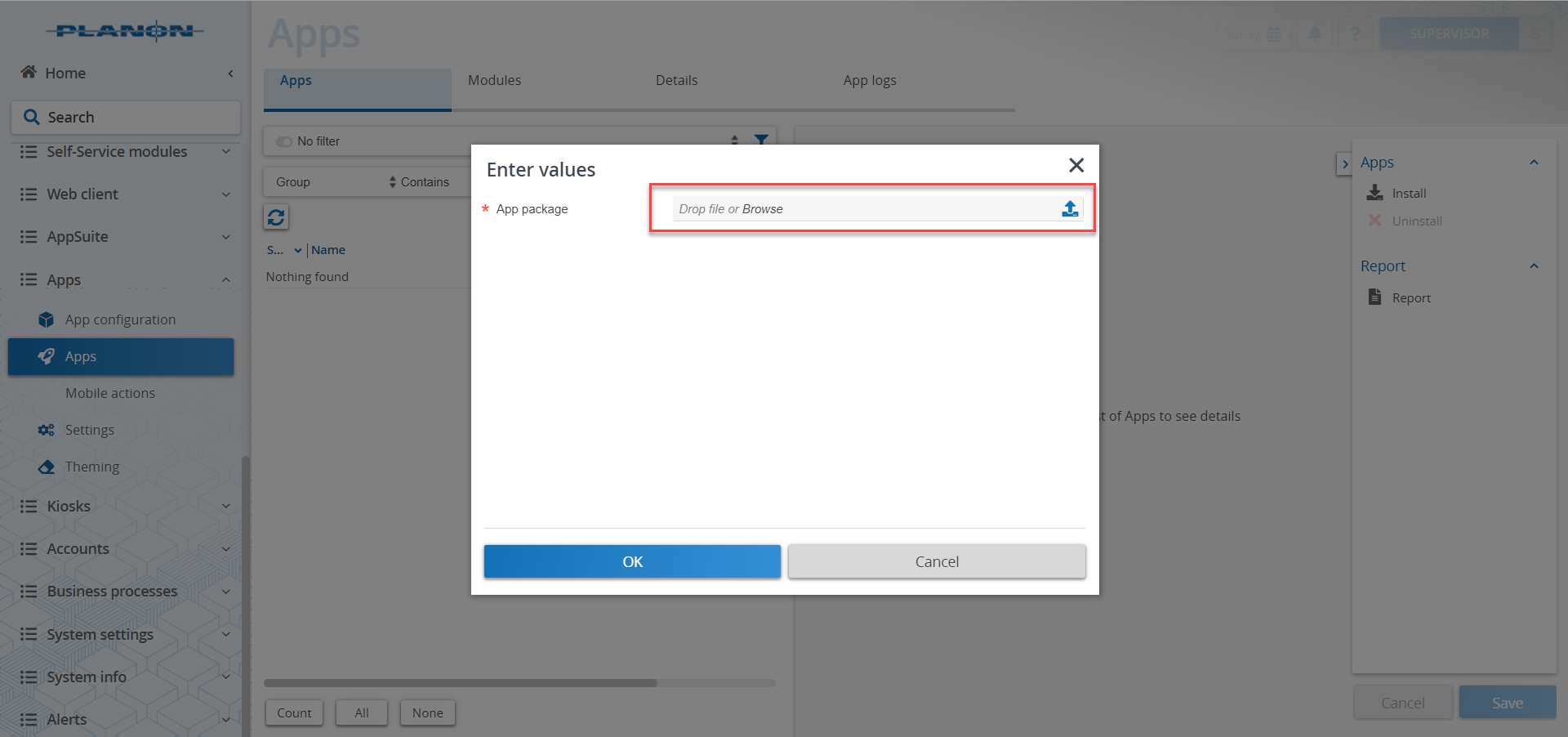
Click OK to install the app and follow the installation process. When the app is successfully installed, the app will appear in the AppCenter.
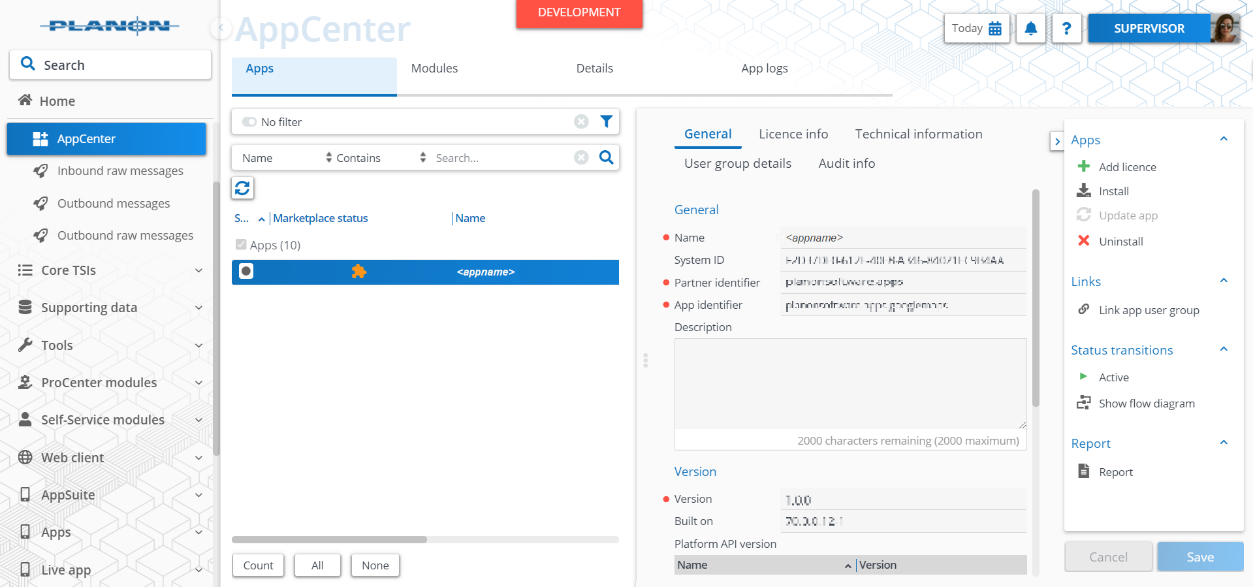
Add the app license in the Apps TSI.
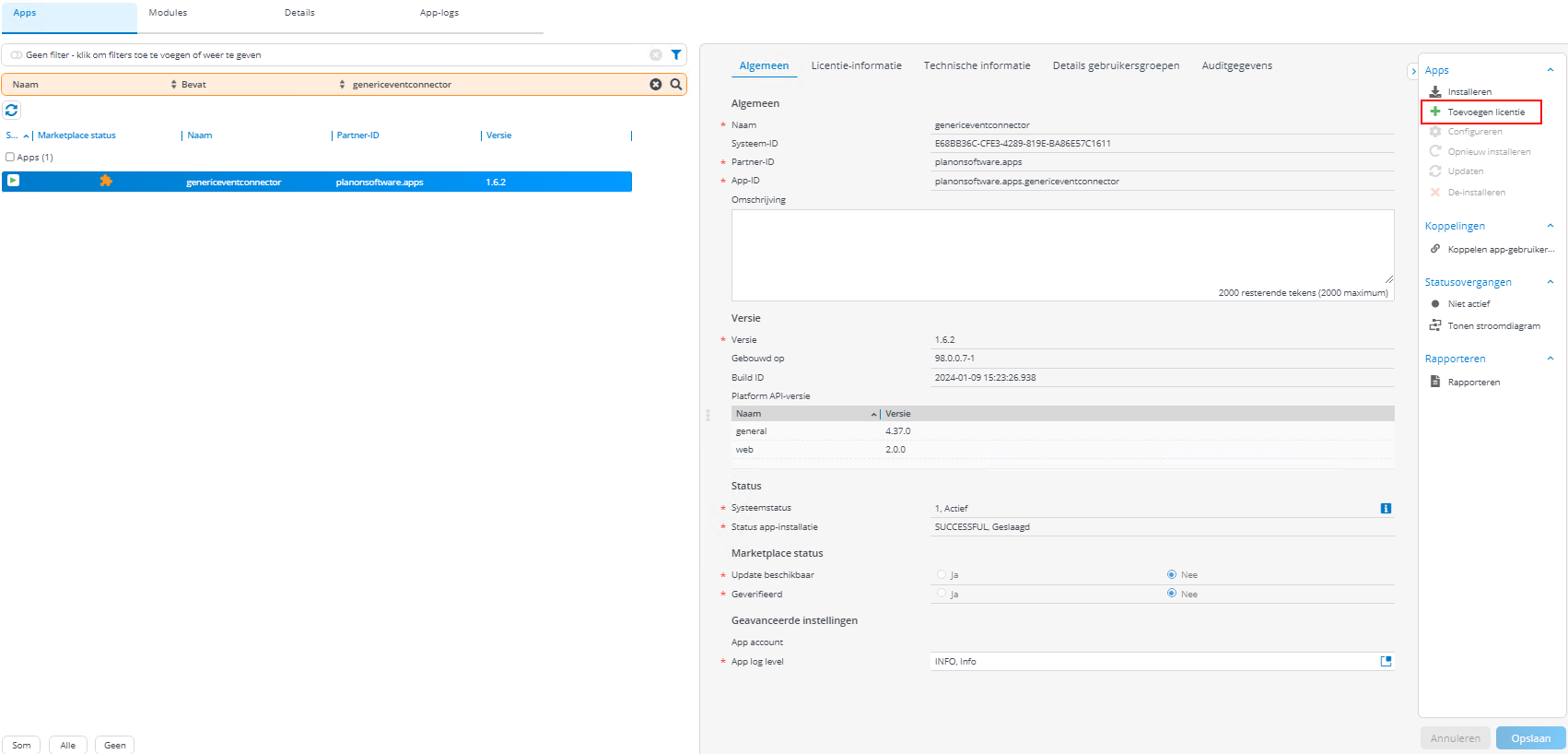
A popup will be showed where the license code can be entered:
Link the app to a usergroup.
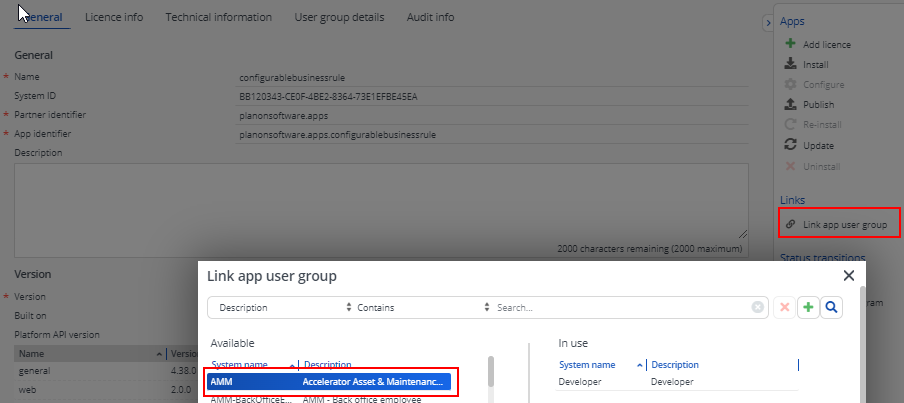
Activation
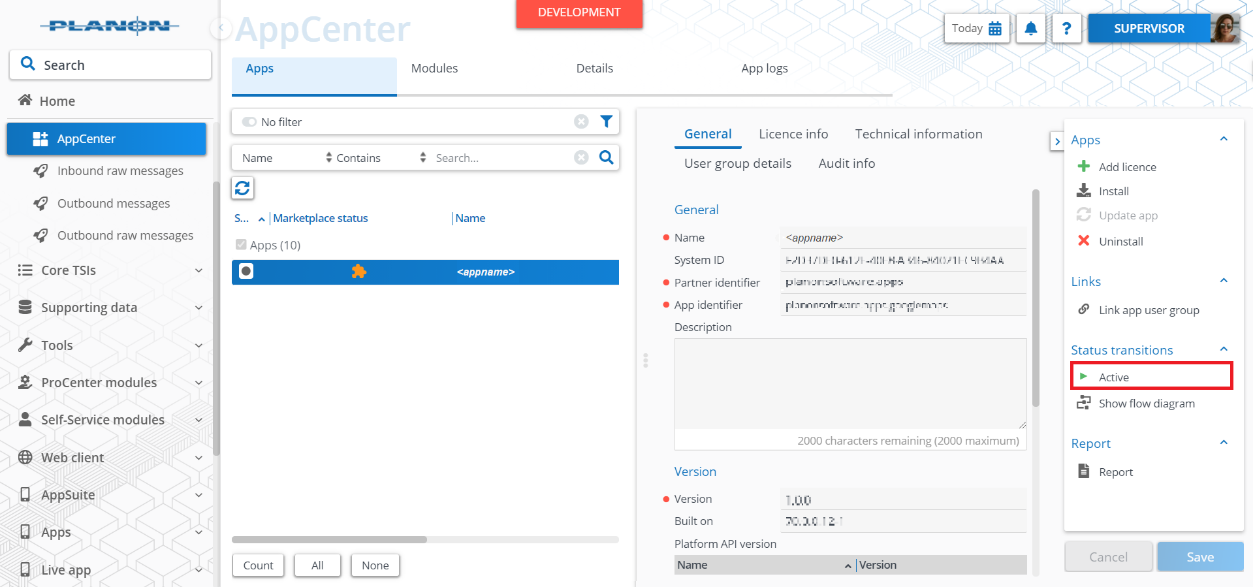
Once the app has been configured you can activate the app by pressing the ‘Active’ status transition from the action panel.