Planon configuration (free module)
The app can make use of an (optional) free module. This is needed to use the recommended ConfigurableBusinessRule, which stores its configurations in this module. It is not needed when the standalone business rule is used.
The free module can be every module which is still available in the environment. The actual free module used is configured in the module settings.
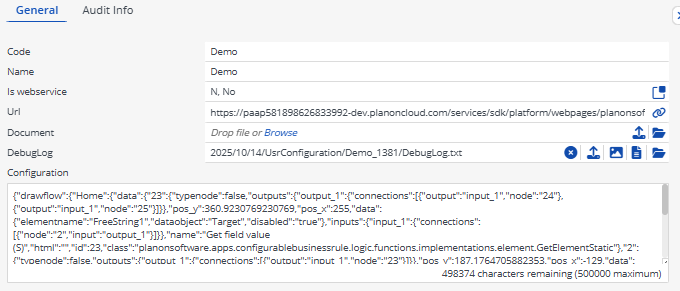
Create the configuration business object
- Choose a free business object.
- Create a UDBO with any name (preferably UsrConfigurableBusinessRules).
- Set the fields below to In Use.
| Description | Systemname | Field Type | Unique | Comments |
|---|---|---|---|---|
| Code | Code | Text | Yes | Unique code to identify the configuration. Ideally this field is auto provided by a codegen. |
| Name | Name | Text | No | Functional description of configuration |
| Visual Editor URL | Free String of length 255 | No | Auto-generated URL field which will contain the link to the visual editor. | |
| Configuration | FreeRemark02 | StringExtended | No | Data field which will hold the configuration. Make sure this field can hold unlimited amount of characters |
- Add the business object to a TSI. The required configuration steps can be found here.
Example free module:
Create the history business object (Optional)
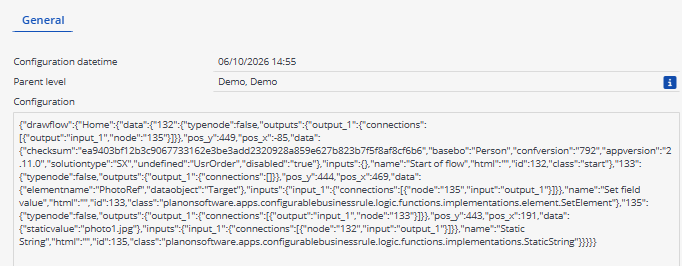
This is an optional business rule which can be configured on the free BO to auto create a history record. Preferrably create a History UDBO in the same Free module. Once this UDBO is created it must be configured in the modulesettings.
- Create a UDBO with any name (preferably UsrHistory).
- Set the fields below to In Use.
| Description | Systemname | Field Type | Unique | Comments |
|---|---|---|---|---|
| Configuration datetime | Code | Text | No | Unique code to identify the configuration. Ideally this field is auto provided by a codegen. |
| Parent level | Name | Text | No | Functional description of configuration |
| Configuration | FreeRemark02 | StringExtended | No | Data field which will hold the configuration. Because it is the same BO it can reuse the same field as the original configuration above. Make sure this field can hold unlimited amount of characters |
- Add the business object to a TSI. The required configuration steps can be found here.
Example free module:
Make sure every configured field from the Free BO is properly configured in the modulesettings.
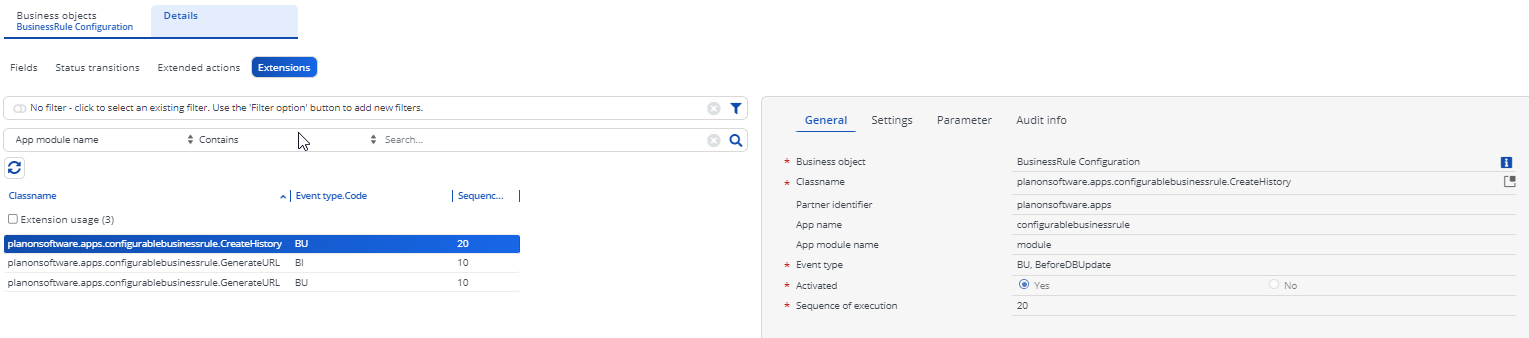
To automatically save a history record on each save of the configuration, this BusinessRule (planonsoftware.apps.configurablebusinessrule.CreateHistory) can be configured on the configuration BO.
The configuration steps are:
- Go to the TSI Field Definer.
- Select the free Business Object configured.
- Set the BO to Under Construction.
- Go to Details Level and Extension selection step.
- Click on Add extension.
- Select the extension CreateHistory from the Class Name reference popup.
- Provide other mandatory fields:
- Event type: BU (BeforeDBUpdate).
- Sequence of execution: 20.
- Save the changes.
GenerateURL
This is an optional business rule which can be configured on the free BO to auto-generate a URL which will open the freeBO configuration in the Logic Flow Builder editor.
The configuration steps are:
- Go to the TSI Field Definer.
- Select the free configuration Business Object configured.
- Set the BO to Under Construction.
- Go to Details Level and Extension selection step.
- Click on Add extension.
- Select the extension GenerateURL from the Class Name reference popup. -
- Provide other mandatory fields:
- Event type: BI (BeforeDBInsert).
- Sequence of execution: 10
- Save the changes. 6 Repeat step 5 but with Event type: BU (BeforeDBUpdate)
Open configuration (TSI Action)
This TSI Action can be used to register on the configuration BO. After registering a button will appear in the action menu which can be used to open de configuration in the visual editor.
The configuration steps are:
- Go to the TSI Field Definer.
- Select the free configuration Business Object configured.
- Set the BO to Under Construction.
- Go to Details Level and Extended actions step.
- Click on Add.
- Select the web2client classname OpenConfigurationInNewTab from the Class Name reference popup. -
- As a default the url will be generated from the environment URL + modulesettings url setting. There is an option to overrule this default behavior by providing the forcedUrl setting. An alternative (complete) url can be provided here with the %s tag in it. The tag will be replaced by the code of the configuration.
- Select a meaningfull icon
- Provide translations
- Save the changes.