Visual editor
The app contains a visual editor which makes it intuitive and easy to use. A configuration is created by dragging and dropping functions onto the panel.
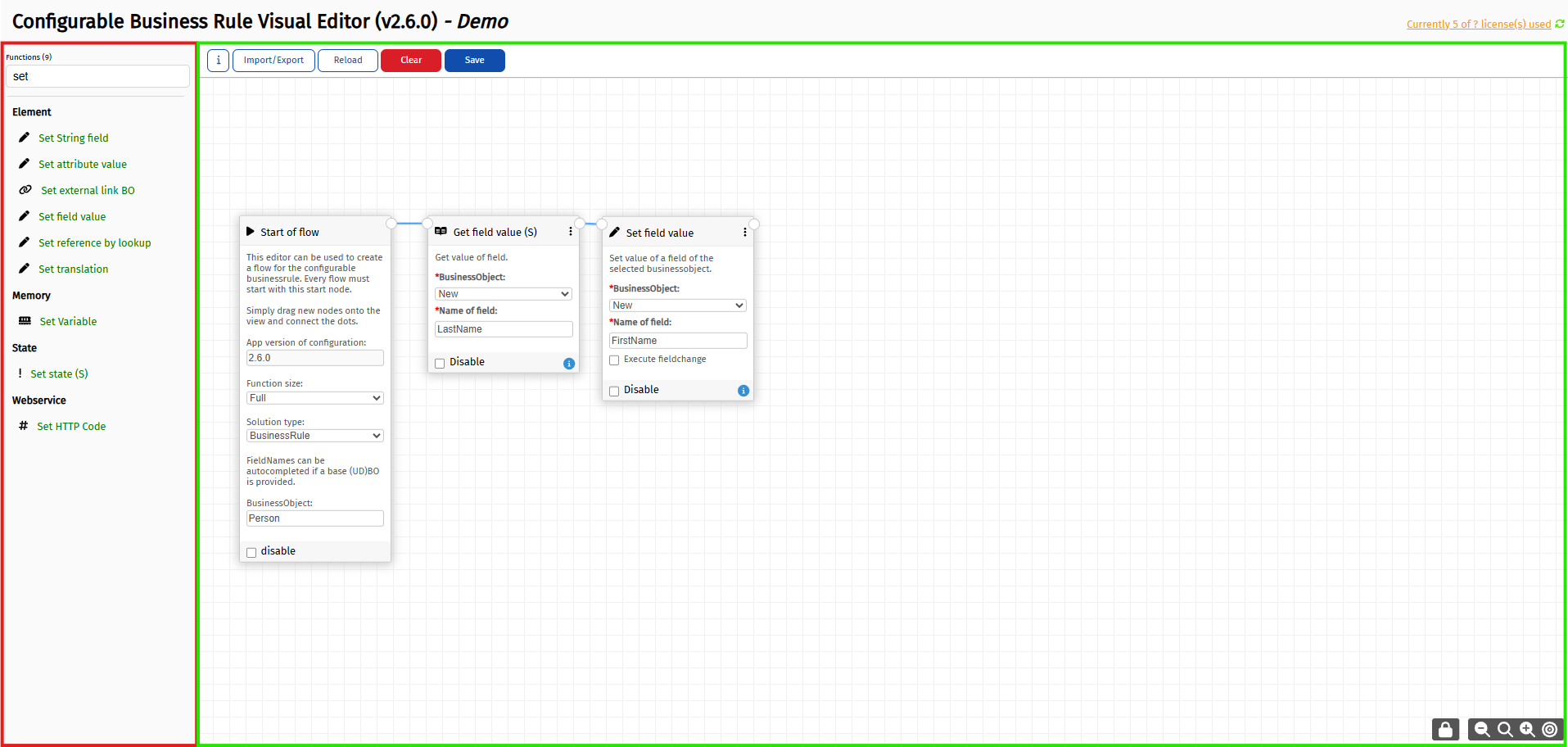
The left side (red outline) contains all functions which are available and can be dropped on the flow panel on the right side (green outline).
Opening the editor
Standalone version
The basic visual editor can be found on the following URL:
https://<environment>/services/sdk/platform/webpages/planonsoftware/apps/configurablebusinessrule/module/editor
This editor does not have all functionalities yet because of the lacking configuration BO. It can only be used as a stand-alone version.

Free module based version
Once the BO is configured as explained in Planon configuration, opening the editor with a reference to a configuration displays extra buttons for saving or reloading the configuration of the business logic.

To use the editor with a reference to the free BO, a free BO record needs to be created in the configured TSI. The URL with a reference to the free BO record with code ORDER_INSERT will be as below:
https://<environment>/services/sdk/platform/webpages/planonsoftware/apps/configurablebusinessrule/module/editor?id=ORDER_INSERT
The app also comes with a business rule to auto-generate this URL when a free BO record is created. The configuration of this business rule is explained in Registering business rules.
Action buttons
The buttons on the top can be used for:
 : Go to the in-app manual page. The functions manual will be generated dynamically.
 : Reload the flow from Planon. All changes will be discarded.
 : Remove every configured (on right screen) function from the flow.
 : Save the flow to Planon.
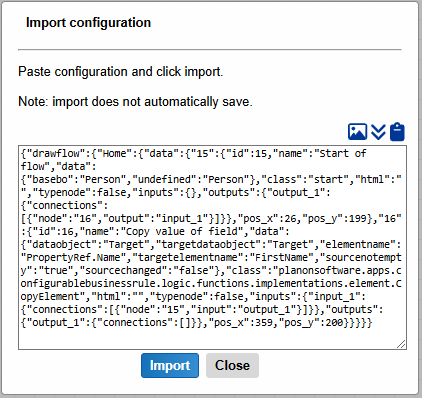
 : Show a popup to import and export the configuration. In this popup it is possible to copy or download the current configuration. When providing (pasting) the configuration it can also be imported easily. This way it is very easy to share configurations between environments and customers.
 : View history version. This option is only available when history is enabled. See History businessobject for more information.
 : View debug information. This option is only available when debugging is enabled. See Debugging for more information.
Editor controls
- Delete key : Remove selected
- Esc : Deselect functions
- Ctrl + Wheel : Zoom
- Wheel : Move canvas up/down
- Shift + Wheel : Move canvas left/right
- Ctrl + S : Save configuration
- Ctrl + A : Select all functions
- Ctrl + C : Copy selected functions
- Ctrl + V : Paste functions which are copied. This is also possible in another configuration.
- Left mouse drag on canvas : Move canvas
- Shift + left mouse drag on canvas : Select multiple functions with a selection box
- Shift + Ctrl + left mouse drag on canvas : Add functions to the current selection
- Ctrl + left mouse : Multi select functions
- Left mouse on canvas : Deselect functions
- Double left mouse on line : Add/remove shaping item
- Double right mouse on canvas : Deselect functions
Disabling functions
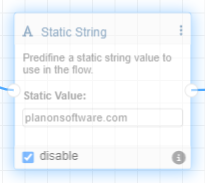
Functions can be easily disabled by checking the disable checkbox on a function or clicking Enable/Disable in the context menu of the function. When disabling a function all following functions will also be automatically disabled. Once disabled a function will be transparent in the editor.
Note: Because of the regular automatic reload of the Planon framework the editor will also be reloaded. To fix this the configuration will automatically be saved in the browser storage on every change. After clicking the save button the configuration will be saved to the database. When clicking the reload button the configuration will be loaded from the database again. To make sure to work with the latest version in the database always click first.
In-app manual
The app contains a manual page which is mainly auto-generated. It can be reached by clicking the button in the editor, or by clicking the Logic Flow Builder visual editor header. It is also possible to go directly to the specific function in the manual by clicking the  icon at the bottom of every function.
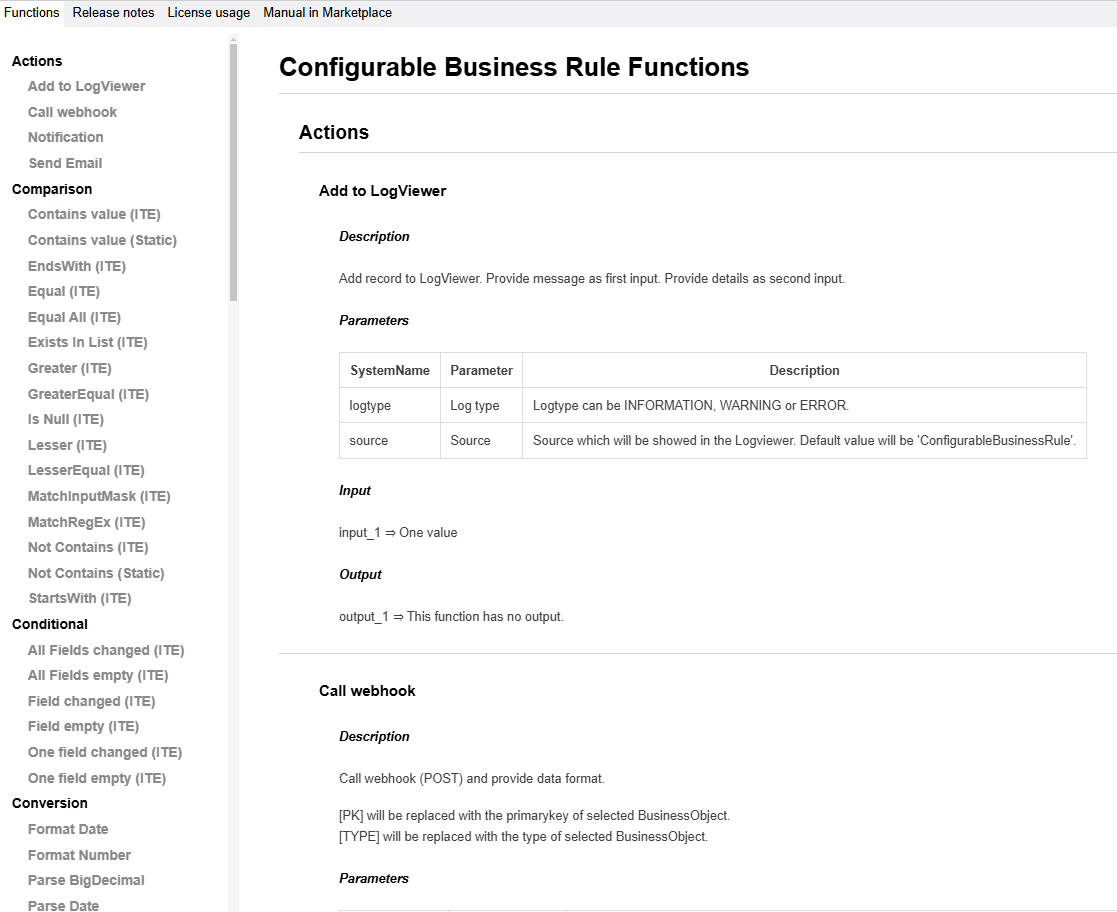
The page contains several tabs which give extended information about functions, release notes and license usage.
Tip: this page opens in a separate tab and can be put on another screen to have direct access next to the editor.
Functions
All available functions are auto-generated. This means the documentation is always up to date.
Release notes
The release notes contain updated and new functionality. This way it is possible to check in which version a specific function is created or changed. The full history is also available on the Patch notes page.
License usage
This tab shows the current license usage. See Licensing for the counting rules.