Planon Connect for Basisregistratie Adressen en Gebouwen (BAG)
Introduction
The ConnectforBAG app is a solution designed to streamline the retrieval of address data from Het Kadaster, a renowned Dutch government agency that maintains an extensive registry of all buildings within the country. By leveraging the BAG API, users can effortlessly locate a building by simply providing its postal code and house number.
Prerequisites
Environment
This solution will be designed to work with Planon Live L120 and above.
Constraints
NA
Required (free)fields
NA
Assumptions
The API key to the BAG API has been provided already
Features
Retrieve data from a building
This feature updates the details of a building or property based on its postal code and house number. It first checks if these fields are provided and have changed. If they haven’t, no updates are made.
Next, it verifies the country information. If the country is not specified, it defaults to the Netherlands. If the country is specified but not the Netherlands, no updates are made.
The feature then retrieves address data from an external service using the postal code and house number. If the address is not found, a warning is issued.
Once the address data is retrieved, the feature updates the building’s address, country, city, area, location and construction year. If the country and city do not exist in the database, they will be created.
How does it work
Retrieve data from a building
This application also incorporates a business rule that is activated whenever a building or property is created or updated. The rule ensures that all fields are updated only if the postal code and house number have changed. This mechanism is designed to prevent unnecessary updates and maintain data integrity.
To summarize, the application checks for changes in the postal code and house number, verifies country information, and retrieves address data from an external service. If the address is found, updates are made to the building’s details, including address, country, city, area, location and construction year. In cases where the country and city are not in the database, they are created anew.
Field Mapping:
| Planon Property Field | Field from BAG |
|---|---|
| Address | adresregel5 |
| CityReference | woonplaatsNaam |
| GrossArea | oppervlakte |
| Location | adresseerbaarObjectGeometrie.punt.coordinates converted from Dutch to Global co-ordinates |
| ConstructionYear | First record under oorspronkelijkBouwjaar |
Installation
This chapter describes the steps required to install this app on your Planon environment.
Installation Process
There are two ways to install the app:
- Using the Marketplace
- Manual installation
Install the app by using the marketplace
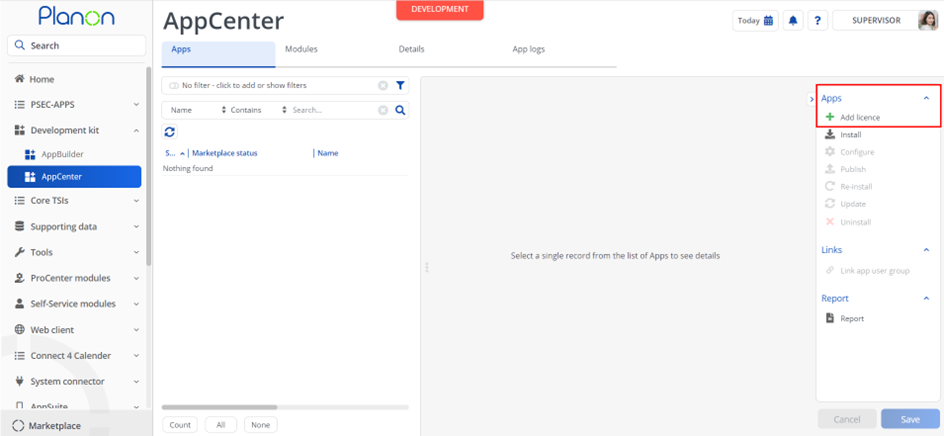
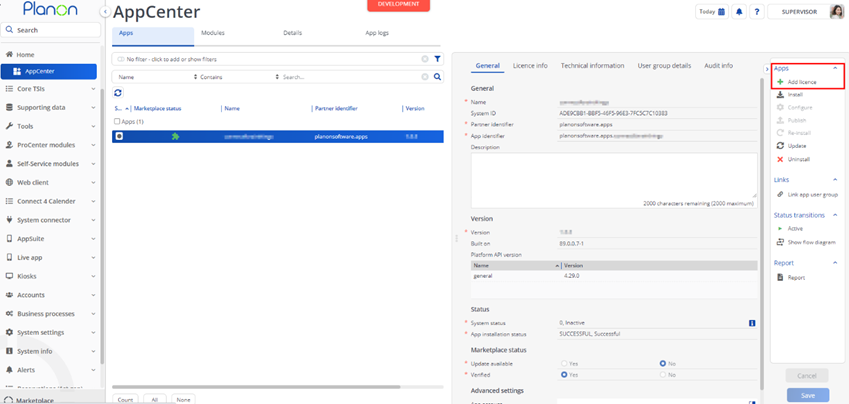
In case your environment is configured to use the Planon app store the only thing required to install the app is to add the app license in the AppCenter TSI. Planon will automatically download and install the app.
Manual installation
In case you want to perform a manual installation follow the steps below.
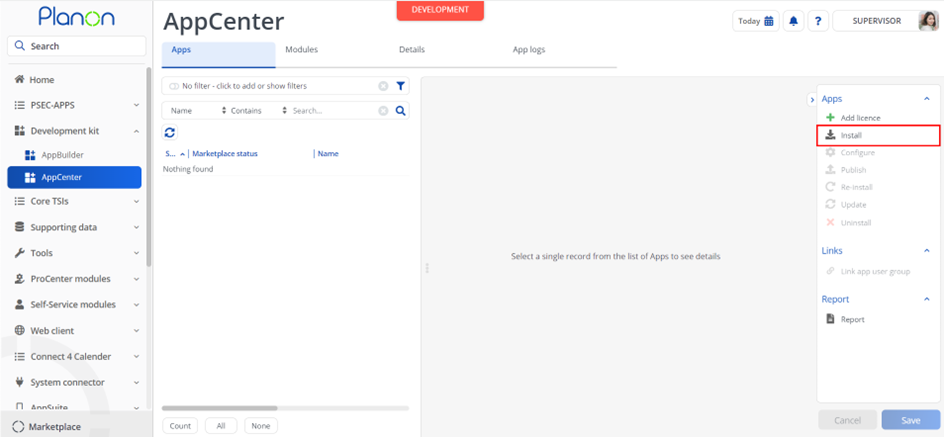
- Open AppCenter TSI from Planon webclient and click on install from action menu
- Browse to the .ppk file
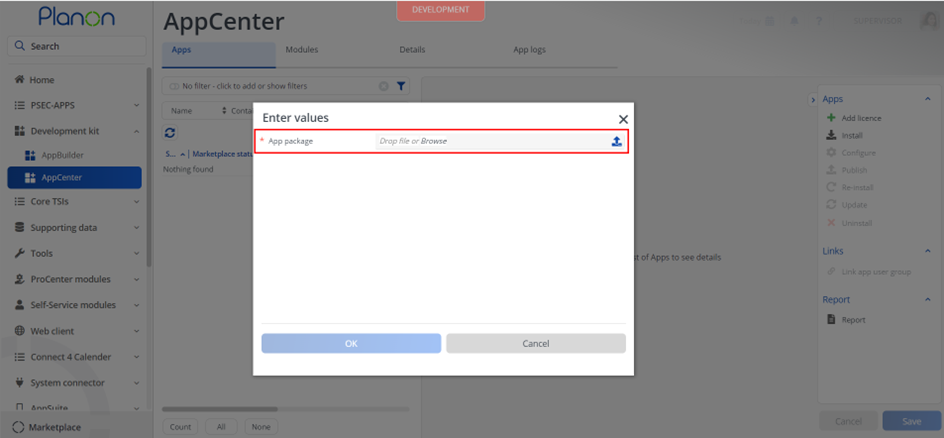
- Click OK to install the app and follow the installation process
- When the app is successfully installed, the app will appear in the AppCenter
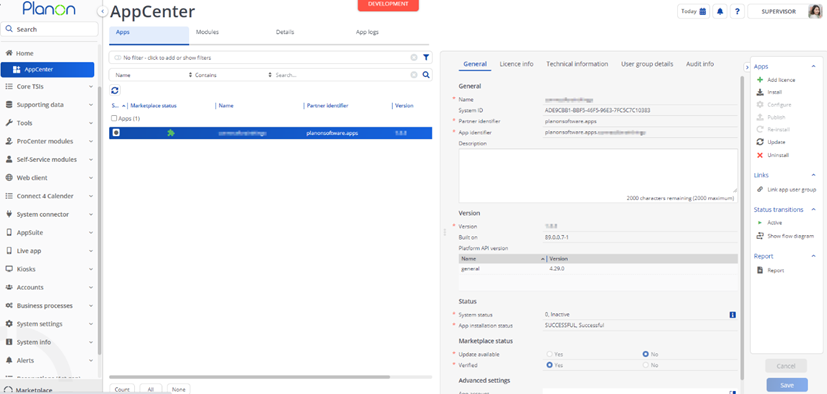
- Add the app license in Apps TSI
App settings
This chapter describes and explains the settings that are available for this app.
- Now that the app is installed we can provide the app settings for each module in the ‘modules’ selection level. Provide the module settings (the app configuration) which is available in the Details section.
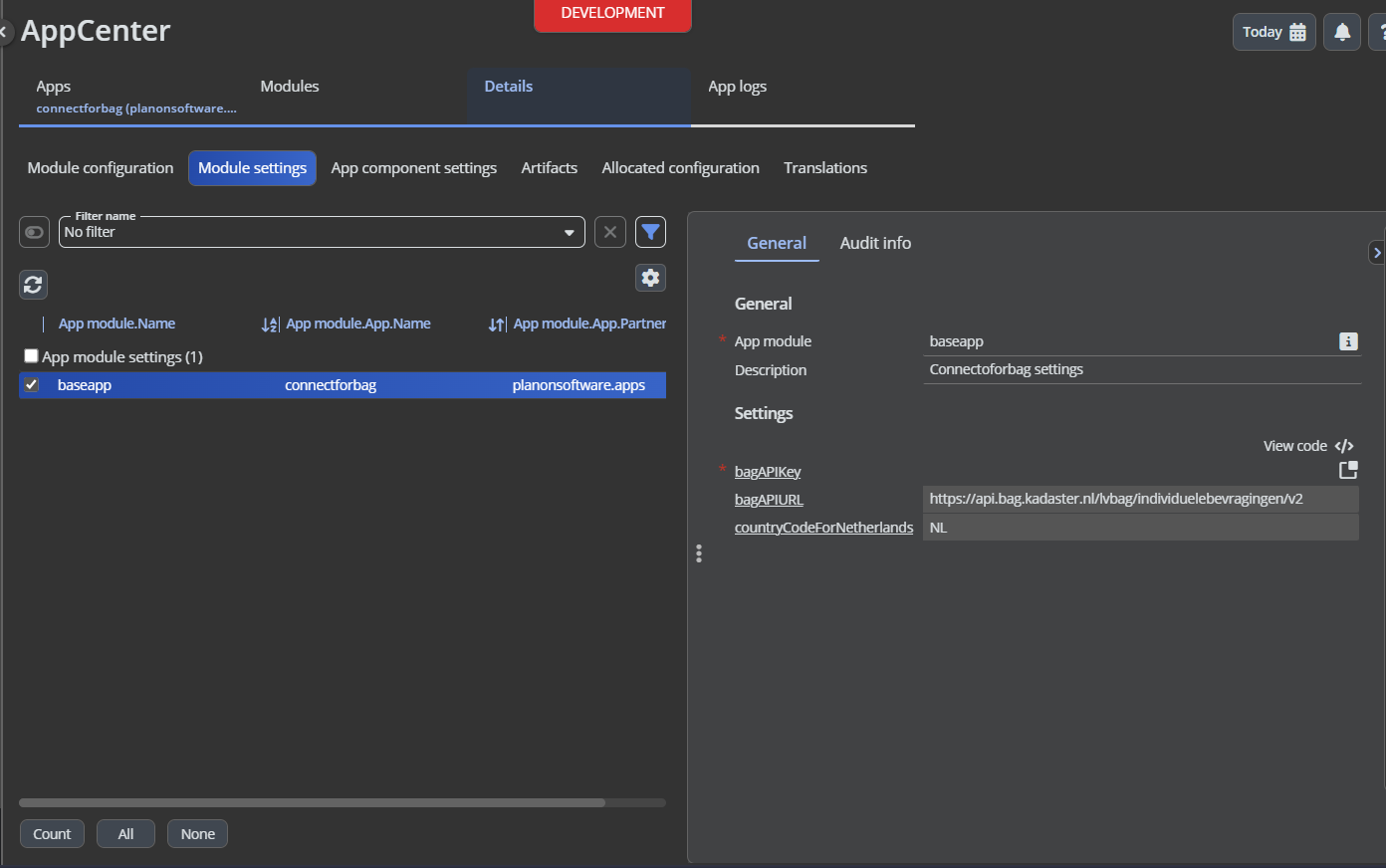
For more details regarding the settings see the next chapter.
Click Save button after providing the module settings.
Description of settings
bagAPIKey is the api key that has been provided by het kadaster. This is required for utilizing this app. bagAPIURL is the url that is used to retrieve address information from. One is already provided as a default value.
Example settings
{
  "bagAPIKey": "XXXXXX",
  "bagAPIURL": "https://api.bag.kadaster.nl/lvbag/individuelebevragingen/v2",
  "countryCodeForNetherlands": "NL"
}
Activation
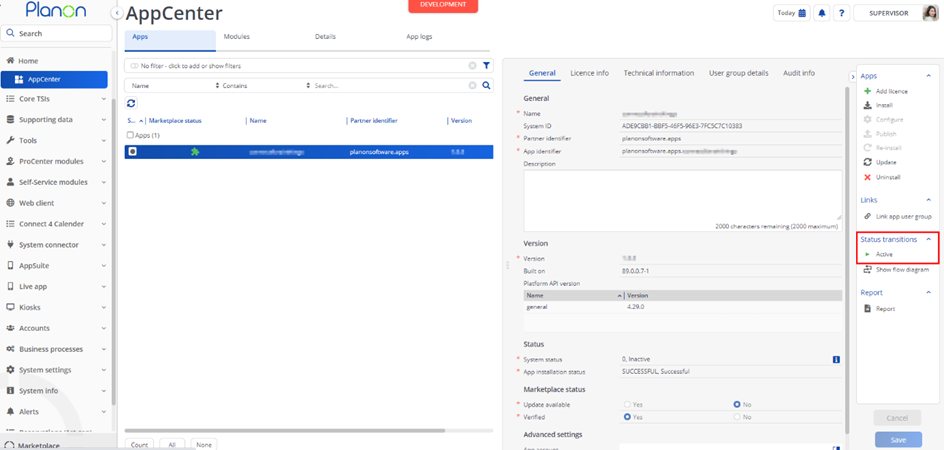
Once the app has been configured, you can activate the app by pressing the Active status transition from the action panel. Always make sure that the required User groups are linked correctly and the Configure action is executed before activating the App.
Troubleshooting
This chapter describes common things and known issues to check in case the app is not working as expected.
Error handling
For all components the errors will be written in the server logs. Components that also have an UI (like TSI Actions) will also display any errors in the interface.