Planon Connect for SE Building Data Platform - Sensor Readings
Prerequisites
Environment
This solution will be designed to work with Planon Live L127 and above.
Constraints
The design of this app is based on the following constraints.
Required (free)fields
Free string on the asset group to hold the digital twin code. The recommended name for this field is UsrDigitalTwinDefinitionTemplate. Based on this code a digital twin will be created for the asset, unless the field is empty or the free reference field on the asset level is filled.
Free reference field on the asset is needed to link a digital twin. The recommended name for this field is UsrDigitalTwinDefinitionLink. This is an exception field, if a different digital twin is needed then the asset group.
Assumptions
This design and functionality of the solution is based on the following assumptions:
The reference ID of the space in BDP is the same as the CAD drawing/BIM model codes and the space codes in Planon.
Customer has an PlanonIoT & Digital Twins license.
Planon IoT is enabled using the “IoT user” – Planon has a connection with Planon IoT
“IoT user” must be linked to App in order to be accessible by Planon IoT
The “IoT user” has full functionality
You have clicked the Configure action before enabling the App.
The SCHEDULERENGINEADMIN account is active and has rights to perform its actions
For more information about Planon IoT and settings please visit: IoT system settings (planoncloud.com)
Features
This chapter describes the features that this app contains.
Feature 1 – BDP actions on Property, Floor and Asset group
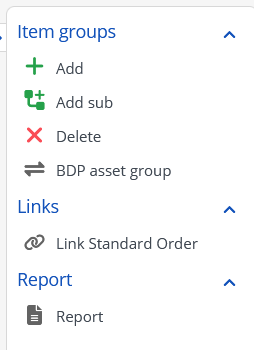
The app has several actions that need to be registered on the corresponding BO’s. These actions will create links in the extern BO links TSI, which will store the BDP ID and the Planon BO and primary key. This is a mapping between the elements in Planon and the elements in BDP.
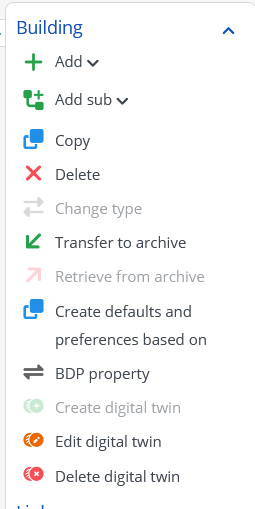
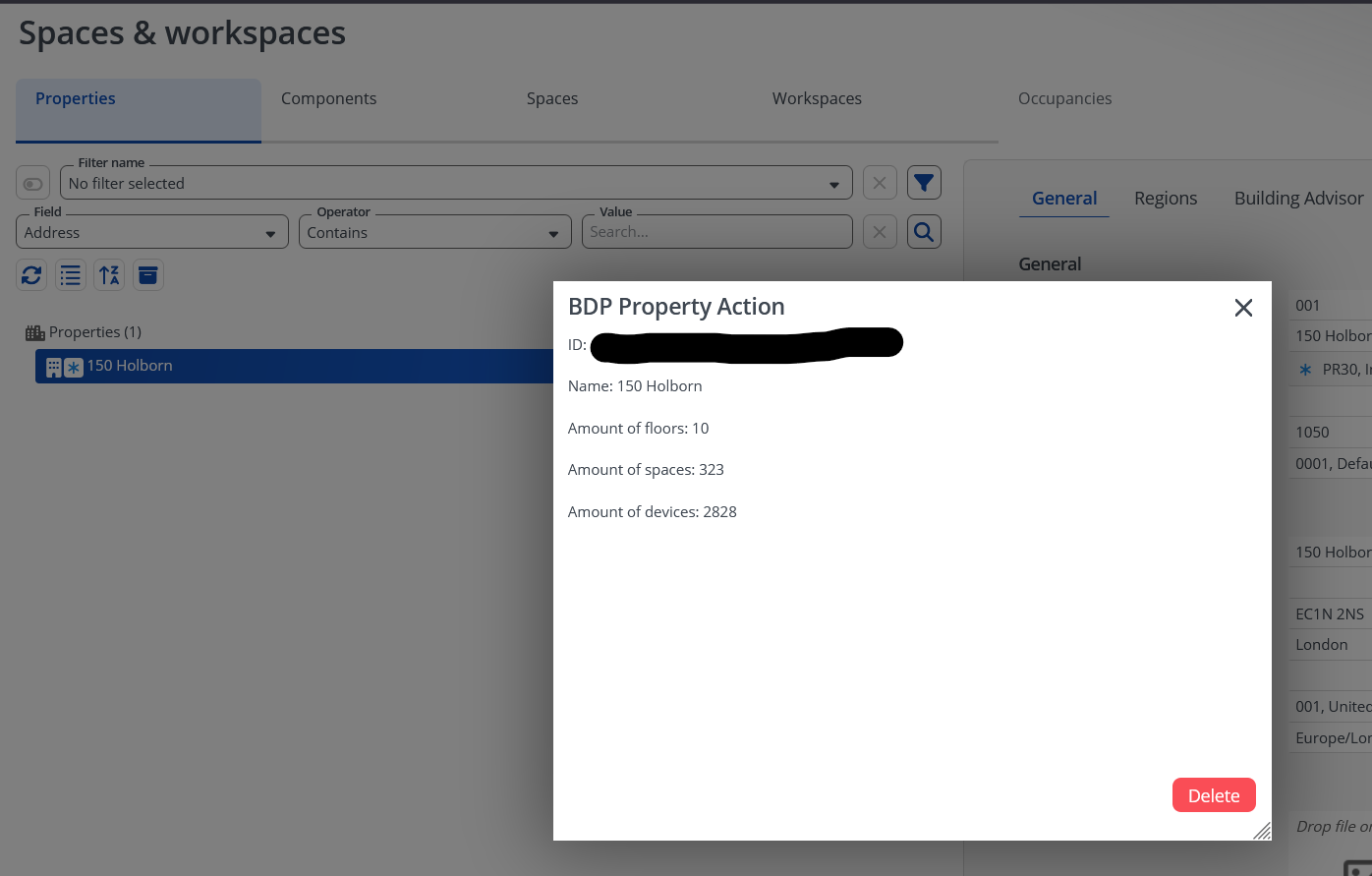
Property action
The property action will link the Planon property to the corresponding BDP site. The resulting link will be used to determine which assets should be onboarded and will be automatically linked to the property.
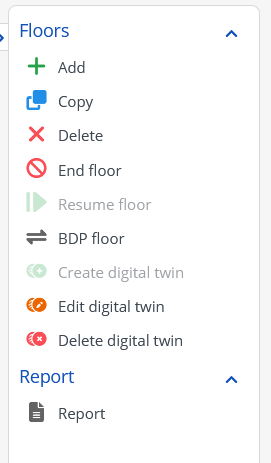
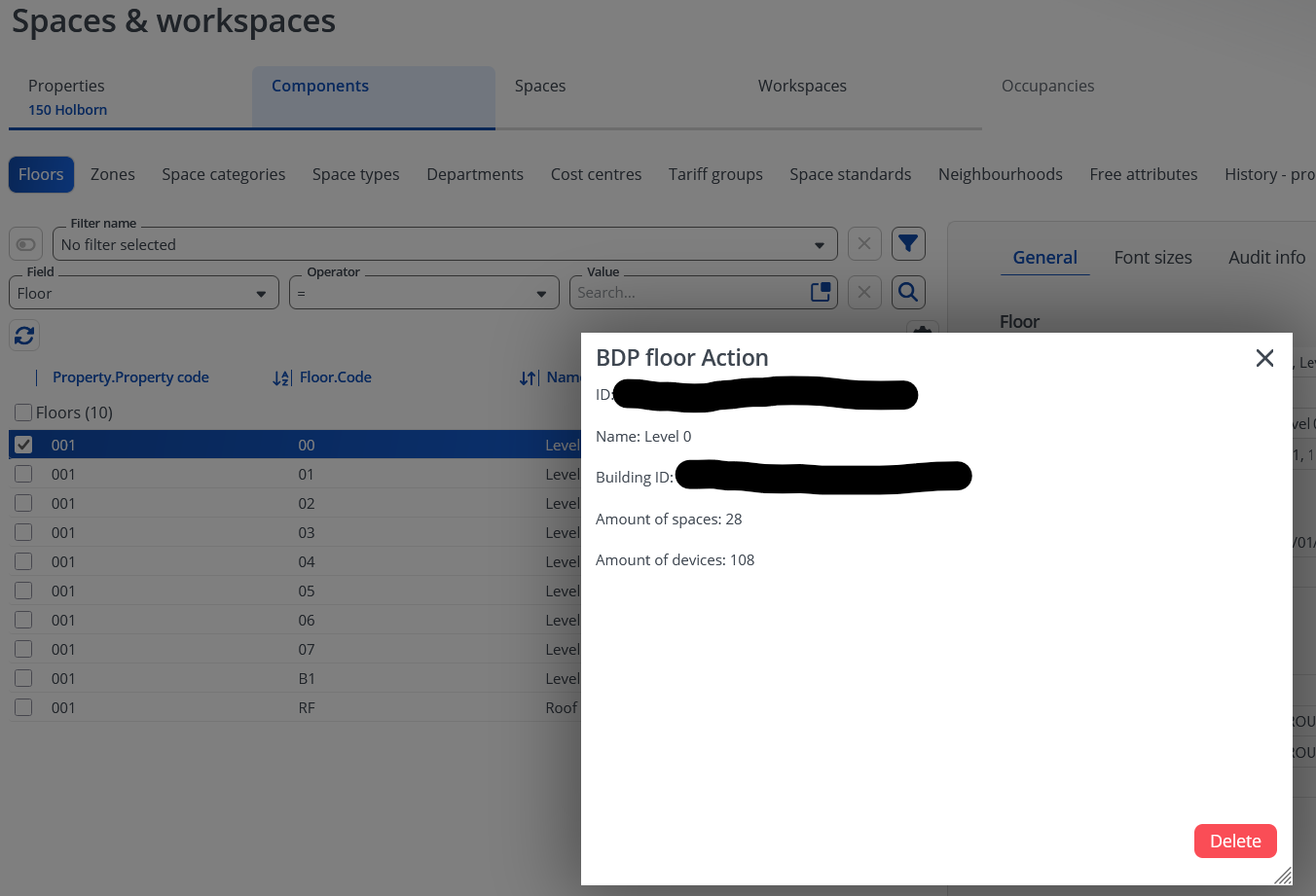
Floor action
This floor action will link the Planon floor to the corresponding BDP floor.
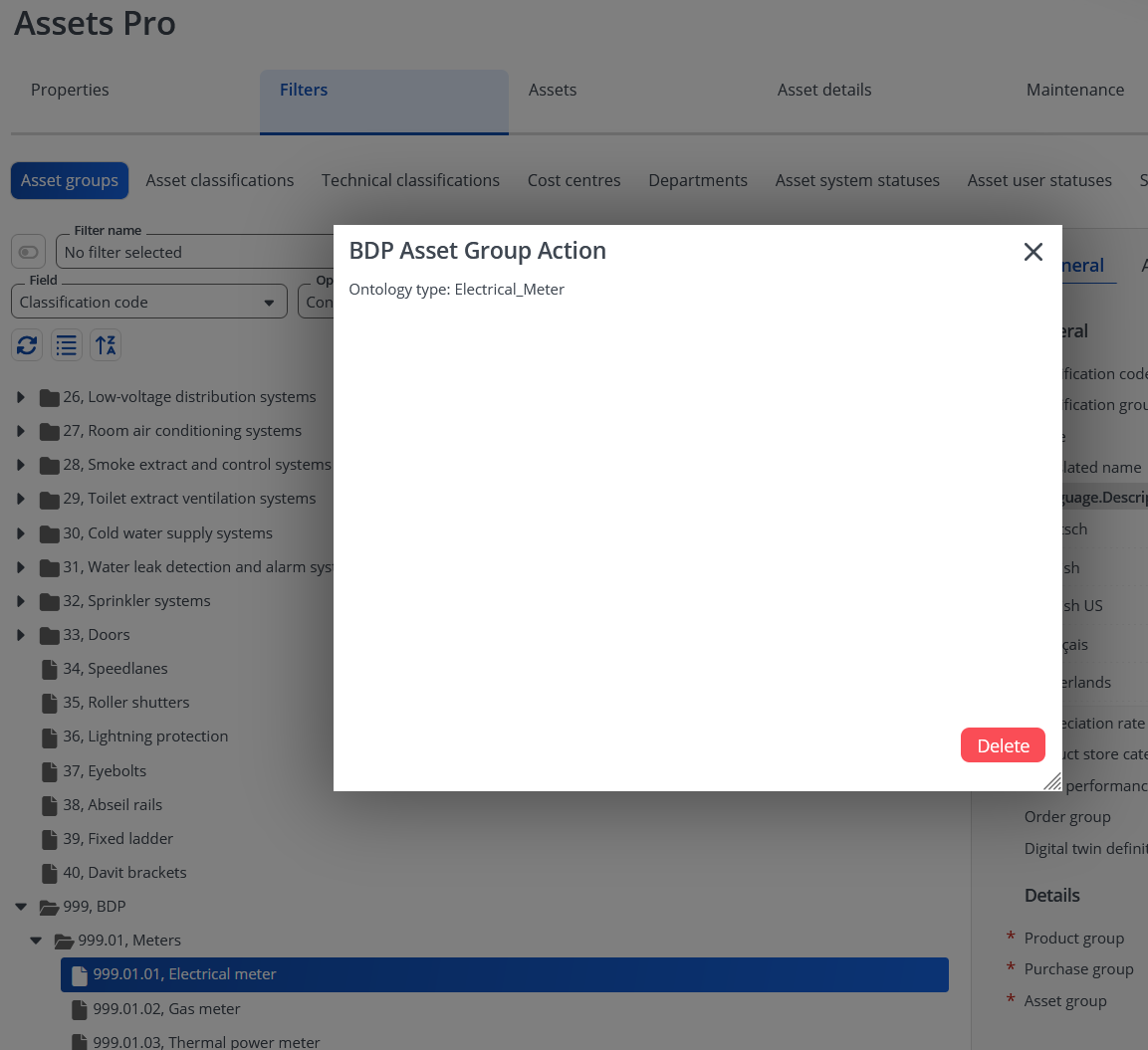
Asset group action
This action will link the Planon asset group to the corresponding BDP device ontology type. This will later determine which asset should be linked to which asset group. If a BDP device is of a certain type that is not linked to an asset group, the default asset group will be used.
Feature 2 – Scheduled tasks
The app has 3 scheduled tasks that will get the data from BDP and move it into Planon.
Scheduled task 1 – BDP data
The first scheduled task will get the space data from BDP and link it to the corresponding floor and property. The mapping of the floors and properties has to be done with the actions described in feature 1. Based on the mapping of the BDP ID’s and the Planon BO objects the spaces can be linked to the matching floor and property. The devices in BDP will be added or updated in Planon as an asset and linked to the corresponding space and asset group, if the space ID and ontology type(/asset group) can be found in the external BO links BO.
Scheduled task 2 – Digital twin creation for assets
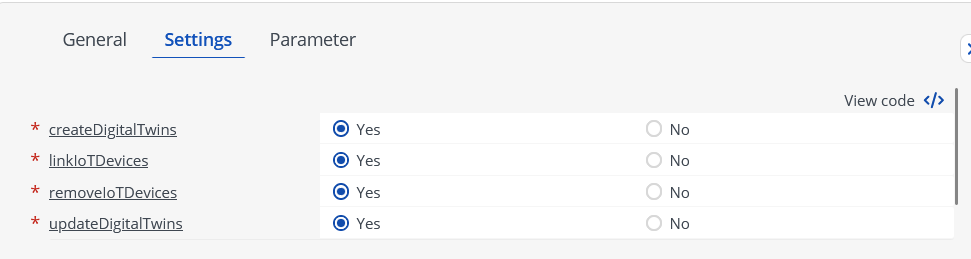
The second scheduled task will create a digital twin for the BDP assets in Planon. Based on either the digital twin linked on a free reference field that can link the digital twin and the free field on the asset group. If the digital twin field on the asset is filled, the digital twin will be created based of that field. When the string value on the asset group is filled, the digital twin will be created based on the value in the free field on the asset group (if it matches a digital twin code). If both are empty, nothing will happen.
Scheduled task settings:
Scheduled task 3 – Smart building digital twins
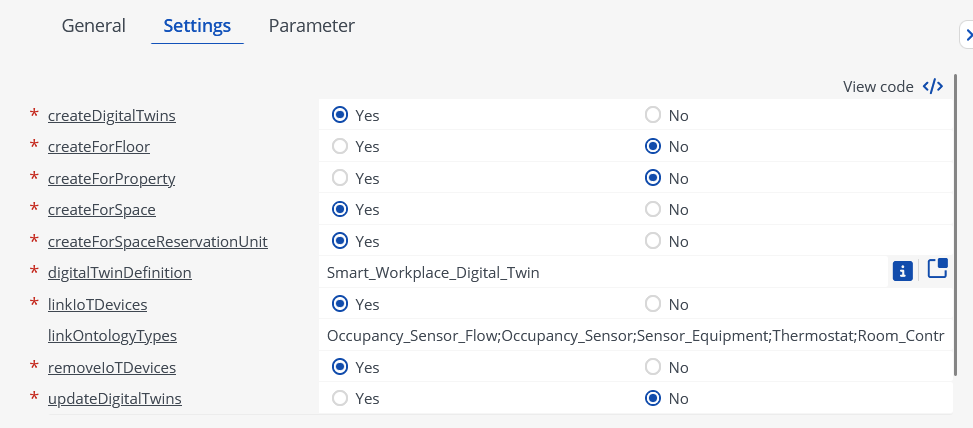
For the AWM usecase certain devices need to be added to the digital twin of a space, reservation, property or floor. These can be set via the scheduled task for smart building. Via the below settings the digital twins will be created.
Feature 3 - IoT eventhub gateway
To instantly get sensor updates from BDP, an eventhub gateway can be created. BDP can provide the connection string together with a consumer group. For the eventhub to properly work, BDP must be configured to also send the EquipmentID in the event payload.
Installation
This chapter describes the steps required to install this app on your Planon environment.
Installation Process
There are two ways to install the app:
- Using the Marketplace
- Manual installation
Install the app by using the marketplace
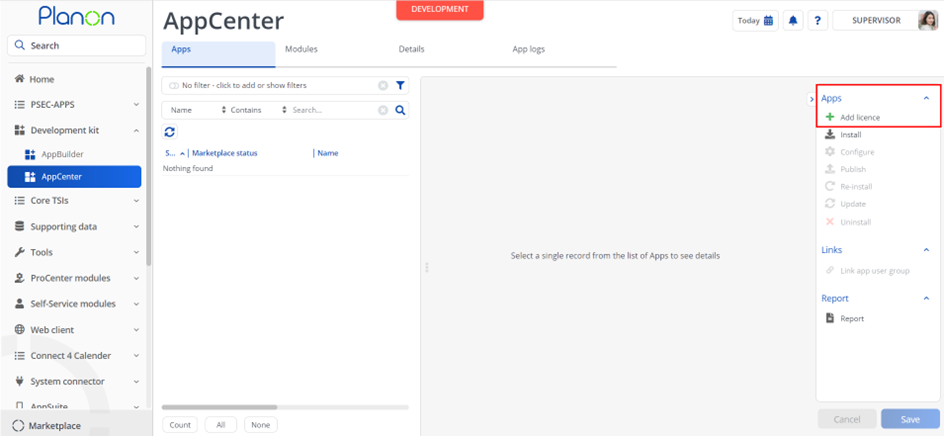
In case your environment is configured to use the Planon app store the only thing required to install the app is to add the app license in the AppCenter TSI. Planon will automatically download and install the app.
Manual installation
In case you want to perform a manual installation follow the steps below.
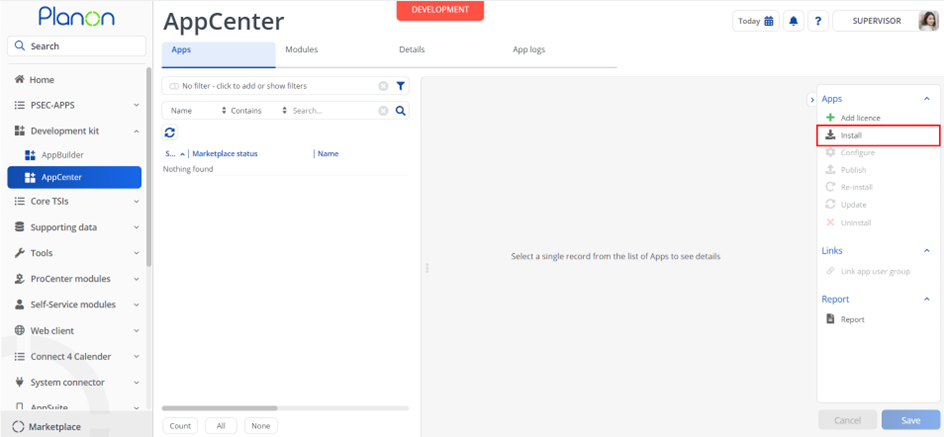
- Open AppCenter TSI from Planon webclient and click on install from action menu
- Browse to the .ppk file
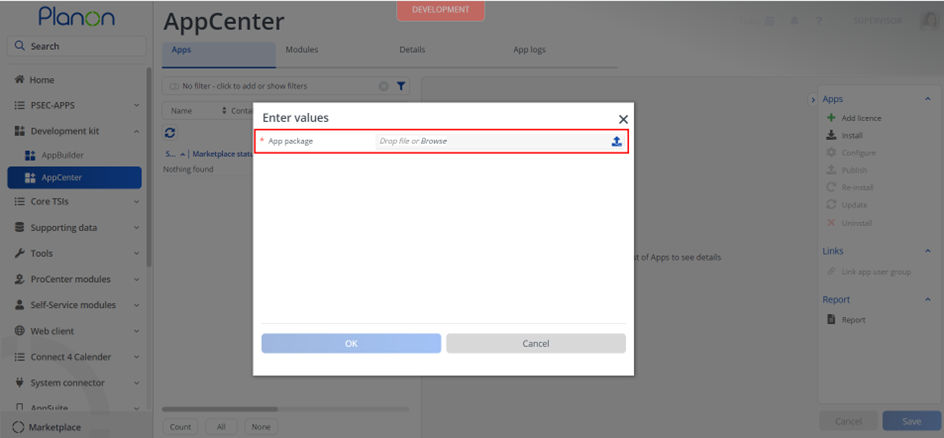
- Click OK to install the app and follow the installation process
- When the app is successfully installed, the app will appear in the AppCenter
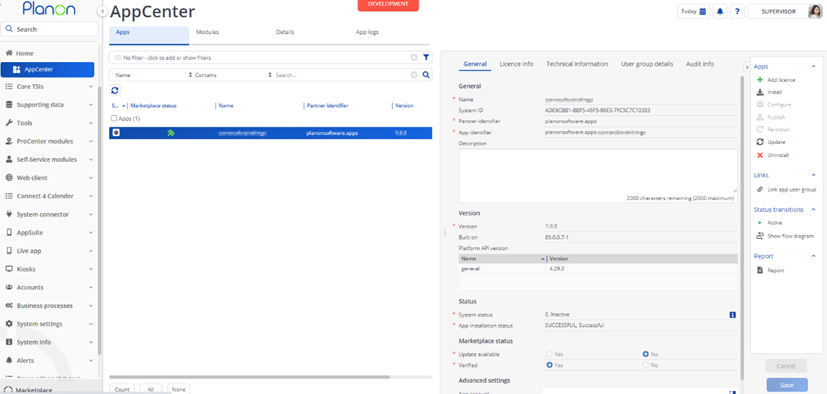
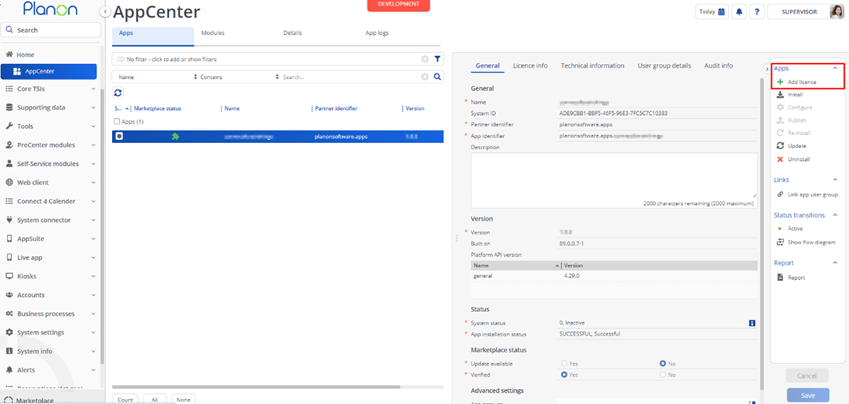
- Add the app license in Apps TSI
Link user groups
In the Planon appcenter user groups can be linked to the app. This can be done via the action “Link app user group”.
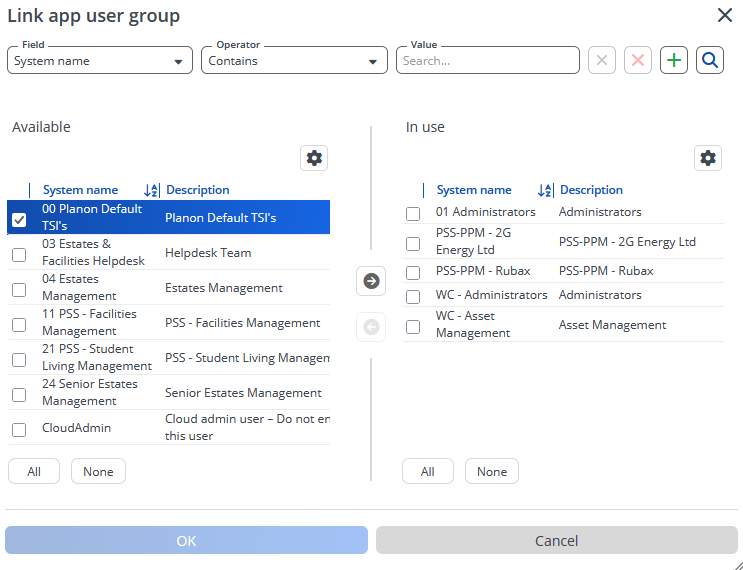
The user groups have to be linked, because else the API call from to frontend to the backend will not work.
App settings
This chapter describes and explains the settings that are available for this app.
Now that the app is installed we can provide the app settings for each module in the ‘modules’ selection level. Provide the module settings (the app configuration) which is available in the Details section.
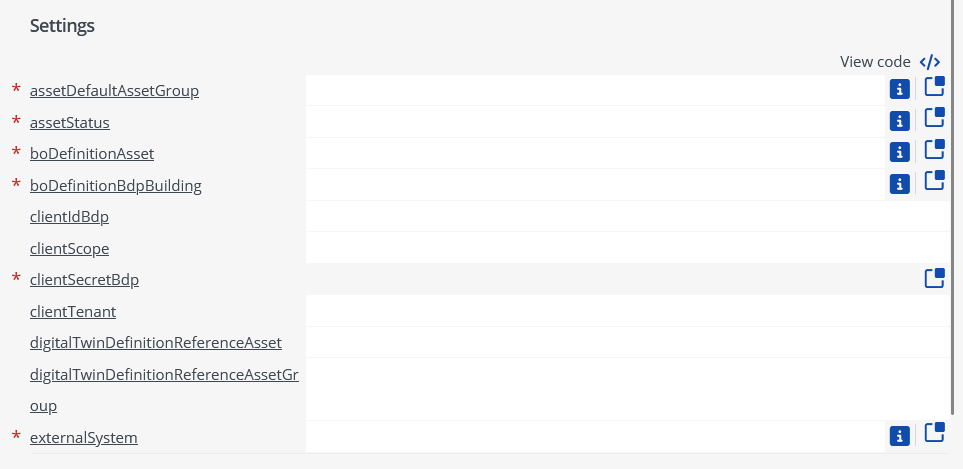
Example settings:
“assetDefaultAssetGroup” :” BDPDefault” “assetStatus” : “In use” “bdpUrl” : “https://ecostruxure-building-platform-api.se.app/api" “boDefinitionAsset” : “MEAsset” “boDefinitionBdpBuilding” : “Building” “clientIdBdp” : Provided by BDP “clientScope” : Provided by BDP “clientSecretBdp” : Provided by BDP “clientTenant” : Provided by BDP “deviceKeepAliveThreshold” : 200, “digitalTwinDefinitionReferenceAsset” : “UsrDigitalTwinDefinitionLink”, “digitalTwinDefinitionReferenceAssetGroup” : “UsrDigitalTwinDefinitionTemplate”, “externalSystem” : “BDP” “spaceSearchField” : “Code”
Click Save button after providing the module settings.
Activation
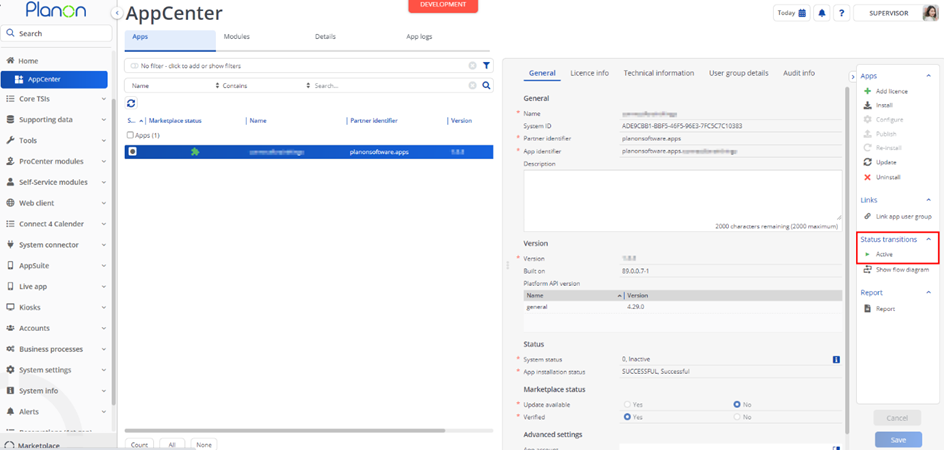
Once the app has been configured, you can activate the app by pressing the Active status transition from the action panel. Always make sure that the required User groups are linked correctly and the Configure action is executed before activating the App.
Planon Configuration
Gateway creation
The gateway is the entrance of BDP to Planon IoT. This is essential for creation and onboarding of all sensors and will automatically create all the devices in Planon IoT. It is recommended to configure this gateway before any other configuration. The onboarding process requires the devices in Planon IoT to be present. Some devices only push their data once an hour and might not be available if the onboarding process is immediately started after the gateway is created.
Execute the following steps to create the gateway:
- First navigate to the TSI – IoT gateway settings
- Choose the corresponding application, in this case ‘connectforbdpsensorreadings’
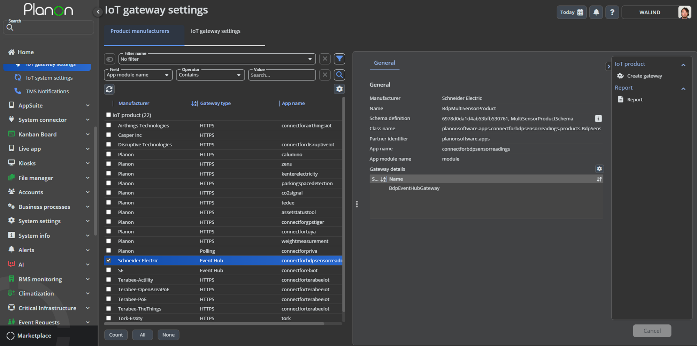
- Drill down to ‘IoT gateway settings’
- Choose ‘Add Event hub gateways’ from the TSI actions
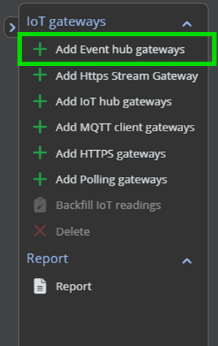
- After creation, fill in the following values:
Event hub connection string Event hub name Consumer group (depending on the BDP settings)
TSI Actions
TSI actions needs to be configured to create a link between Planon BO’s and BDP objects. These links will be used during the onboarding process for the digital twins.
FieldDefiner
Open fielddefiner and select the BO. This can be property or building
Set BO under construction
Optionally select UDBO and click details -> TSI actions
Click add
Select classname: planonsoftware.apps.connectforbdpsensorreadings.tsiactions.TsiActionProperty
Provide translated names. Note their names will be visible in the action menu.
Optionally select an icon
Click save.
Go to the BO and set bo to completed.
Layout
Click “Jump to the layouts” to go to the layout.
Set layout under construction
Add extended action to the layout
Click save and set layout to completed.
This action should be done for the following BO’s and TSI Actions. After the configuration of these actions is done, they should be used to create the links before further configuration.
| Business object | Classname |
|---|---|
| Building | planonsoftware.apps.connectforbdpsensorreadings. tsiactions.TsiActionProperty |
| Floor | planonsoftware.apps.connectforbdpsensorreadings. tsiactions.TsiActionFloor |
| ItemGroup | planonsoftware.apps.connectforbdpsensorreadings. tsiactions.TsiActionAssetGroup |
Scheduled tasks
To automatically onboard the devices, it is possible to create a scheduled task. The first step is to go to the Scheduled tasks TSI and go to the “Task user extensions” selection step.
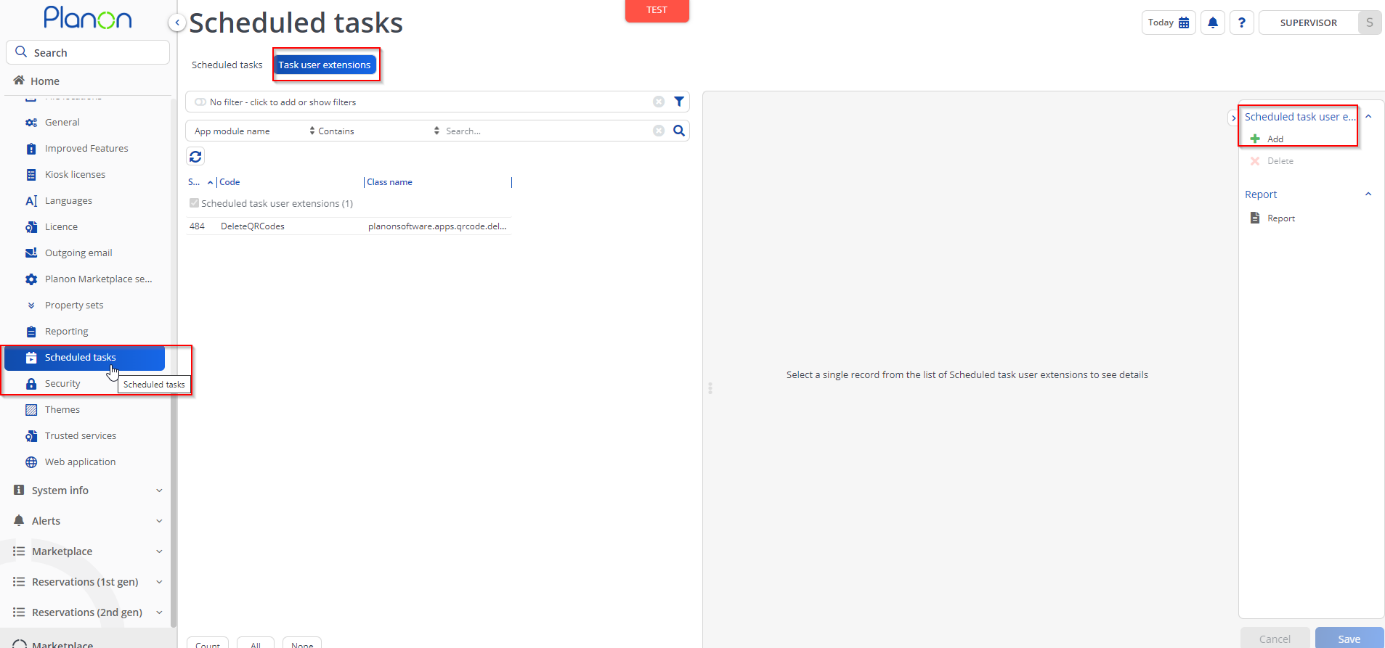
The next step is to add the newly installed app, do this by clicking on the Add button in the action menu and create the action with the following details.
| Property | Value |
|---|---|
| Code | BdpAssetDataScheduledTask |
| Class name | planonsoftware.apps.connectforbdpsensorreadings. scheduledtask.BdpAssetDataScheduledTask |
| User | Supervisor (This can be any desired user with the sufficient rights). |
| Start date-time | Any desired date-time greater than current date-time |
| Schedule |  Here you can select the following details as an example: Here you can select the following details as an example: 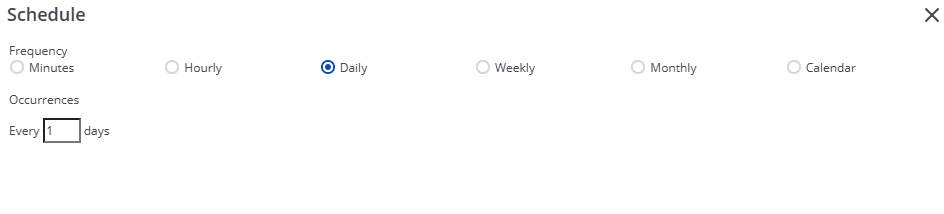 The example uses a daily schedule. A monthly or yearly schedule could also be possible depending on preferences. The example uses a daily schedule. A monthly or yearly schedule could also be possible depending on preferences. |
The same action should be taken for the following tasks. A daily schedule is recommended for all tasks. To ensure that everything is onboarded properly, the tasks should run in the same order as they are specified.
| Code | Classname |
|---|---|
| BdpDigitalTwinsAsset | planonsoftware.apps.connectforbdpsensorreadings. scheduledtask.BdpDigitalTwinsAssetScheduledTask |
| BdpSpaceDataScheduledTask | planonsoftware.apps.connectforbdpsensorreadings. scheduledtask.BdpSpaceDataScheduledTask |
| BdpDigitalTwinsSmartBuilding | planonsoftware.apps.connectforbdpsensorreadings. scheduledtask. BdpDigitalTwinsSmartBuildingScheduledTask |
Troubleshooting
Error handling
- Errors are recorded in the server logs:
- Tomcat log for web components
- Webpages
- PSS modules
- Stepview
- TSI Action
- JAX-RS webservices
- Wildfly log for server-side components
- Business rules
- Scheduled tasks
- Workers
- Event Connector
- Tomcat log for web components
- UI components (TSI Actions) also display errors in the interface