Appendix I - mapping
The solution Planon Connect for Open BIM translates the content of complex BIM models into usable information for facility management. This without user intervention.
The solution supports 2 types of BIM models:
Autodesk Revit models (.rvt);
IFC models (.ifc).
The structure of BIM models differs per type of BIM model. In addition, a BIM model is also constructed differently by each author. It is impossible to draw up regulations so that everyone works according to the same structure. That is why the solution provides a generic translation process based on a specific “mapping table”.
A specific mapping table makes it possible for each customer to apply their own specific translation from BIM to FM. To use a specific mapping table, it must be uploaded with the name “mapping.xlsx”. Then the specific mapping table will be used instead of the default mapping table.
The solution also provides a standard mapping table, in which the most obvious mappings have already been done.
The purpose of the mapping table is to translate a BIM parameter into a parameter known to Planon.
The mapping table is based on an Excel file. This Excel file consists of simple tables, in which the translation of a BIM parameter to a Planon parameter can be easily specified.
This document explains the basic aspects of such a mapping table.
Mapping File
Planon Connect for OpenBIM requires a mapping file.
This mapping file defines which value of which BIM parameter should be used from a BIM model and will be added to the FM parameter for the Planon workflows.
In this article we refer to the following terms:
Source: the BIM Model which contains the data to be analysed. This can be a Revit Model (file format = .RVT) or an IFC Model (file format = .IFC).
Target: the dataset that contains all the desired data for analyses in Planon. This dataset is based on COBie Lite (file format = .XML). About BIM Exchange .
BIM Parameter: the parameter that contains the desired value to retrieve from the source.
FM parameter: the parameter in the target that retrieves the value received from the source.
BIM Data: the actual information to retrieve from the source and add to the target.
The mapping file is a Microsoft Excel file which contains 5 sections. Each section is addressed in a tab.
Mapping
This section contains the mapping between the BIM Parameter and the FM Parameter. It contains a number of columns.
One column is used by the application.
Some columns are used for getting the data from the source.
Some columns are used for adding the data to the target.
Application
The application can support multiple workflows. It is possible for users to add multiple mappings in the same mapping file. For each workflow another mapping.
Planon Connect for OpenBIM supports one workflow, called ‘FM’.
To set the correct application, the user must define the correct value in the column ‘ApplicationType’ for each mapping.
ApplicationType
The user must add the correct values for each mapping to the column ‘ApplicationType’ according to the following specifics.
| Supported Language | Supported value(’s) | Optional / Mandatory |
|---|---|---|
| English only | FM | Mandatory |
Retrieve data from the source:
To retrieve the data from the source, the user must specify from which parameters the data may be retrieved. Because these parameters can be retrieved from the source at different levels, it is required to specify these parameters per level.
This data will be retrieved according to the specifications in the columns ‘Type’ and ‘JSONNode’.
Type
The ‘Type’ contains the levels in the source. The user must add the correct values for each mapping to the column ‘Type’ according to the following specifics.
| Supported Language | Supported value(’s) | Optional / Mandatory |
|---|---|---|
| English only | Project Information, Floors, Spaces, BaseAsset, InventoryLocationAssignment | Mandatory |
Explanation of the supported values:
Project Information: retrieves information on a project level, like the project name or project address;
Floors: retrieves information of building stories, like the name of the building story or the elevation;
Spaces: retrieves information from spaces, like the room name or the room number;
BaseAsset: retrieves information from building elements, like the width of a window;
InventoryLocationAssignment: retrieves information to attach an asset to the correct building story and space.
JSONNode
The ‘JSONNode’ contains the BIM Parameter in the source. The user must add the correct values for each mapping to the column ‘JSONNode’ according to the following specifics.
| Supported Language | Supported value(’s) | Optional / Mandatory |
|---|---|---|
| According to BIM Model | Identical as in the BIM Model | Mandatory |
Planon Connect for OpenBIM uses Autodesk Platform Services to retrieve the desired data from the source and write this to a JSON file. Therefore, the BIM Parameter as available in this JSON file is needed for the correct mapping. There are some remarks about these BIM Parameters:
According to a BIM Model from Autodesk Revit. The language of an Autodesk Revit BIM Model is set by two events:
The installed language of the application defines the language of all the built-in parameters of an Autodesk Revit Model. If a model is saved from a German Autodesk Revit application, all the built-in parameters will be in German as well.
The custom parameters. In an Autodesk Revit Model, a user is able to add custom parameters. The language of those parameters is defined by this user.
Parameters in the JSON file are usually identical as you will find in the BIM Application. However, there might be some exceptions. In this case, you need a sample of the JSON file of the source to understand exactly the correct name of the BIM Parameters.
Add data to the target
To add the data to the target, the user must specify to which parameters the data will be written. Just as the source, the target also contains different levels. These levels are based on the COBie Lite structure.
The data will be written according to the specifications in the columns ‘XML Level’, ‘PlanonXMLNode’, ‘OverrideValue’, ‘AttributeFieldType’, ‘UnitType’ and ‘Position’.
For more information: About BIM Exchange .
XML level
The ‘XML level’ defines the structure of the target. Every mapped FM parameter must have an ‘XML level’. The user must add the correct values for each mapping to the column ‘XML level’ according to the following specifics.
| Supported Language | Supported value(’s) | Optional / Mandatory |
|---|---|---|
| English only | Facility, Floor, FloorAttributes, Spaces, SpaceAttributes, AssetType, Assets, AssetAttributes, AssetSpaceAssignments | Mandatory |
Explanation of the supported values:
Facility: is an xml.element that contains the project information;
Floor: is an xml.element that contains generic information of the building stories;
FloorAttributes: is an xml.element that contains specific information of the building stories;
Spaces: is an xml.element that contains generic information of the rooms or spaces;
SpaceAttributes: is an xml.element that contains specific information of the rooms and spaces;
AssetType: is an xml.element that contains overall information of the building elements;
Assets: is an xml.element that contains generic information of the building elements;
AssetAttributes: is an xml.element that contains specific information of the building elements;
AssetSpaceAssignments: is an xml.element that contains the relationship between Assets and Floors.
PlanonXMLNode
The ‘PlanonXMLNode’ is the parameter that will contain the BIM Data. The user must add the correct values for each mapping to the column ‘PlanonXMLNode’ according to the following specifics.
| Supported Language | Supported value(’s) | Optional / Mandatory |
|---|---|---|
| According to Planon Best Practice | According to Planon Best Practice | Mandatory |
OverrideValue
The ‘OverrideValue’ is a parameter that allows the user to define an override value. For example when Planon expects a value, but the BIM Model does not contain a value. The user can add a string value to the column ‘OverrideValue’ according to the following specifics.
| Supported Language | Supported value(’s) | Optional / Mandatory |
|---|---|---|
| User specific | User specific | Optional |
AttributeFieldType
As a default, the field types are of the type ‘String’. It is possible to override this field type by setting up the ‘AttributeFieldType’, for example to set a decimal value or a date value. The user can override the default string type by adding a different value to the column ‘AttributeFieldType’ according to the following specifics.
| Supported Language | Supported value(’s) | Optional / Mandatory |
|---|---|---|
| English only | AttributeDateValue, DecimalValue, AttributeStringValue | Optional |
Explanation of the supported values:
AttributeDateValue: to force the field type as a date;
DecimalValue: to force the field type as a decimal;
AttributeStringValue: to force the field type as a string.
If AttributeFieldType is used, this property will be added to the xml.element AttributeValue into the COBie Lite.
Mostly UnitType and AttributeFieldType will be used together!
Example result if not used:
<AttributeValue>1000</AttributeValue>
Example result if used:
<AttributeValue> <AttributeDecimalValue>1000</AttributeDecimalValue> <UnitType>meters</UnitType> </AttributeValue>
UnitType
In case of a decimal value that presents a length, it is advised to set the ‘UnitType’. The user can set the ‘UnitType’ by adding a value to the column ‘UnitType’ according to the following specifics.
| Supported Language | Supported value(’s) | Optional / Mandatory |
|---|---|---|
| English only | Meters | Optional |
If UnitType is used, this property will be added to the xml.element AttributeValue into the COBie Lite.
Mostly UnitType and AttributeFieldType will be used together!
Example result if not used:
<AttributeValue>1000</AttributeValue>
Example result if used:
<AttributeValue> <AttributeDecimalValue>1000</AttributeDecimalValue> <UnitType>meters</UnitType> </AttributeValue>
Position
Values can be added to an xml.element as a xml.attribute or as a xml.property. To define this, the user can set this type in the column ‘Position’ according to the following specifics.
| Supported Language | Supported value(’s) | Optional / Mandatory |
|---|---|---|
| English only | Class, Attribute, Facility, Floors, Spaces, AssetType, Assets, AssetSpaceAssignments | Mandatory |
Explanation of the supported values:
Class: the value will be added as an xml.attribute in the xml.element;
Attribute: the value will be added as a xml.property in the xml.element ‘Attributes’;
Facility: the value will be added as a xml.property in the xml.element ‘Facility’;
Floors: the value will be added as a xml.property in the xml.element ‘Floors’;
Spaces: the value will be added as a xml.property in the xml.element ‘Spaces’;
AssetType: the value will be added as a xml.property in the xml.element ‘AssetType’;
Assets: the value will be added as a xml.property in the xml.element ‘Assets’;
AssetSpaceAssignments: the value will be added as a xml.property in the xml.element ‘AssetSpaceAssignments’.
Example
The following table presents an example of a valid mapping
| ApplicationType | Type | XML level | JSONNode | PlanonXMLNode | OverrideValue | AttributeFieldType | UnitType | Position |
|---|---|---|---|---|---|---|---|---|
| FM | Project Information | Facility | ProjectUniqueId | Facility externalID | Class | |||
| FM | Project Information | Facility | Project Number | FacilityName | My BIM Project | Facility | ||
| FM | Project Information | Facility | Project Name | FacilityDescription | BIM | Facility | ||
| FM | Floors | Floor | externalid | Floor externalID | Class | |||
| FM | Floors | Floors | PLN_FloorCode | FloorName | Floors | |||
| FM | Floors | Floors | PLN_FloorName | FloorDescription | Floors | |||
| FM | Floors | FloorAttributes | PLN_FloorCode | PLN_FloorCode | AttributeStringValue | Attribute | ||
| FM | Spaces | Spaces | externalid | Space externalID | Class | |||
| FM | Spaces | Spaces | PLN_SpaceNumber | SpaceNumber | Spaces | |||
| FM | Spaces | Spaces | PLN_SpaceName | SpaceName | Spaces | |||
| FM | Spaces | Spaces | Unbounded Height | SpaceUsableHeightValue | DecimalValue | meters | Spaces | |
| FM | Spaces | Spaces | SpaceGrossAreaValue | SpaceGrossAreaValue | DecimalValue | Spaces | ||
| FM | Spaces | SpaceAttributes | PLN_SpaceNumber | PLN_SpaceNumber | AttributeStringValue | Attribute | ||
| FM | Spaces | SpaceAttributes | PLN_SpaceName | PLN_SpaceName | AttributeStringValue | Attribute | ||
| FM | Spaces | SpaceAttributes | PLN_SpacecategorieCode | PLN_SpacecategorieCode | AttributeStringValue | Attribute | ||
| FM | Spaces | SpaceAttributes | Unbounded Height | Height | AttributeDecimalValue | meters | Attribute | |
| FM | Spaces | SpaceAttributes | Perimeter | Perimeter | AttributeDecimalValue | meters | Attribute | |
| FM | BaseAsset | AssetType | TypeGuid | AssetType externalID | Class | |||
| FM | BaseAsset | AssetType | AssetTypeName | AssetTypeName | AssetType | |||
| FM | BaseAsset | Assets | externalID | Asset externalID | Class | |||
| FM | BaseAsset | Assets | PLN_AssetCode | AssetName | Assets | |||
| FM | BaseAsset | Assets | COBie.Type.Name | AssetDescription | Assets | |||
| FM | BaseAsset | Assets | AssetTagNumber | AssetTagNumber | Assets | |||
| FM | BaseAsset | Assets | AssetIdentifier | AssetIdentifier | Assets | |||
| FM | BaseAsset | AssetAttributes | PLN_AssetType | PLN_AssetType | AttributeStringValue | Attribute | ||
| FM | BaseAsset | AssetAttributes | PLN_AssetCode | PLN_AssetCode | AttributeStringValue | Attribute | ||
| FM | BaseAsset | AssetAttributes | PLN_BaseassetCode | PLN_BaseassetCode | AttributeStringValue | Attribute | ||
| FM | InventoryLocationAssignment | AssetSpaceAssignments | PLN_FloorCode | FloorName | AssetSpaceAssignments | |||
| FM | InventoryLocationAssignment | AssetSpaceAssignments | PLN_SpaceNumber | SpaceName | AssetSpaceAssignments |
Map QTY DIM
OUT OF SCOPE FOR THE CURRENT VERSION
BIM models can be chaotically constructed with respect to the structure. For example, multiple objects can be provided with different parameters that all mean the same thing.
In addition, there is the use case that only a parameter value needs to be retrieved that is determined by the classification of the object.
The solution provides for retrieving the correct parameter values based on predefined mappings. These are called ‘QTY mappings’ in this document.
The ‘QTY mappings’ support the following 2 use cases:
1. Retrieving parameter values based on a series of parameters;
2. Retrieving parameter values based on a search filter
Use case 2 can be combined with use case 1.
The following 4 columns apply to the ‘QTY mapping’:
Parameter: describes the name of the interpretation. This name refers to the specified name in the “PlanonXMLNode”. This parameter always starts with the value:
‘Map_’ for use case 1
‘Map_QTY, ’ for use case 2
SubType: only applies to use case 2 and describes the value for looking up the correct search filter. SubType always starts with ‘MAP_’;
MapByRef: only applies to a combination of use case 2 with use case 1 and refers to the name of the QTY mapping intended for use case 1;
MapRule: applies to use case 1 and describes the series of BIM parameters in which the correct value is looked up. The series of parameters is distinguished by ‘||’.
Examples
Example use case 1
Retrieve parameter values based on a set of parameters. Return the value for the height of all objects.
The name of the BIM parameter of object 1 is “Height”;
The name of the BIM parameter of object 2 is “Unconnected Height”;
The name of the BIM parameter of object 3 is “pre_Height”.
The rule is:
| Parameter | SubType | MapByRef | MapRule (JSONNode) |
|---|---|---|---|
| Map_Height | Unconnected Height || pre_Height || Height |
The solution first searches for Unconnected Height. If the parameter exists, the value is returned. If the parameter does not exist, it searches for pre_Height and so on.
Example use case 2
Retrieving parameter values based on a search filter.
All objects have a BIM parameter “PLN_BaseassetUnit”. This parameter is provided with a value, for example ‘M1’ or ‘M2’ and represents the desired unit for the object.
All objects have a BIM parameter ‘Perimeter’ and ‘Area’, which are provided with a value.
The rule is:
| Parameter | SubType | MapByRef | MapRule (JSONNode) |
|---|---|---|---|
| Map_QTY, PLN_BaseassetUnit | MAP_M1 | Perimeter | |
| Map_QTY, PLN_BaseassetUnit | MAP_M2 | Area |
The solution searches for the value in the BIM parameter PLN_BaseassetUnit and gets the value ‘M2’. Based on this value, the solution searches for the value in the BIM parameter ‘Area’.
Example combination of use case 1 and 2
Retrieving parameter values in a series of BIM parameters based on a search filter.
All objects have BIM parameter ‘PLN_BaseassetUnit’. This parameter is provided with a value, for example ‘M1’ or ‘M2’ and represents the desired unit for the object.
The objects can have different BIM parameters, namely ‘pre-Perimeter’, ‘Perimeter’, ‘pre-Area’ or ‘Area’, which may or may not be provided with a value.
The rule is:
| Parameter | SubType | MapByRef | MapRule (JSONNode) |
|---|---|---|---|
| Map_Perimeter | pre_Perimeter || Perimeter | ||
| Map_Area | pre_Area || Area | ||
| Map_QTY, PLN_BaseassetUnit | MAP_M1 | Map_Perimeter | |
| Map_QTY, PLN_BaseassetUnit | MAP_M2 | Map_Area |
The solution searches for the value in the BIM parameter ‘PLN_BaseassetUnit’ and gets the value ‘M2’ back. Based on this value, the solution first searches for the value in the ‘pre_Area’. If there is a value here, this value is returned. Otherwise, the solution searches further in the BIM parameter “Area”.
Asset Filter
The solution basically translates all the assets from the source to the target.
However, the solution also allows to set a scope for these assets. The solution provides for filtering the objects based on predefined mappings. This is called the ‘Asset Filter’
The following 4 columns apply to the ‘Asset Filter’:
FilterGroup;
FilterObject;
FilterOperator;
Filtervalue.
FilterGroup
The filterGroup allows to combine rules with ‘AND’ or ‘OR’ statements.
It is not allowed to combine rules with ‘AND’ and ‘OR’ statements.
| Supported Language | Supported value(’s) | Optional / Mandatory |
|---|---|---|
| English only | AND, OR | Optional |
FilterObject
The filterObject describes the property that is used for the filter.
| Supported Language | Supported value(’s) | Optional / Mandatory |
|---|---|---|
| English only | RevitCategory, RevitCategoryType, RevitFamilyName, RevitTypeName, RevitName | Optional |
| According to BIM Model | Name of the BIM Parameter | Optional |
Explanation of the supported values:
RevitCategory: to filter assets based on their Revit Category;
RevitCategoryType: to filter assets based on the RevitCategoryType (RevitCategoryType = Model Category collects all elements in a Model Category);
RevitFamilyName: to filter assets based on their family name;
RevitTypeName: to filter assets based on their type name;
RevitName: to filter assets based on their name;
BIM Parameter: to filter assets based on a parameter value, such as “Assembly Code”.
A parameter may not be unique in an object. Although this is not BIM Best Practice, it happens that an object has duplicate parameters.
To make sure that the correct parameter is used, it is possible to add the name of the parameter group as a prefix.
FilterOperator
The filterOperator describes the operator of the filter.
| Supported Language | Supported value(’s) | Optional / Mandatory |
|---|---|---|
| English only | =, <>, Contains, NotContains, BeginsWith, EndsWith, HasValue, HasNoValue, - <, <=, >, >, * | Optional |
Explanation of the supported values:
= (Equals);
<> (NotEquals);
Contains;
NotContains;
BeginsWith;
EndsWith;
HasValue (FilterValue column remains empty);
HasNoValue (FilterValue column remains empty);
< (Smaller than);
<= (Smaller than or equal);
> (Greater than);
>= (Greater than or equal);
* (Wildcard) (FilterValue column remains empty).
Filtervalue
The filtervalue describes the value to filter on. This column always has a value unless the operator is equal to “*”, “HasValue” or “HasNoValue”.
| Supported Language | Supported value(’s) | Optional / Mandatory |
|---|---|---|
| According to BIM Model | Any BIM Parameter according to JSON | Mandatory according to used FilterOperator |
Examples
Based on the filter mapping below, all objects in the BIM model are retrieved.
This is the default mapping.
| FilterGroup | FilterObject | FilterOperator | FilterValue |
|---|---|---|---|
| Objectid | * |
Based on the filter mapping below, only the walls and floors from the Revit model are retrieved.
| FilterGroup | FilterObject | FilterOperator | FilterValue |
|---|---|---|---|
| RevitCategory | = | Walls | |
| AND | RevitCategory | = | Floors |
Based on the filter mapping below, only the walls and floors from the IFC model are retrieved.
| FilterGroup | FilterObject | FilterOperator | FilterValue |
|---|---|---|---|
| IfcClass | = | IFCWalls | |
| AND | IfcClass | = | IFCFloors |
Based on the filter mapping below, all objects for which the Assembly Code parameter has a value are returned.
| FilterGroup | FilterObject | FilterOperator | FilterValue |
|---|---|---|---|
| Assembly Code | HasValue |
Based on the filter mapping below, a combination is applied using the “Or” statement.
Retrieve all objects where the Assembly Code begins with “22” or if not available retrieve all objects where the Keynote begins with “22”.
| FilterGroup | FilterObject | FilterOperator | FilterValue |
|---|---|---|---|
| Assembly Code | BeginsWith | 22 | |
| OR | Keynote | BeginsWith | 22 |
In case of duplicate parameters in an object, the parameter group can be added as a prefix.
Retrieve all objects where the Name contains “Office” where the parameter Name is available in the group Identity Data.
| FilterGroup | FilterObject | FilterOperator | FilterValue |
|---|---|---|---|
| Identity Data.Name | Contains | Office |
Space Filter
The solution basically translates all the spaces from the source to the target.
However, the solution also allows to set a scope for the spaces. The solution provides for filtering the spaces based on predefined mappings. This is called the ‘Space Filter’
The following 4 columns apply to the ‘Space Filter’:
FilterGroup;
FilterObject;
FilterOperator;
Filtervalue.
FilterGroup
The filterGroup allows to combine rules with ‘AND’ or ‘OR’ statements.
It is not allowed to combine rules with ‘AND’ and ‘OR’ statements.
| Supported Language | Supported value(’s) | Optional / Mandatory |
|---|---|---|
| English only | AND, OR | Optional |
FilterObject
The filterObject describes the property that is used for the filter.
| Supported Language | Supported value(’s) | Optional / Mandatory |
|---|---|---|
| English only | RevitCategory, RevitFamilyName, RevitTypeName, RevitName | Optional |
| According to BIM Model | Name of the BIM Parameter | Optional |
Explanation of the supported values:
RevitCategory: to filter spaces based on their Revit Category;
RevitFamilyName: to filter spaces based on their family name;
RevitTypeName: to filter spaces based on their type name;
RevitName: to filter spaces based on their name;
BIM Parameter: to filter spaces based on a parameter value, such as “Assembly Code”.
A parameter may not be unique in an object. Although this is not BIM Best Practice, it happens that an object has duplicate parameters.
To make sure that the correct parameter is used, it is possible to add the name of the parameter group as a prefix.
FilterOperator
The filterOperator describes the operator of the filter.
| Supported Language | Supported value(’s) | Optional / Mandatory |
|---|---|---|
| English only | =, <>, Contains, NotContains, BeginsWith, EndsWith, HasValue, HasNoValue, - <, <=, >, >, * | Optional |
Explanation of the supported values:
= (Equals);
<> (NotEquals);
Contains;
NotContains;
BeginsWith;
EndsWith;
HasValue (FilterValue column remains empty);
HasNoValue (FilterValue column remains empty);
< (Smaller than);
<= (Smaller than or equal);
> (Greater than);
>= (Greater than or equal);
* (Wildcard) (FilterValue column remains empty).
Filtervalue
The filtervalue describes the value to filter on. This column always has a value unless the operator is equal to “*”, “HasValue” or “HasNoValue”.
| Supported Language | Supported value(’s) | Optional / Mandatory |
|---|---|---|
| According to BIM Model | Any BIM Parameter according to JSON | Mandatory according to used FilterOperator |
Examples
Based on the filter mapping below, all spaces in the BIM model are retrieved.
This is the default mapping.
| FilterGroup | FilterObject | FilterOperator | FilterValue |
|---|---|---|---|
| Objectid | * |
Based on the filter mapping below, both Rooms and Spaces (Revit only) from the Revit model are retrieved.
| FilterGroup | FilterObject | FilterOperator | FilterValue |
|---|---|---|---|
| RevitCategory | = | Rooms | |
| AND | RevitCategory | = | Spaces |
Based on the filter mapping below, only the Spaces from the IFC model are retrieved.
| FilterGroup | FilterObject | FilterOperator | FilterValue |
|---|---|---|---|
| IfcClass | = | IFCSpaces |
Based on the filter mapping below, all spaces for which the PLN_SpaceNumber parameter has a value are returned.
| FilterGroup | FilterObject | FilterOperator | FilterValue |
|---|---|---|---|
| PLN_SpaceNumber | HasValue |
Based on the filter mapping below, all spaces of the Revit Category Rooms from a German saved Revit Model are returned.
| FilterGroup | FilterObject | FilterOperator | FilterValue |
|---|---|---|---|
| RevitCategory | = | Räume |
In case of duplicate parameters in an object, the parameter group can be added as a prefix.
Retrieve all objects where the Name contains “Office” where the parameter Name is available in the group Identity Data.
| FilterGroup | FilterObject | FilterOperator | FilterValue |
|---|---|---|---|
| Identity Data.Name | Contains | Office |
Settings
In some cases the solution requires addition language mappings.
The solution contains some built-in parameters. In particular for supporting Japanese customers it is necessary to specify a mapping for these built-in parameters.
The solution provides for mapping the built-in parameters. These are called “Language mappings” in this document. The Language mappings are built in Tab “5.Language”.
In case of non-English models, the language mapping is mandatory!
Example
Based on the language mapping below, various built-in parameters from Japanese BIM models are translated to the desired target parameters.
The example below concerns German models.
| ParameterName | Description | DefaultValue | MappedValue |
|---|---|---|---|
| mappedBuildingStorey | Used for recognising Level objects in an SVF/SVF2 Revit conversion. | properties.Identity Data.Building Story | properties.ID-Daten.Gebäudegeschoss |
| mappedTypeName | Used for recognising instance level objects during an SVF2 Revit conversion. | properties.Identity Data.Type Name | properties.ID-Daten.Typname |
| mappedConstraintsLevel | This parameter is utilized to establish connections between Space elements and Floor elements within the COBieLite hierarchical structure. | properties.Constraints.Level | properties.Abhängigkeiten.Ebene |
| mappedRoomsValue | in non-English Revit versions, the term Rooms may be translated | value = “Rooms” | value = “Räume” |
| mappedSpacesValue | in non-English Revit versions, the term Spaces may be translated | value = “Spaces” | value = “Bereiche” |
The example below concerns Japanese models.
| ParameterName | Description | DefaultValue | MappedValue |
|---|---|---|---|
| … | … | … | … |
The columns ParameterName, Description and DefaultValue may not be changed!
Remarks using the Model Derivative API
Data to be analyzed
For understanding which data in a Revit Model is analysed, it is important to understand your Views in your Revit Model.
Revit uses Views to present a 3D Model. Among these Views there are 3D-Views.
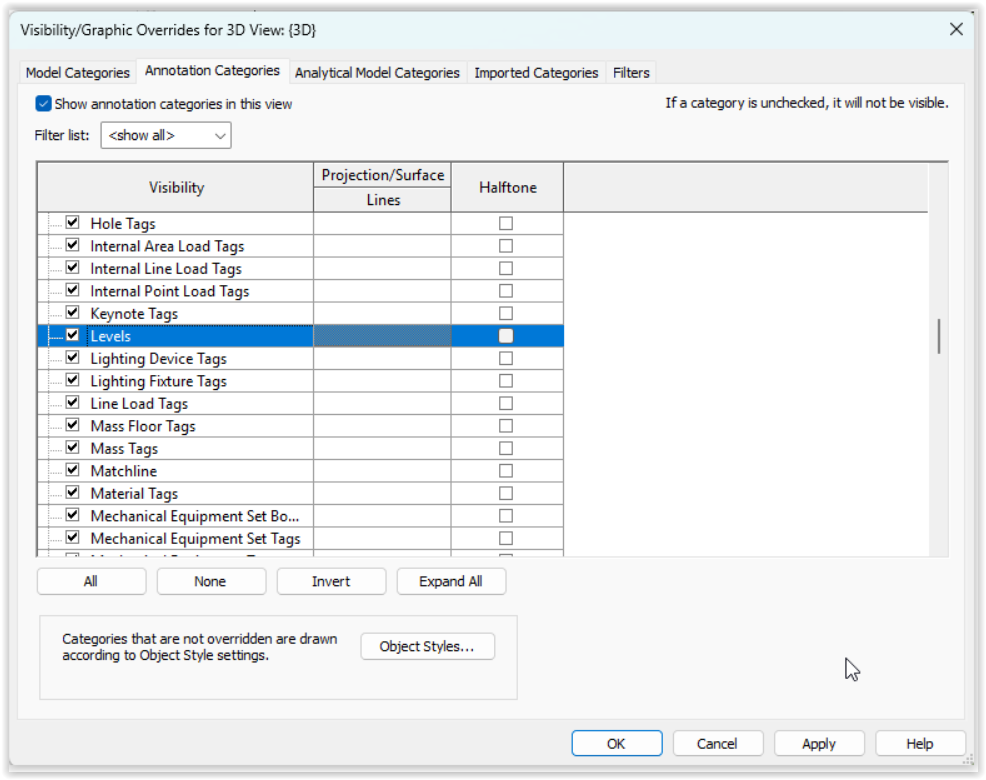
Revit Users can create their own 3D-Views. In each View it is possible to setup the visibility of all the desired Model Categories or Annotation Categories.
For more information to set up the visibility of a View see: Autodesk Help | Visibility and Graphics
Planon Connect for Open BIM uses Autodesk Platform Services (APS). To analyse the correct information for your BIM-FM workflow it is important to understand that APS requires a 3D-View. So, Planon Connect for Open BIM requires a 3D-View.
To make sure that u user is able to determine which information must be analysed, the user must make sure that one of the below 3D-Views is available in the Revit Model:
Planon BIM Connect (primary)
{3D} (secondary)
In these Views, the user can setup all the desired Model Categories and Annotation Categories that must be analysed.
If those Views are not available, APS will use the first View it finds in your Revit Model! This view might not contain the correct information to analyse!
Remark
Make sure that the Annotation Category called “Levels” is activated in your 3D-View to analyse “Floors”.