Planon Connect for Cisco Rooms IoT
Introduction
Planon Connect for Cisco Rooms IoT streamlines onboarding and ingestion of Cisco room telemetry into Planon IoT.
The app creates one HTTPS gateway and one IoT product definition for Cisco room devices. Incoming payloads are mapped to PersonCount and Occupancy readings using the configured schema and payload transformation logic.
The following HTTPS gateway is supported:
- CiscoGateway
Prerequisites
Environment
- This app is designed for Planon release 135 and above.
Constraints
- Active Planon IoT
- IoT user linked to the app
- User linked to the app has access to Event Connector, Enterprise Service API, and Json Services product
Required (free)fields
- N/A
Assumptions
- Incoming payload contains deviceId, timestamp, and changes.updated fields used in schema mapping.
- RoomAnalytics.RoomInUse values are provided as boolean or as string values True/False.
Features
This chapter describes the features of the Connect for Cisco Rooms IoT app.
Onboarding
This app creates an HTTPS gateway and product definition that support onboarding of Cisco room devices into Planon IoT.
Planon IoT determines whether an incoming device is new or existing based on the custom ID mapped from the payload field deviceId.
If the incoming device is new, Planon IoT creates a device and stores readings based on the defined schema.
Record readings in Planon IoT
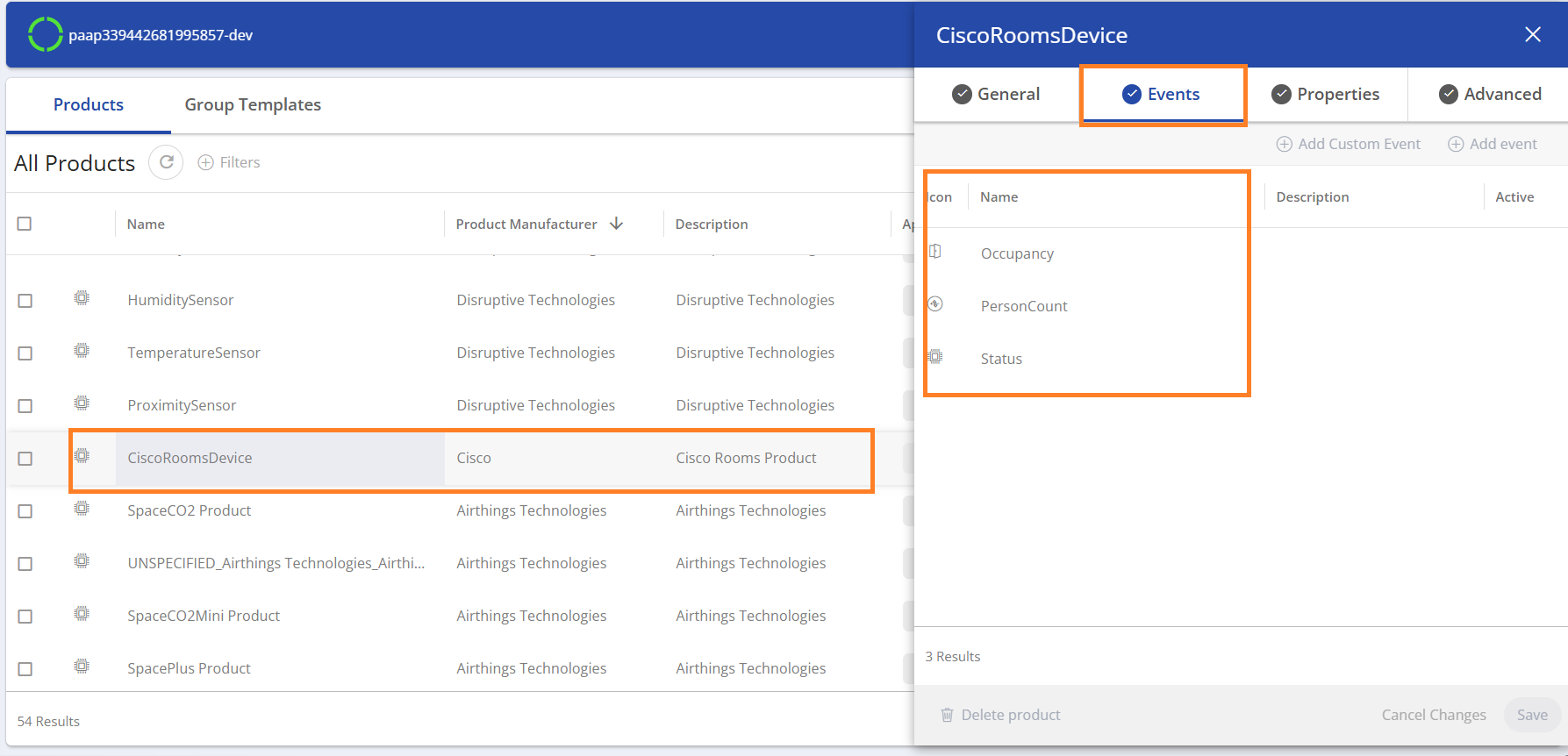
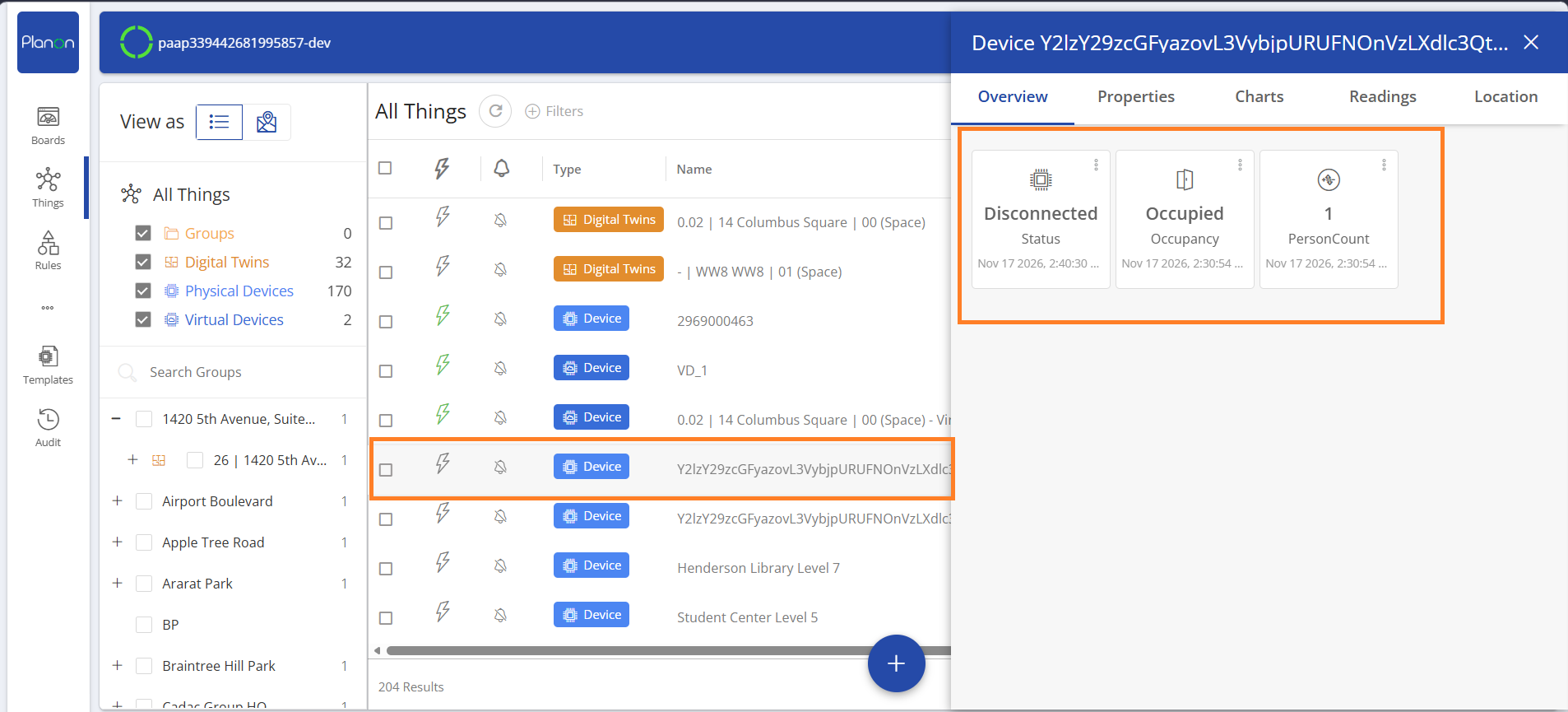
This app records the following readings:
- PersonCount (counter)
- Occupancy (occupancy state with value range)
The app includes a payload transformation function that converts RoomAnalytics.RoomInUse to a numeric state:
- If value is True or true state becomes 1
- If value is False or false state becomes 0
- If changes.updated[‘RoomAnalytics.PeopleCount.Current’] is less than 0, it is set to 0
HTTPS gateway
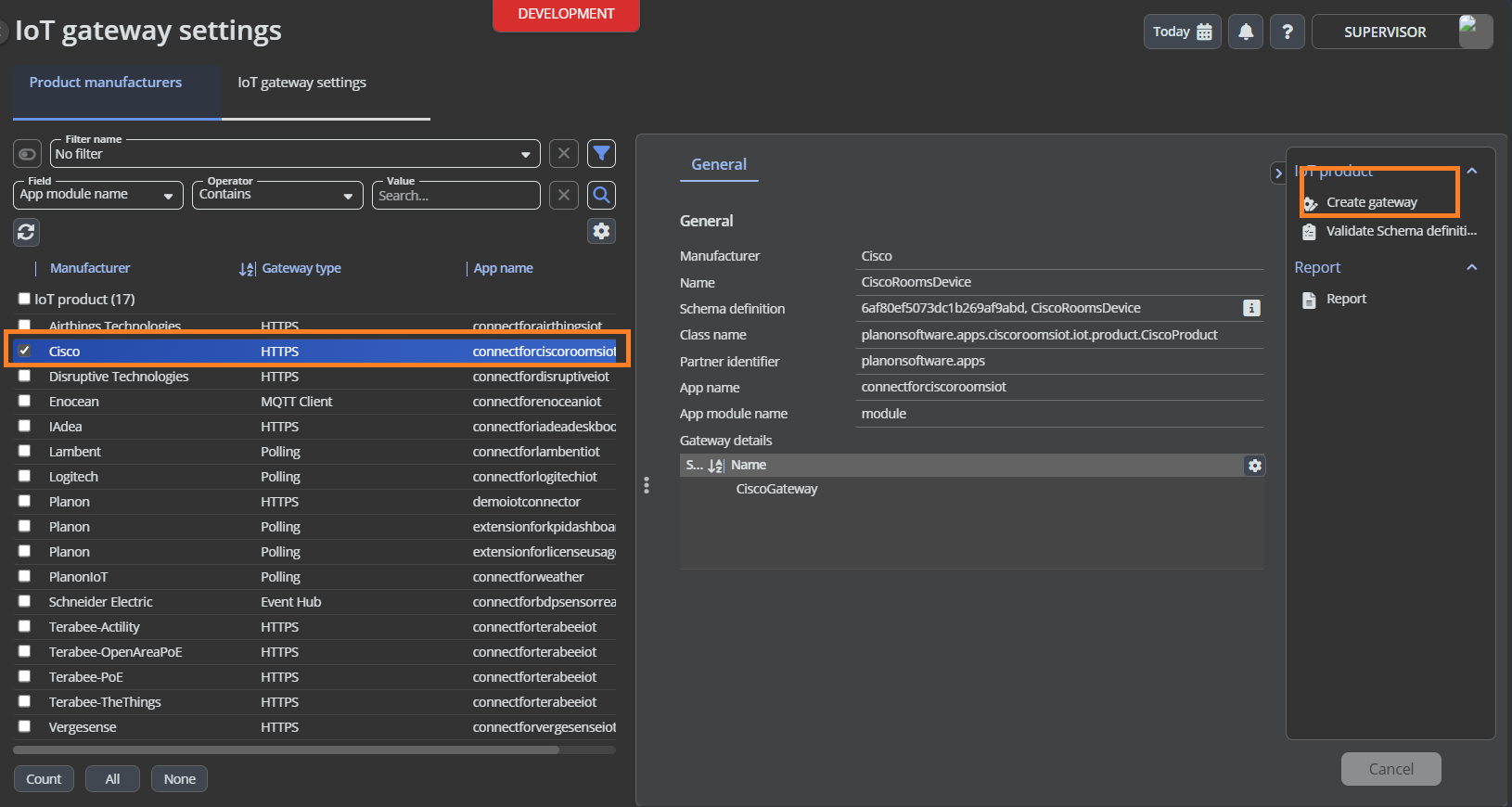
The app configures one HTTPS gateway for Cisco ingestion.
Planon IoT installation and configuration
Before using the app, Planon IoT must be activated and configured.
For more information about Planon IoT settings, see Planon webhelp: IoT system settings (planoncloud.com)
Installation
This chapter describes the steps required to install this app on your Planon environment.
Installation Process
There are two ways to install the app:
- Using the Marketplace
- Manual installation
Install the app by using the marketplace
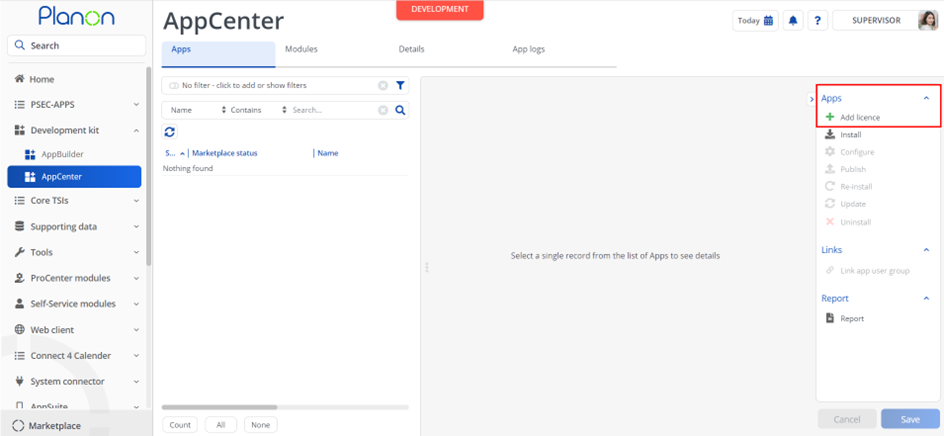
In case your environment is configured to use the Planon app store the only thing required to install the app is to add the app license in the AppCenter TSI. Planon will automatically download and install the app.
Manual installation
In case you want to perform a manual installation follow the steps below.
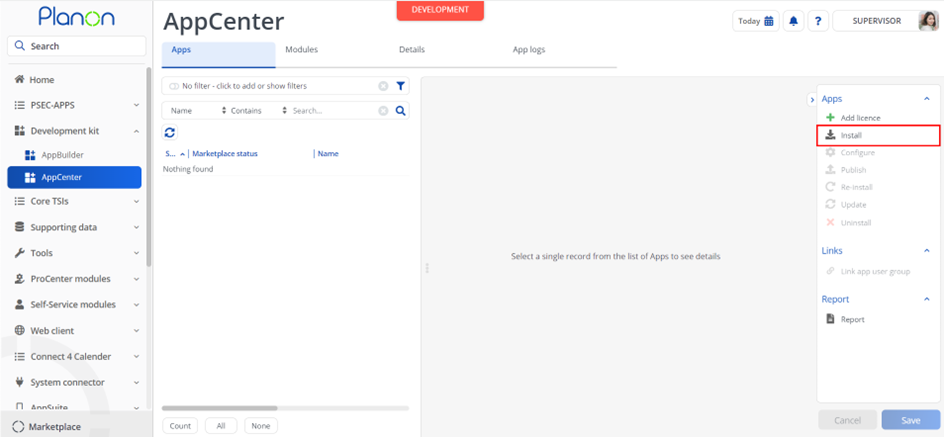
- Open AppCenter TSI from Planon webclient and click on install from action menu
- Browse to the .ppk file
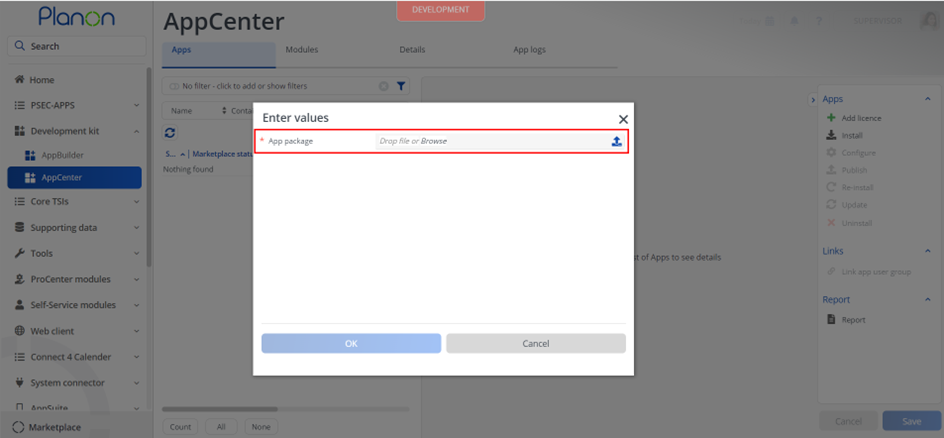
- Click OK to install the app and follow the installation process
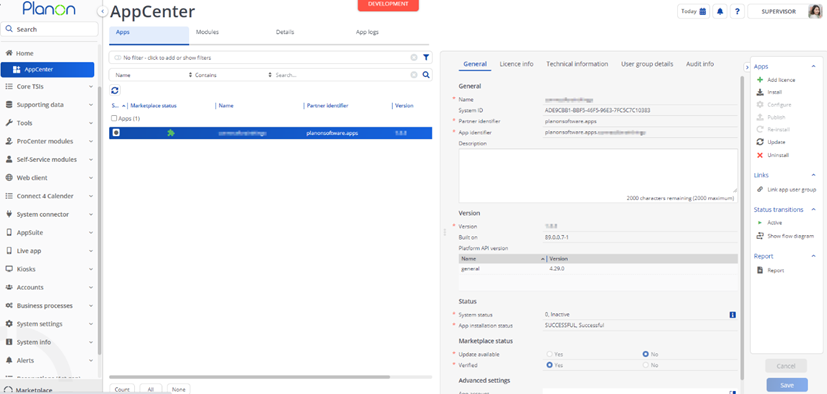
- When the app is successfully installed, the app will appear in the AppCenter
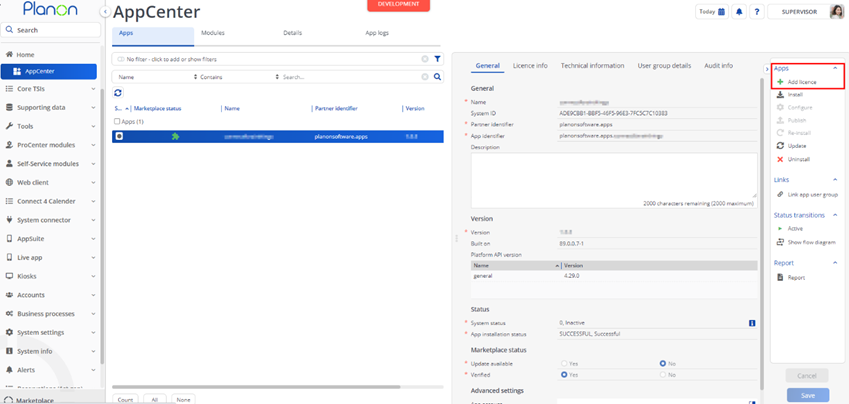
- Add the app license in Apps TSI
Configuration of settings
Once the app is installed, open Module Settings and configure:
| Parameter | Recommended Value | Description |
|---|---|---|
| keepAliveThresholdCiscoProduct | 5 | Timeout in minutes before CiscoRoomsDevice is marked disconnected when no readings are received |
Activation
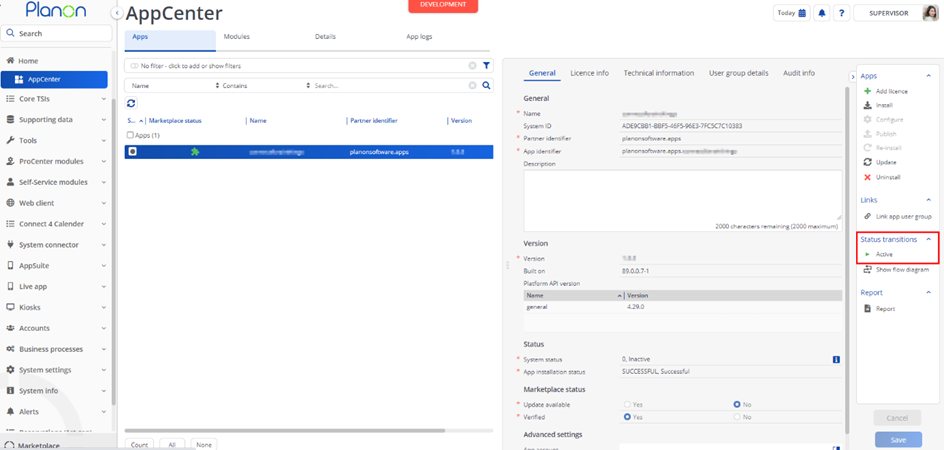
Once the app has been configured, you can activate the app by pressing the Active status transition from the action panel. Always make sure that the required User groups are linked correctly and the Configure action is executed before activating the App.
Planon IoT Configuration
Creation of gateway
Once the app is installed and activated, the app creates:
- CiscoGateway
Use this gateway for the third-party system that sends Cisco room telemetry to Planon IoT.
An authentication token is generated for the gateway and used with the endpoint https://gw.ams.planoniot.com/events.
Product definition
The app defines one product:
- Product name: CiscoRoomsDevice
- Manufacturer: Cisco
- Description: Cisco Rooms Product
- Datapoints: PersonCount, Occupancy
Occupancy is configured with value range:
- Occupied -> 1
- Not occupied -> 0
Schema
The schema maps payload fields into Planon IoT fields as follows:
- deviceId mapped as Custom ID
- timestamp mapped as reading DateTime
- changes.updated[‘RoomAnalytics.PeopleCount.Current’] mapped to PersonCount
- state mapped to Occupancy
state is populated by the payload transformation function from changes.updated[‘RoomAnalytics.RoomInUse’]. Negative values in changes.updated[‘RoomAnalytics.PeopleCount.Current’] are normalized to 0 by the payload transformation function.
Payloads
Cisco Rooms status payload
{
	"type": "status",
	"deviceId": "Y2lzY29zcGFyazovL3VybjpURUFNOnVzLXdlc3QtMl9yL0RFVklDRS9iMzI1MmE5ZC00MTMyLTQwZDctYmU4YS01NTIxMDVjZWZhYmE=",
	"workspaceId": "Y2lzY29zcGFyazovL3VybjpURUFNOnVzLXdlc3QtMl9yL1BMQUNFL2Y3NzQwMDY1LWU1MjEtNDFmNy1hYjRjLTI5OWNjMzFjMGNmOQ==",
	"orgId": "Y2lzY29zcGFyazovL3VybjpURUFNOnVzLXdlc3QtMl9yL09SR0FOSVpBVElPTi83NmRiNWY5Mi0xNDMzLTQ1MGEtYTJmOS1lZWM4NDEwODExYmY=",
	"appId": "65d94e8e-4450-4c8b-b0c0-5e3f476cc8d8",
	"timestamp": "2026-11-16T07:51:40.856Z",
	"changes": {
		"updated": {
			"RoomAnalytics.PeopleCount.Current": 2,
			"RoomAnalytics.RoomInUse": true
		},
		"removed": []
	},
	"isFullSync": false
}
Transformed payload for occupancy mapping
The payload transform writes a top-level state field when RoomInUse is present.
{
	"state": 1
}
Onboarding and readings
Onboarding
Configure the sender to post events to:
Include the gateway token in the Authorization header.
Planon IoT creates a new device when no existing device is found for the mapped custom ID deviceId.
Readings
Readings are recorded based on datapoints and schema configuration.
CiscoRoomsDevice mapping
| Payload field | IoT field/reading |
|---|---|
| deviceId | Device ID in Planon IoT (Unique ID) |
| timestamp | Reading time |
| changes.updated[‘RoomAnalytics.PeopleCount.Current’] | PersonCount |
| changes.updated[‘RoomAnalytics.RoomInUse’] | Source for state transform |
| state | Occupancy |
Troubleshooting
Error handling
If ingestion fails, review server logs and Planon IoT logs for schema or payload mapping issues.
IoT activated
Make sure IoT is activated and client credentials are configured in system settings.
IoT user linked to the app
If the configured IoT user is not linked to the app, the app cannot communicate correctly between Planon and Planon IoT.
Payload shape validation
Verify that payloads contain:
- deviceId
- timestamp
- changes.updated.RoomAnalytics.PeopleCount.Current
- changes.updated.RoomAnalytics.RoomInUse