Planon Connect for Facilities-IQ - Activity library
Introduction
Planon Connect for Facilities-iQ Standard Activities provides the ability to create Maintenance libraries, Standard service plans, and Standard activities in Planon based on the data defined in SFG20’s Facilities-iQ system.
Prerequisites
Environment
This solution is designed to work with Planon Live L123 and above.
Constraints
The app is based on below constraints
The app works with Objective-based maintenance (“AMM 3.0”) only. Please see the Planon Web Help topic here if you are unclear on what this means
The app creates Activity definitions based on the data from Facilities-iQ. Planon concepts/field data a customer may wish to populate on an Activity definition may not exist in the Facilities-iQ concept. For example, Activity definition groups used as a mechanism for selecting activities for clustering, do not exist in Facilities-iQ. This information must be populated another way.
Activity definition schedules are created based on data from Facilities-iQ The timing of an activity (e.g. every 1 month) is derived from data within the SFG20 tasks. Activity definition schedule BOs are created based on this information
Overulling activities is not supported in the SFG20 concept A 3 month visit should take place at the same time as a 6 month visit, ensuring that all of the tasks for both are carried out at the same time. The activity clustering concept in Planon could be used to prevent multiple work orders being generated for the same asset.
Legislation, notes, and introductory content is not available through SFG20’s API URLs based on ‘smart words’ found at the Check list item level can instead direct users to Facilities-iQ where this information is available. Schedules without tasks, such as introductory schedules, are excluded from the API.
Asset register functionality is not included in this version of the connector Based on customer feedback, this version of the connector to Facilities-iQ focuses on creating Standard activities which can be linked to Properties, Spaces, or Assets as required by customers.
SFG20 specific details of check list items (Smart words URL, Task notes, Classification colour) cannot be made visible via the Planon App, Work Assignments module (“PMFS Live”)
The Work Assignments module will require framework and UI design changes to enable these fields to be visible for the end user.
The Planon Asset and Maintenance Management Product Team are unable to comment on when the requirement to have these details visible will be included on their roadmap for PMFS improvements.
Required free BOs & free fields
The app requires below free fields
BO MaintenanceLibrary
A Free String field to store Regime version
A Free String field to store SharedLink Id
A Free String field to store Regime Id
BO BaseMaintenanceServicePlan
A Free String field to store Schedule Id
A Free String field to store Schedule Version
A Free String field (length of 100) to store Schedule Code
BO StandardActivityDefinition
A Free String field to store Skills
A Free String field(length of 100) to store Schedule Code per frequency
BO BaseActivityDefinition
A Free String field (length of 100) to store Schedule code per frequency
A Free String field (length of 100) to store Skills
BO BaseMaintenanceActivityDefinition
A Free String field (length of 100) to store Schedule code per frequency
A Free String field (length of 100) to store Skills
BO StandardChecklistItem
A Free String field to store task id (length of 100)
A Free String field to store task url (length of 100)
A Free field (Pick list) to store task classifiction
A Free Remark field to store steps from task
BO CheckListItem
A Free String (length of 100) field to store task id
A Free String field (length of 100) to store task url
A Free Remark field to store steps from task
A Free field (Pick list) to store task Classification
BO BaseMaintenanceChecklistItem
A Free String (length of 100) field to store task id
A Free String field (length of 100) to store task url
A Free Remark field to store steps from task
A Free field (Pick list) to store task Classification
Note: Please see important notes in chapter 6 regarding the choice of fields made for activities and check list items.
Assumptions
This design and functionality of the solution is based on the following assumptions:
You already have access to SFG20’s Facilities-iQ software.
SFG20 have provided you the Access Token required to connect to the Facilities-iQ solution.
The user installing this app has a level of Planon knowledge that includes:
Configuring ‘free fields’ for business objects
Updating layouts
Updating pick list items
If further support is required with installation of the app or related configuration please contact your Planon Account Manager regarding support from Planon Services.
There are resources available for support in using Facilities-iQ including the Help Centre available within the platform, or the Learning Lab:
https://sfg20learninglab.myabsorb.eu/#/login
If you require any additional guidance in use Facilities-iQ please contact your Account Manager at SFG20.
Features
Create or update of Maintenance Library
The app fetches regimes data from Facilities-iQ. For each regime selected, an Maintenance library is created or updated based on its unique id. If a regime is already mapped with a Activity library, then the Activity library is updated with associated data from the regime. Otherwise, a new Activity library is created.
Create or update of Standard Service plans
The regimes comes with one or multiple schedules which has a group of tasks and activities. Each schedule under Regime is created as a Standard Service Plan in Planon.
Schedule is mapped to Standard Service Plan via the schedule code. If a schedule already exists, then the data is updated.
The standard service plan in Planon can be linked to Asset Group or Technical Classification. User can choose either of them via the app settings that should be linked.
Create or update of Standard Activity definitions
Once the Maintenance Library and Standard Service Plan are created with the regime data, the next process is creating Standard Activity definitions. Regimes from Facilities-iQ include SFG20 ‘schedules’. Each schedule also contains multiple tasks with different frequencies. The tasks are grouped with Frequency & Period, then a standard activity definition is created for each frequency, for example 3 Months, 6 Months etc. If a Standard Activity definition already exists, then it is updated with new data from the schedule.
Create or update of Standard Planning details
The frequency & period under the schedule defines the planning of the activities. The combination of frequency & period is created as Standard Planning details using Activity definition schedule for the standard activity.
If a particular activity definition schedule does not exist, a new record is created. For example if a “3 Months” record does not exist in Planon, a new record is created and then linked to the standard planning details record.
Create or update of Standard Check list items
Each Standard activity definition has a list of ‘tasks’ to be done while working on the Activity order. The task data of each schedule is considered as a Check list item of the activity. In an activity library concept these are ‘Standard check list items’.
Whenever we create or update schedules via this app, the corresponding tasks are also created or updated in Planon as Standard check list items associated to the Standard activity definition.
Create or update of Standard activity costs – labour hours
The tasks of the schedule from Facilities-iQ also define the amount of labour time required for the activity. This time is recorded as Activity costs – labour hours. This BO will be updated whenever a regime is updated.
Register Webhook and receive Updates
Facilities-iQ supports publishing updates to Planon when ever a new version of Regime went live. In Order to receive updates, a Webhook needs to be registered for each Plan (Counterpart of Regime).
Update Webhook
The webhook created requires a Planon Access key in order to enable login to Planon to send details to Planon. Access keys have an expiration date; this feature is used to update the webhook with a new access key.
Send Completed Tasks
SFG20 expects completed tasks from Planon to be shared to Facilities-iQ. When a Maintenance Activity (linked to an order) related to a SFG20 Plan is completed, the connector sends the checklist items (Planon’s counterpart of SFG20 Tasks) that are completed, and ‘completed with observations’.
How does it work?
This chapter provides a technical description of the features above.
Creation or Update of Standard Maintenance Library
The app comes with a TSI Action (‘Update from Facilities-iQ’) which will be configured on the Standard Maintenance Library business object (system name: MaintenanceLibrary) and associated layouts. The action looks for any regimes that have completed the regime approval process in Facilities-iQ and are now considered live.
When a user clicks on this action, any regimes that have updates and are available, based on the share ID being provided in app settings, will be presented.
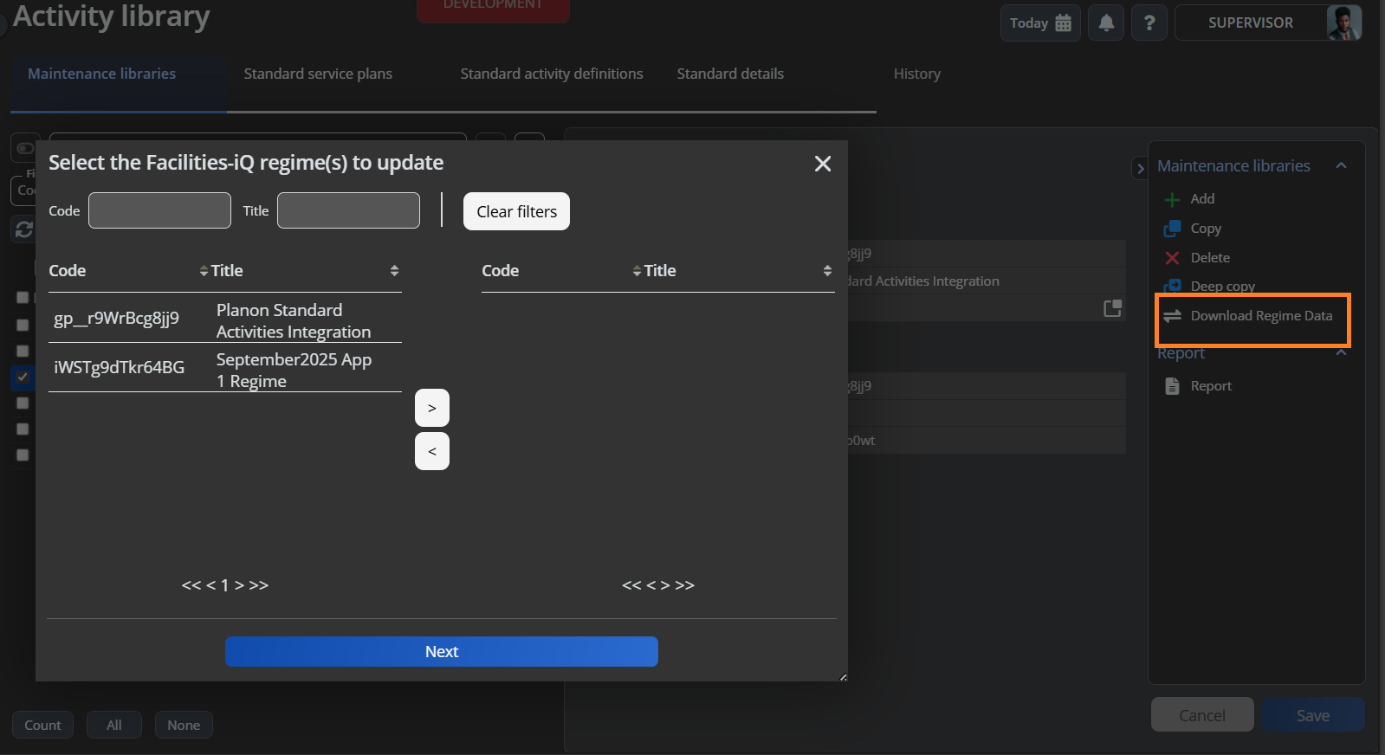
The user can select multiple regimes from the list. Once the regimes are selected, user needs to click Next to proceed to create all the corresponding data in Planon.
If this is the first time the regime is imported a Maintenance Library will be created, else the existing maintenance plan that matches the Facilities-iQ ‘regime id’ will be updated.
Synchronization of the schedules within the regime runs in the background. Once the synchronization is completed, the UI is updated with the status of the synchronization.
The status can be one of the following statuses
Skipped
Partially Imported
Success
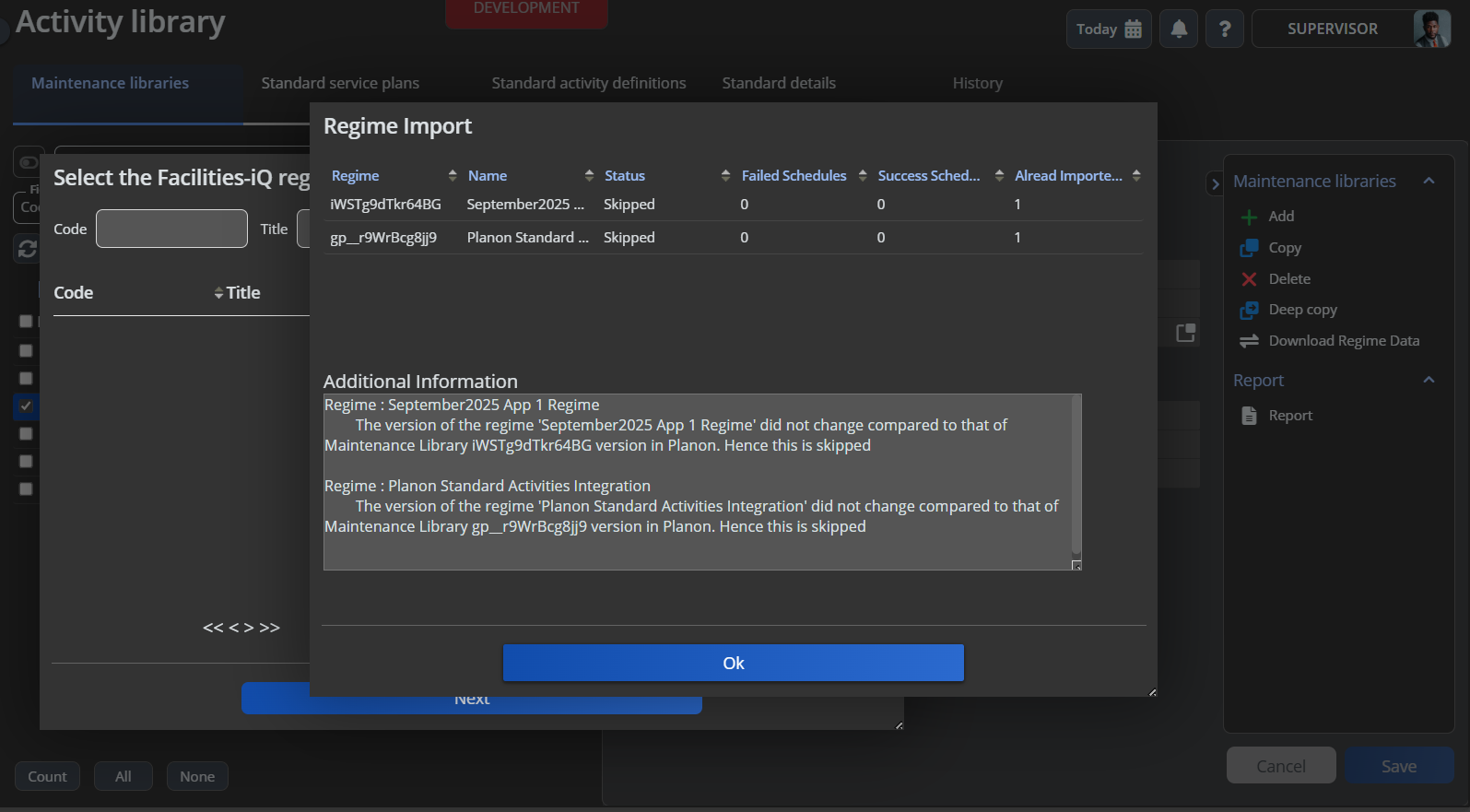
The details of the records that are skipped or partially imported can be seen within the dialog box. The text here can be copied if required.
For each selected regime, a Standard Maintenace Library is created in Planon. If the library already exists for the regime, then the library is updated with new regime data.
Below is mapping between regime from FacilitiesIQ and Planon Maintenance Library.
| Planon Field Name | Planon Field System Name | Planon Field User-defined System Name | Mapping |
|---|---|---|---|
| Code | Code | Requires a default value (Codegen) to create. Can be modified by user later | |
| Description | Description | Facilities-iQ regime.name | |
| Shared Link Id | Any free field | UsrSharedLinkId | Shared Link Id of the regime |
| Regime Id | Any free field | UsrRegimeId | Facilities-iQ regime.id |
| Regime Version | Any free field | UsrFIQVersion | Facilities-iQ regime.version + 1 (Version value that comes from the API is ‘Zero-indexed’) |
Create or Update of Standard Service Plans
After handling the library, the next task is handle the service plan (StandardMaintenanceServicePlan). As explained in the chapter 3.2, a standard service plan is created for each schedule under the Regime.
Also, the standard service plan is linked to either Asset group or Technical classification based on the user choice which can be defined in the app settings.
The schedule code is mapped to the Code field of Standard Service Plan in Planon. Examples of schedule codes are 03-01-130, C05-10-250 etc
Also, the app updates the Asset Group or Technical classification on the standard service plan. In either case, the record to be linked is identified using the schedule code. The first two parts of the schedule code is used to identify the record.
Scenario 1: Standard Schedules in SFG20
The code of such schedules will be in the format of 03-01-130. In this case, the first two parts 03-01 is used to identify the Asset group or technical classification. If the corresponding the group or classification is not present is Planon, a new record is created and linked to the Plan.
Scenario 2: Customized or Tailor Made Schedules in SFG20
The code of such schedules will be in the format of C05-10-250. In this case, the first two parts excluding the letter which gives 05-10 is used to identify the Asset group or technical classification. If the corresponding the group or classification is not present is Planon, a new record is created and linked to the Plan.
In case of an update, if the regime does not the contain a schedule, the corresponding service plan in Planon is archived.
| Planon Field Name | Planon Field System Name | Planon Field User-defined System Name | Mapping |
|---|---|---|---|
| Code | Code | Auto Generated | |
| Description | Description | Facilities-iQ schedule.rawTitle | |
| Activity Type | ActivityTypeRef | See Logic for Activity type below | |
| Is Activity Service Plan? | IsActivityServicePlan | Default set to Yes | |
| Asset groupORTechnical Classification | ItemGroupRefORTechnicalClassificationRef | Facilities-iQ schedule.code Main schedule code only – e.g. 03-01 | |
| Facilities IQ Schedule Id | UsrScheduleId | Facilities-iQ schedule.id | |
| Facilities IQ Schedule Version | UsrFIQVersion | Facilities-iQ schedule.version + 1 (Version value that comes from the API is ‘Zero-indexed’) | |
| Facilities IQ Schedule Code | UsrFIQScheduleCode | Facilities-iQ schedule.code |
Creation or Update of Standard Activity definitions
Once the Service plan is created, the next step in the process is to create or update Standard Activity definitions (StandardActivityDefinition) for the plan.
A schedule comes with different set of frequencies like 3 Months, 1 Week, 2 Years etc. A standard activity definition is created for each frequency under schedule.
When an existing schedule is updated, the app checks if the activity definition exists for a frequency. If the definition do not exist, a new standard activity definition is created. Else the existing activities are updated.
If a particular frequency is removed under the schedule, the corresponding activity definition is archived in Planon.
Scenario1:
We have added a brand new regime to Facilities-iQ
Schedule 1 (05-30) with frequencies of 1 and 3 Months
Schedule 2 (01-03) with frequencies of 6 Months, 12 Months and 2 Years.
Downloading this regime into Planon results in following:
One Maintenance Library
Two Standard Service Plans
Standard Service Plan 1 (05-30) with two Standard Activity Definitions
Standard Activity Definition for 1 Month
Standard Activity Definition for 3 Months
Standard Service Plan 2 (01-03) with 3 Standard Activity Definitions
Standard Activity Definition for 6 Months
Standard Activity Definition for 12 Months
Standard Activity Definition for 2 Years
Scenario2:
We are now updating the schedules associated to the exisiting regime As part of our update schedule 1 has added with frequencies of 6 months, where as Frequency of 6 Months is removed from schedule 2.
Updating this regime into Planon results in following:
Standard Service Plan 1
Standard Activity Definition for 1 Month is updated with latest data
Standard Activity Definition for 3 Months is updated with latest data
New Standard Activity Definition for 6 Months is created
Standard Service Plan 2
Standard Activity Definition for 6 Months is archived
Standard Activity Definition for 12 Months is updated with latest data
Standard Activity Definition for 2 Years is updated with latest data.
| Planon Field Name | Planon Field System Name | Planon Field UserDefined System Name | Mapping |
|---|---|---|---|
| Code | Code | Auto generated by Planon | |
| Description | Description | Facilities-iQ schedule.rawTitle | |
| Activity Type | ActivityTypeRef | See Logic for Activity type below | |
| Quantity | Quantity | Default value of 1 | |
| Standard Order | StandardOrderRef | The app comes with a setting to provide mapping to standard order based on schedule code | |
| Skill | Any free string with 100 characters | UsrFIQSkill | Facilities-iQ schedule.skill.SkillingCode |
| Facilities IQ Schedule Code | UsrFIQActivityDefCode | Facilities-iQ schedule.code – Frequency. Example 03-01-130_1M |
Logic for Activity type:
If the schedule contains any tasks classified as ‘Red’, then the Activity type is set to ‘Statutory’.
If the schedule contains no Red tasks, but there are tasks classified as ‘Pink’ or ‘Amber’, the Activity type is set to ‘Other mandatory’.
If all the tasks are of classification ‘Green’, then the Activity type is set to ‘Routine
Creation or Update of Standard Planning details
Standard Activity definitions require a Planning details record in order to set the frequency for maintenance, as well as the time-based schedule, e.g. ‘Every 3 months’.
In Facilities-iQ a Schedule determines the frequency of the activity. For each activity definition created, a Planning Detail record is created with the frequency from schedule.
In case of update, the existing Planning detail record will be updated with the new schedule details.
| Planon Field Name | Planon Field System Name | Mapping |
|---|---|---|
| Standard Acitivity Definition | StdActivityDefinitionRef | Standard Activity Definition created in 4.3 |
| Scheduling Method | ActivityCategoryRef | Taken from app module setting defaultSchedulingMethod |
| Schedule | ScheduleRef | ActivityDefinitionSchedule record from Planon based on the Facilities-iQ task frequency and period |
Creation of Activity definition schedules
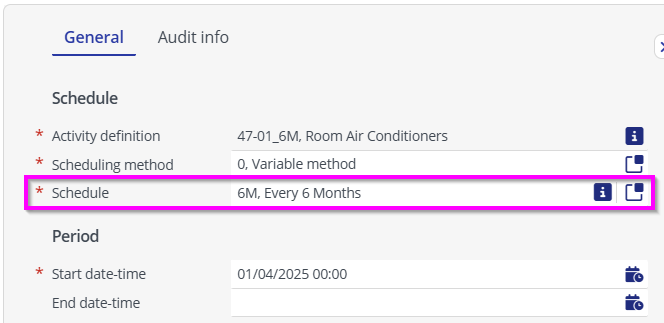
A Planning details record requires the mandatory ‘Schedule’ field to be populated, highlighted below. Based on this field activities are scheduled with the correct period and occurence.
Each schedule from Facilities-iQ has its own ‘frequency’ and ‘period’ defined’ – these are used to create an Activity definition schedule.
‘Occurrence’ (ie. What day should this happen) is a Planon concept for scheduling not included in Facilities-iQ
When activities and planning details are created based on data from Facilities-iQ the following logic is applied
On create/update of a planning details BO check the task period and frequency and create a code value based on a concatenation of these fields e.g. “1M”
Check if an Activity definition schedule exists with a code matching the string “1M”. If so, use existing Activity definition schedule
Else, if the string doesn’t exist as a code look at the task frequency
If “Hour” create the Activity definition schedule with ‘Occurence’ of HOURLY, filling in the ‘period’ value from the task period
If “Day” create the Activity definition schedule with ‘Occurence’ of DAILY, filling in the ‘period’ value from the task period
If “Week” create the Activity definition schedule with ‘Occurence’ of WEEKLY, filling in the ‘period’ value from the task period. The chosen day is Monday
If “Month” create the Activity definition schedule with ‘Occurence’ of MONTHLY_ONDAY, filling in the ‘period’ value from the task period. The chosen day is ‘day 1’.
if “Year” create the Activity definition schedule with ‘Occurence’ of YEARLY, filling in the period value from the task period.
All new Activity definition schedules will have the description based on the following (translatable) “Every” + " " + [Task.Period] + " " + [Task.Frequency] +“s” Example - “Every 2 Months”
If a different occurrence pattern is required (e.g. Every 3rd Thursday) then the Activity definition schedule can be updated accordingly.
Creation or Update of Standard Check list items
Each schedule from Facilities-iQ comes with a series of ‘tasks’ to be performed while completing the maintenance activity. The app creates these tasks as Check list items (StandardChecklistItem) in Planon, linking them to an Activity definition.
In case of update, the checklists that are removed from schedule are archived.
| Planon Field Name | Planon Field System Name | Planon Field User-defined System Name | Mapping |
|---|---|---|---|
| Standard Acitivity Definition | StandardActivityDefinitionRef | Standard Activity Definition created in 4.3 | |
| Code | Code | StandardActivityDefinitionRef.Code | |
| Description | Description | Facilities-iQ task.title | |
| Sequence | Sequence | Facilities-iQ task.executionOrder + 1 | |
| SFG20 Task Classification | Free string configured as a descriptive pick list | UsrClassification | Facilities-iQ task.classification |
| SFG20 Task Id | Any free string with length of 100 characters | UsrTaskId | Facilities-iQ task.id |
| SFG20 Task Url | Any free string with length of 100 characters | UsrTaskUrl | Facilities-iQ task.url |
| SFG20 Task Steps | Any free remark field | UsrTaskSteps | Facilities-iQ task.steps |
Creation or Update of Activity Costs
Each task comes with a duration to provide an indication of how long the maintenance will take to complete. The app creates an Activity cost record (ManhourStandardActivityCost
) with total duration of all the tasks under the corresponding frequency.
In case of update, the existing Activity cost is updated.
| Planon Field Name | Planon Field System Name | Mapping |
|---|---|---|
| Acitivity Definition | ActivityDefinitionRef | ActivityDefinitionRef |
| Cost type | CostTypeRef | 0, Variable |
| Description | Description | ACTIVTY MANHOUR COSTS |
| Required Quantity | RequiredQuantity | Facilities-iQ task.minutes (converted to hours) |
Register Webhook and receive updates via event logs
Whenever a Plan is created for a shared link Id, a Business rule configured on Plan BO triggers and makes a service call to Facilities IQ to register the Webhook for the regime/Plan BO.
Once the webhook is successfully registered, Planon receives updates via the endpoint (A JaxRS service part of the connector) configured as part of the webhook whenever a new version of Regime goes live.
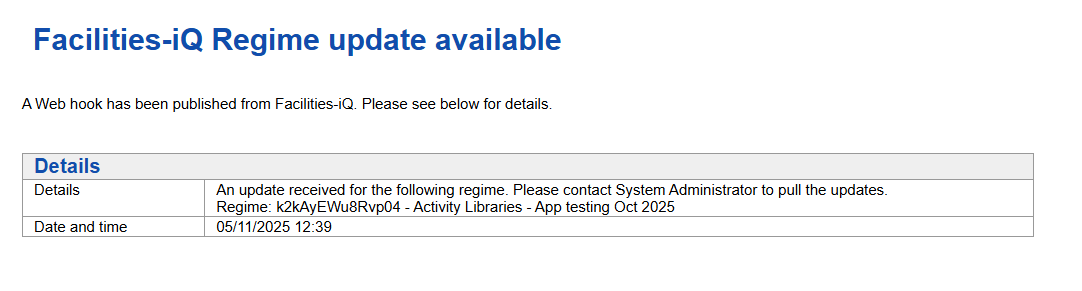
The webhook creates a ‘Simple event log’ visible in the Log viewer TSI.
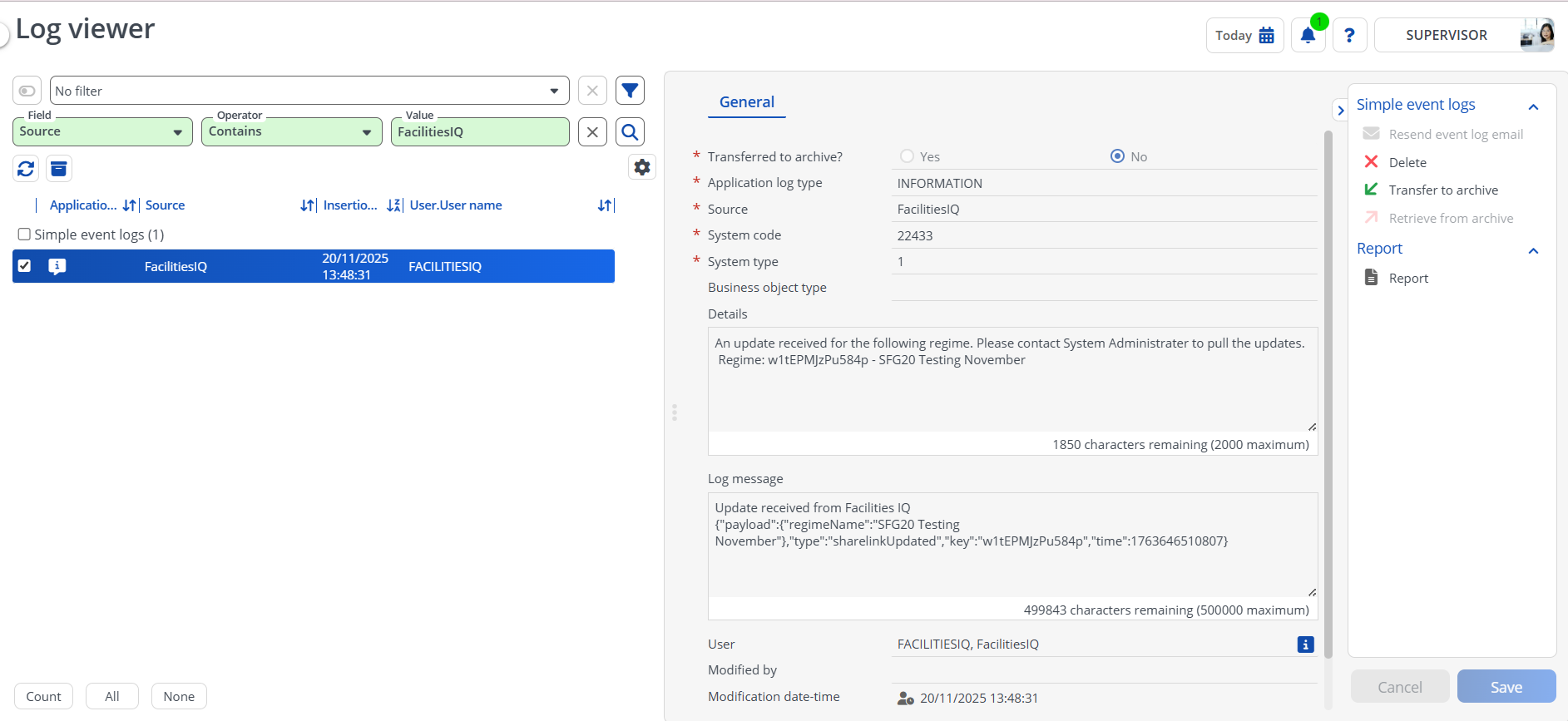
An email notification can optionally be configured based creation of a new Simple event log using the criteria ( (Application log type Contains INFORMATION) AND (Source Contains FacilitiesIQ) )
An example is shown below.
Mapping for Webhook
| Payload | Planon Field | Comments |
|---|---|---|
| key | Plan.UsrSharedLinkId | |
| type | sharedLinkUpdated (fixed value) | |
| accessToken | Access Token from Facilities IQ | |
| url | <EnvironmentURL>/sdk/platform/jaxrs/planonsoftware/apps/connectforfacilitiesiq/module/facitilitiesiq/regimeUpdate | |
| authHeader | PLANONKEY accesskey=<Accesskey of a user> |
Sample payload received as update
{
   "payload": {
   "regimeName": "Planon Standard Activities Integration"
   },
   "type": "sharelinkUpdated",
   "key": "JV7gVWv2L5o0wt",
   "time": 1760702594535
}
Update Webhook
The app comes with a user extended action that can be configured on the Maintenance Library BO. If the Maintenance Library is related to Facilities IQ, then clicking this action updates the webhook with Planon access key configured in the settings.
This action is needed to update the webhook in Facilities when the Planon access key is expired. To resume receiving the updates of webhook, make sure the new access key is configured in the settings and then click this action to update webhooks in Facilities IQ
Send Completed Tasks
The app comes with a Business Rule that triggers on completing the Maintenance activities.
The rules does below checks to decide if details of completed checklist items are needs to be shared.
The status of the maintenance activity is changed to Completed
The Maintenace activity belongs to Standard Activity Definition that is linked to the Standard Service Plan and a maintenan Library created from SFG20 schedules. This is determined in the field Facilities Iq Schedule Id on the Plan has a value.
If these conditions are met, then the apps gets the Check List items that are Done & Assessed With Observations (configurable) and sends the data to Facilities IQ.
Field Mapping
| Payload Key | Planon Field |
|---|---|
| completionDate | ActualCompletionDateTime |
| taskId | MaintenanceCheckListItem.UsrTaskId |
| metadata.result | MaintenanceCheckListItem.Result.Name |
| metadata.reason | MaintenanceCheckListItem.Reason.Name |
Installation
This chapter describes the steps required to install this app on your Planon environment.
Installation Process
There are two ways to install the app:
- Using the Marketplace
- Manual installation
Install the app by using the marketplace
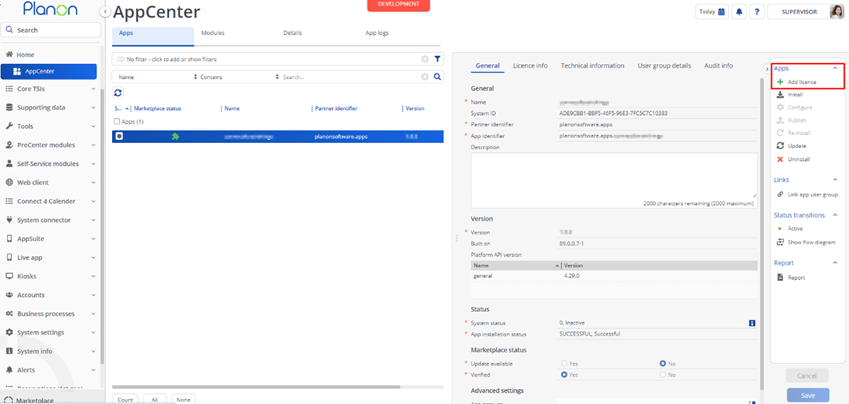
In case your environment is configured to use the Planon app store the only thing required to install the app is to add the app license in the AppCenter TSI. Planon will automatically download and install the app.
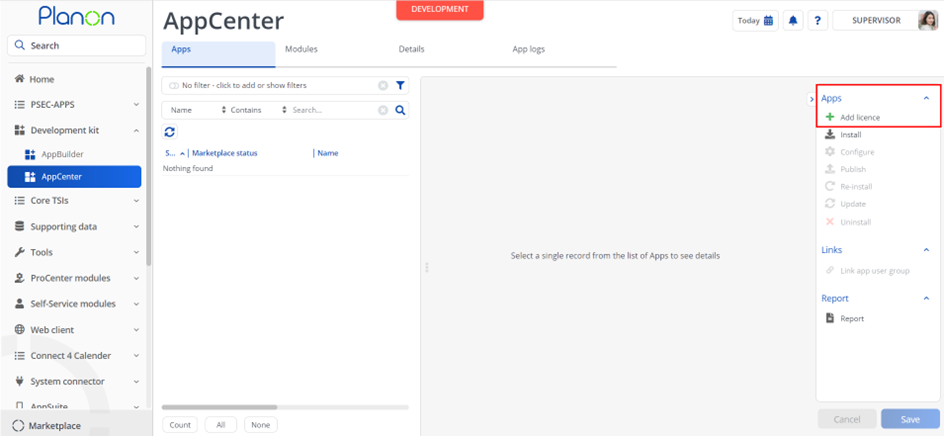
Manual installation
In case you want to perform a manual installation follow the steps below.
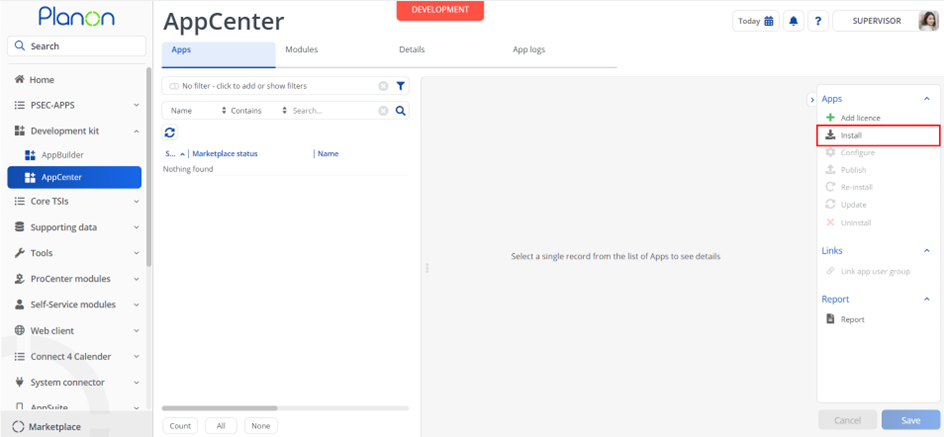
- Open AppCenter TSI from Planon webclient and click on install from action menu
- Browse to the .ppk file
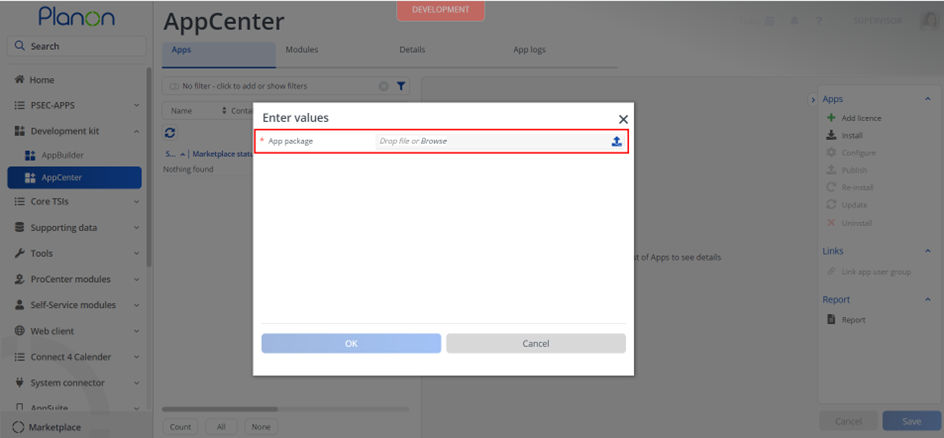
- Click OK to install the app and follow the installation process
- When the app is successfully installed, the app will appear in the AppCenter
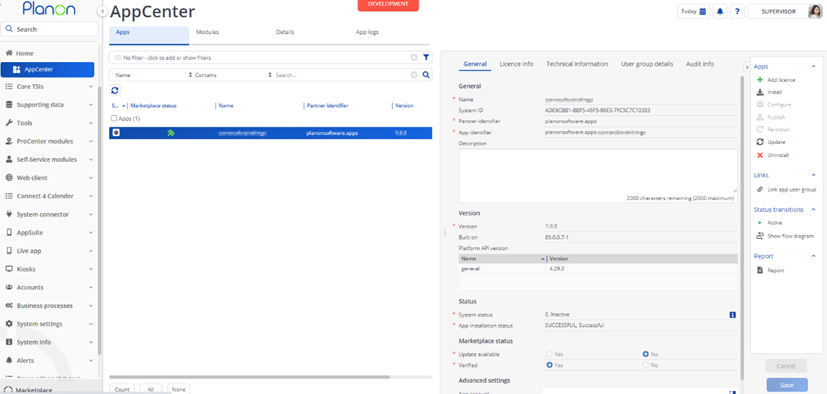
- Add the app license in Apps TSI
App Level Configuration
Add module settings
- Provide the module settings which are available in the Module Settings section. Here is an example:
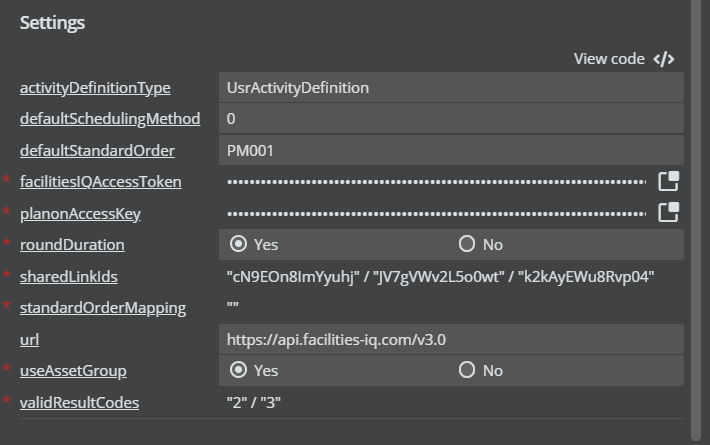
- Click the Save button after populating the module settings values.
Module Setting details
| Parameter | Example Value | Description |
|---|---|---|
| defaultSchedulingMethod | 0 | Code of the scheduling method used as default for new Activity Definitions |
| defaultStandardOrder | PPM01 | Code of the Standard order to link to Activity Definition in case there is no mapping found based on the standardOrderMapping setting |
| facilitiesIQAccessToken | Access token utilized for authentication with the Facilities-iQ system. Contact Facilities-iQ team for Asset Token. | |
| roundDuration | Yes | If set to Yes, any duration shorter than 30 minutes will be rounded up to 30 minutes |
| sharedLinkIds | Comma separated list of shared link Ids of the Facilities-iQ regimes that should be synchronized into Planon | |
| standardOrderMapping | 03-01:PM001 | List of Facilities-iQ schedule code and Planon Standard order mapping. Based on this mapping, standard order is linked to Activity Definition. More details under 5.3.1.2 |
| planonAccessKey | This is to configure the Access key needed for webhook | |
| url | https://api.facilities-iq.com/v3.0 | Base url of Facilities-iQ system |
| useAssetGroup | Yes | Set to Yes to link Asset Group to Service Plan. Set to No to link Technical Classification |
| activityDefinitionType | System name of the type of Activity Definitions to be created from Standard Activity Definitions. Only User defined types of ActivityDefinition are allowed | |
| validResultCodes | “2”,”3” | List of Checklist item Result codes on checklist items that are valid will be send to FacilitiesIQ |
Note:
For settings facilitiesIQAccessToken and planonAccessKey, click on the pop up button at the end of the field. This opens a popup asking for passwords. Paste the token into both password fields.
To provide values for the settings sharedLinkIds, standardOrderMapping, typeFieldForFacilitiesIQ click on View Code option available at the top right corner of the settings
Example settings in view code mode
// Settings for ConnectForFacilitiesIQ
{
   // System name of the type of Activity Definitions to be created from Standard Activity Definitions. Only User defined types of ActivityDefinition are allowed
   "activityDefinitionType" : "",
   // This is to configure Code of Scheduling Method which is a default value applied to activity definitions
   "defaultSchedulingMethod" : "0",
   // Code of the standard order which acts as default value applied to new activity definitions when no mapping found
   "defaultStandardOrder" : "",
   // Access token utilized for authentication with the Facilities IQ system.
   "facilitiesIQAccessToken" : {
   "secure" : ""
   },
   // Planon Access Key used to register webhook for receiving updates
   "planonAccessKey" : {
   "secure" : ""
   },
   // If set to yes, any duration shorter than 30 minutes will be rounded up to 30 minutes
   "roundDuration" : true,
   // Shared link ID associated with the Regimes of Facilities IQ system
   // Value must be an array of strings.
   "sharedLinkIds" : [ "" ],
   // This configuation specifies the mapping for Schedule code and Standard Order in Planon. Schedule Code-Standard Order code
   // Value must be an array of strings.
   "standardOrderMapping" : [ "" ],
   // Endpoint of the Facilities IQ system.
   "url" : "https://api.facilities-iq.com/v3.0",
   // Set to Yes to set/update Asset Group on the Standard Activity Definition BO. Set to No to set/update Technical Classification
   "useAssetGroup" : true,
   // List of Checklist Result codes that are valid to send to FacilitiesIQ
   // Value must be an array of strings.
   "validResultCodes" : \[ "2", "3" \]
}
Details of settings
standardOrderMapping
Standard orders should be defined on an Activity definition in order to create PPM orders. The standard order may vary based on the activity definition. Therefore an app setting allows flexibility to map different standard orders based on the schedule code from Facilities-iQ.
The schedule code of Facilities-iQ for example is 03-01-524.
The code is made up of two sections – the first is the SFG20 code representing a class of assets, e.g. Linear actuators.
The second section is an id representing that the schedule has been customised/tailored.
The first two part of the code (e.g. 03-01) is used to map standard orders.
Lets say 03-01 needs to be mapped with Standard order with code PPM01. This should be written as below. The delimiting character between Facilities-iQ schedule code and standard order is :
03-01:PPM01
Multiple mappings between schedule code and standard order can be configured as below, using the comma character (,) as a delimiter.
03-01:PPM01,04-01:PPM02
Translations
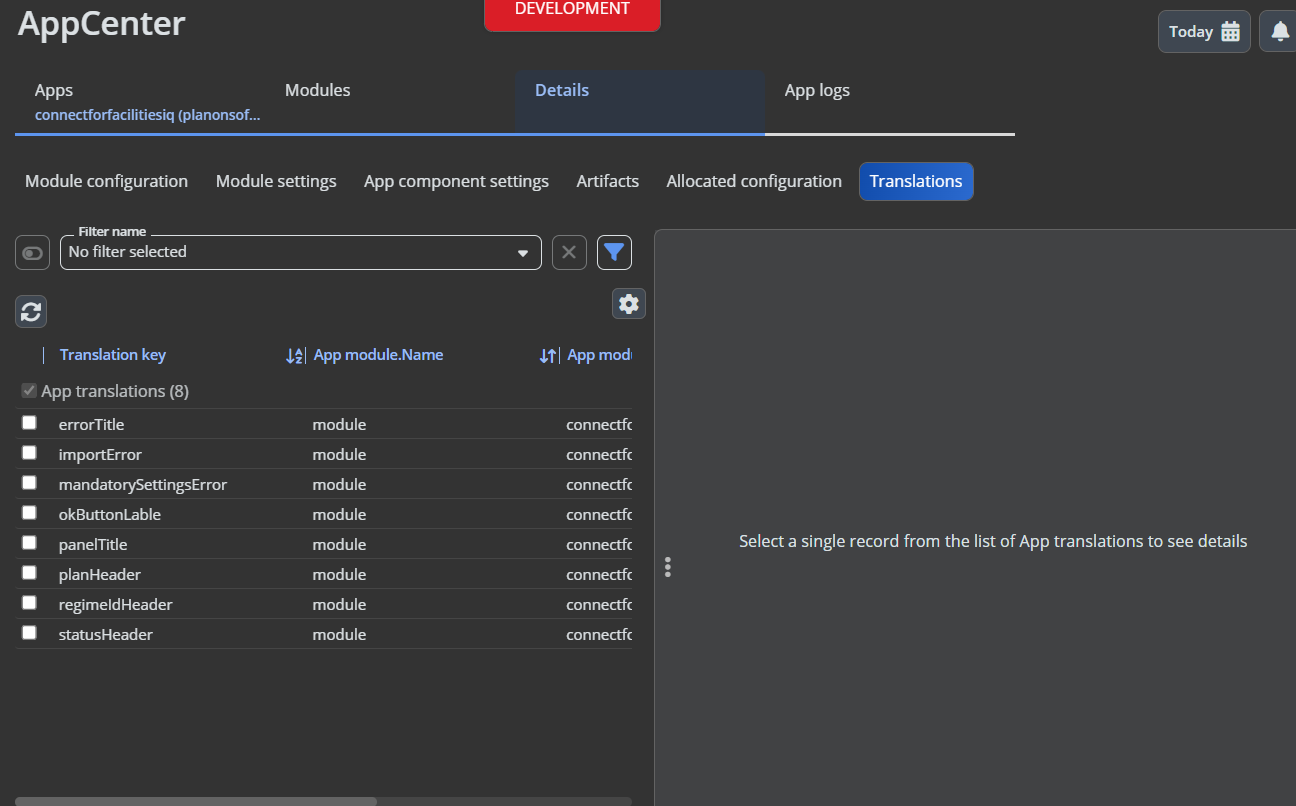
The supports translations for labels and header text shown in the UI of the TSI action.
These translations can be configured in AppCenter, by navigating to Translations selection step as shown below
App log level
Details of the asset register creation, or asset creation/update that has not been successful can be found in the Wildfly logs as standard.
Errors shown where schedules/activities cannot be created/updated are shown within the user interface, but can also optionally update the Wildfly logs by changing the App log level to ‘DEBUG’.
To enable the dubug logging:
Go to the App centre TSI
Select the Connect for Facilities-iQ app at the Apps Selection level
Set the App log level to DEBUG and Save.
Link User Groups
App uses Event Connector solution to export data from Planon to Facilities-iQ. So please make sure the app is linked to the User Group that allows to use Event Connector Product definition.
Find a user group that is linked with Event Connector Product Definition
Go to App centre
Select the app and click on “Link App User Group”
Select the user group from step 1 and move to In Use section
Click ok
Activation
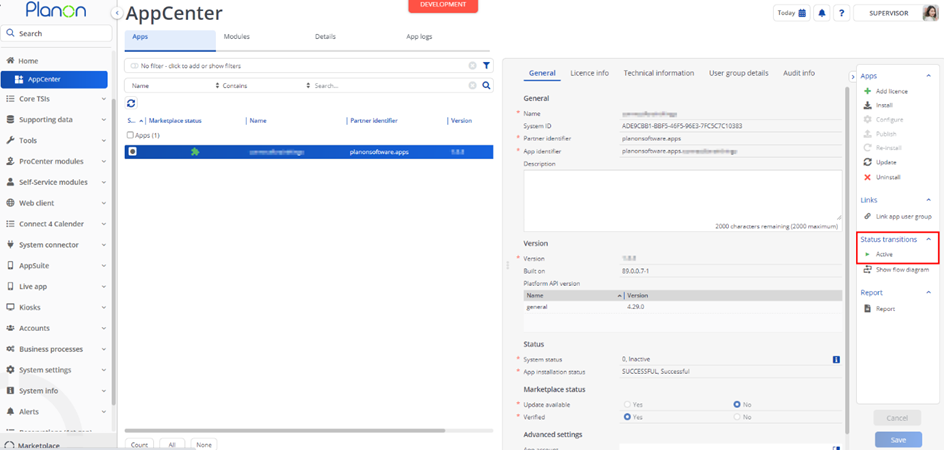
Once the app has been configured, you can activate the app by pressing the Active status transition from the action panel. Always make sure that the required User groups are linked correctly and the Configure action is executed before activating the App.
Planon Configuration
This chapter describes the required configuration in the application such as adding a TSI Action to field definer / layouts (if applicable) and/or configuring any free fields.
Please follow the sections in this order from top to bottom.
Descriptive picklists
A descriptive pick list needs to be created and linked to the field ‘Classification’ in the Checklist Item business object.
The picklist should be given the name SFG20_CLASSIFICATION
The following items should be added to the pick list
| Name |
|---|
| Red |
| Amber |
| Green |
| Pink |
BO MaintenanceLibrary (Fields)
The BO with system name of MaintenanceLibrary is used to hold Activity definitions. The Library relates to the Facilities-iQ concept of a “regime”
Below free fields are required to capture Facilities-iQ related data. After configuring this field in Field definer it should be added to the relevant layouts.
| Description | User defined System name | Free field type | Planon field Type |
|---|---|---|---|
| Facilities-IQ Schedule version | UsrFIQVersion | Any available FreeInteger or FreeString | Integer |
| Facilities-IQ Regime ID | UsrRegimeId | Any available FreeString | String |
| Shared Link ID | UsrSharedLinkId | Any available FreeString | String |
Note: No ‘Code’ value is provided by Facilities-iQ
Because Planon’s Code field (system name ‘Code’) is mandatory, a ‘Codegen’ is required to populate this with a default value to ensure a new record can be saved.
BaseMaintenanceServicePlan
BaseMaintenanceServicePlan and UDBO StandardMaintenanceServicePlan are associated with Schedule data from the regime
Three free fields are needed on this BO
| Description | User defined System name | Free field type | Planon field Type |
|---|---|---|---|
| Facilities-IQ Schedule version | UsrFIQVersion | Any available FreeStringorFreeInteger | Integer |
| Facilities-IQ Schedule Id | UsrScheduleId | Any available FreeString | String |
| Facilities-IQ Schedule code | UsrFIQScheduleCode | Any available FreeString | String |
**Note: ‘**Facilities-iQ Schedule code’ does not fit into Planon’s default Code field due to length restrictions. Therefore a free field is used to capture this.
Because Planon’s Code field (system name ‘Code’) is mandatory, a ‘Codegen’ is required to populate this with a default value to ensure a new record can be saved. The codegen macro should be applied at the UDBO (StandardMaintenanceServicePlan) level.
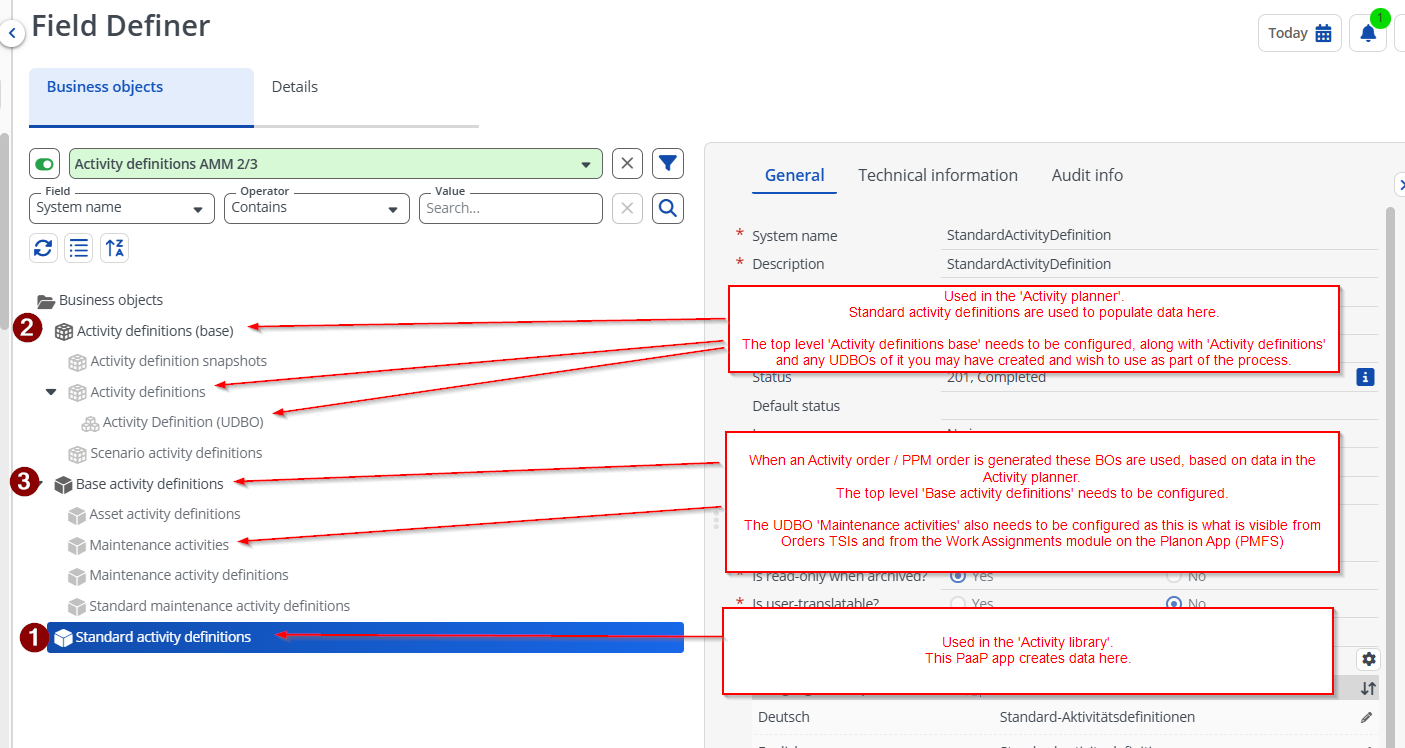
StandardActivityDefinition
The BO with system name StandardActivityDefinition relates to the Facilities-iQ concepts of “schedule” and “tasks”
A Free field is required to capture Facilities-iQ related data. After configuring these fields in Field definer they should be added to the relevant layouts, e.g. those used in the Activity planner TSI.
| Description | User defined System name | Free field type | Planon field type |
|---|---|---|---|
| Facilities-IQ Skill | UsrFIQSkill | Any available FreeString | String |
| Facilities-IQ Activity Definition Code | UsrFIQActivityDefCode | Any available FreeString | String |
**Note: ‘**Facilities-iQ Activity Definition code’ does not fit into Planon’s default Code field due to length restrictions. Therefore a free field is used to capture this.
Because Planon’s Code field (system name ‘Code’) is mandatory, a ‘Codegen’ is required to populate this with a default value to ensure a new record can be saved.
BaseActivityDefinition
The BO with system name BaseActivityDefinition is used in the Activity Planner. When a Standard activity is used to populate a Maintenance plan the details from the Standard activity are copied to the Activity definition in the planner.
Therefore fields configured in StandardActivityDefinition also need to be configured here.
Note: The same choices of FreeStrings used in StandardActivityDefinition must be used for BaseActivityDefinition
| Description | User defined System name | Free field type | Planon field type |
|---|---|---|---|
| Facilities-IQ Skill | UsrFIQSkill | The same field used in StandardActivityDefinition | String |
| Facilities-IQ Activity Definition Code | UsrFIQActivityDefCode | The same field used in StandardActivityDefinition | String |
Fields should be made available (in use) at all applicable levels. For example if you use a User-defined version of an activity definition in the Activity planner, the fields should be available at this level too.
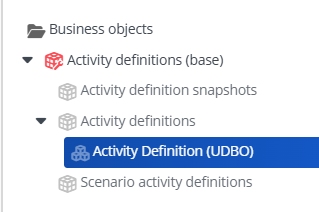
Note: The code gen is not required for this BO as the code will be populated automatically based on data copied from a Standard activity.
After configuring these fields in Field definer they should be added to the relevant layouts, e.g. those used in the Activity planner TSI.
BaseMaintenanceActivityDefinition
The BO with system name BaseMaintenanceActivityDefinition is used in the ‘AMM 2.0’ concept.
The UDBO with system name MaintenanceActivity (Maintenance activities) is still required in AMM 3.0 concepts as it is used for generated Activity/PPM orders, illustrated below for context.
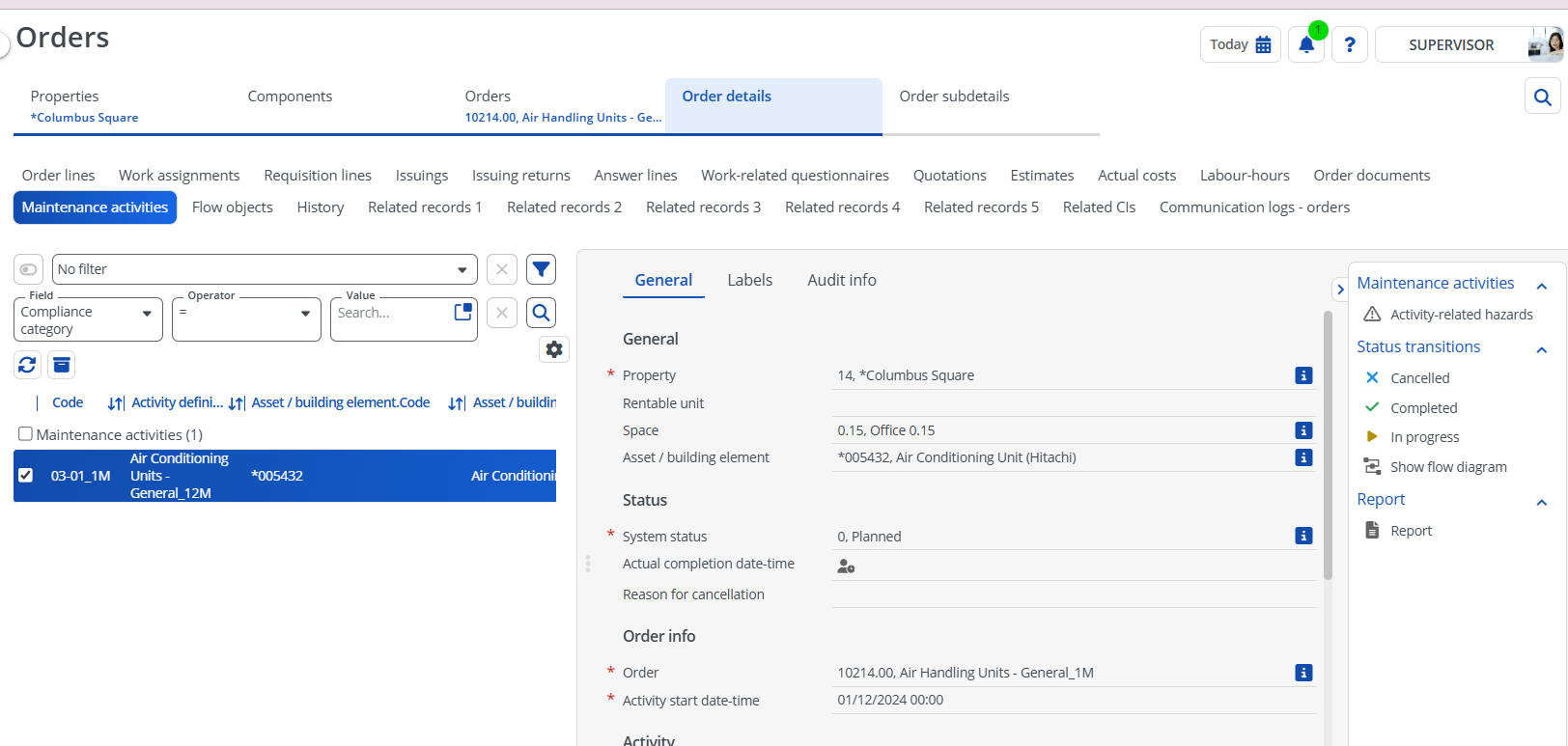
When a Activity/PPM order is generated the details from the Activity definition in the planner planner is used.
Therefore fields configured in StandardActivityDefinition and BaseActivityDefinition and also need to be configured here.
Note: The same choices of FreeStrings used in StandardActivityDefinition and BaseActivityDefinition must be used for Activity definitions (base)
| Description | User defined System name | Free field type | Planon field type |
|---|---|---|---|
| FIQ Skill | UsrFIQSkill | The same FreeString used in StandardActivityDefinition and BaseActivityDefinition | String |
| Facilities IQ Activity Definition Code | UsrFIQActivityDefCode | The same FreeString used in StandardActivityDefinition and BaseActivityDefinition | String |
Fields should be made available (in use) at all levels. The Maintenance activities UDBO is used for a generated Activity order / PPM order and therefore the Facilities-IQ related fields should be included.
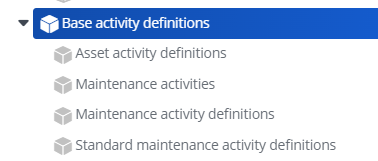
Note: The code gen is not required for this BO as the code will be populated automatically based on the Activity definition from the Activity planner.
After configuring these fields in Field definer they should be added to the relevant layouts, e.g. those used in the Orders TSI.
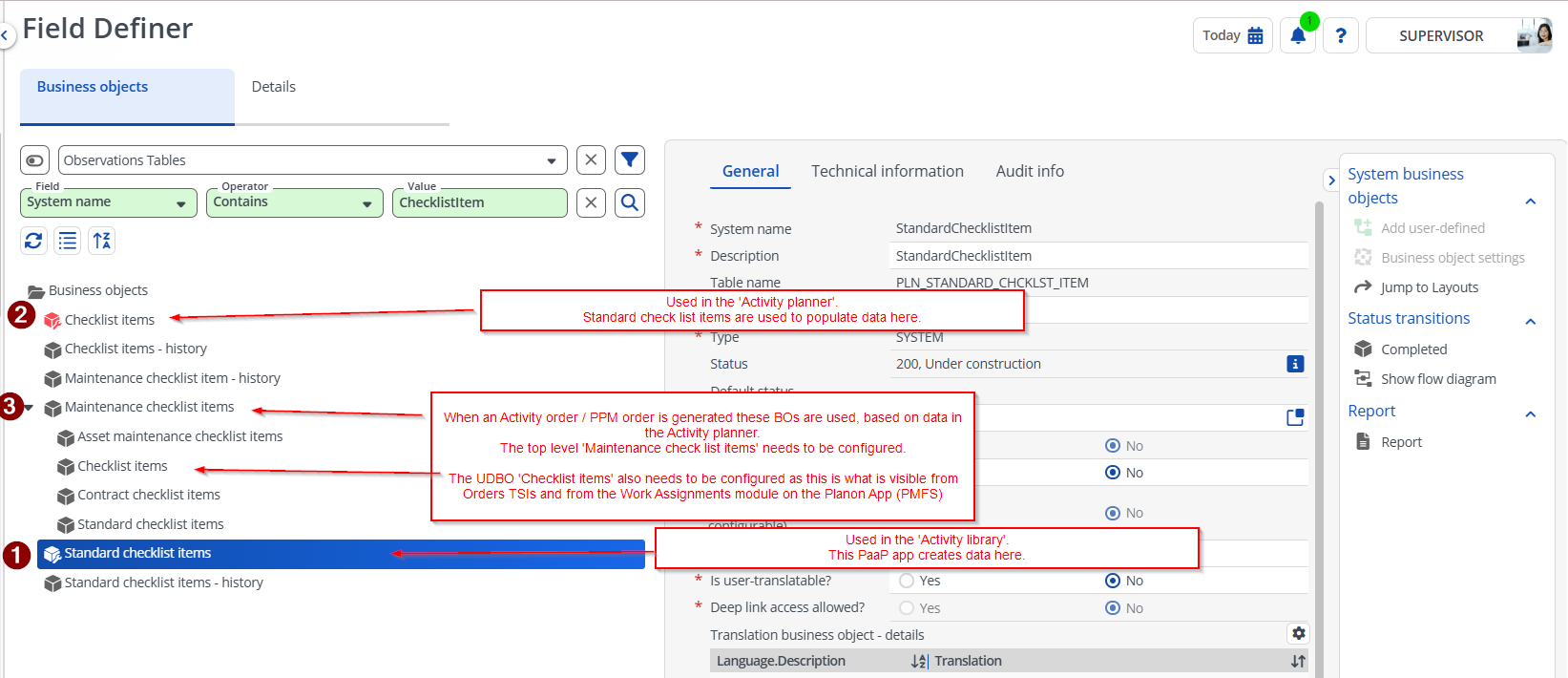
BO StandardCheckListItem
The StandardCheckListItem BO is associated with Planon’s AMM 3.0 concept, used in the Activity library TSI.
The BO with system name StandardCheckListItem relates to the Facilities-iQ concept of “tasks”
Free fields are required to capture Facilities-iQ related data. After configuring these fields in Field definer they should be added to the relevant layouts, e.g. those used in the Activity library TSI.
Important note:
The Check list items in the Activity library use the BO with system name StandardCheckListItem. When the activity is applied to an Activity/Maintenance plan the BO used is ChecklistItem\
Any ‘free fields’ configured for StandardCheckListItem to support Facilities-iQ processes should be mirrored in ChecklistItem
Example – You select FreeString1 to configure the SFG20 classification colour for StandardCheckListItem. You must also configure FreeString1 for this field in ChecklistItem.
| Description | User defined System name | Free field type | Planon Field Type |
|---|---|---|---|
| Task ID | UsrTaskId | FreeString with a length of 100 | String |
| Task URL | UsrTaskUrl | FreeString with a length of 100 | URL |
| Steps | UsrTaskSteps | Any FreeRemark | StringExtended |
| Classification | UsrClassification | Any available FreeString | CodesNameSFG20_CLASSIFICATION picklist |
BO ChecklistItem
The ChecklistItem BO is associated with Planon’s AMM 3.0 concept, displayed in the Activity planner TSI.
When a Standard activity is applied its StandardCheckListItems are copied to create Checklistitems.
Free fields are required to capture Facilities-iQ related data. After configuring these fields in Field definer they should be added to the relevant layouts, e.g. those used in the Activity planner TSI.
Important note:
The Check list items in the Activity planner use the BO with system name ChecklistItem. When the activity is generated into an order the BO used in association with the PPM order is MaintenanceActivityChecklistItem, a UDBO of BaseMaintenanceChecklistItem.
Any ‘free fields’ configured for ChecklistItem to support Facilities-iQ processes should be mirrored in BaseMaintenanceChecklistItem and MaintenanceActivityChecklistItem so that they can be viewed from the Activity order / PPM order
Example – You select FreeString1 to configure the SFG20 classification colour for ChecklistItem. You must also configure FreeString1 for this field in BaseMaintenanceChecklistItem and ensure that it is in use for the MaintenanceActivityChecklistItem UDBO.
| Description | User defined System name | Free field type | Planon Field Type |
|---|---|---|---|
| Task ID | UsrTaskId | The same field configured forStandardCheckListItem | String |
| Task Url | UsrTaskUrl | The same field configured forStandardCheckListItem | URL |
| Steps | UsrTaskSteps | The same field configured forStandardCheckListItem | StringExtended |
| Classification | UsrClassification | The same field configured forStandardCheckListItem | CodesNameSFG20_CLASSIFICATION picklist |
BO BaseMaintenanceChecklistItem and its UDBOs
BaseMaintenanceChecklistItem is associated with Planon’s AMM 2.0 concept.
Free fields is required to capture Facilities-iQ related data. After configuring this field in Field definer it should be added to the relevant layouts, e.g. those used in Orders TSI (UDBO of MaintenanceActivityChecklistItem)
| Description | User defined System name | Planon field type | Field Type |
|---|---|---|---|
| Task ID | UsrTaskId | The same field configured forStandardCheckListItem and Checklistitem | Text |
| Task Url | UsrTaskUrl | The same field configured forStandardCheckListItem and Checklistitem | URL |
| Steps | UsrTaskSteps | The same field configured forStandardCheckListItem and Checklistitem | StringExtended |
| Classification | UsrClassification | The same field configured forStandardCheckListItem and Checklistitem | CodesNameSFG20_CLASSIFICATION picklist |
BO MaintenanceLibrary (TSI Action)
Note that the Extended actions with class name “DownloadRegimesAction” & “UpdateWebhookAccessKey” are only available once the app has been made active in App Center.
Go to the Field definer TSI
Select the BO system name “MaintenanceLibrary”
Set the BO to Under Construction
Go to Details selection level and to the Extended actions selection step
Configure Download Regimes Action
In the action menue click Add
Select “DownloadRegimesAction” for the field class name
Provide other mandatory fields and save the changes. Note that System name does not require a specific value, use something sensible such as UpdateLibraryFromFacilitiesiQ.
Provide a suitable translation (what will be shown to the end user) such as ‘Update from Facilities-iQ’ and save again.
Configure Update Access key
In the action menu click Add
Select “UpdateWebhookAccessKey” for the field class name
Provide other mandatory fields and save the changes. Note that System name does not require a specific value, use something sensible such as UpdateFacilitiesIQWebHook.
Provide a suitable translation (what will be shown to the end user) such as ‘Update Facilities IQ Webhook’ and save again.
Once the extended actions above have been created, go back to Business Objects level and set the BO back to completed state.
Next, these actions must be added to the corresponding layouts.
Logout and Login to Planon to see the changes.
Sample Regimes response from Facilities-iQ
{
    "data": {
        "regime": {
            "regimeInfo": {
                "id": "MgC3K3mCgoJVNu",
                "name": "Planon Test",
                "version": "2"
            },
            "words": "fire height weapon",
            "guid": "6d8dc840-96e2-5639-ac48-2958919059b6",
            "schedules": [
                {
                    "code": "05-18",
                    "id": "JFXgW0rKbj4ygG!24",
                    "rawTitle": "Boilers - Space Temperature Controls",
                    "version": "1",
                    "assets": [
                        {
                            "code": null,
                            "id": "JFXgW0rKbj4ygG!24.0",
                            "description": null
                        }
                    ],
                    "tasks": [
                        {
                            "frequency": {
                                "interval": 12,
                                "period": "Month"
                            },
                            "id": "live|MgC3K3mCgoJVNu.JFXgW0rKbj4ygG!24.24.0",
                            "title": "Room thermostat",
                            "classification": "Amber",
                            "minutes": 3.75,
                            "steps": [
                                "Check the operation of the room thermostat.",
                                "Confirm the set point(s) of the room thermostat."
                            ],
                            "url": "https://www.demo.facilities-iq.com/sfg20?phrase=maybe+june+degree",
                            "date": "2025-03-11T08:00:00.000Z",
                            "skill": {
                                "SkillingCode": "M",
                                "Skilling": "Mechanical"
                            }
                        },
                        {
                            "frequency": {
                                "interval": 12,
                                "period": "Month"
                            },
                            "id": "live|MgC3K3mCgoJVNu.JFXgW0rKbj4ygG!24.24.1",
                            "title": "Room thermostat - zone valve operation",
                            "classification": "Amber",
                            "minutes": 3.75,
                            "steps": [
                                "Check the operation of the room thermostat.",
                                "Confirm the set point(s) of the room thermostat."
                            ],
                            "url": "https://www.demo.facilities-iq.com/sfg20?phrase=stick+fancy+angle",
                            "date": "2025-03-11T08:00:00.000Z",
                            "skill": {
                                "SkillingCode": "M",
                                "Skilling": "Mechanical"
                            }
                        },
                        {
                            "frequency": {
                                "interval": 12,
                                "period": "Month"
                            },
                            "id": "live|MgC3K3mCgoJVNu.JFXgW0rKbj4ygG!24.24.2",
                            "title": "Flow sensor controller",
                            "classification": "Amber",
                            "minutes": 3.75,
                            "steps": [
                                "Check the operation of the room thermostat.",
                                "Confirm the set point(s) of the room thermostat."
                            ],
                            "url": "https://www.demo.facilities-iq.com/sfg20?phrase=dinner+radio+speak",
                            "date": "2025-03-11T08:00:00.000Z",
                            "skill": {
                                "SkillingCode": "M",
                                "Skilling": "Mechanical"
                            }
                        },
                        {
                            "frequency": {
                                "interval": 12,
                                "period": "Month"
                            },
                            "id": "live|MgC3K3mCgoJVNu.JFXgW0rKbj4ygG!24.24.3",
                            "title": "Space sensor controller",
                            "classification": "Amber",
                            "minutes": 3.75,
                            "steps": [
                                "Check the operation of the room thermostat.",
                                "Confirm the set point(s) of the room thermostat."
                            ],
                            "url": "https://www.demo.facilities-iq.com/sfg20?phrase=brief+fame+nobody",
                            "date": "2025-03-11T08:00:00.000Z",
                            "skill": {
                                "SkillingCode": "M",
                                "Skilling": "Mechanical"
                            }
                        }
                    ]
                }
            ]
        }
    }
}
Troubleshooting
This chapter provides a comprehensive overview of common occurrences and known issues that can serve as a reference when the app is not functioning as anticipated.
Error Handling
Import of Schedules
Import of schedules is done via TSI Action which is a client side component. Any errors related to this functionality can be found in the tomcat log file.
In case of any errors while processing a schedule, the corresponding details are logged to tomcat file, skips this record and starts processing the next record.
You should ensure that the that app is linked to user group that has Event Connector product definition linked to it.