Planon Connect For Izix
Introduction
Planon Connect for Izix integrates Planon with Izix, a cloud-based smart parking, visitor and access-management platform. It synchronizes parking bookings and visitor requests created in Planon with Izix as required, ensuring that relevant information is available across both systems.
Planon users can also view real-time parking availability from Izix directly within Planon, without switching applications. Also, selected Planon user accounts can be synchronized with Izix as authenticated profiles, enabling users to access the required Izix functionality.
Key capabilities:
The app provides the following capabilities:
A scheduled worker that synchronizes selected Planon user accounts with Izix as profiles, enabling Izix to recognize these users for reservation or visitor matching and authentication. Near real-time synchronization of Planon Reservation records (parking bookings) with Izix reservations. Near real-time synchronization of Planon Visitor records (visitor parking requests associated with a reservation) with Izix visits. A parking availability lookup that can be opened from a Reservation or Visitor record to display live parking availability per access policy in Izix.
Prerequisites
Environment
- A Planon Live environment of version L132 and higher
Constraints
The app is based on the following constraints, derived from its current implementation:
- The Izix Parking Lot Ids are manually mapped to Planon properties via free field
- Reservations must start and end on the same calendar day. If the
BeginDateTimeandEndDateTimeof a Reservation fall on different days, the record is not sent to Izix and an error is logged. - The “Send Booking to Izix” flag must be set to Yes on the Reservation/Visitor record, and other mandatory fields (dates, requestor, license plate for visitors, etc.) must be populated, before a record is considered by the business rules.
- The requestor must already have a linked Izix profile. For a Reservation, the internal requestor; For a Visitor, the internal requestor of its parent Reservation, must already be linked to an Izix profile via an External BO Link. If no link exists, the record is skipped — the app does not create a profile on-the-fly (profiles are only created by the scheduled worker, see Synchronizing Planon users to Izix profiles).
- One Account per Person. If a Person is linked to more than one Planon Account, the app cannot unambiguously resolve a single Izix profile, and the record is skipped.
- Parking spot availability is checked before booking. A booking/visit is only created in Izix if at least one spot is available for the resolved access policy, parking lot and time window. If no spots are available, the record is skipped silently (no reservation/visit is created, but no error is raised either — this is checked during outbound message transmission).
- Updates are implemented as delete + recreate. When a Reservation/Visitor is updated in Planon, the app deletes the existing booking/visit in Izix and creates a new one. As a result, the Izix reservation/visit id linked to the Planon record changes every time the record is updated.
- Access policy type depends on record type. Reservations use the Izix
bookingaccess-policy type; Visitor records use thevisitoraccess-policy type. - User synchronization is scoped to configured User Groups. Only Planon Accounts that belong to a User Group listed in the worker settings are considered for profile synchronization. Accounts without a Person and accounts linked to a Person without a first name, last name or email, or whose account end date is in the past, are skipped.
- Izix sends confirmation of the reservation to the email of the users upon successful booking
Required free fields & configuration items
| Business Object | Field (suggested system name) | Type | Purpose |
|---|---|---|---|
| Property | UsrIzixParkingLotId | Free String | Maps a Planon Property to its corresponding Izix Parking Lot id. Used both for outbound bookings and for the availability lookup screen. |
| Reservation | UsrSendBookingToIzix | Free field (Yes/No code) | Trigger flag — only Reservations with this field set to Yes are synchronized to Izix. |
| Visitor | UsrSendBookingToIzix | Free field (Yes/No code) | Trigger flag — only Visitors with this field set to Yes are synchronized to Izix |
Note: The app auto-creates the External System record (default code Izix) if it does not already exist. It is nevertheless recommended to pre-configure the External System with the actual Izix API URL rather than relying on the app’s internal placeholder value.
Assumptions
This design and functionality of the solution is based on the following assumptions:
- The Izix Client Id, Client Secret and Organization Id have already been issued to the customer by Izix.
- The user configuring this app has Planon knowledge that includes: configuring free fields, Business Rules, the Event Connector, TSI Actions/layouts, and App Center settings.
- If further support is required with installation of the app or related configuration, please contact your Planon Account Manager regarding support from Planon Services.
Features
Synchronize Planon users as Izix profiles
The app comes with an enterprise talk worker which sends Planon user accounts, filtered by User Group, to Izix as profiles. Existing Izix profiles can also be updated when configured to do so. These profiles are subsequently used to resolve requestors for Reservations and Visitors sent to Izix.
Send Reservations to Izix
When a Reservation record is inserted, updated, or deleted (and it satisfies the constraints above), the app creates, updates or deletes the corresponding reservation (parking booking) in Izix.
Send Visitors to Izix
When a Reservation is inserted, updated, or deleted and meets the configured conditions, the app creates, updates, or deletes the corresponding parking reservation in Izix.
Process booking confirmations from Izix
After Izix confirms that a reservation or visit has been created or deleted, the app stores the relationship between the Planon record and the corresponding Izix reservation or visit ID. This mapping is used for subsequent updates and deletions.
Check parking availability
The Show Izix Availability TSI Action can be made available on Reservation and Visitor records. It opens a Planon web page that displays live parking availability for the selected property, date/time window, and booking type. The page shows the parking lot, access policy, and number of available spots, and allows the user to adjust the filters and refresh the results.
How does it work?
This chapter provides a technical description of the features above.
%%{init: {'flowchart': {'nodeSpacing': 60, 'rankSpacing': 80}, 'themeVariables': {'fontSize': '20px'}}}%%
flowchart LR
    A[Reservation / Visitor\nchanged in Planon] -->|Business Rule| B[Outbound message\nEvent Connector]
    B -->|Transformer + Transmitter| C[Izix REST API]
    C -->|Reservation / Visit id| D[Inbound message\n'Izix Response']
    D -->|Message Processor| E[External BO Link\nPlanon record <-> Izix id]
Authentication and token caching
- The app calls
POST oauth/tokenon the Izix API withgrant_type=client_credentials, using theclientId/clientSecretmodule settings, and returns an access token, its type, and its lifetime in seconds. - A new token is requested for every new webservice call.
Synchronizing Planon users to Izix profiles (scheduled worker)
The Send Users To Izix worker is an Import/Export worker that can be scheduled to run periodically via Action Definitions or run manually
- On start-up, it validates that
url,clientId,clientSecretandizixOrganisationIdare configured, and obtains an access token. - It the fetches the Planon Accounts that are linked to the confgured user groups
- For each account belonging to one of the configured groups
- The record is only processed if the linked person has first name, last name and email, and the account end date is empty or in the future.
- If the Account is not yet linked to an Izix profile (no External BO Link), a new profile is created via
POST profiles, using the module’s default language setting, and an External BO Link is created on the Account, storing<izixProfileId>_<profileExternalReference>as the external id. - If the Account is already linked and
updateDetailsis set to Yes, the worker fetches the existing Izix profile (GET profiles, filtered by profile id and organization), computes only the attributes that actually changed (language, first/last name, email — compared case-insensitively —, tags, license plates, and phone numbers), and sends aPATCH profilesrequest containing only those changed attributes. If nothing changed, no call is made.
- Any errors returned by Izix, or communication failures, are logged both to the worker’s log and to the server log.
Sending Reservations to Izix
- The app comes with the Business Rule Create Izix Booking that triggers on
AFTERDBINSERTandAFTERDBUPDATEof the Reservation business object. It:- Validates that the Reservation has
BeginDateTime,EndDateTime, an internal requestor, and thatUsrSendBookingToIzix= Yes. - Validates the configured trigger fields actually changed (see Business rule settings), and that the Reservation matches the configured filter (if any).
- Validates if
BeginDateTimeandEndDateTimeare on the same calendar day. - Resolves the Izix profile id of the requestor via the requestor’s linked Planon Account and its External BO Link to Izix external system. If none is found, the Reservation is skipped indicating the requestor is not an Izix User.
- Builds a
ReservationRequestpayload and creates an outbound Event Connector message of type “Send Reservation to Izix”, carrying the action (INSERT/UPDATE), the parking lot id (via the Reservation’s Property), and the resolved profile id.
- Validates that the Reservation has
- The Business Rule Delete Izix Booking runs on
AFTERDBDELETE(hard delete) and also onAFTERDBUPDATE(e.g. when the Reservation is cancelled) to send aDELETEaction for Reservations that already have a linked Izix reservation id. - The Reservation Message Transformer turns the outbound message into a raw JSON body (an empty object
{}for deletes). - The Reservation Message Transmitter:
- For a
DELETEaction: callsDELETE reservations/{id}on Izix, then creates an inbound “Izix Response” message so the External BO Link can be removed. - For
INSERT/UPDATE: first checks available parking spots (GET access-rightsfiltered by profile/organization, thenGET available-spotsfiltered by the resolved access policy ids, parking lot and date range). If no spots are available, nothing further happens. If spots are available, it resolves theaccess_policy_id, then callsPOST reservations. ForUPDATE, the existing Izix reservation is first deleted, then a new one is created (delete + recreate pattern). - On success, an inbound “Izix Response” message is created with the new Izix
reservation_id, so the app can create/refresh the External BO Link between the Planon Reservation and the Izix reservation.
- For a
Reservation payload mapping
| Izix field | Planon source |
|---|---|
profile_id | Izix profile id linked to the Reservation’s internal requestor (via Account → External BO Link) |
from | Reservation.BeginDateTime (formatted yyyy-MM-dd'T'HH:mm:ss) |
to | Reservation.EndDateTime (formatted yyyy-MM-dd'T'HH:mm:ss) |
organization_id | Module setting izixOrganisationId |
access_policy_id | Resolved at transmission time from Izix Access Rights (booking policy type) for the profile and parking lot |
dry_run | Module setting dryRun |
Sending Visitors to Izix
The flow mirrors the Reservation flow, using the Business Rules Create Izix Visitor and Delete Izix Visitor, the Visitor Message Transformer and Visitor Message Transmitter, and the outbound message type “Send Visitor to Izix”.
- Validity check: the Visitor’s
OrderRef(link to its parent Reservation) is populated,UsrSendBookingToIzix= Y, andParkingBeginTime,ParkingEndTimeandLicensePlateNumberare populated. - The requestor’s Izix profile id is resolved from the parent Reservation’s internal requestor (via
OrderRef). - The visitor’s name/email are resolved in this order: the External Visitor reference, then the Internal Visitor reference, then a free-text visitor name field (with
Unknown/Visitor/visitor@example.comused as a last-resort fallback so a request can still be attempted). valid_from/valid_toare built by combining the Visitor’sVisitingDatewithParkingBeginTime/ParkingEndTime.- The access-policy lookup uses the Izix
visitorpolicy type.
Visit payload mapping
| Izix field | Planon source |
|---|---|
first_name / last_name / email | External Visitor, else Internal Visitor, else free-text visitor name (fallback values used if none resolve) |
license_plate | Visitor.LicensePlateNumber |
valid_from | Visitor.VisitingDate + Visitor.ParkingBeginTime |
valid_to | Visitor.VisitingDate + Visitor.ParkingEndTime |
organization_id | Module setting izixOrganisationId |
access_policy_id | Resolved at transmission time from Izix Access Rights (visitor policy type) for the profile and parking lot |
dry_run | Module setting dryRun |
Linking Planon records with Izix records
Confirmations coming back from Izix are carried on an inbound Event Connector message of type “Izix Response”:
- The Message Transformer builds the inbound message from the metadata provided by the transmitter (no additional parsing is required, since the identifiers are already carried as additional information).
- The Message Processor inspects the additional information:
- If an
INSERTaction is present, it creates an External BO Link between the Planon Business Object (Reservation or Visitor) and the returned Izix id, against the External System configured inexternalSystemCode(defaultIzix). - If a
DELETEaction is present, it removes the corresponding External BO Link.
- If an
This External BO Link is what subsequent update/delete Business Rule executions use to know whether a Reservation/Visitor already exists in Izix, and with which id.
Parking availability lookup
- The TSI Action Show Izix Availability is configured on the Reservation and Visitor business objects. When executed:
- It requires exactly one record to be selected (otherwise an error panel is shown).
- It resolves the property code (via the Reservation, or via the parent Reservation of the selected Visitor), the begin/end date-time of the booking, and whether the record is a
User(Reservation) orVisitortype booking. - It opens an internal Planon web page (
.../webpages/planonsoftware/apps/connectforizix/module/parkingavailability) with these values as query parameters, and opens the URL in a new browser tab.
- The web page (Parking Spots Availability Page) then:
- Resolves the Izix Parking Lot id from the Property’s
UsrIzixParkingLotIdfree field. - Resolves the current Planon user’s linked Izix profile id (via the user’s Account and its External BO Link).
- Retrieves a valid access token, then calls
GET access-rights(filtered by organization and profile) and filters the results by parking lot id and access-policy type (bookingorvisitor, based on the selected reservation type). - Calls
GET available-spots(filtered by organization, date range and the resolved access policy ids) and displays, per access policy: the parking lot name and address, the access policy name, and the number of available spots. - Provides a filter form (property code, reservation type, from/to date-time) that can be used to refresh the results without leaving the page, with pagination for larger result sets.
- Validates that the requested
fromdate is not more than 5 minutes in the past, and thatfrom/tofall on the same calendar day, showing an inline error message otherwise.
- Resolves the Izix Parking Lot id from the Property’s
Installation
This chapter describes the steps required to install this app on your Planon environment.
Installation Process
There are two ways to install the app:
- Using the Marketplace
- Manual installation
Install the app by using the marketplace
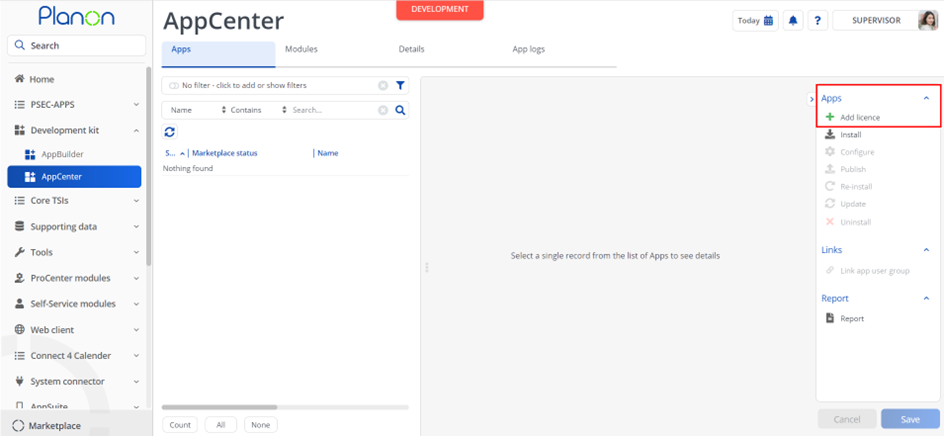
In case your environment is configured to use the Planon app store the only thing required to install the app is to add the app license in the AppCenter TSI. Planon will automatically download and install the app.
Manual installation
In case you want to perform a manual installation follow the steps below.
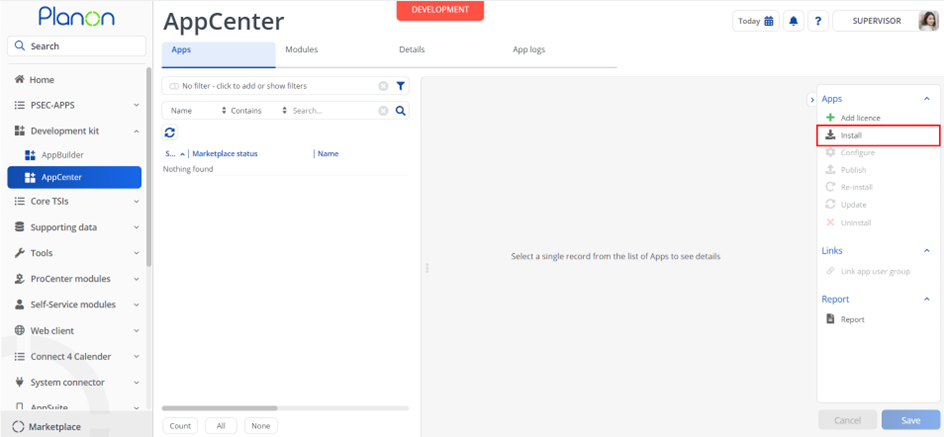
- Open AppCenter TSI from Planon webclient and click on install from action menu
- Browse to the .ppk file
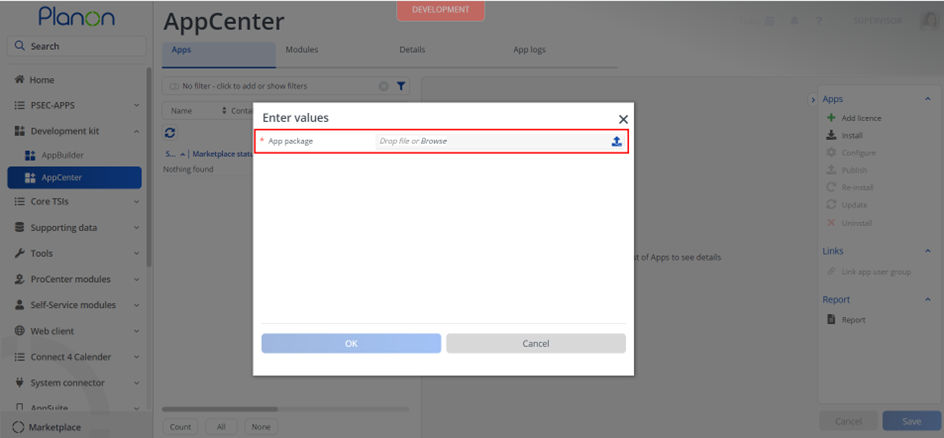
- Click OK to install the app and follow the installation process
- When the app is successfully installed, the app will appear in the AppCenter
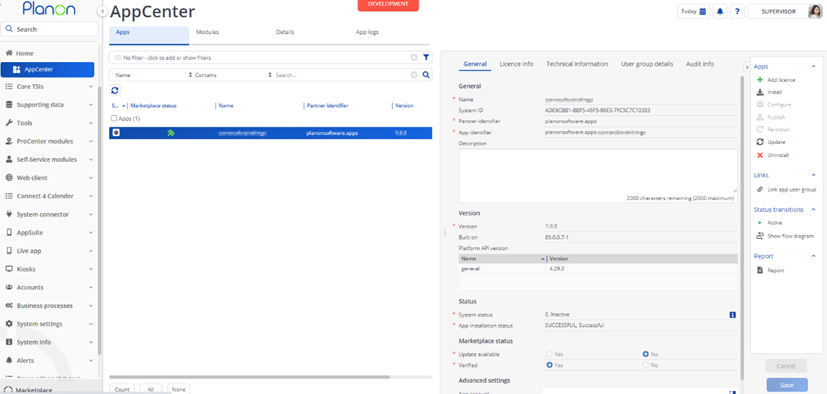
- Add the app license in Apps TSI
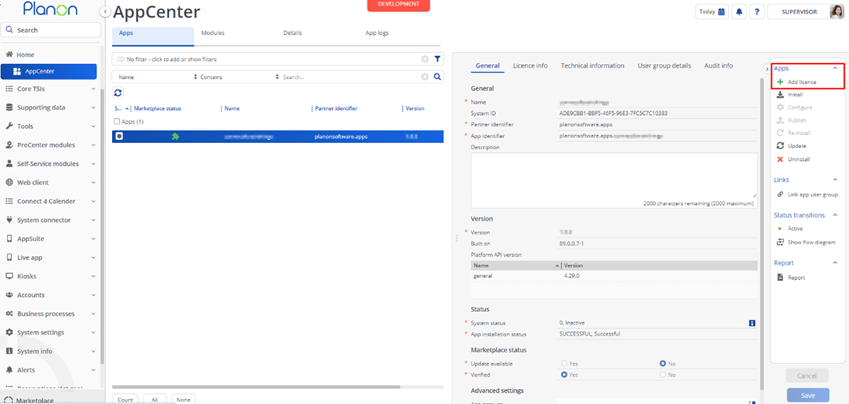
App Level Configuration
Add module settings
In the Module Settings section, provide the required values and click Save.
Module Setting details
| Parameter | Example Value | Description |
|---|---|---|
| url | https://api.izix.eu | Base Url of Izix API |
| clientId | Client Id to generate a token for authenticating with the Izix system | |
| clientSecret | Client Secret to generate a token for authenticating with the Izix system (secure value) | |
| izixOrganisationId | Organization Id from Izix, used to fetch/filter Access Rights, Reservations, Visits, and Profiles | |
| externalSystemCode | Izix | Code of the External System used for Izix (auto-created if not present) |
| dryRun | No | Set to Yes to create reservations/visits in dry run — the request is sent, but Izix does not actually create the record in Izix; the response is mimicked. Set to No to create actual bookings/visits. |
Note: For the clientSecret setting, click the popup button at the end of the field to open the secure-value dialog and paste the client secret there.
Business rule settings
The Business Rules Create/Delete Izix Booking and Create/Delete Izix Visitor share a common set of component settings:
| Parameter | Example Value | Description |
|---|---|---|
| filter | The rule triggers only for Business Objects that meet the filter criteria configured here | |
| triggerFields | System names of the fields that trigger create/update of a booking in Izix when changed |
Details on Filtering
This is used to filter the reservations/visitors to be sent to Izix.
For example, if we have to filter the records containing ‘000’, the value for the filter param should be as below Code CONTAINS 000
To add multiple filters, for example Code containing 000 and Name does not contain Test, below is format Code CONTAINS 000 & Name NOT_CONTAINS Test
Multiple values (in case of IN operator) can be combined using ‘,’. Multiple filters can be combined using the ‘and’ keyword. Reference fields will be filtered based on the lookup field of the referenced business object (usually ‘Code’).
Supported operators: EQUAL, NOT_EQUAL, LESS, LESS_EQUAL, GREATER, GREATER_EQUAL, IN, NOT_IN, CONTAINS, NOT_CONTAINS, STARTSWITH, NOT_STARTSWITH, ENDSWITH, NOT_ENDSWITH, NULL, NOT_NULL.
Worker settings
The Send Users To Izix worker has the following component settings:
| Parameter | Example Value | Description |
|---|---|---|
| validUserGroups | System names of the User Groups whose users should be sent to Izix. Only users linked to these groups can create reservations in Izix. | |
| updateDetails | No | Set to Yes to send updates for existing Izix users. Set to No to only create new profiles, without updating existing ones. |
| defaultUserLanguage | en_US | Default language set on new/updated Izix profiles when the user’s Planon language cannot be determined |
Translations
The app includes translations for error messages displayed on the parking availability web page and through the TSI Action. Configure the app log level
App log level
Reservation and Visitor synchronization errors, as well as parking availability lookup errors, are logged in the application server log (WildFly/Tomcat). To capture additional information, such as request and response bodies exchanged with Izix, set the App log level to DEBUG.
- Go to the AppCenter TSI.
- Select the connectforizix app at the Apps Selection level.
- Set the App log level to
DEBUGand Save.
Link User Groups
The app uses the Event Connector to exchange data with Izix. Make sure the app is linked to a User Group that has the Event Connector product definition linked to it:
- Find a User Group that is linked to the Event Connector Product Definition.
- Go to App Center.
- Select the app connectforizix and click Link App User Group.
- Select the User Group from step 1 and move it to the “In Use” section.
- Click OK.
Activation
Once the app has been configured, you can activate the app by pressing the Active status transition from the action panel. Always make sure that the required User groups are linked correctly and the Configure action is executed before activating the App.
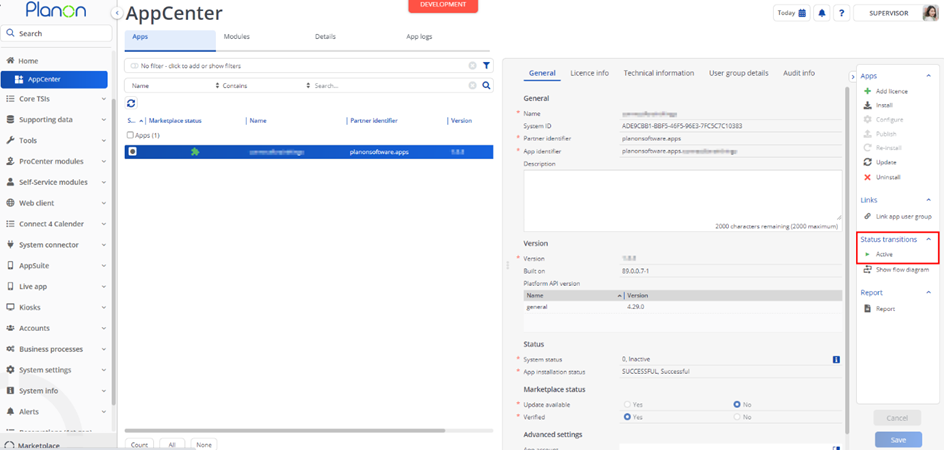
Planon Configuration
This chapter describes the configuration required in Planon, such as free fields, Business Rules and the TSI Action. Please follow the sections in order.
BO Property (fields)
| Description | User defined System name | Free field type | Planon field type |
|---|---|---|---|
| Izix Parking Lot Id | UsrIzixParkingLotId | Any available FreeString | String |
BO Reservation (fields)
| Description | User defined System name | Free field type | Planon field type |
|---|---|---|---|
| Send Booking to Izix | UsrSendBookingToIzix | Any available Codes/Code-Name (Yes/No) field | Code |
BO Visitor (fields)
| Description | User defined System name | Free field type | Planon field type |
|---|---|---|---|
| Send Booking to Izix | UsrSendBookingToIzix | The same Codes/Code-Name field used on Reservation | Code |
PSS Configuration to show/hide URL
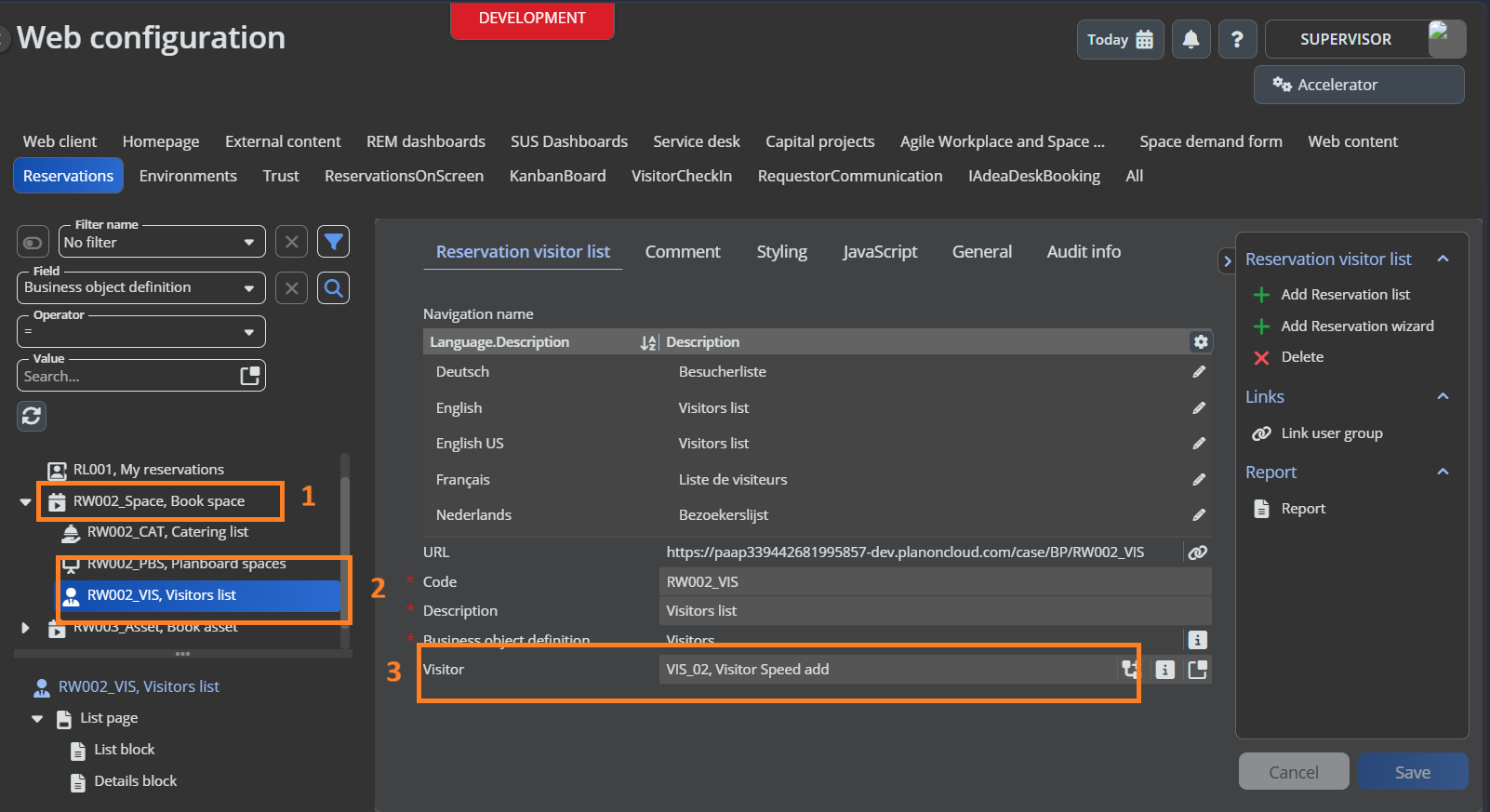
This helps to dynamically show or hide the Izix parking availability URL based on the ‘Send Booking to Izix’ field value. When this field is set to ‘Yes’ while booking a reservation via PSS, the url to check availability Izix will be displayed. When set to ‘No’ or left empty, the URL will be hidden.
Follow the below steps to achieve the functionality,
- Go to TSI for Web Configuration or PSS Configuration
- Select Reservations selection step
- Select the required PSS definition
- Click on Add block under General section
- Click on Add fields
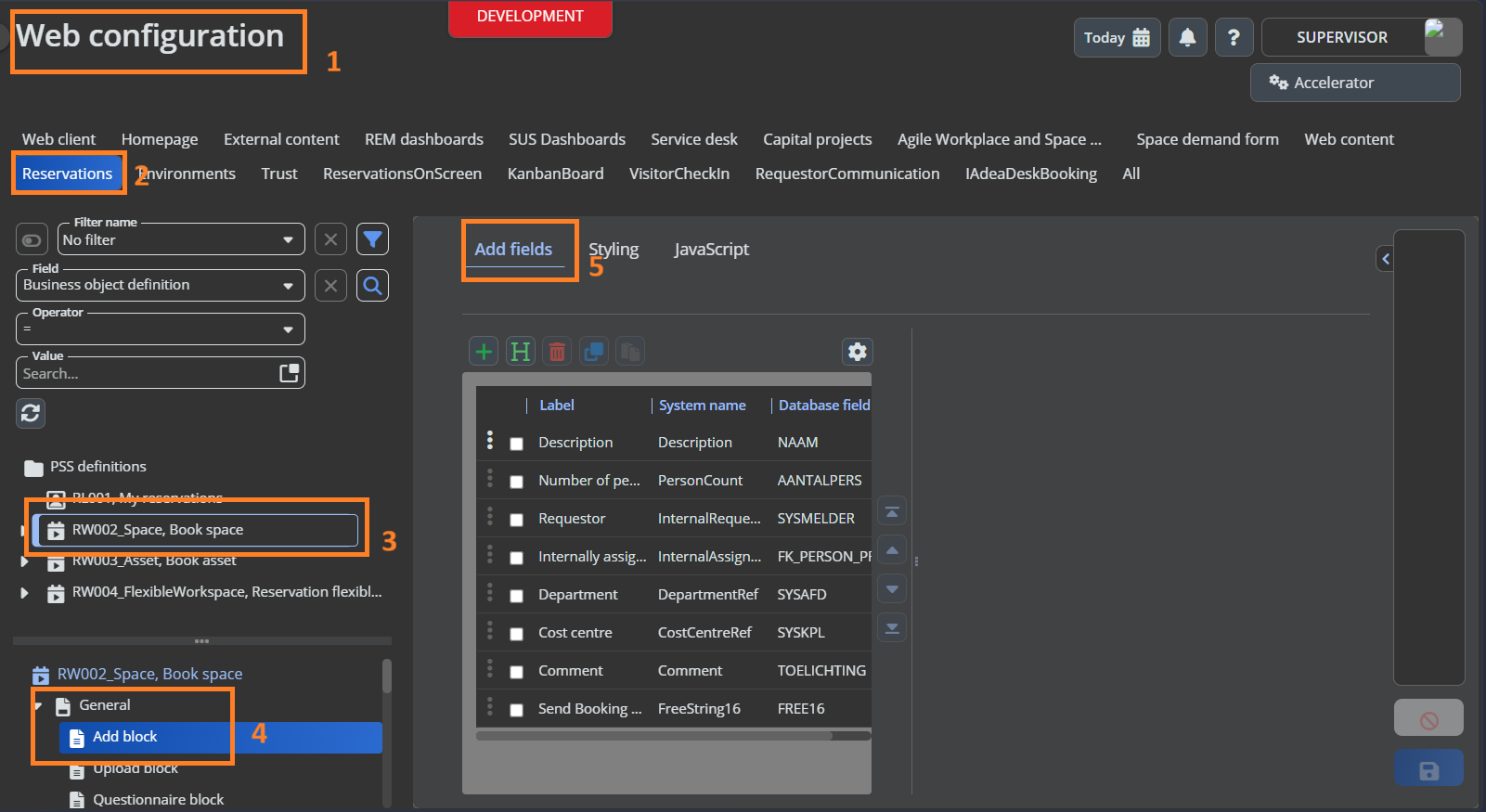
- Add the newly added ‘Send Booking to Izix’ field
- Once added, go to Java script tab of the field and copy the below script
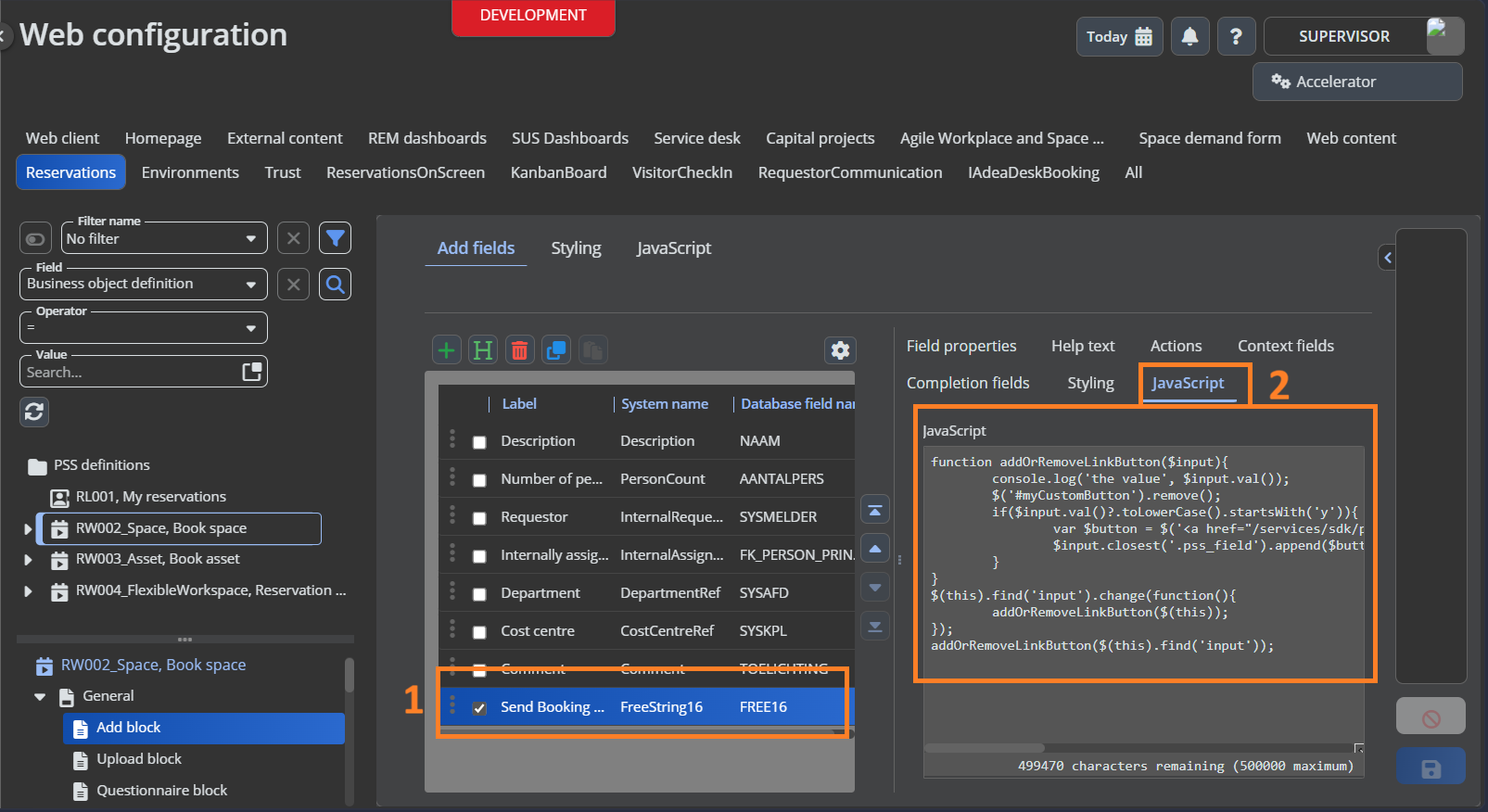
function addOrRemoveLinkButton($input){
	console.log('the value', $input.val());
	$('#myCustomButton').remove();
	if($input.val()?.toLowerCase().startsWith('y')){
		var $button = $('<a href="/services/sdk/platform/webpages/planonsoftware/apps/connectforizix/module/parkingavailability?type=booking" target="_blank">Check Izix Parking Availability</a>');
		$input.closest('.pss_field').append($button);
	}
}
$(this).find('input').change(function(){
	addOrRemoveLinkButton($(this));
});
addOrRemoveLinkButton($(this).find('input'));
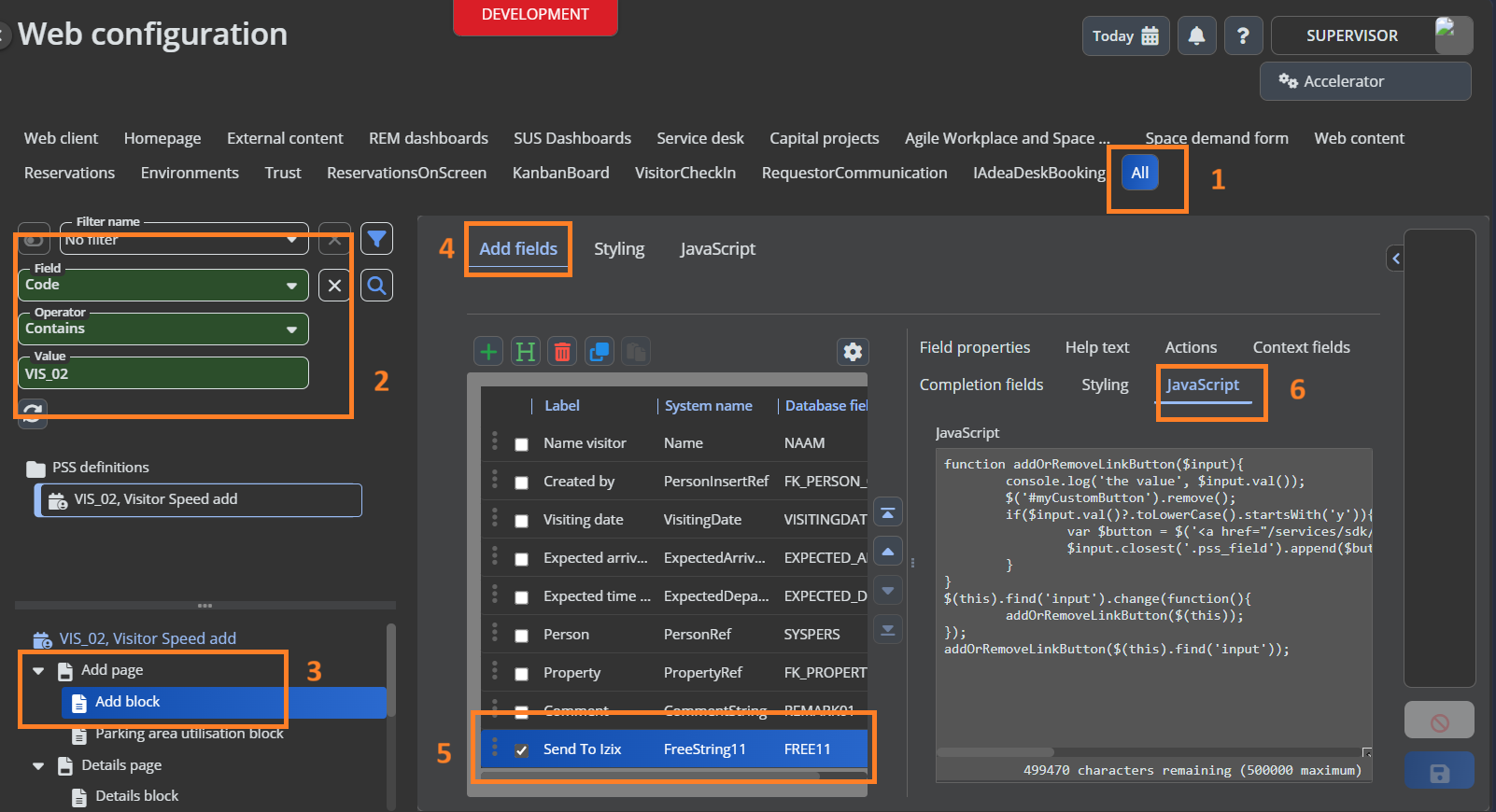
- Now go to the Visitor PSS definition linked to the selected Reservation PSS definition
- Go to All selection step and filter with the Code field
- Go to Add block under Add page
- Click on Add fields
- Add the newly added ‘Send Booking to Izix’ field
- Once added, go to Java script tab of the field and copy the below script
function addOrRemoveLinkButton($input){
	console.log('the value', $input.val());
	$('#myCustomButton').remove();
	if($input.val()?.toLowerCase().startsWith('y')){
		var $button = $('<a href="/services/sdk/platform/webpages/planonsoftware/apps/connectforizix/module/parkingavailability?type=visitor" target="_blank">Check Izix Parking Availability</a>');
		$input.closest('.pss_field').append($button);
	}
}
$(this).find('input').change(function(){
	addOrRemoveLinkButton($(this));
});
addOrRemoveLinkButton($(this).find('input'));
Business Rule configuration
- Go to the Field Definer TSI.
- Configure the Business Rules Create Izix Booking and Delete Izix Booking on the Reservation business object, and Create Izix Visitor and Delete Izix Visitor on the Visitor business object.
- Configure the trigger events as follows:
- Create Izix Booking / Create Izix Visitor:
AFTERDBINSERT,AFTERDBUPDATE. - Delete Izix Booking / Delete Izix Visitor:
AFTERDBDELETE,AFTERDBUPDATE.
- Create Izix Booking / Create Izix Visitor:
- Configure the Business Rule component settings (
filter,triggerFields) as described under Business rule settings.
TSI Action configuration
- Go to the Field Definer TSI.
- On the Reservation and Visitor business objects, add an Extended Action using the class name ShowIzixAvailability.
- Provide a suitable translation for the end user, e.g. “Show Izix Availability”, and save.
- Add the action to the relevant layouts (Reservations / Visitors TSIs).
- Logout and login to Planon to see the changes.
Worker configuration
- Configure the Send Users To Izix worker’s component settings as described under Worker settings.
- Schedule the worker to run periodically using Planon’s standard Import/Export Worker scheduling mechanism.
Sample payloads
OAuth2 token request (POST oauth/token)
{
  "grant_type": "client_credentials",
  "client_id": "<clientId>",
  "client_secret": "<clientSecret>",
  "scope": "*"
}
OAuth2 token response
{
  "access_token": "eyJhbGciOiJIUzI1NiIs...",
  "token_type": "Bearer",
  "expires_in": 3600
}
Reservation request (POST reservations)
{
  "profile_id": 264262,
  "access_policy_id": 118,
  "from": "2026-07-20T09:00:00",
  "to": "2026-07-20T17:00:00",
  "organization_id": 42,
  "dry_run": false
}
Reservation/Visit response
{
  "reservation_id": "9f1c3b2a-1234-4d56-9abc-1234567890ab",
  "remote_control_url": "https://api.izix.eu/remote-control/9f1c3b2a"
}
Visit request (POST visits)
{
  "first_name": "John",
  "last_name": "Doe",
  "email": "john.doe@example.com",
  "license_plate": "1-ABC-123",
  "access_policy_id": 205,
  "valid_from": "2026-07-20T09:00:00",
  "valid_to": "2026-07-20T17:00:00",
  "organization_id": 42,
  "dry_run": false
}
Profile create request (POST profiles)
[
  {
    "organization_id": 42,
    "language": "en_US",
    "tags": [],
    "plates": [],
    "email": "john.doe@example.com",
    "last_name": "Doe",
    "first_name": "John",
    "profile_external_reference": "john.doe@example.com",
    "phones": []
  }
]
Profile patch request (PATCH profiles)
[
  {
    "attributes": {
      "language": "en_US",
      "first_name": "John"
    },
    "profile_external_reference": "john.doe@example.com",
    "email": "john.doe@example.com",
    "organization_id": 42
  }
]
Available spots response (GET available-spots)
{
  "items": [
    { "access_policy_id": 118, "available_spots": 4 },
    { "access_policy_id": 205, "available_spots": 0 }
  ],
  "pagination": { "page": 1, "total_items": 2, "pages": 1, "per_page": 100 }
}
Troubleshooting
Error Handling
Reservation/Visitor not created in Izix: Check that
UsrSendBookingToIzixis set to Yes, all mandatory fields are populated, and that the requestor is already linked to an Izix profile (either via the scheduled worker, or manually through an External BO Link). Also confirm that a parking spot is actually available for the requested date/time, parking lot and access-policy type — the app will not report an error if no spots are available, it simply does not create the record.Reservation/Visitor id keeps changing after each update: This is expected — updates are implemented as a delete followed by a re-create in Izix (see Constraints).
Availability page shows “No Izix profile is linked to your user”: The current Planon user’s Account has no External BO Link to an Izix profile. Run/verify the Send Users To Izix worker for this user’s User Group, or link the Account manually.
Availability page shows “Parking lot ID not found for property”: Configure
UsrIzixParkingLotIdon the relevant Property record.Authentication errors: Verify the
url,clientIdandclientSecretmodule settingsSet the App log level to
DEBUG(see App log level) to see detailed request/response information for all Izix API calls in the application log.You should also ensure that the app is linked to a User Group that has the Event Connector Product Definition linked to it (see Link User Groups), otherwise outbound messages to Izix will not be transmitted.
Any errors related to TSI action or Webpage can be found in Tomcat log file
Any errors related to Business rules or Worker can be found in Wildfly log file