Planon Connect for Kone
Introduction
KONE is a global powerhouse transforming how people move through buildings and cities. From manufacturing elevators and escalators to pioneering smart urban mobility and sustainability, KONE shapes urban life through innovation, safety, and environmental responsibility.
Planon Connect for KONE provides the feasibility of integrating both KONE and Planon systems to synchronize the services orders between the systems.
Prerequisites
Environment
This solution is designed to work with Planon Live L119 and above.
Constraints
The app is based on below constraints
The app currently supports only one way synchronization ie from KONE to Planon
The customer has access to KONE portal to create Application and webhooks
The reactive orders created in Planon are sent to KONE via email using notifications
The mapping between Planon Assets and KONE equipment is already in place.
Required free BOs & free fields
The app requires below free fields
Business Object BaseAsset
- 1 Free String field to store the KONE equipment number
Business Object BaseOrder
1 Free String field to store KONE Service Order Number
1 Free field of type CodesCode field to store KONE Service Order Type.
Assumptions
NA
Features
Handle Unplanned (Reactive) Orders
One of the key features of the application is its ability to manage updates for reactive service orders.
Reactive orders are created in two ways.
Reactive Orders created in Planon
Reactive Orders (call outs) created at KONE
When a reactive order is created in Planon, it has to be shared with the KONE team via email for further processing. Once KONE creates corresponding service orders in their system, updates related to those orders such as status changes or completion details are communicated back to Planon through webhook integration.
The other case, where reactive orders created in KONE are sent to Planon via the webhook integration which are then created in Planon. Further updates to these orders are also sent to Planon.
These updates are seamlessly applied to the respective orders in Planon, ensuring that both systems remain synchronized and up to date.
Handle Planned Orders
KONE also manages planned maintenance tasks, which are sent to Planon via webhook integration. When a planned maintenance order is created in KONE, it is transmitted to Planon and registered as a new service order.
Subsequent updates from the KONE system such as revised schedules, technician assignments, or work completion are communicated via webhooks and applied to the relevant orders in Planon.
Get Service Report
KONE publishes a service report of the completed order. The app now supports to get this service report from KONE and stores it on a communication log for the corresponding order.
How does it work?
This chapter provides a technical description of the features above.
Handling Orders
Any new orders or updates to the existing orders are sent to Planon through webhook integration.
In order to receive updates via webhook, the comes with a POST endpoint which will be configured on webhook. This endpoint receives the json message and sends to the Planon Event Connector which are handled indendenlty.
Below is the endpoint
<Planon Base URL>/sdk/platform/jaxrs/planonsoftware/apps/connectforkone/module/webhook/order
Authentication to Planon endpoint:
To authenticate with Planon endpoint, a custom authorization header has to be sent along with the POST call.
Header key: Authorization
Header value: PLANONKEY accesskey=<Access Key generated for the integration user>
Sample body received
{
    "data": {
        "serviceOrderNumber": "9ABE41986336",
        "customerPurchaseOrderNumber": "",
        "equipmentNumber": "44414120",
        "actualArrivalDateTime": "2025-07-14T07:56:52",
        "finishedDateTime": "2025-07-12T18:18:47",
        "jobDescription": "Fermatorsturing defect na algemene stroomonderbreking in de regio.",
        "serviceOrderType": "YSM2",
        "serviceOrderTypeDesc": "Unplanned Service Order with Contract",
        "orderStatus": "On Site",
        "description": "105  Buiten dienst op niveau met gesloten deur",
        "commentsForCustomer": "The elevator is operational again",
        "descriptionOfWork": "On 14/07/2025 1:54 p.m., Upon arrival, our engineer noted that your installation was working. After analyzing the failure, our engineer began cleaning the bottom of the pit of your installation. The component concerned was part of the cabin electrification.",
        "workOrderPlannedStartDate": "2025-07-14T10:08:08"
    },
    "id": "71fee4f4-34bc-46e9-b7b7-620faf1a50e3",
    "time": "2023-09-09T04:42:51.893Z",
    "type": "com.kone.equipment.serviceorder.v2",
    "equipmentId": "ken:42069879",
    "clientid": "e2b5a2aa-71d1-4bea-b340-9d85f8d88c29",
    "source":
"http://dev.kone.com/webhook/765b2708-7036-4d1e-964e-cbd2b8d3fdaa",
    "specversion": "1.0"
}
The data received via the endpoint is pushed to event connector creating inbound raw messages and inbound messages. Once the inbound raw message is created, the endpoint returns success response.
The processing of data into Planon is processed via the event connector. The PaaP component called Processor gets the necessary information from the message received and process the data as per the logic defined.
Handling Unplanned (Reactive) Orders
As described in Chapter 3.1, Unplanned orders can start either at Planon or KONE. Below sub chapters provides the details on how these orders are handled.
To differentiate between the Unplanned Orders created at Planon and KONE, we use the below 3 fields from KONE
- serviceOrderType €“ Any orders with serviceOrderType as YSM3, YSM4 and YSM6 are considered as unplanned orders
- customerPurchaseOrderNumber €“ Orders created at Planon should be mapped with Order Number
- serviceOrderNumber €“ A unique number for each order at KONE
Handling orders originating from Planon
The orders created in Planon are sent to KONE via email. This is not part of the app but achieved using configurations. Once the Orders are sent to KONE, KONE team creates those orders in KONE system. The webhook then publishes the updates of the Orders. Below is the logic used to determine if the order is an unplanned one and originating from Planon
- serviceOrderType : Valid values are YSM3, YSM4 and YSM6
- customerPurchaseOrderNumber : should contain a value KONE & Planon Field mapping
| System Name of Planon Field | KONE API Field | Field Type |
|---|---|---|
| OrderNumber | customerPurchaseOrderNumber | String |
| Any free string field | serviceOrderType | CodesCodeName |
| Any free string field | serviceOrderNumber | String |
| ActualAttendPropertyDateTime (Configurable in settings) | actualArrivalDateTime | DateTime |
| ActualCompletionPropertyDateTime (Configurable in settings) | finishedDateTime | DateTime |
| LastStateChangedDateTime | Date when new status has arrived from KONE | |
| Comment (Configurable in settings) | descriptionOfWork + jobDescription + commentsForCustomer | String |
| RefBOStateUserDefined | orderStatus (KONE to Planon Status mapping is configurable) |
Handling orders originating from KONE
Sometimes users can directly report to KONE team in case of any failures or issues with elevators. In such cases, unplanned orders originate from KONE which are called as call outs as per KONE terminology.
Below is the criteria to determine if the order is unplanned and originating from KONE
- serviceOrderType Valid values are YSM3, YSM4 and YSM6
- customerPurchaseOrderNumber should be empty
- serviceOrderNumber should contain a value serviceOrderNumber is used as a unique identifier to check for an existing order in Planon. If no order is found with the incoming serviceOrderNumber, a new order is created.
Note: To create an order, the corresponding equipmentNumber should already be mapped to an asset in Planon. If no asset found, creation of order is skipped and further updates are not processed.
KONE & Planon Field mapping
| System Name of Planon Field | KONE API Field | Field Type | Additional Comments |
|---|---|---|---|
| Description | description | String | |
| OrderNumber | Auto Generated by Planon | ||
| InventoryItemRef | equipmentNumber | Asset in Planon is queried using the equipmentNumber | |
| PropertyRef | Property of the Asset | ||
| Any free string field | serviceOrderType | CodesCodeName | |
| Any free string field | serviceOrderNumber | String | |
| ActualAttendPropertyDateTime (Configurable in settings) | actualArrivalDateTime | DateTime | |
| ActualCompletionPropertyDateTime | finishedDateTime | DateTime | |
| LastStateChangedDateTime | Date when new status has arrived from KONE | ||
| Comment (Configurable in settings) | descriptionOfWork + jobDescription + commentsForCustomer | String | |
| OrderGroupRef | Value taken from settings of the app | ||
| RefBOStateUserDefined | orderStatus | KONE to Planon Status mapping is configurable |
Handling Planned Orders from KONE
KONE also manages planned maintenance tasks. These are also sent to Planon via the same webhook configured.
Planned orders are differentiated from Unplanned orders based on the KONE API field serviceOrderType
Any order received with serviceOrderType YSM1 or YSM2 are considered as Planned orders.
serviceOrderNumber is used as a unique identifier to check for an existing order in Planon. If no order is found with the incoming serviceOrderNumber, a new order is created.
Note: To create an order, the corresponding equipmentNumber should already be mapped to an asset in Planon. If no asset found, creation of order is skipped and further updates are not processed.
KONE & Planon Field mapping
| System Name of Planon Field | KONE API Field | Field Type | Additional Comments |
|---|---|---|---|
| Description | description | ||
| OrderNumber | Auto Generated by Planon | ||
| InventoryItemRef | equipmentNumber | Asset in Planon is queried using the equipmentNumber | |
| PropertyRef | Property of the Asset | ||
| Any free string field | serviceOrderType | CodesCodeName | |
| Any free string field | serviceOrderNumber | String | |
| ActualAttendPropertyDateTime (Configurable in settings) | actualArrivalDateTime | DateTime | |
| ActualCompletionPropertyDateTime (Configurable in settings) | finishedDateTime | DateTime | |
| PlannedBeginDateTime (Configurable in settings) | workOrderPlannedStartDate | DateTime | |
| LastStateChangedDateTime | Date when new status has arrived from KONE | ||
| Comment (Configurable in settings) | descriptionOfWork + jobDescription + commentsForCustomer | String | |
| OrderGroupRef | Value taken from settings of the app | ||
| RefBOStateUserDefined | orderStatus | KONE to Planon Status mapping is configurable |
Handling Order reports
The service reports for the orders are sent to Planon through webhook integration.
In order to receive updates via webhook, the comes with a POST endpoint which will be configured on webhook. This endpoint receives the json message and sends to the Planon Event Connector which are handled indendenlty.
Below is the endpoint
<Planon Base URL>/sdk/platform/jaxrs/planonsoftware/apps/connectforkone/module/webhook/order/report
Authentication to Planon endpoint:
To authenticate with Planon endpoint, a custom authorization header has to be sent along with the POST call. Header key: Authorization Header value: PLANONKEY accesskey=<Access Key generated for the integration user>
Sample body received
{
   "specversion": "1.0",
   "type": "com.kone.equipment.servicereport.v1",
   "source": "http://dev.kone.com/webhook/765b2708-7036-4d1e-964e-cbd2b8d3fdaa",
   "id": "a1b2c3d4-e5f6-7890-abcd-ef1234567890",
   "time": "2026-11-08T13:00:36.000Z",
   "data": {
      "ken": "10307777",
      "serviceOrderNumber": "7BBE8819756",
      "customerPurchaseOrderNumber": "",
      "serviceReportPdf":"JVBERi0xLjUKJeLjz9MKOCAwIG9iago8PCiUlRU9GCg="
   }
}
The data received through the endpoint is forwarded to the Event Connector, which creates both Inbound Raw Messages and Inbound Messages. The associated file is temporarily stored in a designated Planon location. Once the Inbound Raw Message has been successfully created, the endpoint returns a success response.
The processing of the data within Planon is handled by the Event Connector. A PaaP component called Processor extracts the required information from the received message and retrieves the temporarily stored file.
The retrieved file is then attached as SERVICE_REPORT.pdf to a newly created Communication Log (ComLog) for the corresponding order. The order is identified using the Service Order Number. If no matching order is found, the message is moved to the Failed state.
Installation
This chapter describes the steps required to install this app on your Planon environment.
Installation Process
There are two ways to install the app:
- Using the Marketplace
- Manual installation
Install the app by using the marketplace
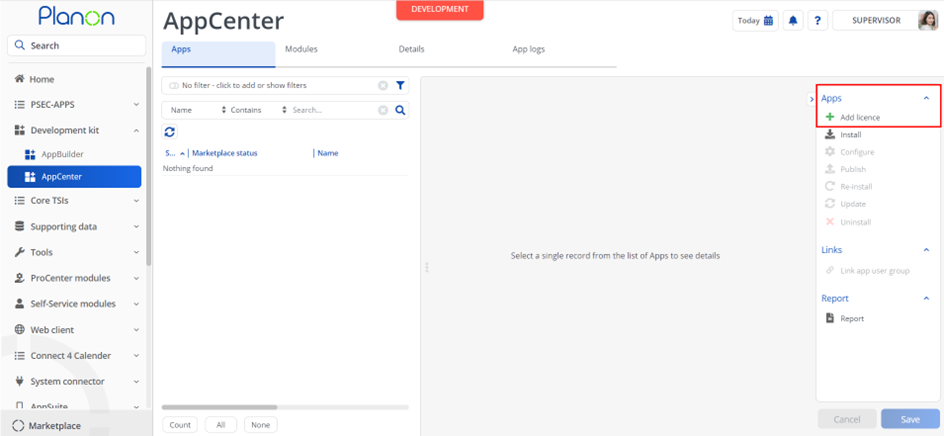
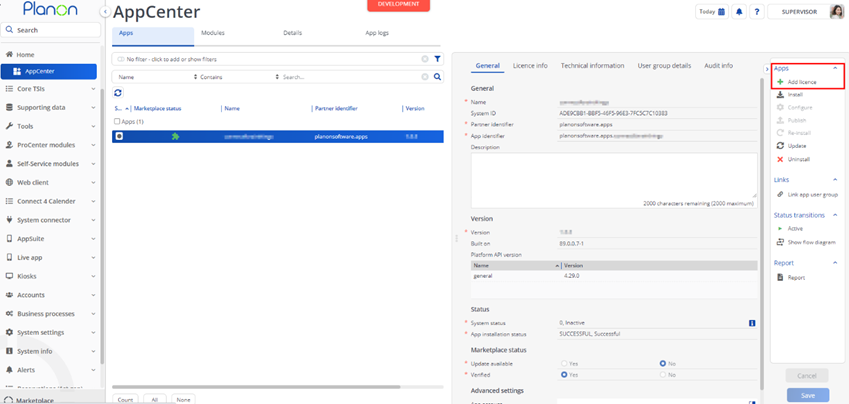
In case your environment is configured to use the Planon app store the only thing required to install the app is to add the app license in the AppCenter TSI. Planon will automatically download and install the app.
Manual installation
In case you want to perform a manual installation follow the steps below.
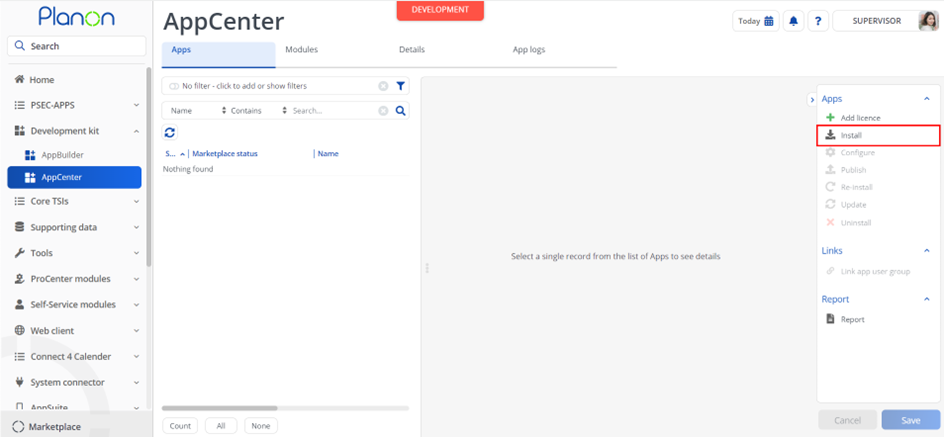
- Open AppCenter TSI from Planon webclient and click on install from action menu
- Browse to the .ppk file
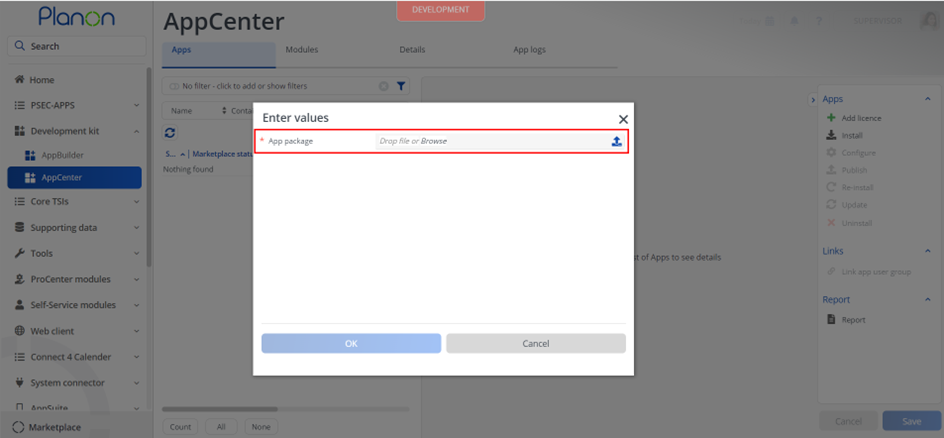
- Click OK to install the app and follow the installation process
- When the app is successfully installed, the app will appear in the AppCenter
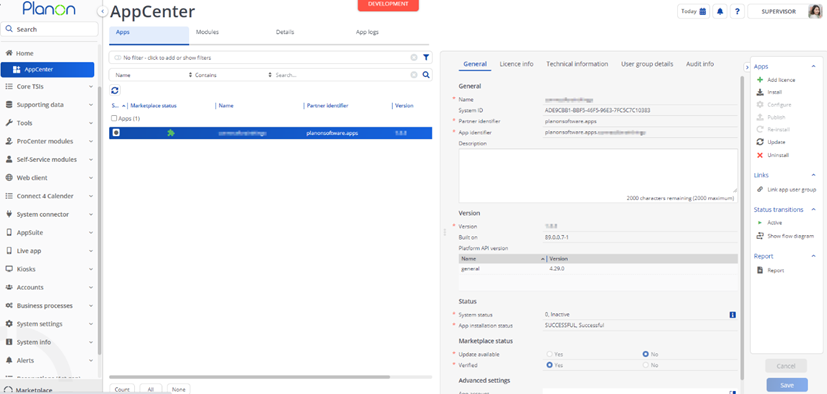
- Add the app license in Apps TSI
App Level Configuration
Add module settings
- Provide the module settings which are available in the Module Settings section. Here is an example:
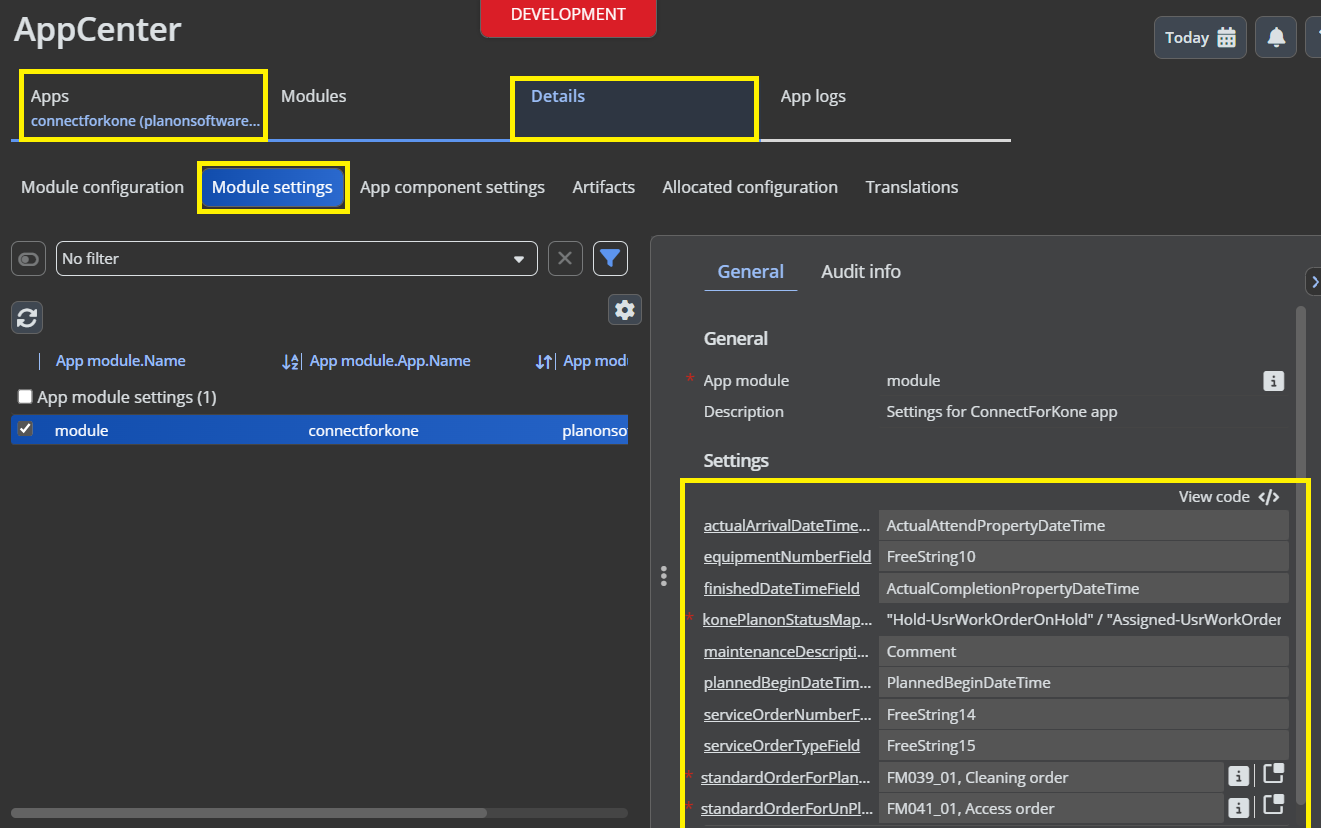
- Click the Save button after populating the module settings values.
Module Setting details
| Parameter | Example Value | Description |
|---|---|---|
| konePlanonStatusMapping | ‘New-UsrOrderReported,Hold-UsrWorkOrderOnHold€™ | This defines the status mapping between Kone status and Planon order status. Format is Kone Status-System name of Planon status |
| standardOrderForUnPlannedOrders | UsrOrder | Standard Order BO used to create Unplanned Order |
| standardOrderForPlannedOrders | UsrOrder | Standard Order BO used to create Planned order |
| actualArrivalDateTimeField | ActualAttendPropertyDateTime | This is the system name of the field on Order to store actualArrivalDateTime from KONE |
| equipmentNumberField | FreeString10 | This is the system name of the field on Asset where KONE Equipment number is stored |
| finishedDateTimeField | ActualCompletionPropertyDateTime | This is the system name of the field on Order to store finishedDateTime from KONE |
| maintenanceDescriptionField | Comment | This is the system name of the field to store job description, comments for customer on the Order |
| plannedBeginDateTimeField | PlannedBeginDateTime | This is the system name of the field on Order to store Planned Begin Date of Planned Orders from KONE |
| serviceOrderNumberField | FreeString14 | This is the system name of the field to store Service Order Number (A unique id) from KONE |
| serviceOrderTypeField | FreeString15 | This is the system name of the field on Order to store Service Order Type from KONE |
| comlogTypeForOrderReport | UsrCommunicationLog | System name of the Communication log type to be used for order report |
| securelyStoreServiceReport | Yes | Set to ‘Yes’ to store the service report PDF in Secure document field on Communication log. Set to ‘No’ to store the service report PDF in Document field on Communication log. |
Example settings in view code mode
// Settings for ConnectForKone app
{
// System name of the field on Order BO to update 'actualArrivalDateTime' from KONE
"actualArrivalDateTimeField" : "ActualAttendPropertyDateTime",
// System Name of the field on Asset BO where the equimentNumber from KONE is present
"equipmentNumberField" : "FreeString10",
// System name of the field on Order BO to update 'finishedDateTime' from KONE
"finishedDateTimeField" : "ActualCompletionPropertyDateTime",
// This defines the status mapping between Kone status and Planon orderstatus. Format is Kone Status-System name of Planon status.Example 'New-UsrWorkOrderReported,Hold-UsrWorkOrderOnHold. Value must be an array of strings.
"konePlanonStatusMapping" : [ "Hold-UsrWorkOrderOnHold","Assigned-UsrWorkOrderAssigned", "Accepted-UsrWorkOrderAssigned","OnSite-UsrWorkOrderInProgress","Finished-UsrWorkOrderTechnicallyCompleted","Arrived-UsrWorkOrderInProgress" ],
// System name of the field on Order BO to update 'Description of Work', 'jobDescription' & 'commentsForCustomer' from KONE
"maintenanceDescriptionField" : "Comment",
// System name of the field on Order BO to update 'workOrderPlannedStartDate' from KONE
"plannedBeginDateTimeField" : "PlannedBeginDateTime",
// System Name of the field on Order BO to store 'serviceOrderNumber' from KONE
"serviceOrderNumberField" : "FreeString14",
// System Name of the field on Order BO to store 'serviceOrderType' from KONE
"serviceOrderTypeField" : "FreeString15",
// Selected standard order is used to create Order BO in Planon for Kone Planned
"standardOrderForPlannedOrders" : {
"primaryKey" : 29
},
// Selected standard order is used to create Order BO in Planon for Kone UnPlanned Orders/ Call Outs
"standardOrderForUnPlannedOrders" : {
"primaryKey" : 31
},
// System name of the Communication log type to be used for order report
"comlogTypeForOrderReport" : "UsrCommunicationLog",
// Set to 'Yes' to store the service report PDF in Secure document field on Communication log. Set to 'No' to store the service report PDF in Document field on Communication log.
"securelyStoreServiceReport" : true
}
Link User Groups
App uses Event Connector solution to process data into Planon. So please make sure the app is linked to the User Group that allows to use Event Connector Product definition.
Find/Create a user group that is linked with Event Connector, Json Services and Enterprise API Product Definitions
Go to App centre
Select the app and click on €œLink App User Group€
Select the user group from step 1 and move to In Use section
Click ok
Also, the user for which access key is generated should be linked to this user group.
Activation
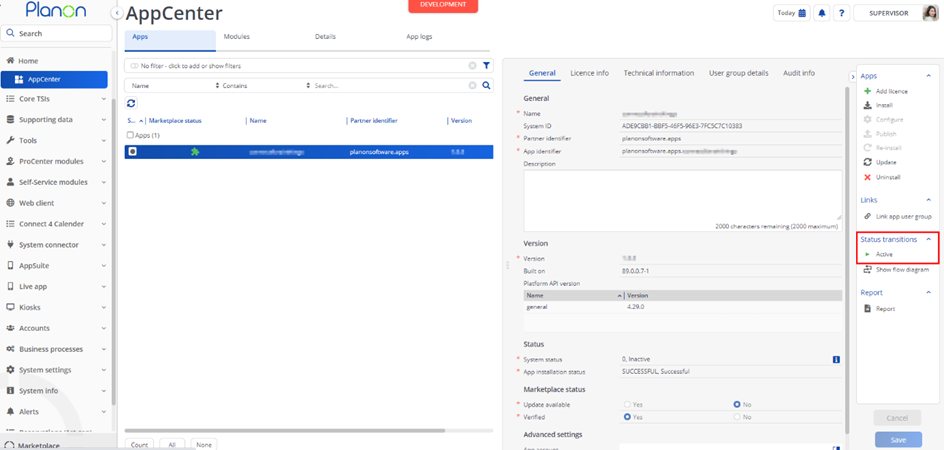
Once the app has been configured, you can activate the app by pressing the Active status transition from the action panel. Always make sure that the required User groups are linked correctly and the Configure action is executed before activating the App.
Planon Configuration
This chapter describes the required configuration in the application such as adding a TSI Action to field definer / layouts (if applicable) and/or configuring any free fields.
Pick List
A code/descriptive pick list needs to be created and which needs to linked to a field on the Order Business Object.
The picklist should be given the name SERVICE_ORDER_TYPES
The following items should be added to the pick list
| Code | Description |
|---|---|
| YSM1 | Planned with Contract |
| YSM2 | Planned without Contract |
| YSM3 | Unplanned with contract |
| YSM4 | Unplanned without contract |
| YSM6 | Fixed price repair order |
BO BaseOrder (Fields)
Two free fields are required on the Orders to store service order type and service order number from KONE
| Description | Free field type | Planon field Type | Pick List |
|---|---|---|---|
| KONE Service Order Type | Any available FreeString | CodesCodeName | SERVICE_ORDER_TYPES |
| KONE Service Order Number | Any available FreeString | String |
BO BaseAsset (Fields)
A free field is required on the Asset to store KONE equipment number
| Description | Free field type | Planon field Type |
|---|---|---|
| KONE Equipment Number | Any available FreeString | String |
KONE Configuration
KONE configuration involves the process of configuring the webhook.
Please follow below steps to configure webhook in KONE
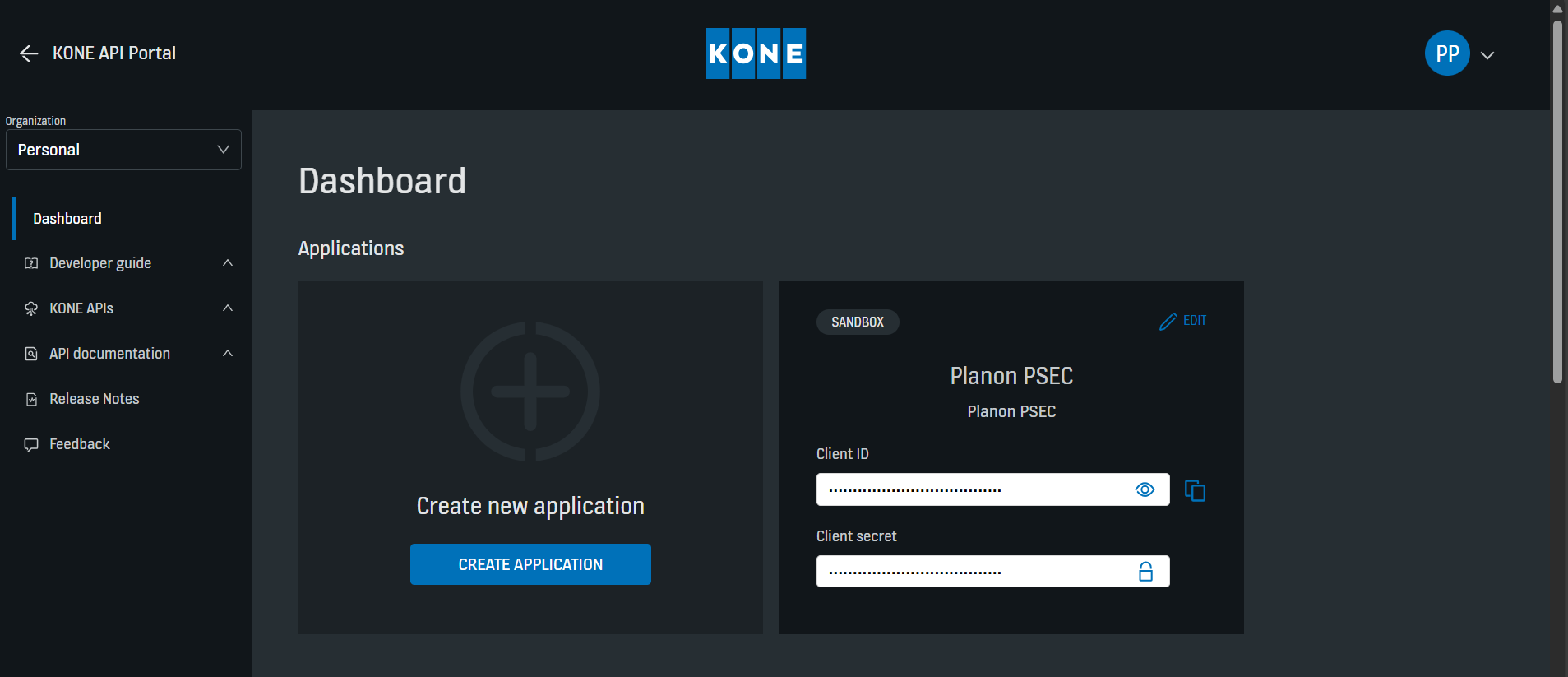
Login to KONE API Portal
If there is no active application, create a new application with all the necessary details
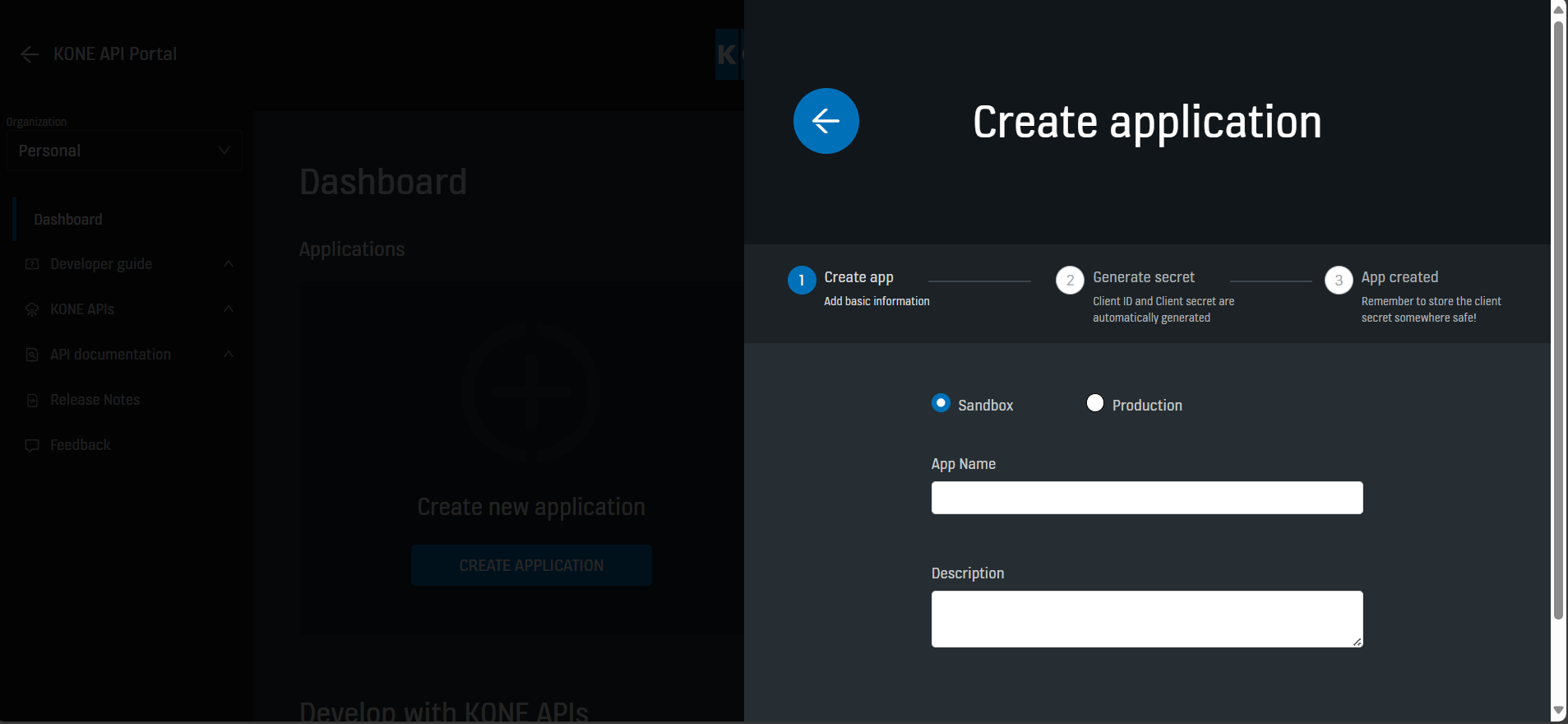
Once all the details are provided, the application is saved.
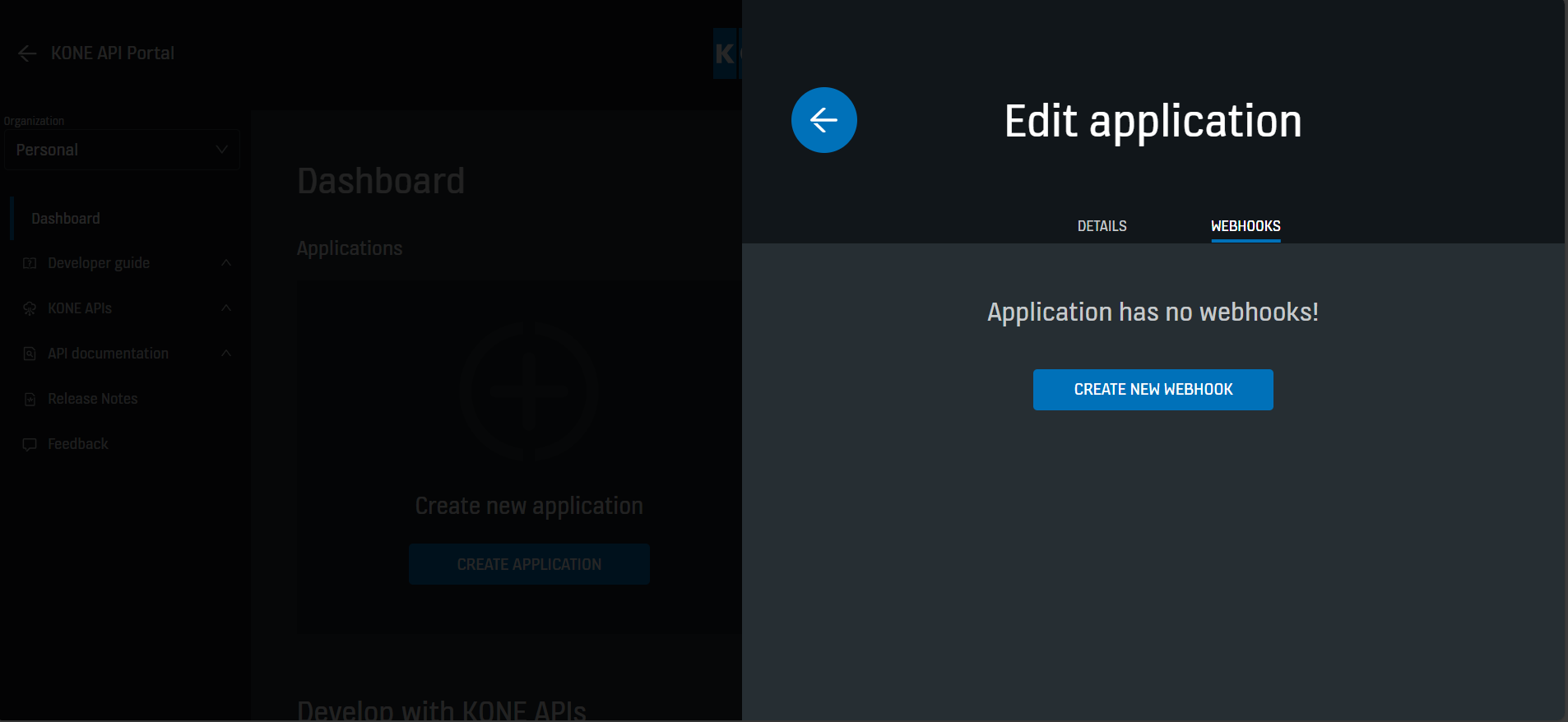
Now Click on Edit action and go to WebHooks section
Create new webhook
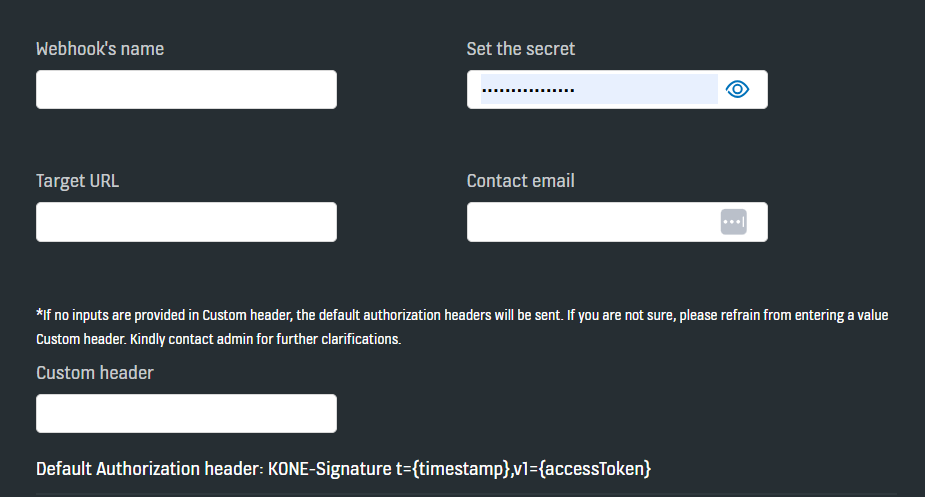
Provide the details for the webhook as below
Webhook’s name : Any name as per requirement
Target Url: <Planon Base url>/sdk/platform/jaxrs/planonsoftware/apps/connectforkone module/webhook/order
Contact email: Email of the contact person
Customer header: PLANONKEY accesskey=<accesskey generated for a Planon user>
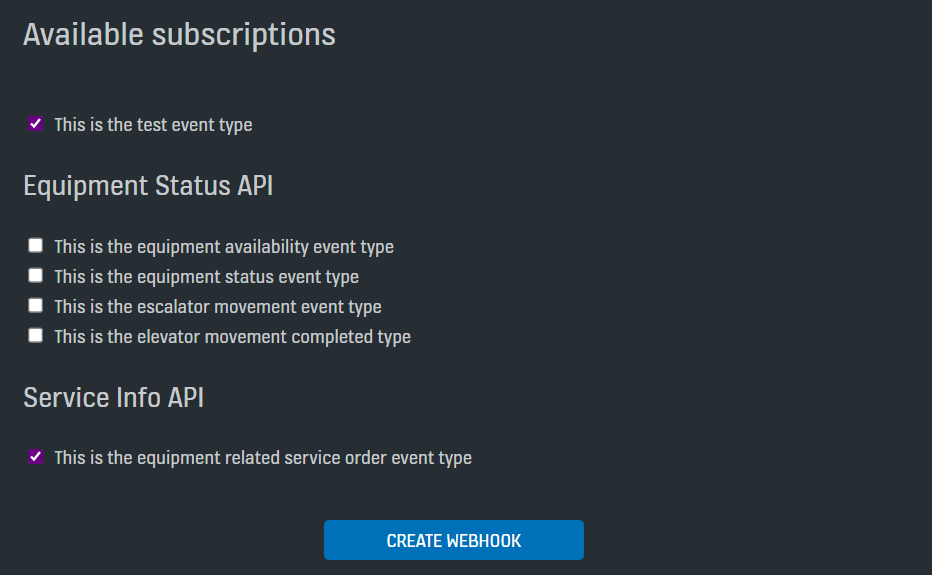
- Subscribe to the event Service Info API as below and click on create webhook
- Create one more webhook for Order service report with below details
Webhook’s name : Any name as per requirement
Target Url: <Planon Base url>/sdk/platform/jaxrs/planonsoftware/apps/connectforkone/module/webhook/order/report
Contact email: Email of the contact person
Customer header: PLANONKEY accesskey=<accesskey generated for a Planon user>
Subscribe to event as shown below
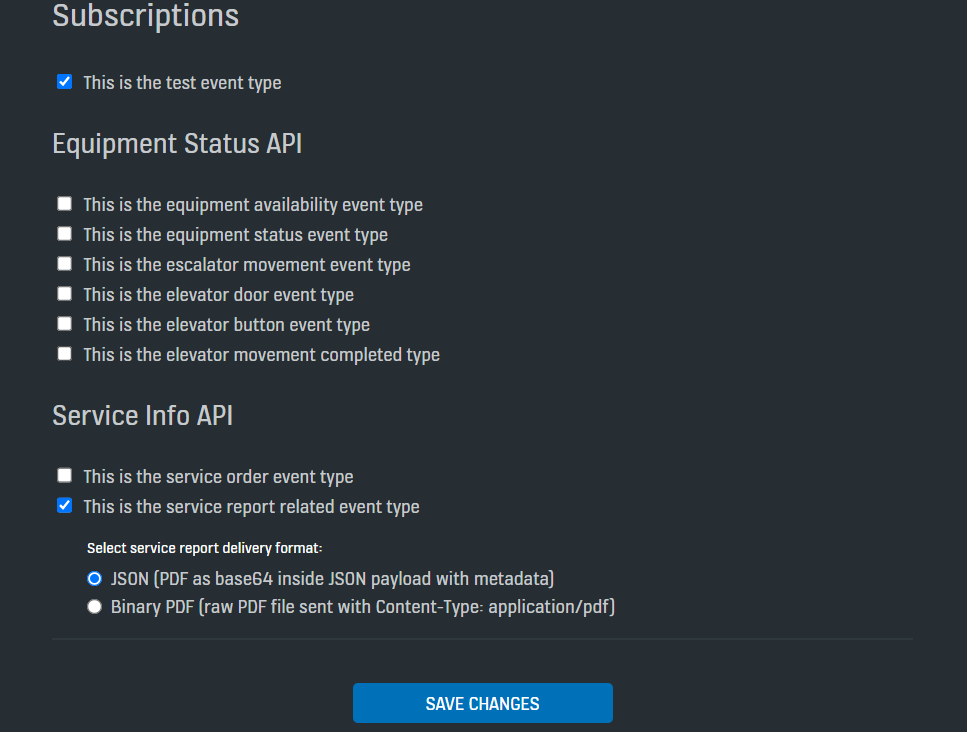
Note: The webhook should also be subscribed to specific KONE Equipment Numbers (KENs) such that only the events for the selected equipments are sent to Planon
Troubleshooting
This chapter provides a comprehensive overview of common occurrences and known issues that can serve as a reference when the app is not functioning as anticipated
When no messages are received
Check if Webhook is subscribed
Check if App is active
Check if the access key is valid
Check if app is linked to User group and user for which access key used is also linked to the same user group
Check if the required product definitions are linked to the user group
Any run time errors during creation of inbound raw messages can be found in tomcat log file
Any run time errors during the process of incoming message can be found in wildfly log file