Planon Connect for Lambent IoT
Introduction
Planon Connect for Lambent is a Planon IoT Connector app that integrates Lambent’s (Armored Things / Lambent Spaces) occupancy-analytics platform with Planon IoT.
The app authenticates with the Lambent API using OAuth 2.0 , periodically polls Lambent’s occupancy endpoints, and delivers the readings to Planon IoT as Mean Occupancy (and optionally Peak Occupancy) data points against a LambentOccupancySensor device.
Prerequisites
Environment
This solution is designed to work with Planon L132 and above
Planon IoT must be active and configured in the environment (see Planon IoT Configuration).
Constraints
The app is based on the following constraints observed in the code:
- A single Gateway can be configured to poll either Level data or Zone data, not both. The choice is controlled per-Gateway by the
isLevelGateway Setting. To capture both Level and Zone occupancy at the same time, two separate Gateway instances are required — one configured for Level, one for Zone. - A new OAuth token is requested on every poll cycle. The app does not cache or reuse access tokens between polls — a new token is requested every time a Gateway polls for data.
- The polling window is a fixed look-back, calculated as
now − interval (minutes)tonow, not a configurable date range per request.
Required free BOs & free fields
N/A — this app does not use Planon Business Objects or free fields. All configuration is done through Planon IoT App Settings and Gateway Settings (see below).
Assumptions
- You already have a Lambent (Armored Things / Lambent Spaces) account with API access.
- Lambent has provided you with an OAuth Client ID, Client Secret, and Tenant ID for the client-credentials grant.
- The Planon environment has network access to the Lambent API
- Planon IoT is already activated and configured in the environment.
Features
Polling of Occupancy Data (Level or Zone)
For each configured IoT Gateway, the app periodically calls either the Lambent Level occupancy endpoint or the Zone occupancy endpoint, depending on the Gateway’s isLevel setting. The time window polled and the data resolution (e.g. 15-minute buckets) are configurable per Gateway.
Automatic Device Discovery
Devices (Levels or Zones) are not manually created in Planon IoT. The LambentOccupancySensor product is configured with auto-discovery enabled, so new Levels/Zones reported by Lambent are automatically onboarded as devices in Planon IoT the first time a reading is received for them.
Mean and (optional) Peak Occupancy reporting
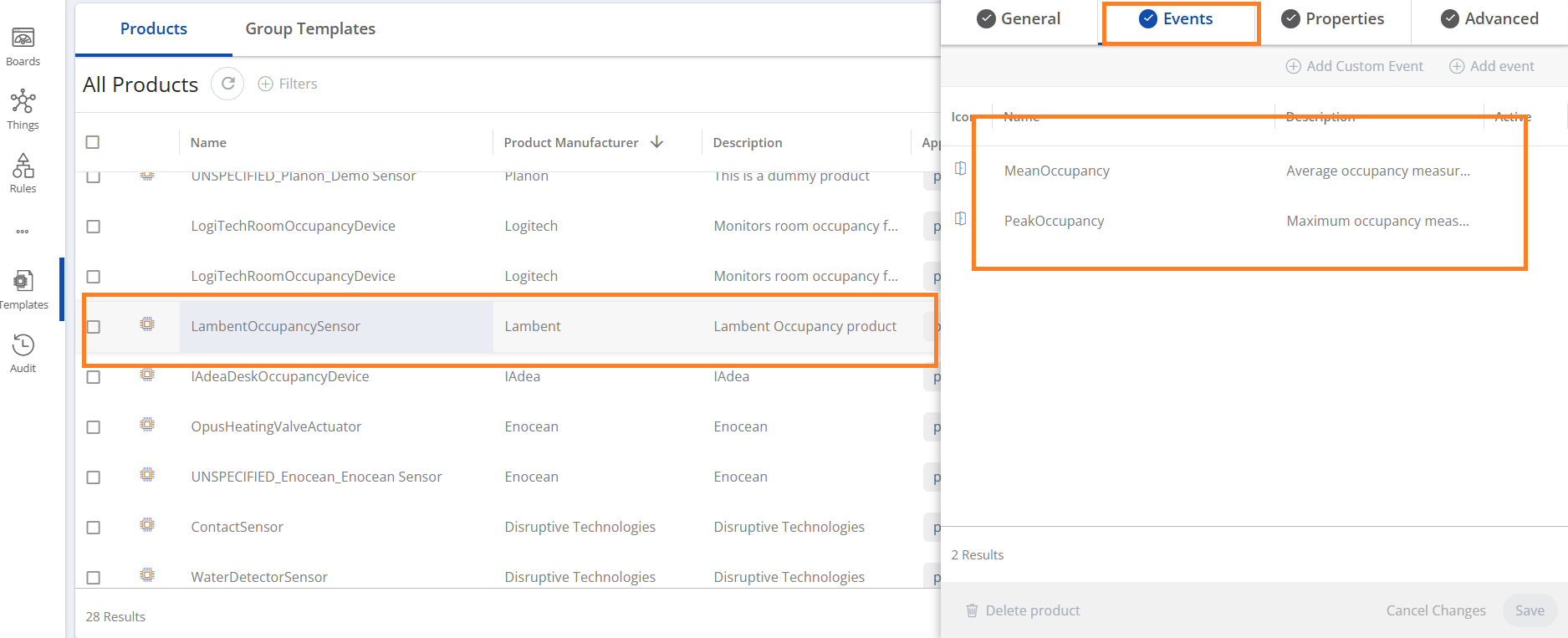
Every reading includes a Mean Occupancy value. If the fetchPeakOccupancy app setting is enabled, a Peak Occupancy data point is also reported for each device/reading.
How does it work?
This chapter provides a technical description of the features above.
Authentication
The app sends a POST request to the Authentication URL (App Setting authUrl) with a JSON body containing:
| Field | Value |
|---|---|
client_id | App Setting clientId |
client_secret | App Setting clientSecret (secure) |
audience | Fixed value api.lambentspaces.com |
grant_type | Fixed value client_credentials |
The response is parsed for an access_token field. If the HTTP response is not 200, or no token is returned, the error is logged and the poll cycle for that Gateway run is aborted with an authentication error.
Data Polling Cycle
Each time an IoT Gateway configured with this app’s polling gateway runs:
- The app’s OAuth token is fetched (see above).
- Query parameters are built:
tenant_id— from App SettingtenantIdresolution— from Gateway Settingresolution(e.g.15m)start/end— a UTC time window computed asnow − interval(Gateway Settinginterval, in minutes) tonow
- Depending on the Gateway Setting
isLevel, either the Level occupancy endpoint or the Zone occupancy endpoint is called against the Lambent API ({baseUrl}/analyze/v1/occupancy/levelor{baseUrl}/analyze/v1/occupancy//zone), passing the Bearer token in theAuthorizationheader. - The JSON response is parsed into a list of occupancy reading records.
- Each occupancy reading is sent individually to Planon IoT via the Gateway Reading Sender. If sending an individual reading fails, the failure is logged and the remaining readings continue to be processed.
- If authentication or the API call itself fails, the whole poll run fails with the error “Failed to send level and zone payloads”.
Product and Data Point Definition
The app registers one IoT Product:
| Property | Value |
|---|---|
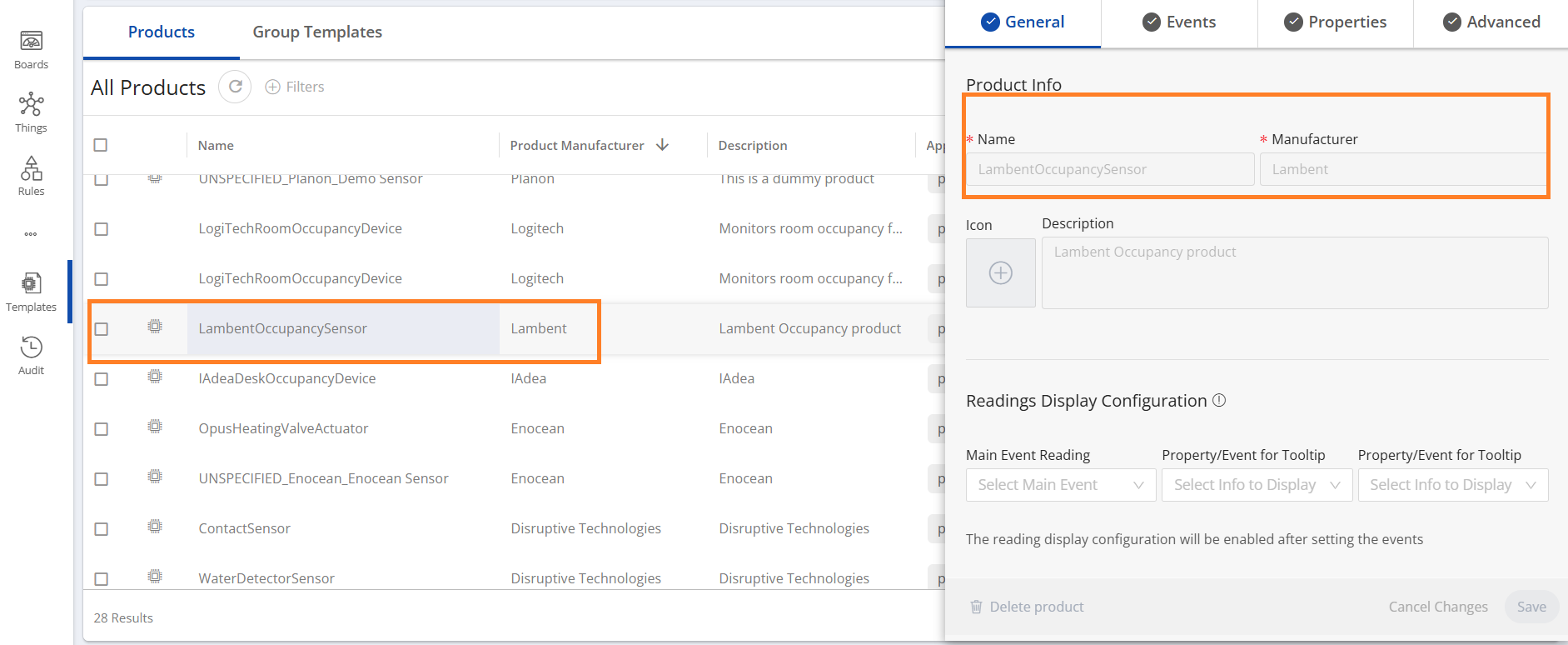
| Product name | LambentOccupancySensor |
| Manufacturer | Lambent |
| Gateway | Lambent Polling Gateway |
| Data points | PersonCount (type: Counter) — always added; PeakOccupancy (type: Counter) — added only if App Setting fetchPeakOccupancy is enabled |
Toggling fetchPeakOccupancy automatically updates the product schema to add or remove the PeakOccupancy data point — no manual re-activation of the app or product is required.
The product’s schema definition has auto-discovery enabled and maps incoming reading fields as follows:
| Lambent reading field | Schema mapping | Notes |
|---|---|---|
zone_id (if present), else level_id | Device Custom ID (device_id) | Resolved automatically from the incoming reading |
zone_name (if present), else level_name | Device Name (device_name) | Resolved automatically from the incoming reading |
start_timestamp | Reading date/time | |
mean_occupancy | Event → PersonCount (Mean Occupancy) data point of type Counter | Always mapped |
peak_occupancy | Event → PeakOccupancy (Peak Occupancy) data point of type Counter | Only mapped if fetchPeakOccupancy is enabled |
Device identification logic (embedded in the product’s schema definition): if the payload contains a non-null zone_id, the device is identified as zone device. otherwise it falls back to level_id considering it as a level device.
Installation
This chapter describes the steps required to install this app on your Planon environment.
Installation Process
There are two ways to install the app:
- Using the Marketplace
- Manual installation
Install the app by using the marketplace
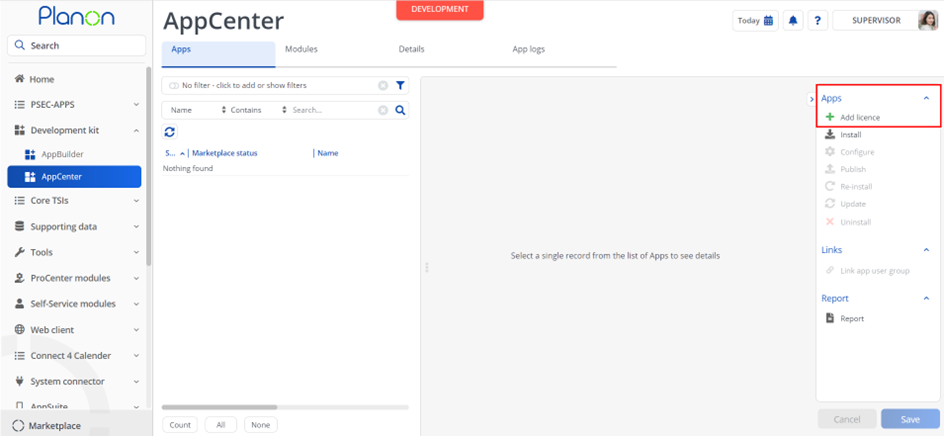
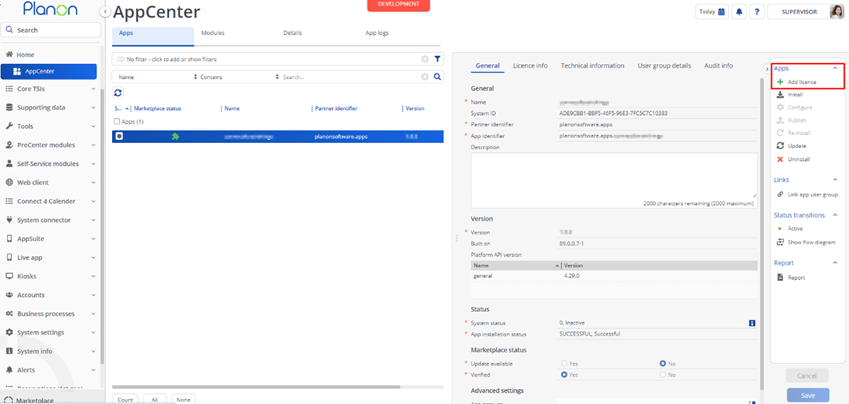
In case your environment is configured to use the Planon app store the only thing required to install the app is to add the app license in the AppCenter TSI. Planon will automatically download and install the app.
Manual installation
In case you want to perform a manual installation follow the steps below.
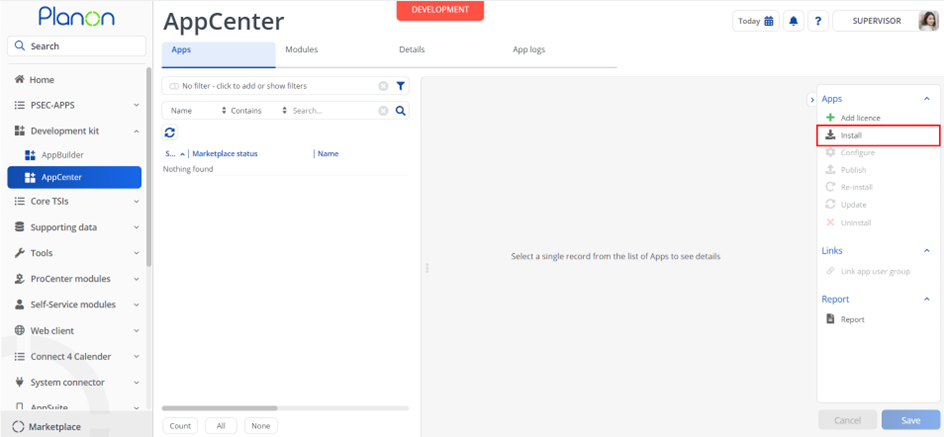
- Open AppCenter TSI from Planon webclient and click on install from action menu
- Browse to the .ppk file
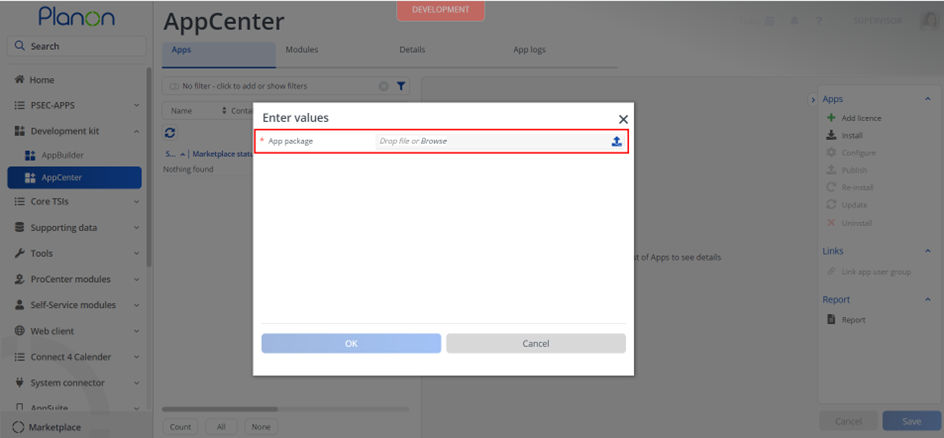
- Click OK to install the app and follow the installation process
- When the app is successfully installed, the app will appear in the AppCenter
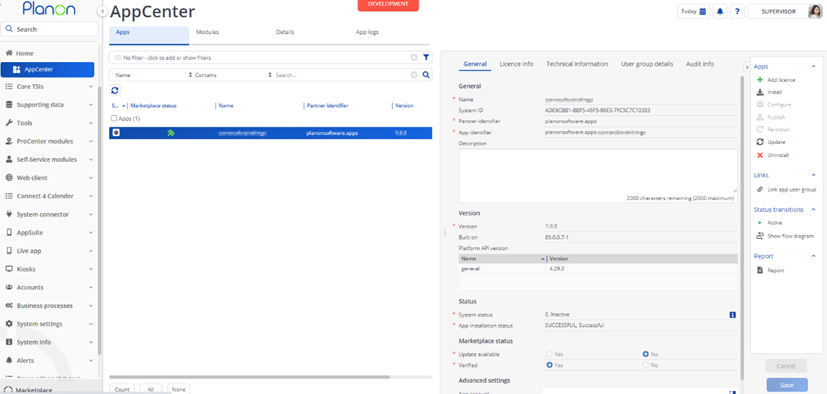
- Add the app license in Apps TSI
App Settings
| Parameter | Default Value | Description |
|---|---|---|
baseUrl | https://prod-api-ag.lambentspaces.app/ | Base URL for the Lambent API |
authUrl | https://armoredthings.auth0.com/oauth/token | Authentication URL for the Lambent API |
clientId | (empty) | Client ID for the Lambent API |
clientSecret | (empty, secure field) | Client Secret for the Lambent API |
tenantId | (empty) | Tenant ID for the Lambent API |
fetchPeakOccupancy | Yes | Set to Yes to also fetch Peak Occupancy along with Mean Occupancy from the Lambent API. Set to No to only fetch Mean Occupancy |
keepAliveThreshold | 15 | Timeout in mins for the Occupancy Sensor Device before it gets disconnected if no reading recevied with in the given time |
Activation
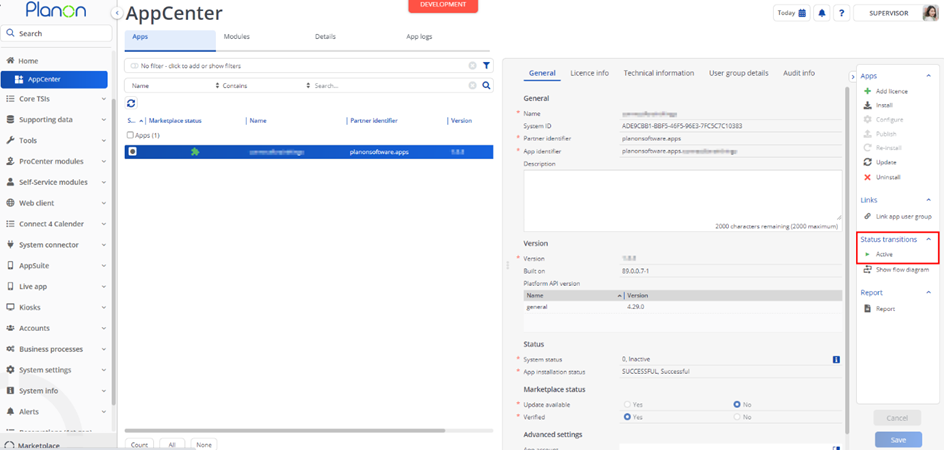
Once the app has been configured, you can activate the app by pressing the Active status transition from the action panel. Always make sure that the required User groups are linked correctly and the Configure action is executed before activating the App.
Planon IoT Configuration
Gateway
The Gateway type and the LambentOccupancySensor Product are registered automatically when the app is installed — no manual configuration of the Product or its data points/schema is required.
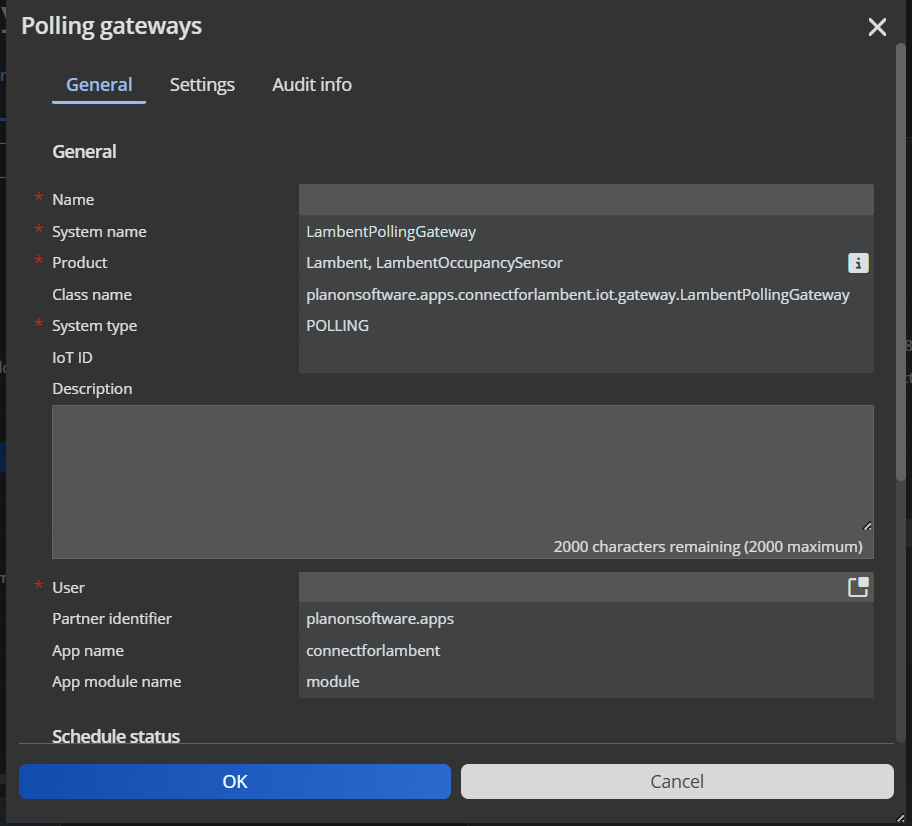
A Gateway instance using this Gateway type must still be created manually in Planon IoT before polling can start.
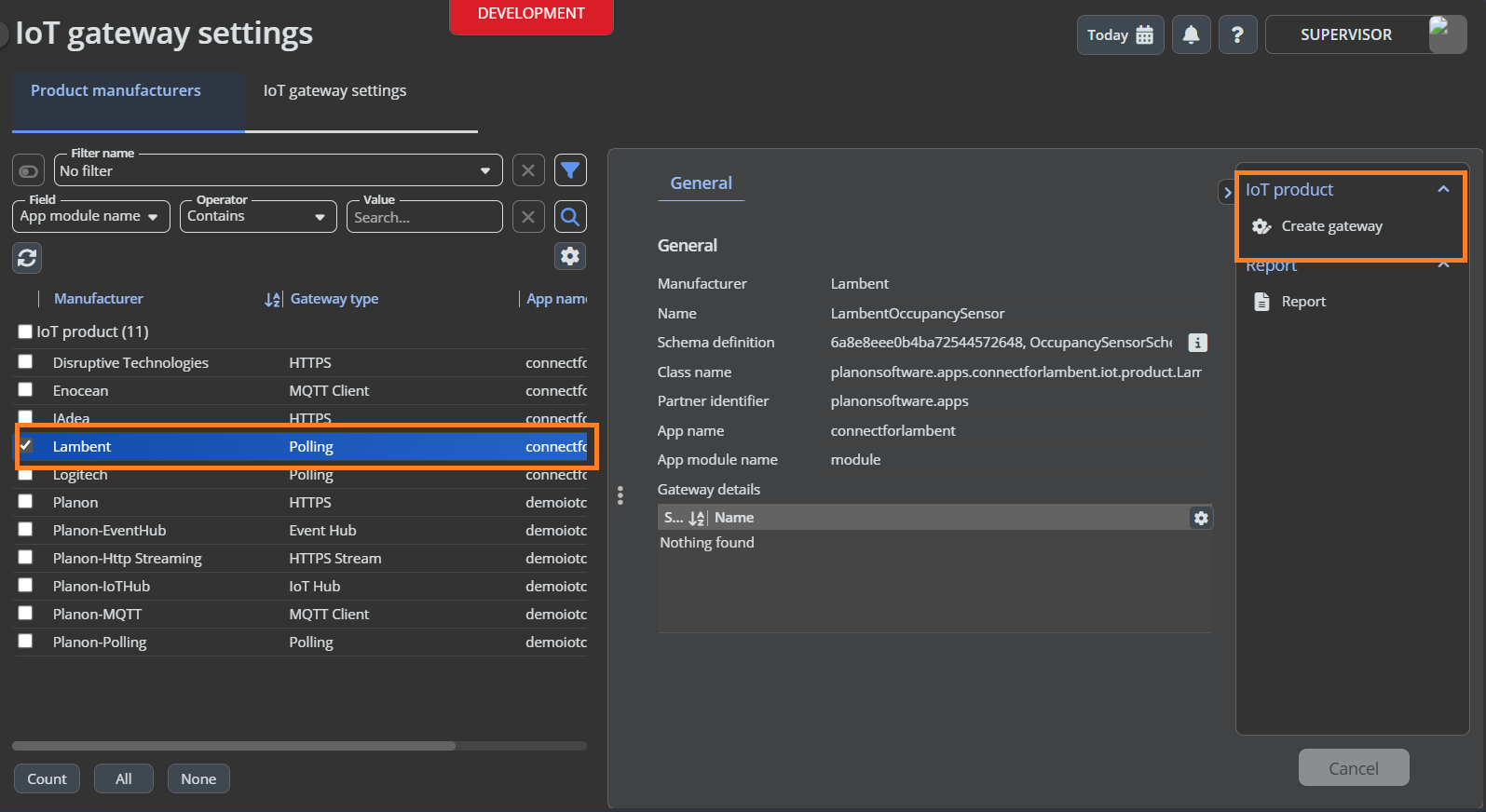
- Go to TSI Gateway Settings
- Select the Gateway with name Lambent
- Click on Create Gateway action
- Provide the Schedule which determines the polling frequency and Start date time for polling
- Click on OK
Gateway Settings
These settings are configured per IoT Gateway instance created for this app:
- Go to the gateway that is created above
- Go to Settings tab
- Configure the below settings
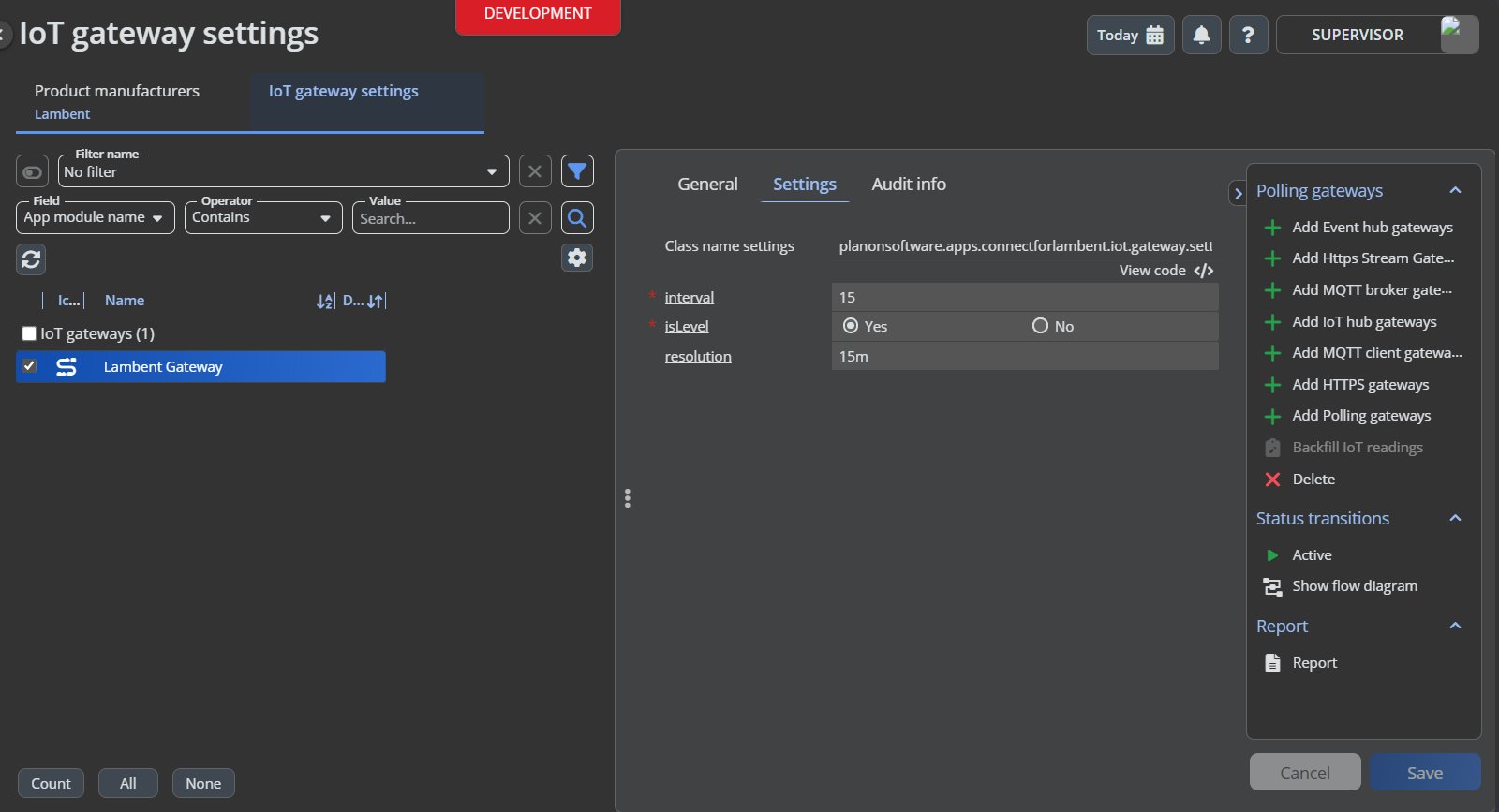
| Parameter | Default Value | Description |
|---|---|---|
resolution | 15m | The size of the time intervals within the provided time range. Supported resolutions: 5m, 10m, 15m, 30m, 1h |
interval | 5 | Period (in minutes) to look back and fetch readings for on each poll |
isLevel | Yes | Set to Yes to fetch Level data from the Lambent API. Set to No to fetch Zone data from the Lambent API |
Note: Make sure the interval is always greater than or equal to resolution configured Make sure the user linked to the Gateway is same as the user linked in IoT System Settings TSI
Product
The LambentOccupancySensor product (Manufacturer: Lambent) is registered automatically by the app at installation and used to auto-discover devices (Levels or Zones) as readings arrive, per the schema described in Product and Data Point Definition.
Troubleshooting
Error Handling
- Authentication failures: if the Lambent token endpoint returns a non-
200status, or noaccess_tokenis returned, the error is logged and the operation is aborted with an authentication error. - Data fetch failures: if the Lambent occupancy endpoint (
/levelor/zone) returns a non-200status, the error is logged and the operation is aborted with a data-fetch error. - Individual reading send failures: if sending a single reading to Planon IoT fails, the error is logged and the app continues processing the remaining readings in that poll cycle.
- Overall poll failure: any authentication or API failure during a poll run results in the poll run failing with the error message “Failed to send level and zone payloads”. Check the Planon IoT Gateway / job execution logs for this error and its underlying cause.
- The Gateway Reading Sender is always closed after each poll run, whether it succeeded or failed; any failure to close it is logged but does not affect the outcome of the poll run.