Planon Connect for Logitech IoT
Introduction
Planon Connect for Logitech IoT is a server-side connector app that polls room occupancy data from the Logitech Sync API and forwards the readings to Planon IoT through a polling gateway. The app is focused on getting occupancy information. It creates a dedicated product and schema in Planon IoT for this payload.
Prerequisites
Environment
The app is designed to work with Planon version L135 and higher
Constraints
The current implementation has the following functional constraints:
- The Planon runtime can reach the Logitech Sync API over HTTPS.
- A valid Logitech organization ID is available.
- A client certificate file and matching private key file are available.
- It retrieves place occupancy payloads only.
- Only the room occupancy is fetched
- Data ingestion is unidirectional (external source to Planon IoT).
- If required settings are missing, polling is skipped.
Required (free) fields
NA
Assumptions
NA
Features
This chapter describes the features included in this app.
Polling of Occupancy Data
For each configured IoT Gateway, the app periodically calls the LogiTech Sync Cloud API to poll the room occupancy. The polling frequency can be determined on the Gateway
Automatic Device Discovery
Devices (per Room) are not manually created in Planon IoT. The LogiTechRoomOccupancyDevice product is configured with auto-discovery enabled, so new rooms reported by LogiTech are automatically onboarded as devices in Planon IoT the first time a reading is received for them.
Occupancy Reporting
Every room comes with occupancy value. This is recorded as Occupancy on the IoT device in Planon IoT. Based on the Occupancy value, the device also shows Occupancy Status indicating whether it is Available or Occupied
How it works
This chapter provides a functional and technical flow of the implemented features.
End-to-end flow
- Poller starts for the configured gateway.
- Module and gateway settings are validated.
- API endpoint URL is built using organization ID and fixed query options of rooms, limit and continuation token.
- HTTPS GET request is sent to Logitech Sync API.
- Response JSON is parsed and
placesentries are collected across continuation pages. - Each place object is sent as one gateway reading to Planon IoT.
- Planon IoT schema mapping processes each reading into occupancy product datapoints.
Logitech Sync API integration over HTTPS (mTLS)
The app connects to the Sync Cloud API using HTTPS and can initialize an SSL client context from:
- Certificate location
- Private key location
If the mTLS files are not configured, polling is skipped by configuration validation before API retrieval.
Automatic pagination handling
The app accumulates all pages of place results by following the continuation token until no token is returned.
The app builds requests as:
<baseUrl>/org/<organizationId>/place?limit=500&rooms=true&desks=false&projection=place.info,place.occupancy[&continuation=...]
Data Polling Cycle
For every polling, the gateway connects to Sync Cloud API as described above and gets all the results. All the accumulated results are sent one by one to Planon IoT
Occupancy product and schema definition
The app defines a dedicated IoT product and schema for room occupancy:
- Product name:
LogiTechRoomOccupancyDevice - Schema name:
LogiTechRoomOccupancyDeviceSchema - Manufacturer:
Logitech - Icon:
icon-room-occupancy
Schema mapping actions:
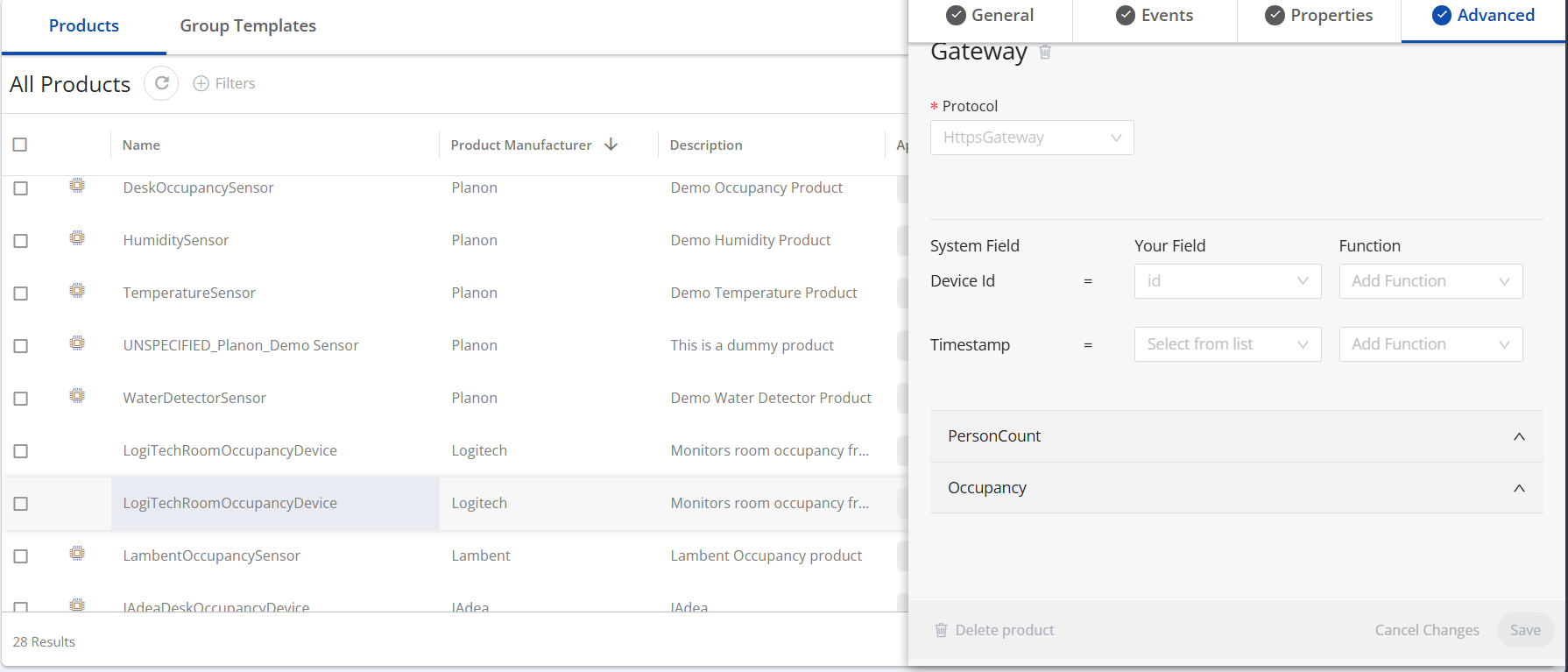
- Custom ID mapped from
id - Device Name mapped from
name - Person Count event mapped from
occupancy - Occupancy event mapped from dynamically calculated
Person Count
Error handling behavior in flow
- Configuration invalid: poll cycle exits early with error log.
- API call failure or non-2xx status: poll cycle exits with error log.
- Empty response / no places: no readings are sent for that cycle.
- Reading sender failure: exception is logged.
Installation
This chapter describes the steps required to install this app on your Planon environment.
Installation Process
There are two ways to install the app:
- Using the Marketplace
- Manual installation
Install the app by using the marketplace
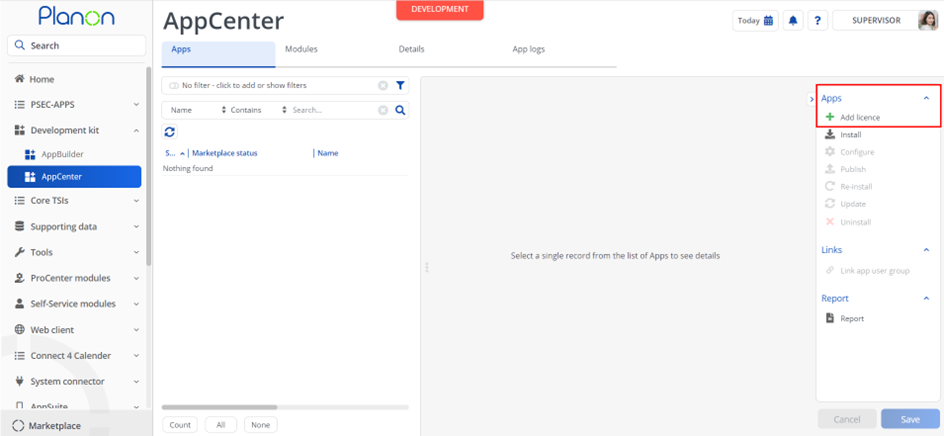
In case your environment is configured to use the Planon app store the only thing required to install the app is to add the app license in the AppCenter TSI. Planon will automatically download and install the app.
Manual installation
In case you want to perform a manual installation follow the steps below.
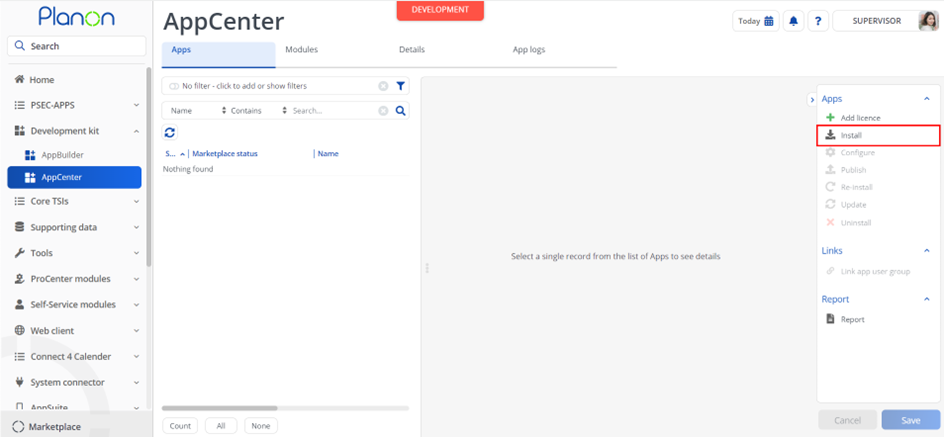
- Open AppCenter TSI from Planon webclient and click on install from action menu
- Browse to the .ppk file
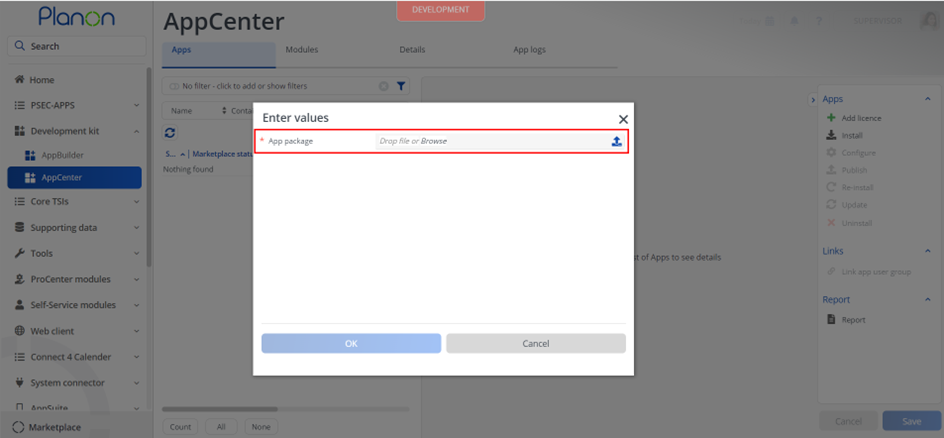
- Click OK to install the app and follow the installation process
- When the app is successfully installed, the app will appear in the AppCenter
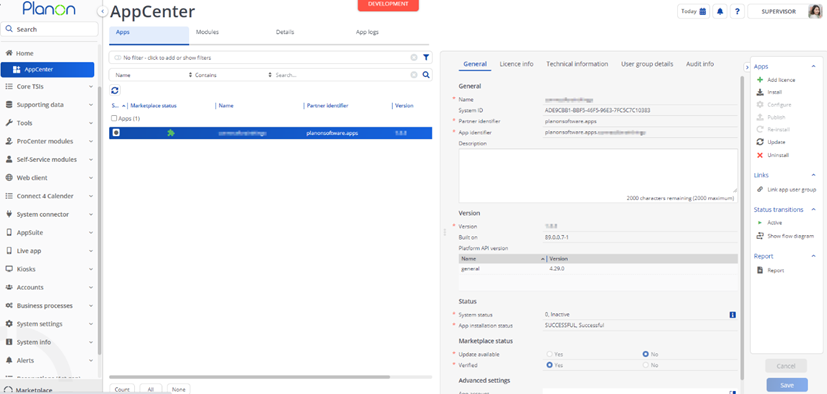
- Add the app license in Apps TSI
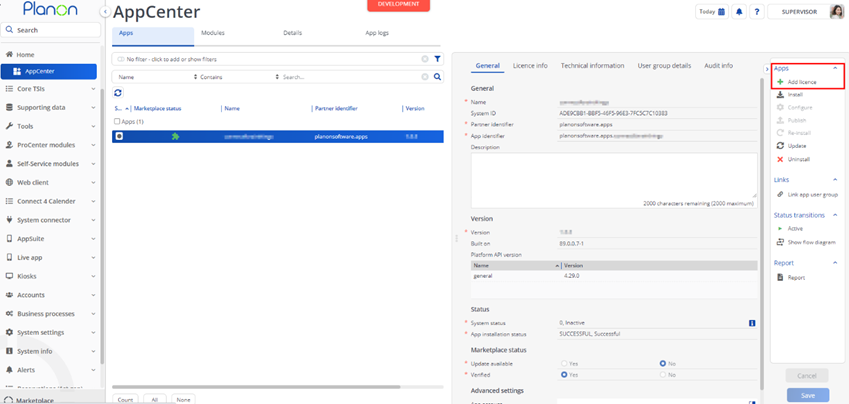
App Settings
| Parameter | Default Value | Description |
|---|---|---|
baseUrl | https://api.sync.logitech.com/v1 | Base URL for the LogiTech API |
certificateLocation | Certificate location used to authenticate requests to the room occupancy service. The file has to be placed in the Enterprise Talk Root location. For example ‘/openshift_homedir/planon/data/peet/LogiTech/certificate.pem’ | |
keyLocation | Key location used to authenticate requests to the room occupancy service. The file has to be placed in the Enterprise Talk Root location. For example ‘/openshift_homedir/planon/data/peet/LogiTech/privatekey.pem’ | |
keepAliveThreshold | 15 | Timeout in mins for the Occupancy Sensor Device before it gets disconnected if no reading recevied with in the given time |
Activation
Once the app has been configured, you can activate the app by pressing the Active status transition from the action panel. Always make sure that the required User groups are linked correctly and the Configure action is executed before activating the App.
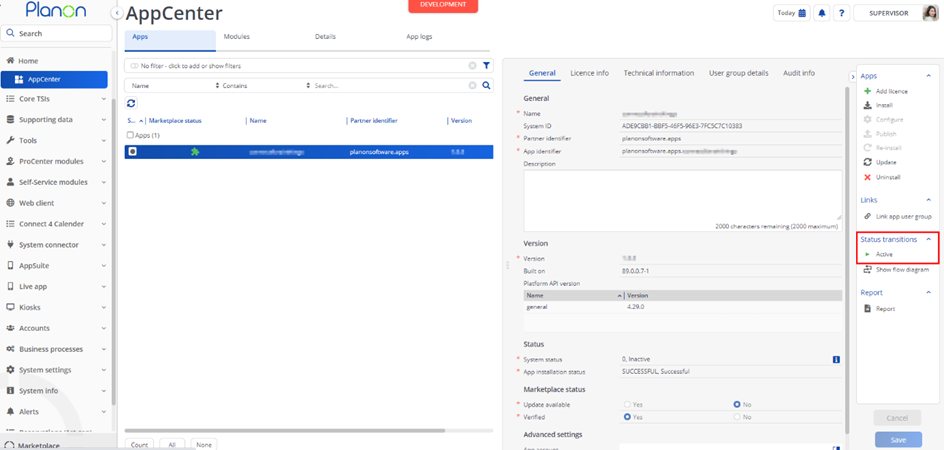
Third party system configuration - Logitech Sync API
Prepare the external side so that Planon can poll successfully:
- Confirm the target organization ID in Logitech Sync.
- Provide client certificate and private key files accepted by the Logitech API.
- Ensure API connectivity from Planon runtime host to the configured base URL.
- Validate that the endpoint returns place occupancy payloads.
Expected payload envelope at minimum:
{
  "places": [
    {
      "id": "<place-id>",
      "name": "<place-name>",
      "occupancy": "<occupancy-value>"
    }
  ],
  "continuation": "<optional-token>"
}
Planon IoT Configuration
Gateway
The Gateway type and the LogiTechRoomOccupancyDevice Product are registered automatically when the app is installed — no manual configuration of the Product or its data points/schema is required.
A Gateway instance using this Gateway type must still be created manually in Planon IoT before polling can start.
- Go to TSI Gateway Settings
- Select the Gateway with name LogiiTech
- Click on Create Gateway action
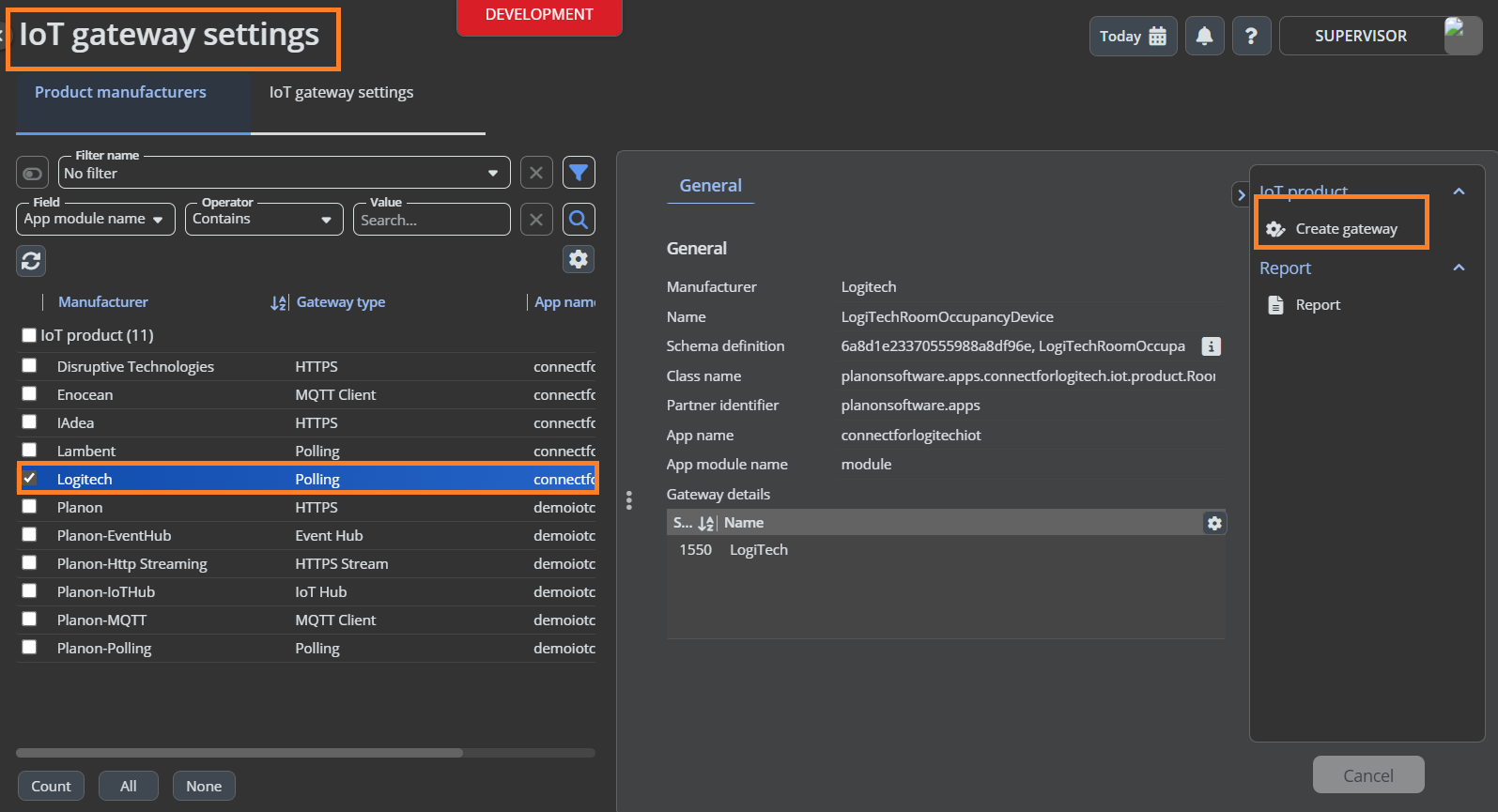
- Provide the Schedule which determines the polling frequency and Start date time for polling
- Click on OK
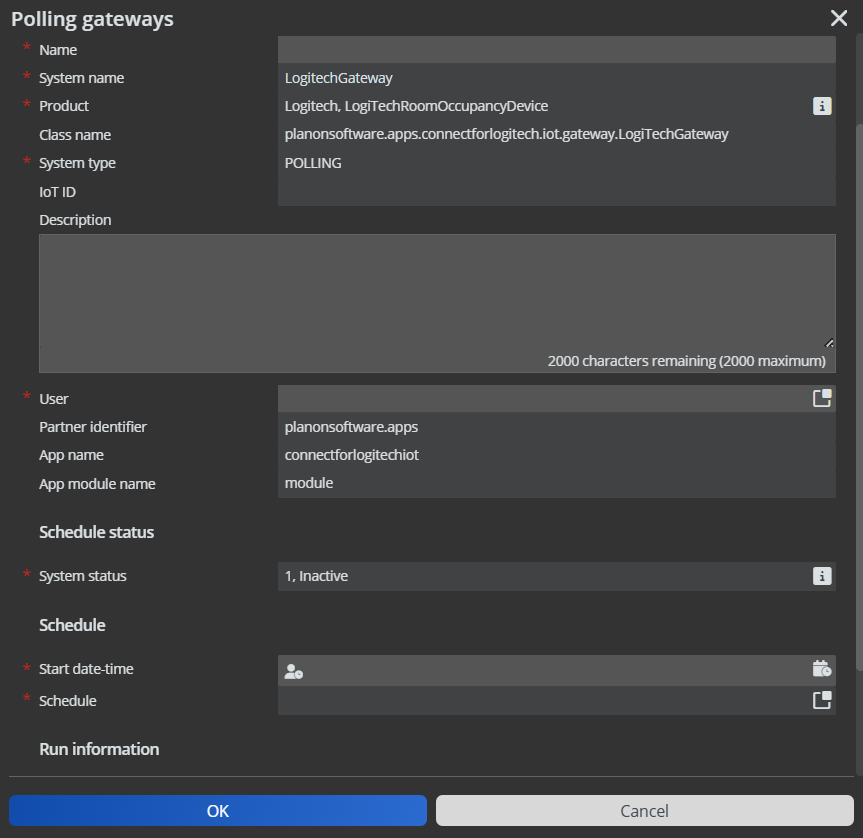
Gateway Settings
These settings are configured per IoT Gateway instance created for this app:
- Go to the gateway that is created above
- Go to Settings tab
- Configure the below settings
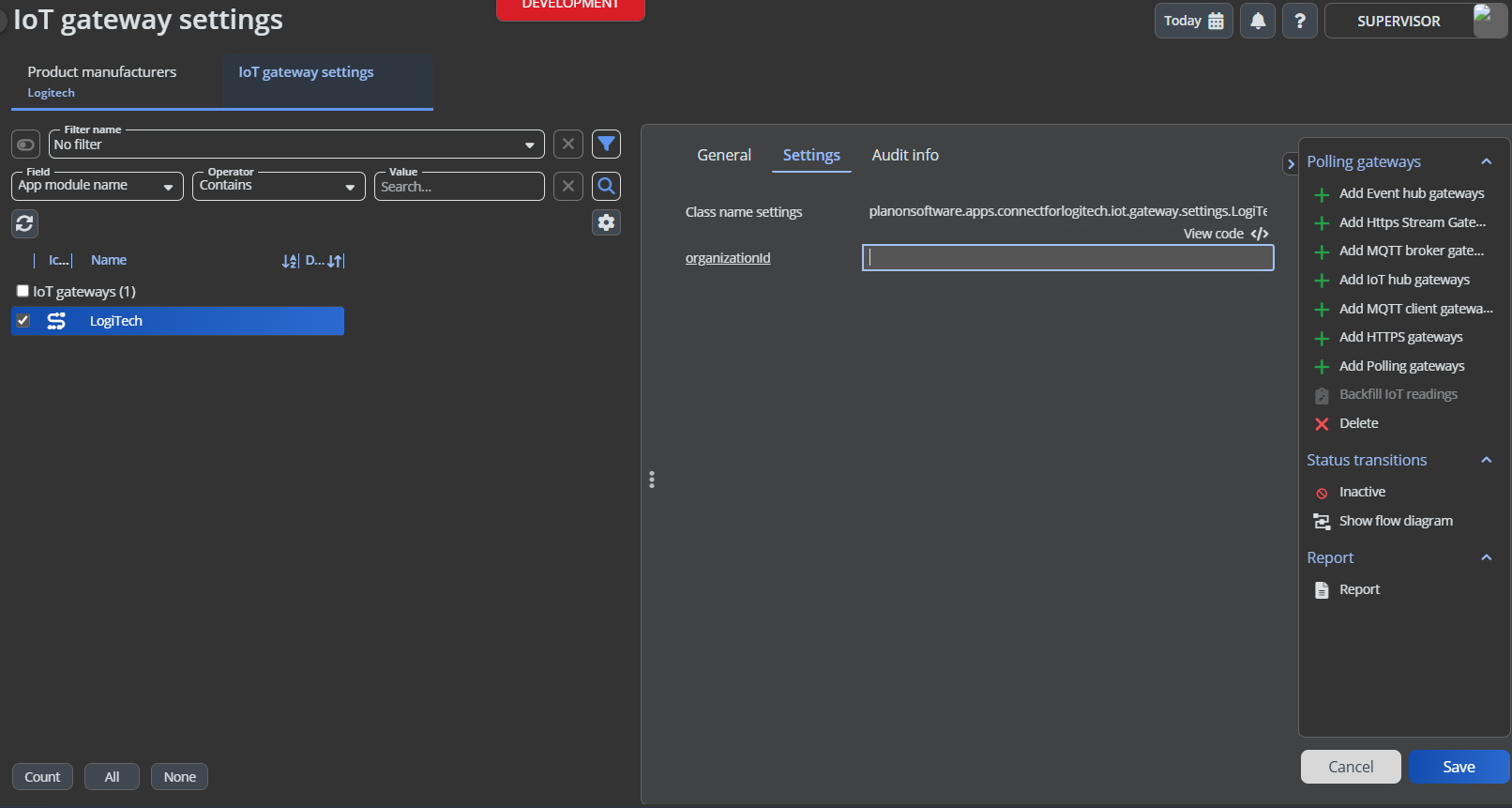
| Parameter | Default Value | Description |
|---|---|---|
organizationId | Organization ID used for the room occupancy service |
Note: Make sure the user linked to the Gateway is same as the user linked in IoT System Settings TSI
Product
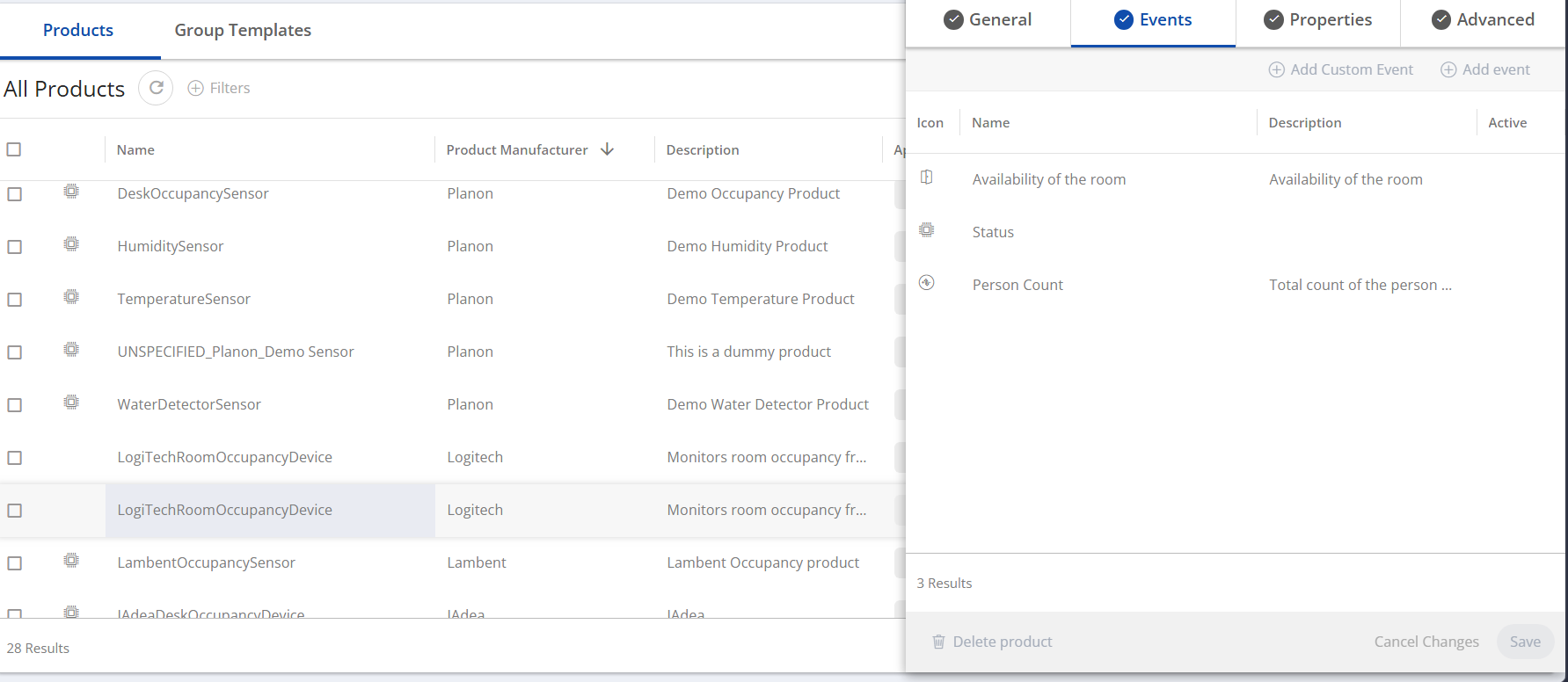
The LogiTechRoomOccupancyDevice product (Manufacturer: Logitech) is registered automatically by the app at installation and used to auto-discover devices (Levels or Zones) as readings arrive, per the schema described in Product and Data Point Definition.
Troubleshooting
This chapter lists known operational messages and likely causes.
Error handling
Server logs are the primary source for troubleshooting.
Missing settings Base URL
Log message indicates that base URL is not configured and polling is skipped.
Action: set module Base URL.
Missing gateway organization ID
Log message indicates that organization ID is not configured and polling is skipped.
Action: set gateway Organization ID.
Missing certificate or key location
Log message indicates certificate/key setting is not configured and polling is skipped.
Action: configure both certificate and key file locations.
API retrieval failure
Log message indicates failure while retrieving places from Logitech Sync API.
Action: check network connectivity, credentials (mTLS files), and organization ID.
Non-success HTTP response
A connector exception includes HTTP status and response body.
Action: verify endpoint accessibility, certificate/key correctness, and API authorization.
JSON parse error
Connector exception indicates response cannot be parsed as JSON object.
Action: validate payload format from Logitech API.