Planon Connect for MapsPeople
Introduction
This document describes the features and installation steps for the Planon Connect for MapsPeople App. This app allows to add indoor WayFinding capabilities to the Planon mobile app.
Prerequisites
Environment
This solution is designed to work with Planon Live L105 and above.
Constraints
MapsPeople supports both Google Maps and MapBox as map provider. In the Planon connector only MapBox is supported.
For the space data integration to properly work there should be a custom property on the MapsPeople side containing the Planon space code.
Required (free)fields
N/A
Assumptions
You are in posession of a MapsPeople / MapsIndoors API key
You are in posession of a MapBox API key (this can be provided by MapsPeople)
Features
This chapter describes the features that this app contains.
Feature 1 – Wayfinding in Planon Mobile app
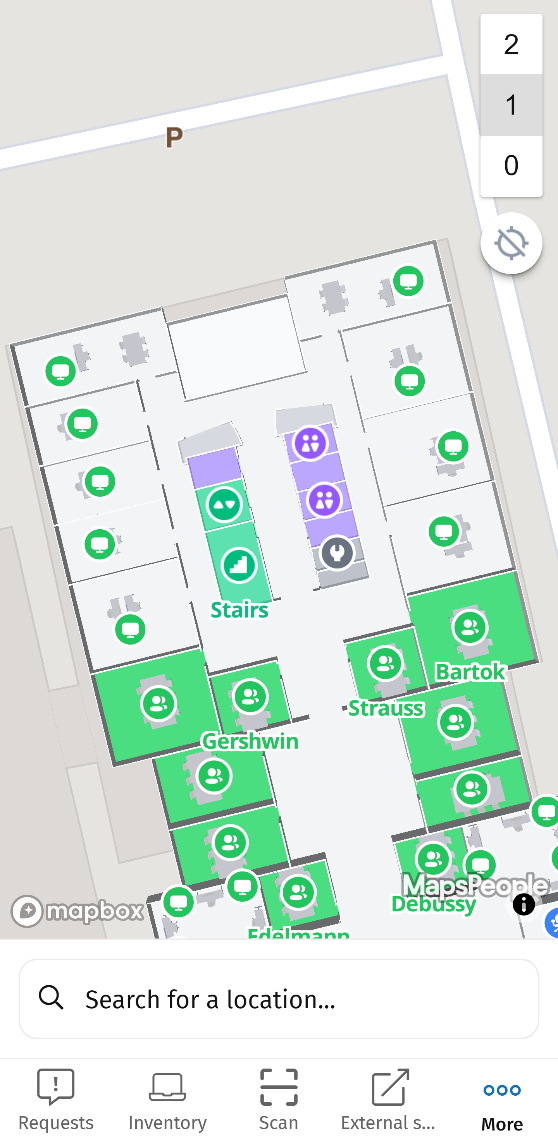
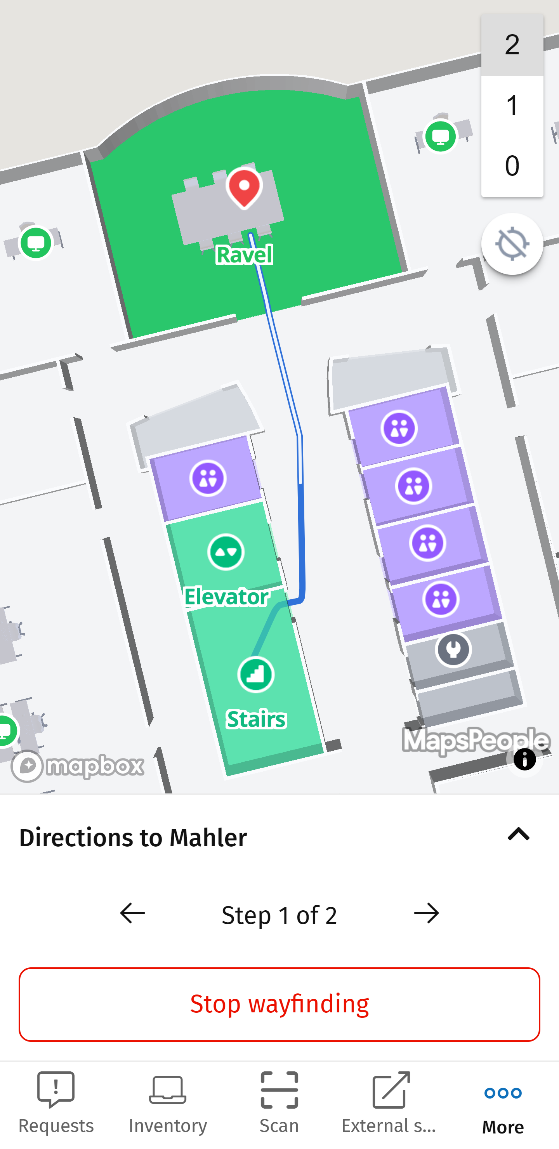
The app contains a so called mobile module which can be added in the Planon Live app. This module integrates MapsPeople wayfinding features into the Planon app. With the wayfinding users can search for locations and get directions both visually and textually.
| MapsPeople wayfinding in Planon App | Wayfinding active |
|---|---|
 |  |
Feature 2 – Space data integration from Planon to MapsPeople
This app contains a Enterprise Talk worker that can be used to synchronize Planon space data to MapsPeople. This will set the Space shared ID in the MapsPeople ‘external id’ field and update the location name and details.
How does it work
This chapter contains the functional and technical description (if applicable) of the features as described in chapter 3.
The mobile module works by integrating the MapsPeople web SDK (https://docs.mapsindoors.com/sdks-and-frameworks/web) into the Planon mobile app. In order to load the proper customer data the MapsPeople API key has to be provided in the app settings. See chapter 5.4 for instructions on how to retrieve this key.
Additionally a MapBox API key is needed since MapsPeople uses MapBox as the base map layer. The MapBox API key can be requested through MapsPeople.
Since the view runs inside the Planon mobile container any Planon occupancy data is retrieved in real time from Planon. The ‘connection’ is made using the space codes from the imported CAD drawing in MapsPeople.
For the space data integration the MapsPeople integration API is utilized (https://integration.mapsindoors.com/doc/index.html). This is not a real-time integration and can be triggered manually or on a schedule.
Installation
This chapter describes the steps required to install this app on your Planon environment.
Installation Process
There are two ways to install the app:
- Using the Marketplace
- Manual installation
Install the app by using the marketplace
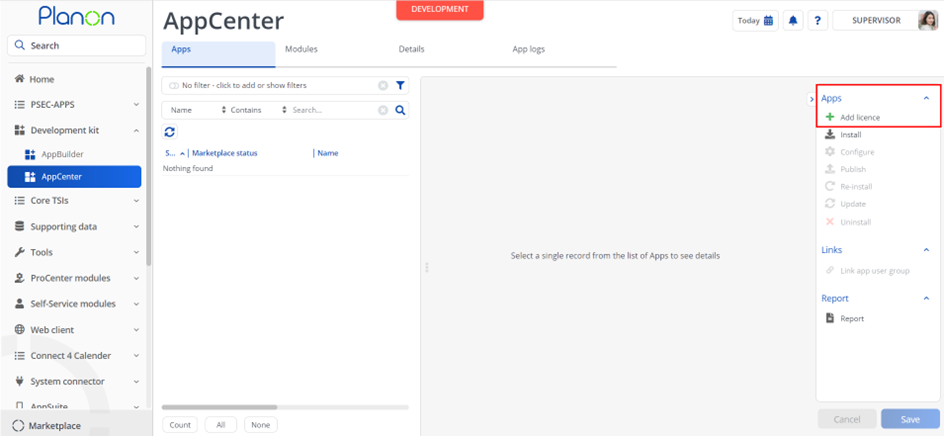
In case your environment is configured to use the Planon app store the only thing required to install the app is to add the app license in the AppCenter TSI. Planon will automatically download and install the app.
Manual installation
In case you want to perform a manual installation follow the steps below.
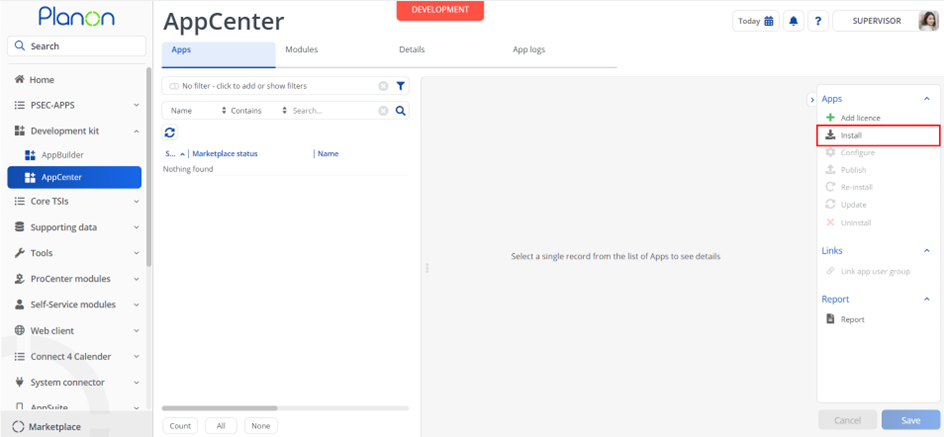
- Open AppCenter TSI from Planon webclient and click on install from action menu
- Browse to the .ppk file
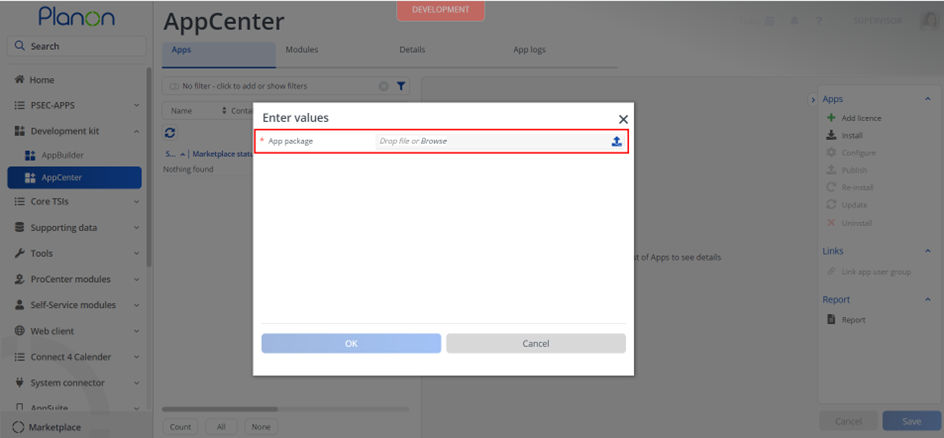
- Click OK to install the app and follow the installation process
- When the app is successfully installed, the app will appear in the AppCenter
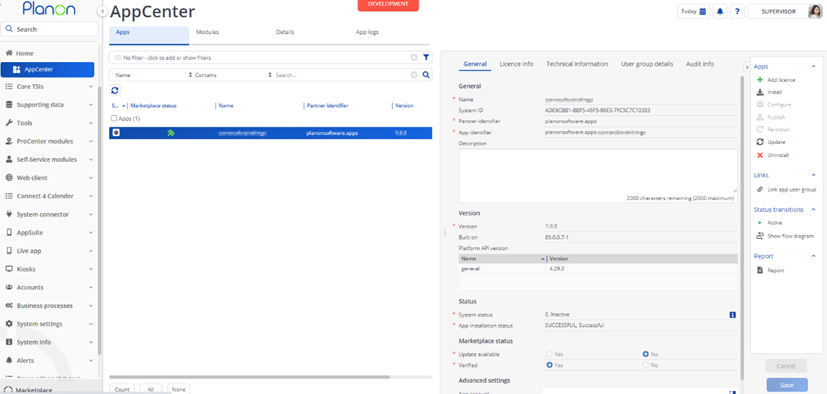
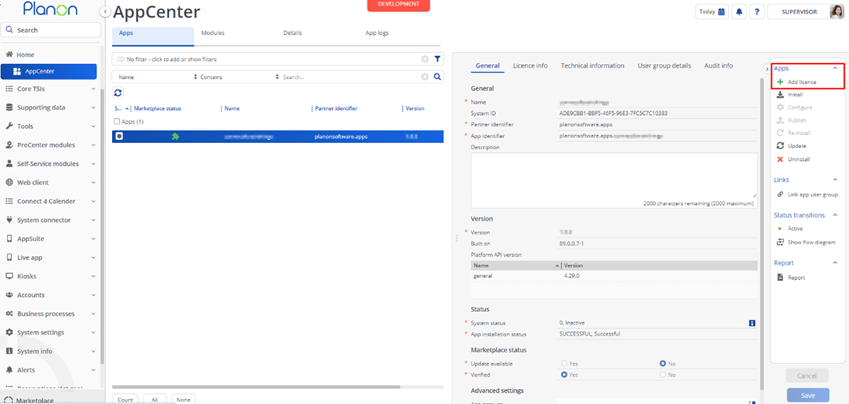
- Add the app license in Apps TSI
App settings
This chapter describes and explains the settings that are available for this app.
Now that the app is installed, please provide the app settings (the app configuration)for each module in the Details level > Module settings selection step. Provide the module settings.
For more details regarding the settings see the next chapter.
Click Save button after providing the module settings.
Description of module settings
This chapter describes the module settings available in the connect for MapsPeople app.
| Name | Description |
|---|---|
| mapBoxAPIKey | The mapbox API key |
| mapsIndoorsAPIKey | The mapspeople API key |
| defaultLatLong | The default latitude, longitude in case user does not have a property linked and GPS is disabled. |
| displayOccupancyBasedOnReservations | Control whether to show occupancy (red/green) for reservation units based on reservations in the MapsPeople map. |
| displayOccupancyBasedOnSensorData | Control whether to show occupancy (red/green) for reservation units based on sensor readings (AWM) in the MapsPeople map. Status is retrieved through the (works)space link on the measurement point. |
| floorMapping | Mapping between MapsPeople floors and Planon floors. Format is ‘MapsPeople floor code;Planon floor code’, comma seperated. Default mapping is 0;00,10;01,20;02, 30;03,40;04,50;05, 60;06,70;07,80;08, 90;09 |
| propertyMapping | Mapping between MapsPeople buildings and Planon properties. Format is ‘MapsPeople Building Name;Planon Property code’, comma seperated. |
| mapsIndoorsAuthenticationEndpoint | The authentication endpoint (used for integration api), usually will be ‘https://auth.mapsindoors.com/’ |
| mapsIndoorsIntegrationEndpoint | The integration endpoint, usually will be ‘https://integration.mapsindoors.com/’ |
| mapsIndoorsLanguageKey | The language used on MapsPeople side for synchronizing Planon space data. Default this is ‘@en’. |
| mapsIndoorsPassword | This user/password is used for the space data integration |
| mapsIndoorsUsername | This user/password is used for the space data integration |
| mapsIndoorsPlanonSpaceCustomProperty | The custom property in MapsPeople that contains the Planon space number. Default this is ‘planon_space_id’. |
Activation
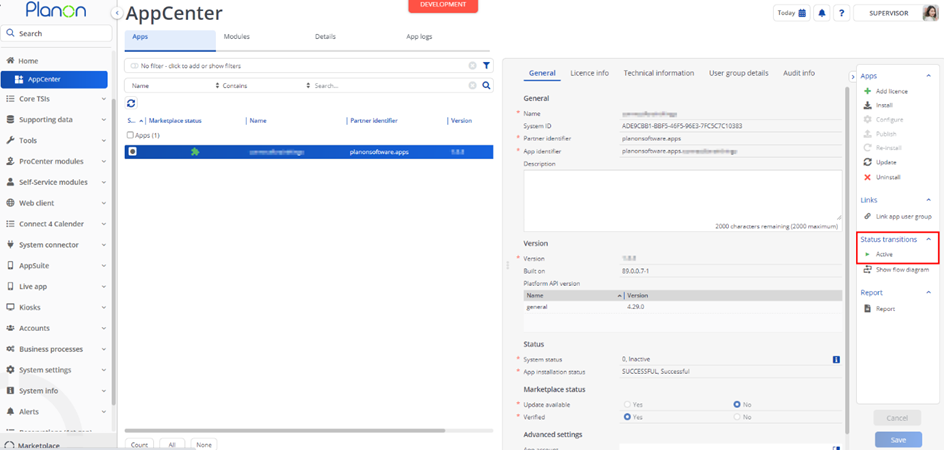
Once the app has been configured, you can activate the app by pressing the Active status transition from the action panel. Always make sure that the required User groups are linked correctly and the Configure action is executed before activating the App.
Planon Configuration
This chapter describes the Planon configuration needed.
Adding mobile module to ‘Live app configuration’ TSI
Go to the TSI manager
Search for the TSI ‘Live app configuration’
Make sure the ‘MapsPeople’ step is added to the TSI. If this is not the case perform the following steps
Set the TSI under construction
Click the ‘+’ icon next to the selection steps
Select the step ‘MapsPeople’
Save and complete the TSI
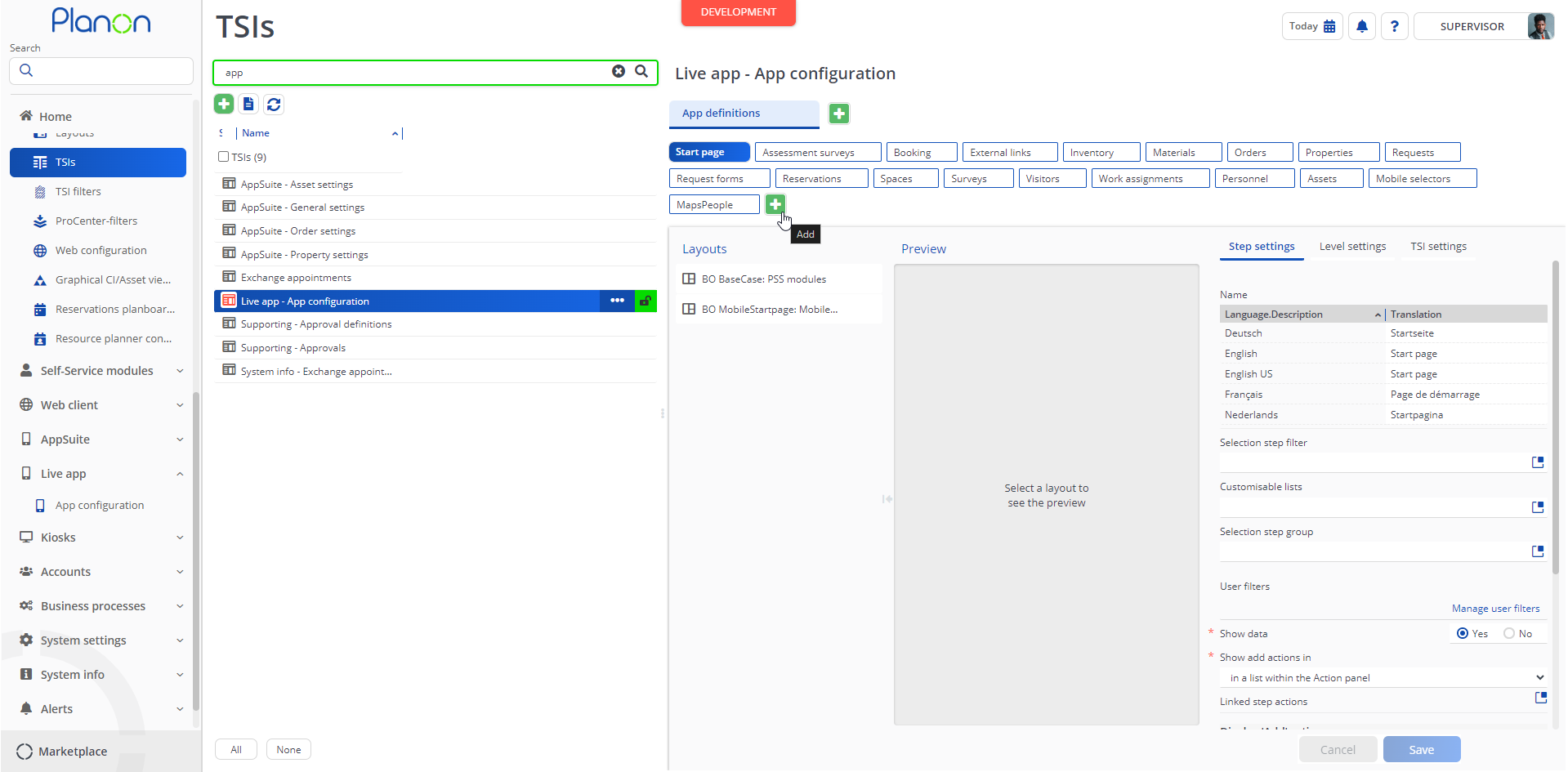
Live app configuration
Go to the “App configuration” TSI
Select the “MapsPeople” selection step
Click “Add” in the action menu on the right side of the screen
Fill in your desired navigation name (this will be visible in the Planon app), code, description, icon and sequence
Press “save”
Link the desired user groups by selecting link ‘PssCasePart_AccountGroup’ and confirm with OK.
Configure data synchronization Enterprise Talk
This part is needed to ensure proper display of the Planon space number, name and description in MapsIndoors. In order for this to work there should be a custom property in MapsIndoors that contains the Planon space code. This field can be created / filled when onboarding your CAD drawings into MapsIndoors.
Create a new Enterprise Talk definition. Make sure the field ‘use platform workers’ is set to yes.
Drill down to ‘Documents’ and add a new export document
Drill down to ‘Business object definitions’, step import-export workers
Add a new worker, use the class planonsoftware.apps.connectformapspeople.metadataintegration.SynchronizeSpaceMetaDataWithMapsPeople.
Go back to the Enterprise Talk definition and execute it. If all is well Planon space data such as shared id, people capacity and facilities (in case of reservation unit) is now available in MapsPeople.
Third party system configuration
This chapter describes any third party system configuration.
Getting the MapsPeople / MapsIndoors token
Go to the mapsindoors CMS (cms.mapsindoors.com)
In the top of the screen click on ‘Solution Details’

Navigate to ‘App Settings’, ‘API Keys’

Generate a API key or use any existing one
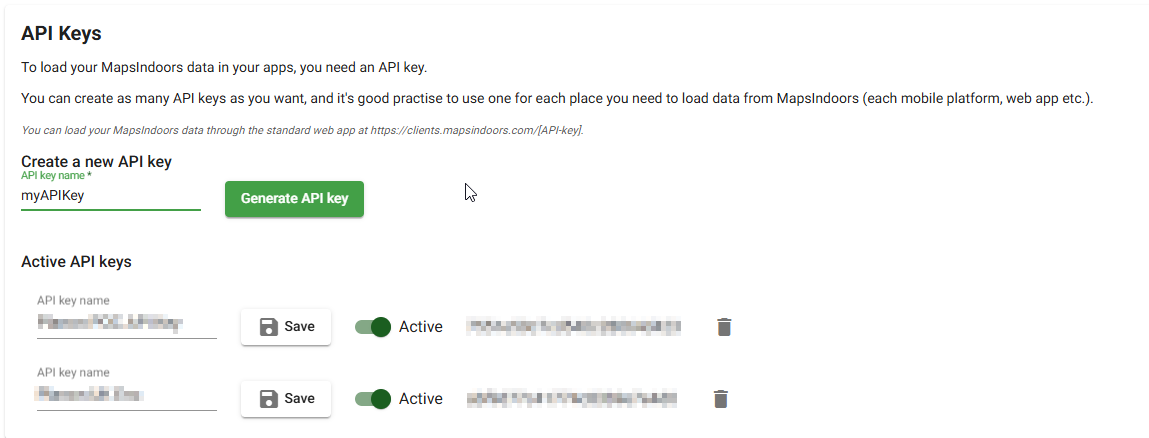
Copy the value nex to ‘API key name’ (so not the API key name itself) and add it in the Planon Connect for MapsPeople app settings
Troubleshooting
This chapter describes common things and known issues to check in case the app is not working as expected.
Error handling
For all components the errors will be written in the server logs. Components that also have an UI (like TSI Actions) will also display any errors in the interface. For this app any server related issues will be logged in the Tomcat logging. Additionally, for any error happening on the mobile device this logging can be downloaded in the Planon mobile app.