Planon Connect for Mobiess
Introduction
This document describes the functionality and usage of the Planon App that connects with the Mobiess application.
Questionnaires are a source of data collection for assessments and observations. An assessment is a (usually) mandatory check to demonstrate that, for example, compliance checks have been performed. The template-based questionnaire is often completed on a mobile device by the inspector or engineer in the field. These can be questionnaires for (fire) risk assessments or for quality control during the execution of an order / PPM activity. The result is a completed questionnaire with remarks, shortcomings and opportunities which can be seen as an observations.
This can be an extensive questionnaire where there may be dynamics (dependencies) in the questions among themselves. It must also be possible to create observations and there is a need for reporting. In this area there is a need for more functionality than the current questionnaires within Planon ProCenter can offer.
About Mobiess
Mobiess Insight, audits and inspections app, is an advanced and simple to use mobile form design tool. It can support the most complex requirements. Its powerful audit engine supports all standard response types; text, dropdown lists, checkboxes, photographs, sketches and more.
Facilitate communication and collaboration on audits across organisational silos
Create hierarchical question templates with unlimited complexity and number of levels
Optional integration with the mobiess ServiceMaster module allows integrated auditing with service management work orders
Standard interfaces to most industry CRM, CAFM, IWMS systems offer a paper-free way to manage your compliance and auditing.
Basic requirement is that we should be able to import the inspection results into Planon. The external tool can work fully standalone to define inspections and collect the results. External app is used to execute the inspection. A manager can define questionnaire templates and prepare inspections in the External tool. The inspector needs to start the external app and execute the inspection in that app. There is no integration with the Planon app. Planon only imports the inspection results into our back-office system.
Prerequisites
Environment
This solution is designed to work with Planon Live L78 and above.
Constraints
There are specific mobiess question types that are being supported.
Template in Mobiess should contain at least one valid question type that is supported by this app.
Person is a mandatory field on BO AssessmentResults. If a inspection in Mobiess is created via Planon work order, it will map the person from the field ‘InternalTradesmanPersonRef’ of the Order. In case the field is empty on the Order, or inspection created directly in Mobiess, then it will read user value from Mobiess survey header or survey answer and map corresponding person in Planon based on email field value otherwise it maps configured default Person from the app settings
Date-time question type is not available in Mobiess and it’s supported only for observation & its communication log and scoring.
On any question related to Assessment or Observation, if that is being mapped to either Property or Floor or Space or Asset field on Planon Business Object, it is always expected to use standard reference fields PropertyRef, FloorRef, SpaceRef and AssetRef as question code for mapping respectively.
While synchronising questions, Questionnaire Code is copied from Assessment Definition code. Hence consider the constraints of questionnaire code (only AlphaNumeric and ‘_’ are allowed) for the Assessement definition code
In case both non-Prod and Prod Planon environments uses same Mobiess instance, make sure both the environments use different templates to avoid sync of Prod data into non-Prod environment.
Currently the app do not support Mobiess question of type Multiple Choice with Auto Orientation. Orientation has to be either Horizontal or Vertical
Required (free)fields
NA
Assumptions
NA
Features
The purpose of this app is to provide integration between Mobiess and Planon. This allows Planon customers to synchronize their inspection/audit related data into Planon.
Feature 1 – Link existing template to assessment definition
This feature is required to link an assessment definition in Planon to an existing template in Mobiess. A TSI action is configured on assessment definition and upon click, it will display list of all published templates from Mobiess. User can select the template that has to be mapped with selected assessment definition.
If the selected assessment definition is already linked with Mobiess template which is different from the one user selected, it shows a warning and upon user input if user select to proceed it deletes the existing external bo link mapping and creates new one with selected template and clears the questionnaire reference on assessment definition else it skips the process.
If the selected template is already linked to the different Planon assessment definition other than the selected one then it throws an error to the user that “it’s not possible to link a template which is already linked to other assessment definition”.
If the selected assessment definition is already linked with the template selected, then it shows an information that “selected template is already linked to the selected assessment definition”
In the other case it directly creates mapping between the selected template and assessment definition.
Feature 2 – Importing Questionnaire and questions
This feature is to pull the questions from Mobiess to Planon and create a questionnaire in Planon ProCenter with all the questions specific to the template and link it to the corresponding Assessment Definition.
It will only pull the questions of the published survey templates in Mobiess and are created by Planon system if corresponding Assessment Definitions doesn’t have any linked questionnaire.
Mobiess supports complex questionaries with dynamic questions. It is not possible to sync these questions from Mobiess in the same structure to Planon as Planon ProCenter supports basic questionaries. Irrespective of the complexity of the questions in Mobiess, in Planon it always stores the questions in a simple structure of a list with possible question types.
Feature 3 – Pushing Work Orders (WO driven inspections)
For every work order in Planon ProCenter that is linked with an Assessment Definition which is already synchronized with Mobiess as a survey template, will be pushed as an inspection/audit(Survey Header) under the corresponding survey template.
Inspections are personalized based on the e-mail address of the person in Planon and the account in Mobiess.
Created inspection will be assigned to the Mobiess user if there is a valid match found in users list as per email field mapping else it tries to find the user based on person configured in app settings and map it otherwise it creates inspection without any user and it means that it is visible to all users.
From version 1.3.0, the WO driven inspections will be pushed only if the Work Order is in the configured status.
Feature 4 – Pushing maintenance activities (MA driven inspections)
For every maintenance activity under a PPM order in Planon ProCenter that is linked with an Assessment Definition which is already synchronized with Mobiess as a survey template, will be pushed to Mobiess as an inspection/audit(Survey Header) under the corresponding survey template.
Personalization of inspections is similar to the process described in “Feature 3 – Pushing work orders” under secion 3.3, in the first step it reads order from maintenance activity and rest of the process is same.
From version 1.9.0, the MA driven inspections are created based on configured status for PPM Order. If no status for PPM order is configured, then inspection is always created.
Feature 5 – Importing Assessments and Assessment results
Inspections/Audits in Mobiess are imported to Planon ProCenter as Assessments and it’s results if and only if it’s in status “Completed”.
The Inspection/Audit in Mobiess is linked with questions from the selected Template and to complete the inspection a end user has to answer all mandatory questions.
An inspection which is completed in Mobiess will be mapped to different business objects in Planon under assessment results; Assessment, Answer lines, Observations, Follow-up actions, Scoring and communication logs.
Assessment
An Assessment BO is created in Planon for each survey header in Mobiess. The Assessment type will be decided based on the linked work order for the corresponding Survey Header. The Person field on the Assessment will be filled from the ‘InternalTradesPerson’ field from the work order for the work order driven survey headers otherwise based on the configured person from the app settings. Other basic details will be copied from the survey header in Mobiess.
Below logic will be available on app version 1.1.0 and higher.
Work order driven or maintenance activity driven survey headers with no tradesperson linked on the order level and for survey headers created directly in Mobiess it reads user value from survey header or survey answer and by using email field on user it finds the corresponding Person in Planon and fills it on Assessment. If no match found then it uses configured person on app settings.
Answer lines
All the answers filled in the Survey Header from Mobiess will be created as answer lines in Planon. Questionnaire and question details will be mapped to answer line as these were already synced with Planon before working with assessment results. Other basic details will be copied from the survey header in Mobiess.
Observation, Follow-up Action & Scoring
In Mobiess we don’t have any equivalent templates/questions which are similar to other assessment results Observations, Photos, Actions & Score. For example the Observation BO in Planon contains Code, Description, Start Date Time, Comment & Recommendation fields, similarly other assessment result BO’s hold some information where as in Mobiess we don’t have any specific template that defines how an Observation or a Photo or an Action or a Score should look like within a Survey Template. We have come up with a set of rules for each of these assessment results and how it should look like in Mobiess such that it’s considered and processed into Planon as an equivalent business object.
In Mobiess we have a question of type “Repeater” and it allows to add n number of sub questions of same or different type to it. By using this Repeater question along with some set of rules we can map assessment results between Mobiess and Planon.
Feature 6 – Reassign Mobiess Inspection
Planon supports reassigning an order to a different person. To support this in Mobiess, whenever the tradesperson of an Order is changed, the user of the corresponding Mobiess Inspection is also changed
From version 1.11.0, when ever the tradeperson of an order is changed and order is one of the conifgured statuses, then the existing inspection in Mobiess is deleted and a new inspection is created. This is done to avoid the duplicate inspections in Mobiess mobile app.
Note: All the data of the existing inspection is lost.
Feature 7 – Push Assessment Definitions
In Planon ProCenter, Assessment Definitions are a replica of survey templates from Mobiess. Assessment Definitions created in Planon ProCenter will be pushed to Mobiess. It creates survey templates with the status “draft” in the Mobiess system. End users of Mobiess must publish the survey template after linking all necessary questions to it.
This feature is available only on 1.0.0 & 1.0.1 app versions and archived in higher versions. There is a new feature “link existing template with assessment definition” developed in 1.1.0 which is alternative to this functionality.
Feature 8 – Cancelling an Inspection
When an order is cancelled in Planon, the corresponding inspection in Mobiess will be deleted. A new setting orderCancelStates is introduced to configure the cancel status based on order type. If parameter is left empty or status is not configured for the order type being used, inspection will not be cancelled in Mobiess.
Feature 9 – Fetch Missing Answers
In some cases, the assessments are missing answers from the Mobiess inspection. To handle such cases, a new TSI Action is introduced which can be configured on Assessments BO to fetch the missing answers. This is limited to only fetch the missing answers but not observations, topics and followup actions. Due to a limitation in the API, the options for multi select answers has to be linked manually.
Since version 1.18.0, the feature also supports fetching missing observations and its detail BOs
Installation
This chapter describes the steps required to install this app on your Planon environment.
Installation Process
There are two ways to install the app:
- Using the Marketplace
- Manual installation
Install the app by using the marketplace
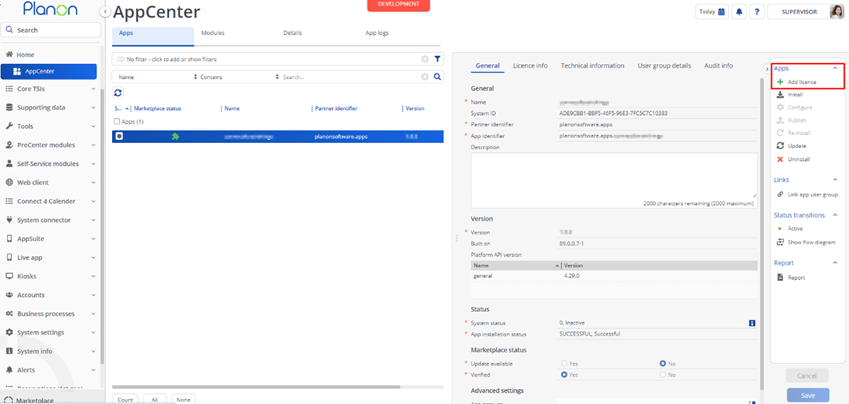
In case your environment is configured to use the Planon app store the only thing required to install the app is to add the app license in the AppCenter TSI. Planon will automatically download and install the app.
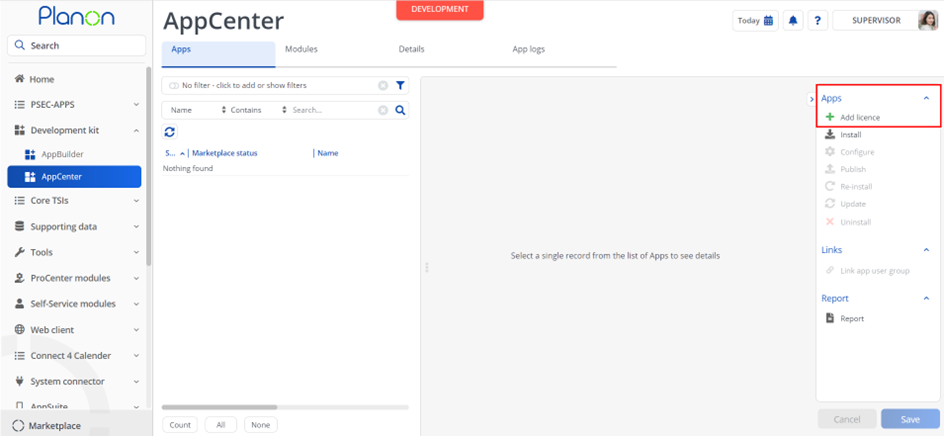
Manual installation
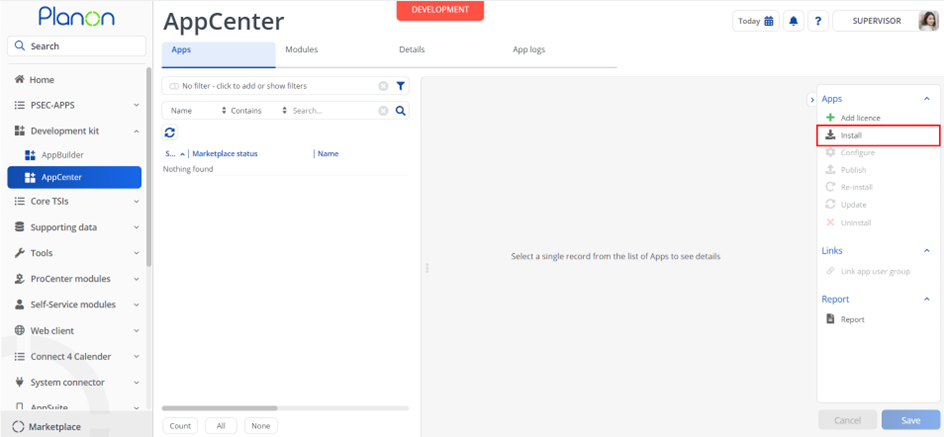
In case you want to perform a manual installation follow the steps below.
- Open AppCenter TSI from Planon webclient and click on install from action menu
- Browse to the .ppk file
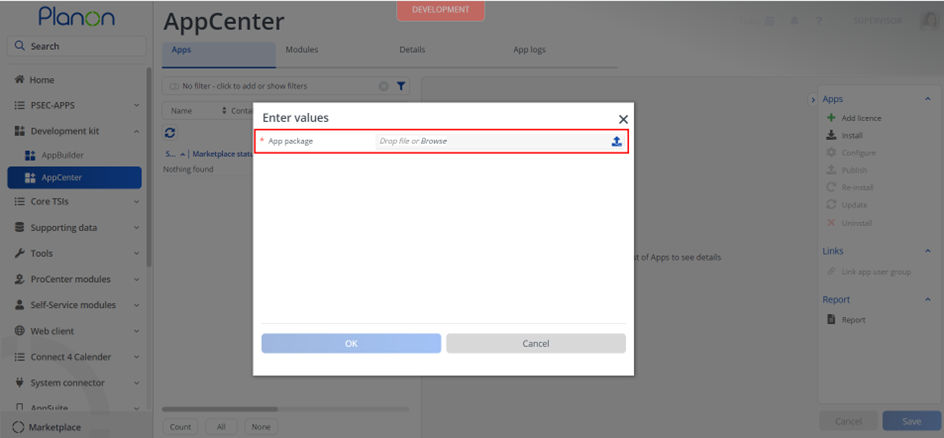
- Click OK to install the app and follow the installation process
- When the app is successfully installed, the app will appear in the AppCenter
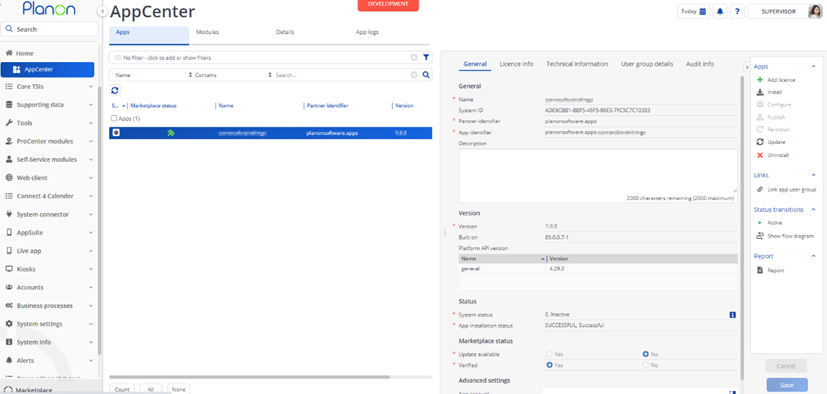
- Add the app license in Apps TSI
Module Setting details
// Connect for Mobiess Settings

{

// MANDATORY - Mobiess Access key in order to authenticate with the Mobiess api.
"accessKey" : "\<Access key\>",

// MANDATORY - Base url of the Mobiess system endpoint.
"baseUrl" : "https://customer.mobiess.com/",

// Provide the systemname of the Planon Communication log BO which should be used by the Mobiess integration.
"comlogBOSystemName" : "UsrCommunicationLog",

// Provide the systemname of the field on the Communication log BO to store images.
"comlogFileFieldSystemName" : "ImageRef",

// This parameter is to provide the mapping of the field to be considered as Assessment Date Time.
"dateTimeField" : "UsrOrder-BeginDateTime;",

// Code of external system to use in Planon.
"externalSystem" : "Mobiess",

// MANDATORY - Mobiess device identifier
"identifier" : "\<Identifier\>",

// This parameter is to delete the inspection in Mobiess when order moves to one of the configured states.
"orderCancelStates" : "UsrOrder-UsrWorkOrderCancelled;MaintenanceActivity-Cancelled;UsrPlannedMaintenanceOrder-UsrPlannedMaintenanceOrderCancelled",

// This parameter is to autocomplete the Planon order or maintenance activity after importing assessment results.
"orderCompletedState" : "UsrOrder-UsrWorkOrderTechnicallyCompleted,UsrMinorNewWorks-UsrWorkOrderTechnicallyCompleted,MaintenanceActivity-Completed,UsrPlannedMaintenanceOrder-UsrPlannedMaintenanceOrderTechCompleted",

// System name of the Planon Order Status in which a inspection needs to be created in Mobiess. Example: 'UsrOrder-UsrWorkOrderAssigned,UsrWorkOrderAccepted;UsrPlannedMaintenanceOrder-UsrPlannedMaintenanceOrderAssigned'

"orderStates" : "UsrOrder-UsrWorkOrderAssigned;UsrPlannedMaintenanceOrder-UsrPlannedMaintenanceOrderAssigned",

// MANDATORY - Default Person code in case either there is no order associated with inspection or it doesn't have internal trades person.
"personCode" : "005",

// System name of the City field on the Property BO.
"propertyCityField" : "CityReference",

// System name of the Country field on the Property BO.
"propertyCountryField" : "Country2",

// If this setting is Yes, then inspection is displayed in Web. Otherwise it is shown in Mobile Device.
"showInspectionInWeb" : true ,

// Field on Mobiess Survey Template to consider as Alias Field in Planon.
"templateAliasField" : "QuestionName"
}
Details of settings
| Parameter Key | Example Value | Description |
|---|---|---|
| accessKey | Key to access by Mobiess services | Authorization key to connect Mobiess api |
| baseUrl | https://customer.mobiess.com/ | Base url of Mobiess endpoint |
| comlogBOSystemName | UsrCommunicationLog | Provide the systemname of the commmunication log BO which should be used by the Mobiess integration |
| comlogFileFieldSystemName | ImageRef | Provide the systemname of the field of Communication log BO to store the image |
| dateTimeField | UsrOrder-BeginDateTime; | This parameter is to provide the mapping of the field to be considered as Assessment Date Time. Bo Name is separated with System name of the field. Multiple Bos can be separated by semi colon |
| externalSystem | Mobiess | Code of the External system, created in external bo link TSI |
| identifier | Required to access Mobiess services | Identifier required to connect mobiess api |
| orderCancelStates | “UsrOrder-UsrWorkOrderCancelled;MaintenanceActivity-Cancelled;UsrPlannedMaintenanceOrder-UsrPlannedMaintenanceOrderCancelled” | System name of the cancelled status of the order or MA to delete inspection in Mobiess. BOType-StausName. Multiple types can be configured by comma separated |
| orderCompletedState | UsOrder-UsrWorkOrderTechnicallyCompleted,UsrMinorWorks-UsrWorkOrderTechnicallyCompleted | System name of the completed status of the order or MA to auto complete the order or MA after the import of inspections into Planon. BOType-StausName. Multiple types can be configured by comma separated |
| orderStates | UsrOrder-UsrWorkOrderAssigned;UsrPlannedMaintenanceOrder-UsrPlannedMaintenanceOrderAssigned | System name of Order status for which inspection needs to be created. Multiple states can be configured separated by comma. Each order and satus is separated by semicolon |
| personCode | 0005 | Code field value of a person |
| propertyCityField | CityReference | System name of the City field on Property BO |
| propertyCountryField | Country2 | Sysem name of the Country field on Property BO |
| showInspectionInWeb | yes | If the parameter is Yes, then inspection is editable in Web. Otherwise it is editable and shown in Mobile Device |
| templateAliasField | QuestionName | This determines the field from Mobiess Question to be used a QuestionAlias in Planon. QuestionCode or QuestionName are the possible values. |
Activation
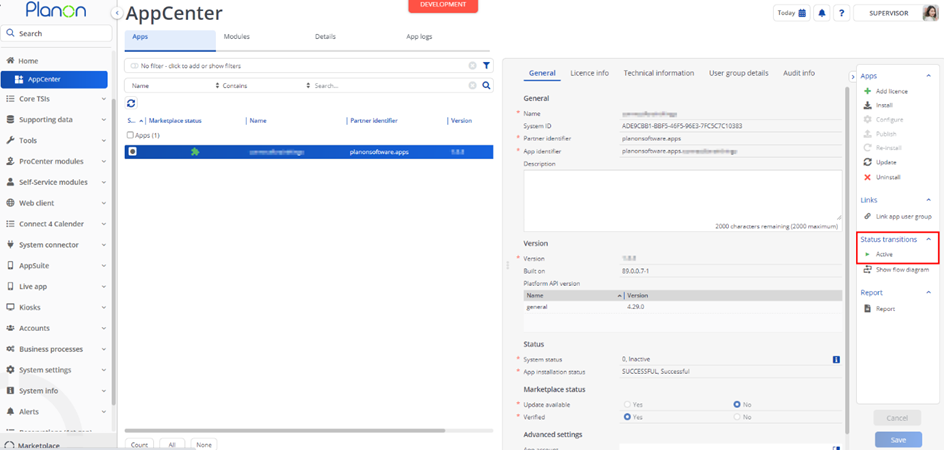
Once the app has been configured, you can activate the app by pressing the Active status transition from the action panel. Always make sure that the required User groups are linked correctly and the Configure action is executed before activating the App.
Planon configuration
External System
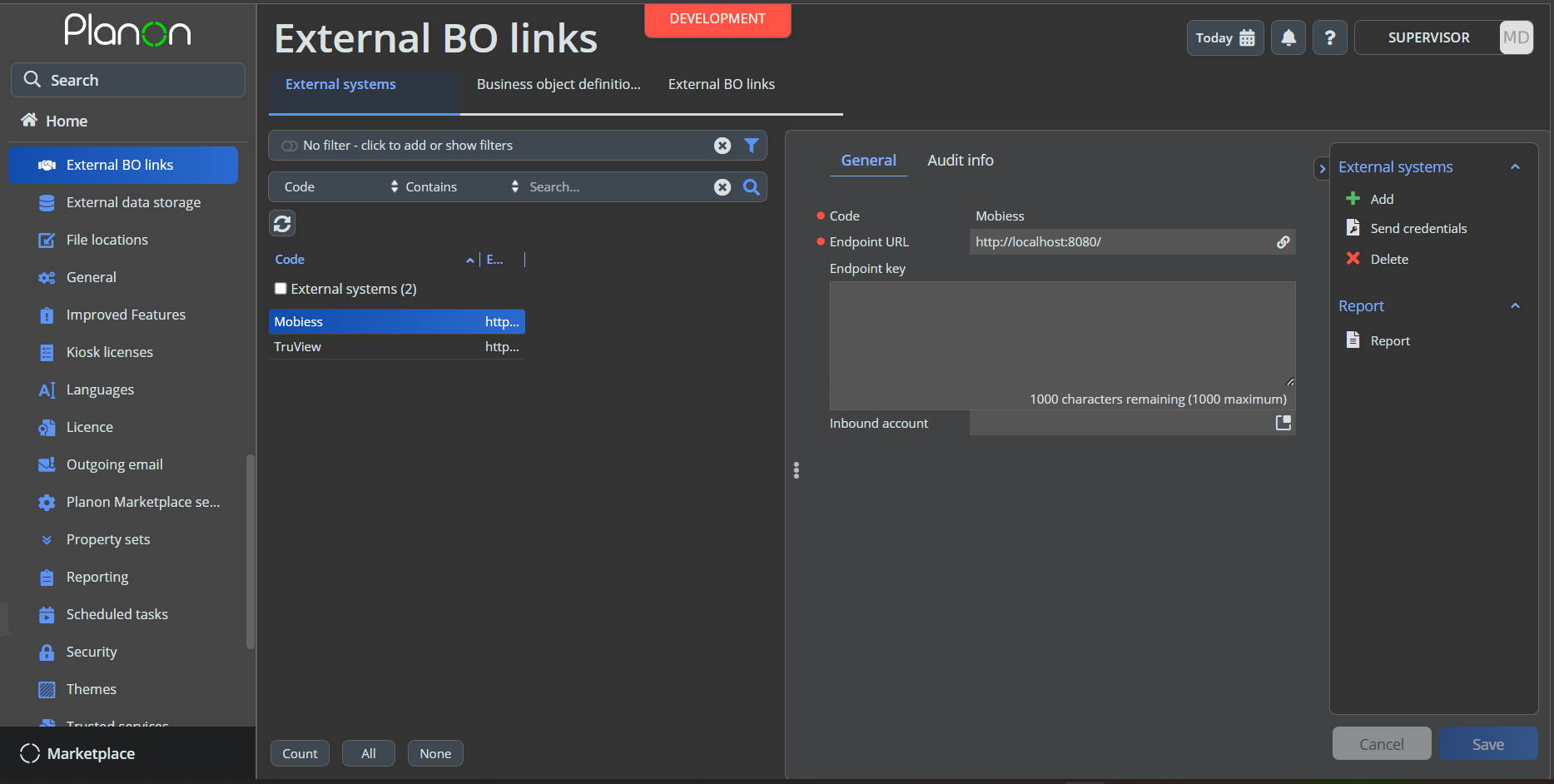
Go to TSI External BO Links, add a entry in selection level ‘External systems’.
If TSI External BO Links not found Please add that via Navigation Panel.
Code: Same as provided in Module Setting of App. Endpoint URL: any dummy url, not being used any where in this app
Schedule task configuration Sync Questions
Go to TSI Schedule tasks
At selection step Scheduled jobs find ‘SYSTASKUSEREXTENSION’ and make this active if this is not.
Go to selection step Task user extension
Add an entry by clicking on add button
Add a code
Select class “planonsoftware.apps.mobiess.connector.scheduletask.SyncQuestions”
Schedule: whatever feasible schedule
Fill Start date time
Click on Save
Change the status to Active
Schedule task configuration Assessment results
Go to selection step Task user extension
Add an entry by clicking on add button
Add a code
Select class “planonsoftware.apps.mobiess.connector.scheduletask.SyncAssessmentResults”
Schedule: whatever feasible schedule
Fill Start date time
Click on Save
Change the status to Active
TSI Action Configuration
LinkMobiessTemplate
Go to the TSI Field Definer
Select the Business Object with system name AssessmentDefinition
Set the Business Object to Under Construction
Go to the selection level Details and to the step Extended Actions
Click on Add button and fill the below details
| Field | Value |
|---|---|
| Web2Client class name | planonsoftware.apps.mobiess.connector.tsiaction.LinkMobiessTemplate |
| System name | LinkMobiessTemplate |
| Code | LinkMobiessTemplate |
| Description | Link Mobiess Template |
Go back to the Business Objects level and set the BO back to completed state.
Go to the TSI Layouts or Layout Manager
Select the BO Assessment Definition
Go to layouts level
Set the layout to Under Construction and add the extended action to the Action pane
Save the changes and set the layout to completed state.
Logout and Login to Planon
FillMissingAnswer
Go to the TSI Field Definer
Select the Business Object with system name Assessment
Set the Business Object to Under Construction
Go to the selection level Details and to the step Extended Actions
Click on Add button and fill the below details
| Field | Value |
|---|---|
| Web2Client class name | planonsoftware.apps.mobiess.connector.tsiaction.FillMissingAnswers |
| System name | FillMissingAnswers |
| Code | FillMissingAnswers |
| Description | Fill Missing Answers |
Repeat the steps for all UDBOs under Assessment
Go back to the Business Objects level and set the BO back to completed state.
Go to the TSI Layouts or Layout Manager
Select the BO Assessment Definition
Go to layouts level
Set the layout to Under Construction and add the extended action to the Action pane
Save the changes and set the layout to completed state.
Logout and Login to Planon
Troubleshooting
Error handling
- Errors are recorded in the server logs:
- Tomcat log for web components
- Webpages
- PSS modules
- Stepview
- TSI Action
- JAX-RS webservices
- Wildfly log for server-side components
- Business rules
- Scheduled tasks
- Workers
- Event Connector
- Tomcat log for web components
- UI components (TSI Actions) also display errors in the interface