Planon Connect for Public Holiday Calendar
Introduction
This application serves as a connector between the company calendar and the nager.date service. Its main function is to fetch public holiday data and automatically store these dates in the company calendars. By keeping holiday information up to date, the app helps ensure that scheduling and resource planning reflect official public holidays without manual entry.
Prerequisites
Environment
This solution will be designed to work with Planon Live L120 and above.
Constraints
- If the Planon Country code in different from ISO Country Code (NagerDate API), the mapping must be configured in the Schedule Task settings
Required (free)fields
-
Assumptions
-
Features
This chapter describes the features that this app contains.
Importing public holidays as non working days
This feature enables automated import of holidays as non-working days into the company calendar within Planon. An aspect of this feature is its flexibility in filtering holiday data. The import process allows users to exclude certain types of holidays, such as those applicable only to schools or government agencies.
Overview of upcoming global holidays
The second feature provides a simple webpage displaying a table of public holidays occurring in the next seven days in every supported country. This allows users to quickly see upcoming holidays at a glance without needing to search or filter additional information.
How does it work
This chapter contains the functional and technical description (if applicable) of the features as described in chapter 3.
Importing public holidays as non working days
This is a scheduled task, its frequency is configurable by the customer or consultant, with a daily schedule being the recommended setting to ensure the information is up-to-date. The scheduled task retrieves public holiday data from the nagerdate api and saves it in the company calendars, marking relevant days as non-working days.
The synchronization of the holidays and calendars takes place based on the configuration of the schedule task.
The schedule task comes with configurable country and calendar. Based on these two settings, below are the cases handled
When both calendar and country code are configured
In this case, the configured calendar is updated with the holidays of the configured country. No child calendars are updatedWhen only country is configured
In this case, the holidays of configured country are added to all the top level calendars present in the environment. No child calendars are updatedWhen only calendar is configured or both are not configured
In this case, the task queries all buildings, determines the country in which each building is located, and identifies the calendar linked to each building. This process establishes which calendar is associated with each country. The task then updates the calendar on the property with the holidays of the country present on the property.

For example consider below data
    Property P1 is linked to calendar C1 and Country UK,
    Property P2 is linked to calendar C2 and Country NL,
    Property P3 is linked to calendar C1 and Country NL

The result when task runs is
    Calendar C1 is updated with holidays of both UK and NL due to combination from Properties P1 and P3
    Calendar C2 is updated with holidays of NL due to combination from Property P2
Overview of upcoming global holidays
This webpage can be located at <Planon Environment Base URL> services/sdk/platform/webpages/planonsoftware/apps/connectfornagerdate/baseapp/holidays
This link can be used as a separate webpage, embedded content or as a gadget on the homepage
Installation
This chapter describes the steps required to install this app on your Planon environment.
Installation Process
There are two ways to install the app:
- Using the Marketplace
- Manual installation
Install the app by using the marketplace
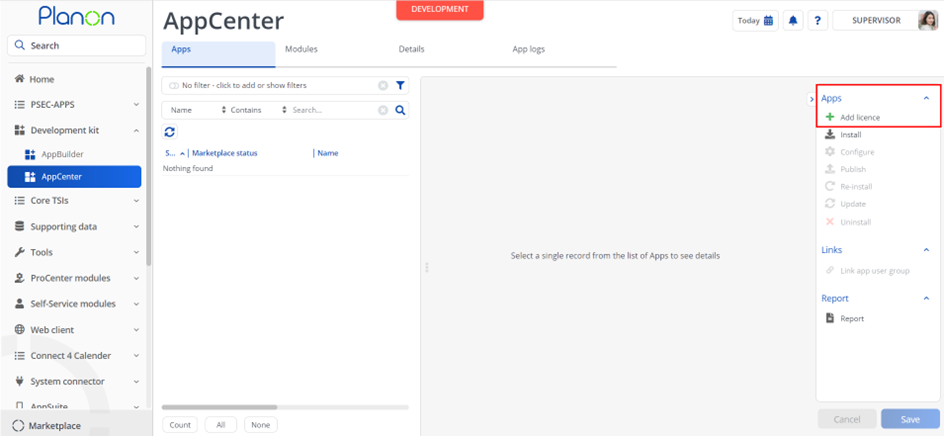
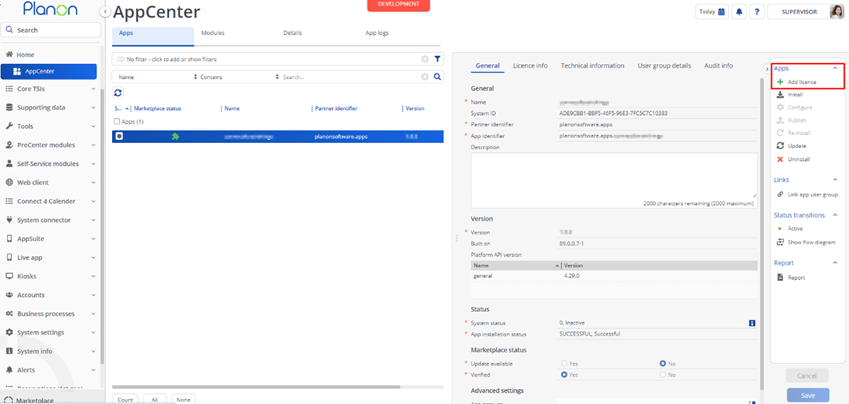
In case your environment is configured to use the Planon app store the only thing required to install the app is to add the app license in the AppCenter TSI. Planon will automatically download and install the app.
Manual installation
In case you want to perform a manual installation follow the steps below.
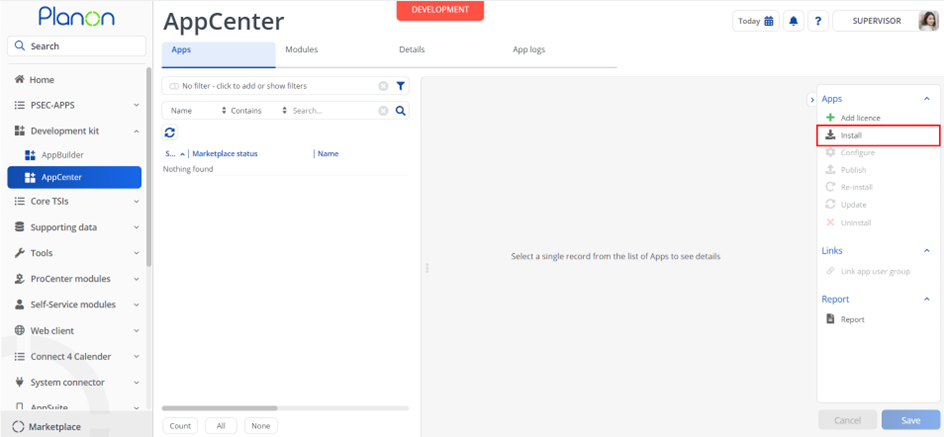
- Open AppCenter TSI from Planon webclient and click on install from action menu
- Browse to the .ppk file
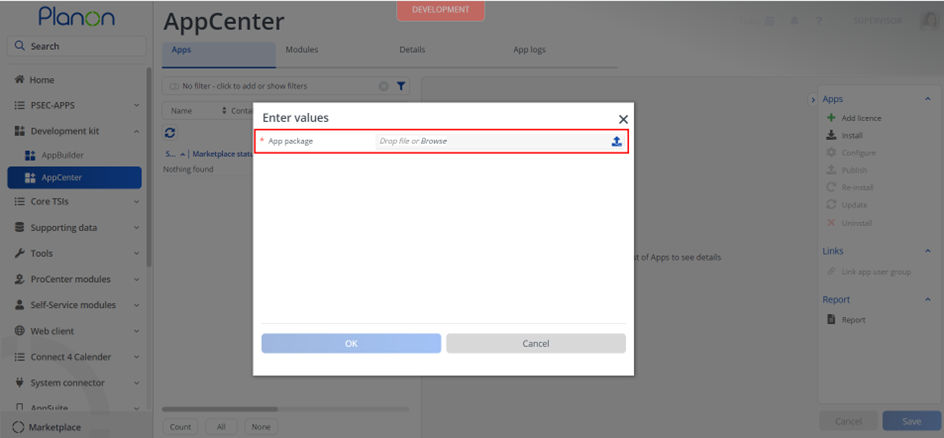
- Click OK to install the app and follow the installation process
- When the app is successfully installed, the app will appear in the AppCenter
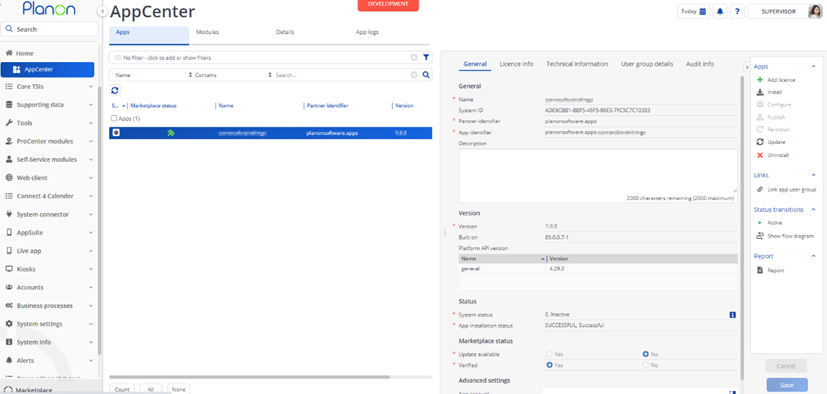
- Add the app license in Apps TSI
App settings
This chapter describes and explains the settings that are available for this app.
- Now that the app is installed we can provide the app settings for each module in the ‘modules’ selection level. Provide the module settings (the app configuration) which is available in the Details section.
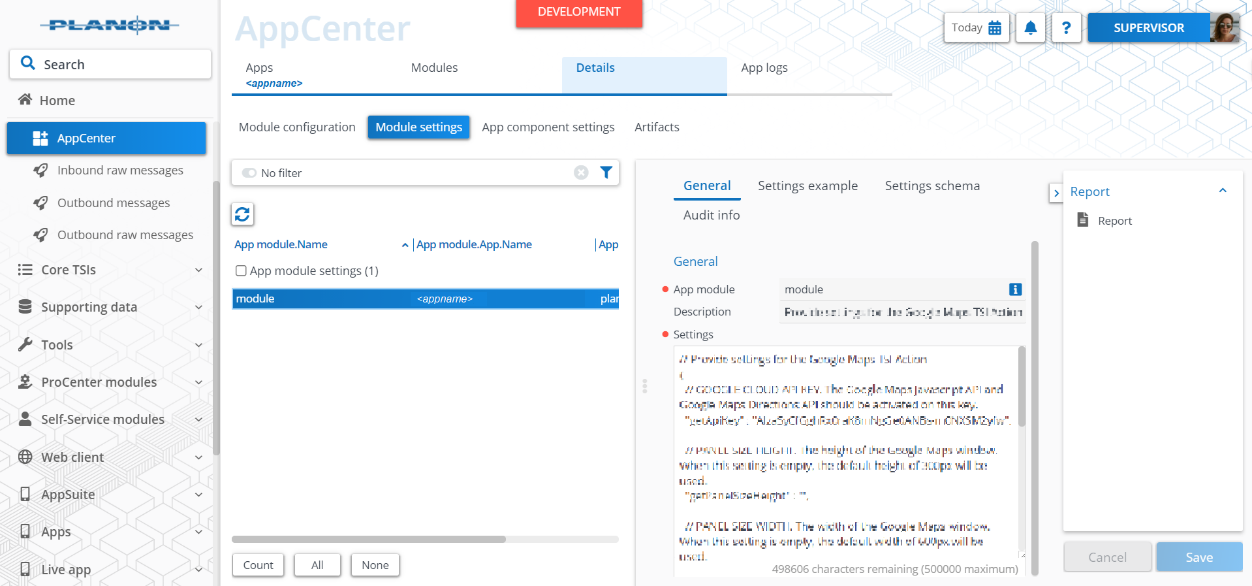
For more details regarding the settings see the next chapter.
Click Save button after providing the module settings.
Description of settings
The URL of the API should be provided in the app settings. A default will be provided.
Example settings
{
"nagerAPIBaseURL" : "https://date.nager.at/api/v3"
}
Activation
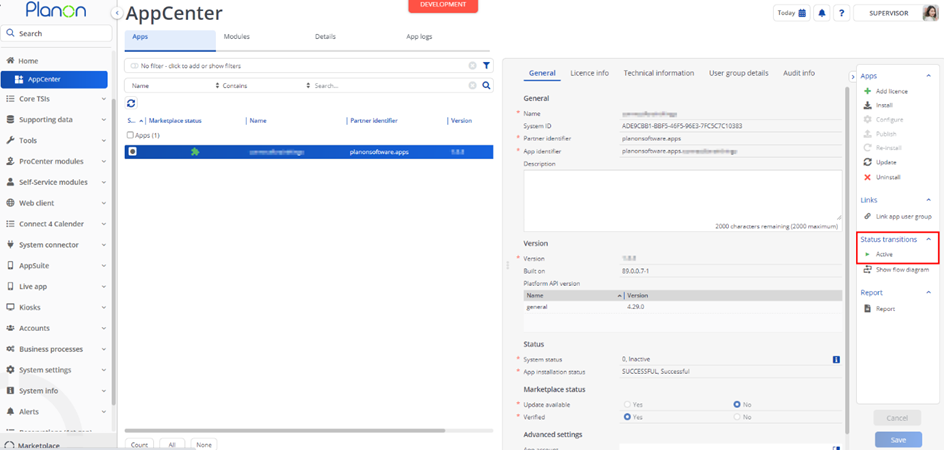
Once the app has been configured, you can activate the app by pressing the Active status transition from the action panel. Always make sure that the required User groups are linked correctly and the Configure action is executed before activating the App.
Planon Configuration
Importing holidays as non working days
To automatically import holidays, it is possible to create a scheduled task. The first step is to go to the Scheduled tasks TSI and go to the “Task user extensions” selection step.
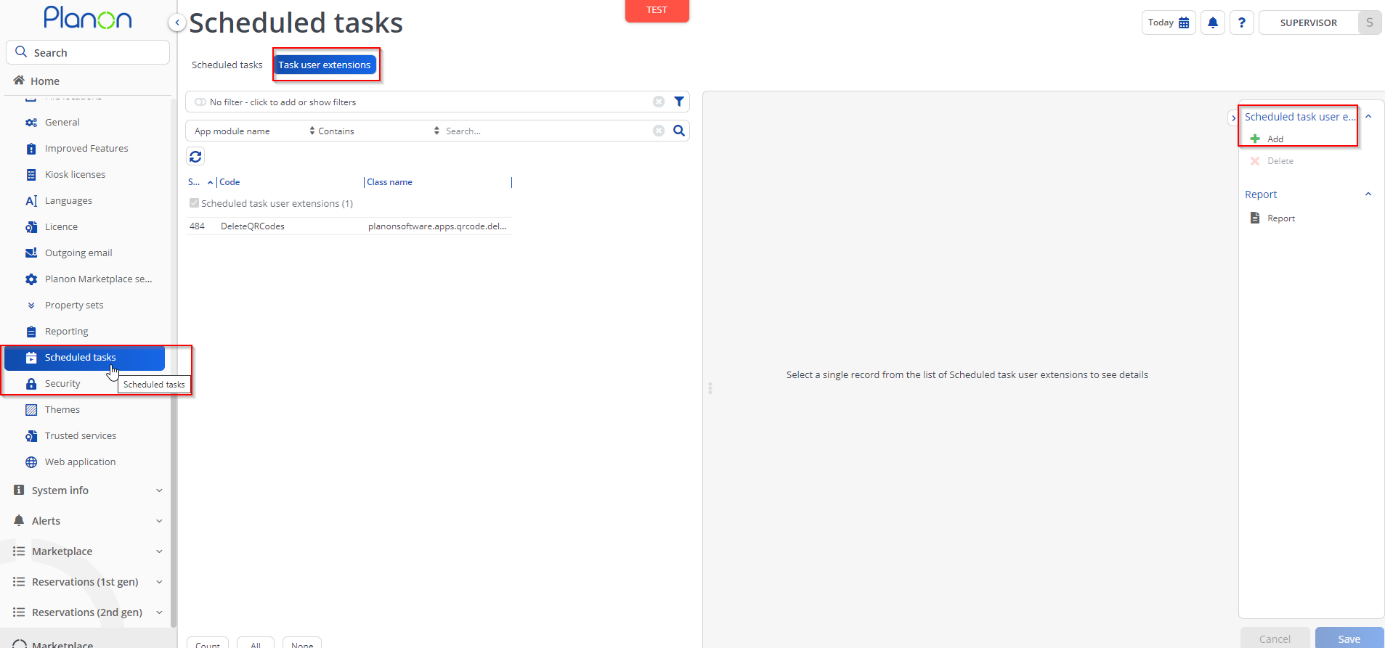
The next step is to add the newly installed app, do this by clicking on the Add button in the action menu and create the action with the following details.
| Property | Value |
|---|---|
| Code | nagerDaily |
| Class name | planonsoftware.apps.connectfornagerdate.scheduledtasks.RetrieveNextPublicHolidaysTask |
| User | Supervisor (This can be any desired user with the sufficient rights). |
| Start date-time | Any desired date-time greater than current date-time |
| Schedule |  Here you can select the following details as an example: 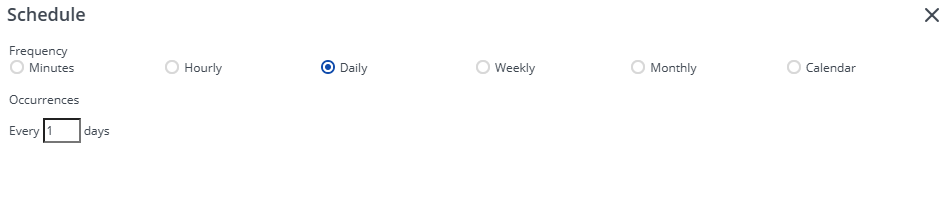 |
The image below shows an example of what the scheduled task could look like.
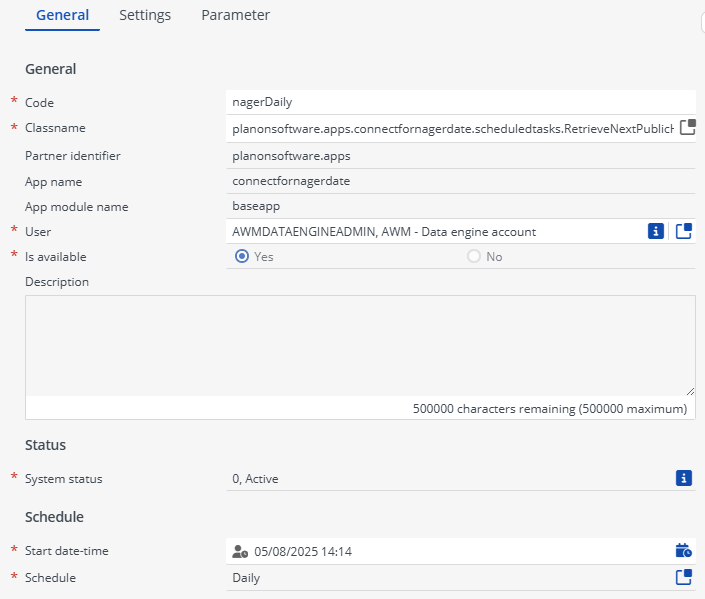
Before saving the scheduled task, it is necessary to add the settings. This can be done by clicking on the Settings tab and filling in the required fields.
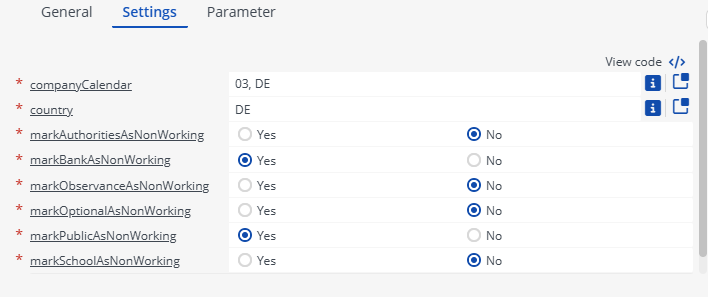
Description of setting
| Field | Type | Default | Description |
|---|---|---|---|
| companyCalendar | Reference (MultiCalendar) | Calendar to be updated with the holidays based on the country provided in the setting countryCode. If this is left empty, all calendars are updated with the holidays based on the country configured in the setting countryCode. | |
| countryCode | String | ISO Country code update the calendar with the respective country holidays. If left empty, the holidays are updated based on the country and calendar combination retrived from all Properties in Planon | |
| subdivisionCountryCode | String | Optional subdivision (state/province) code to include region-specific holidays in addition to national holidays, for example GB-ENG for England. If a holiday is global, it is considered by default. Else only sub divisional holidays are considered. | |
| countryMap | String | UK=GB | Mapping between Planon country code and ISO country code for Nager API. Format: PlanonCountryCode=IsoCountryCode; multiple mappings separated by semicolons. Example: UK=GB. |
| markPublicAsNonWorking | Boolean | true | Whether public holidays are marked as non-working days. |
| markBankAsNonWorking | Boolean | true | Whether bank holidays are marked as non-working days. |
| markSchoolAsNonWorking | Boolean | false | Whether school holidays are marked as non-working days. |
| markAuthoritiesAsNonWorking | Boolean | false | Whether authority holidays are marked as non-working days. |
| markOptionalAsNonWorking | Boolean | false | Whether optional holidays are marked as non-working days. |
| markObservanceAsNonWorking | Boolean | false | Whether observance holidays are marked as non-working days. |
The last step is to click on the Save button. The scheduled task can be activated by clicking on the Active button which can be found in the action menu.
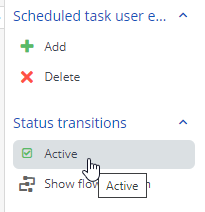
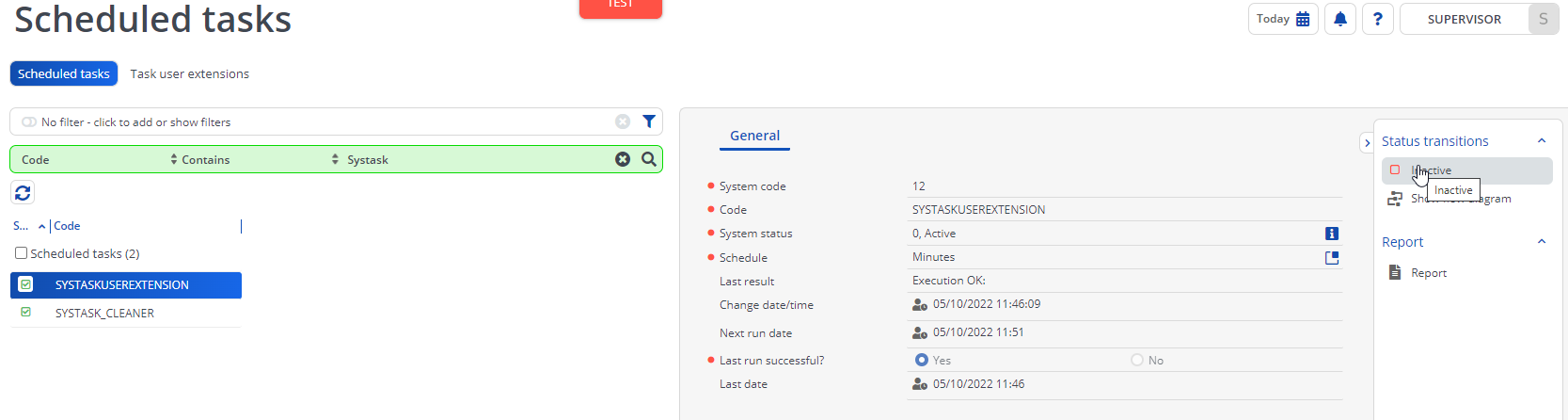
Note Ensure SYSTASKUSEREXTENSION is set to active in the “Scheduled tasks” selection step.
Troubleshooting
This chapter describes common things and known issues to check in case the app is not working as expected.
Error handling
For all components the errors will be written in the server logs. Components that also have an UI (like TSI Actions) will also display any errors in the interface.
Company calendar is not filled
It is possible that a country is not supported by the nager.date api. The currently supported countries can be found on the following page: https://date.nager.at/Country