Planon Extension - Email Workers
Introduction
This document describes the installation and configuration of the EmailWorkers app.
The EmailWorkers app contains three different workers:
EmailWorker This worker sends an email based on a configurable XML file. This XML file contains the body, subject, receiver and other information. It is also possible to specify attachments to attach to the email.
MailboxWorker This worker can connect to a configured mailbox (POP, IMAP, Graph), reads the emails, converts it to XML format and provides the data to the MailToTicktWorker for further processing.
MailToTicketWorker This worker will create or update an order, based on the XML data provided by the MailboxWorker. It can also create order documents / communication logs for any present email attachment.
These workers must be added to a Enterprise Talk definition in order to utilize them.
Prerequisites
Environment
This solution will be designed to work with Planon Live L114 and above.
Constraints
N/A
Required (free)fields
N/A
Assumptions
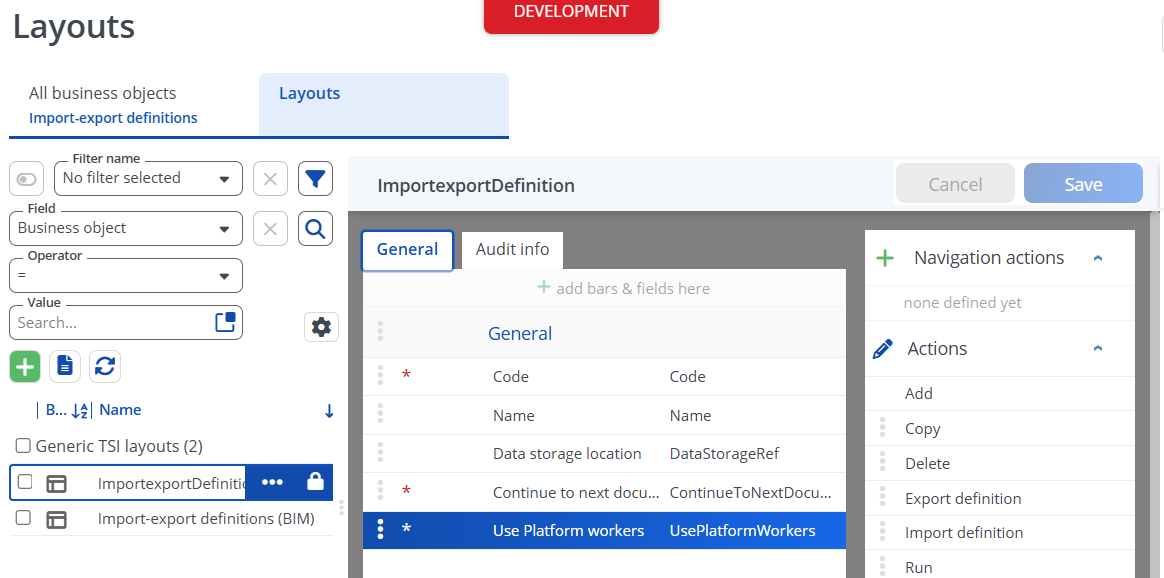
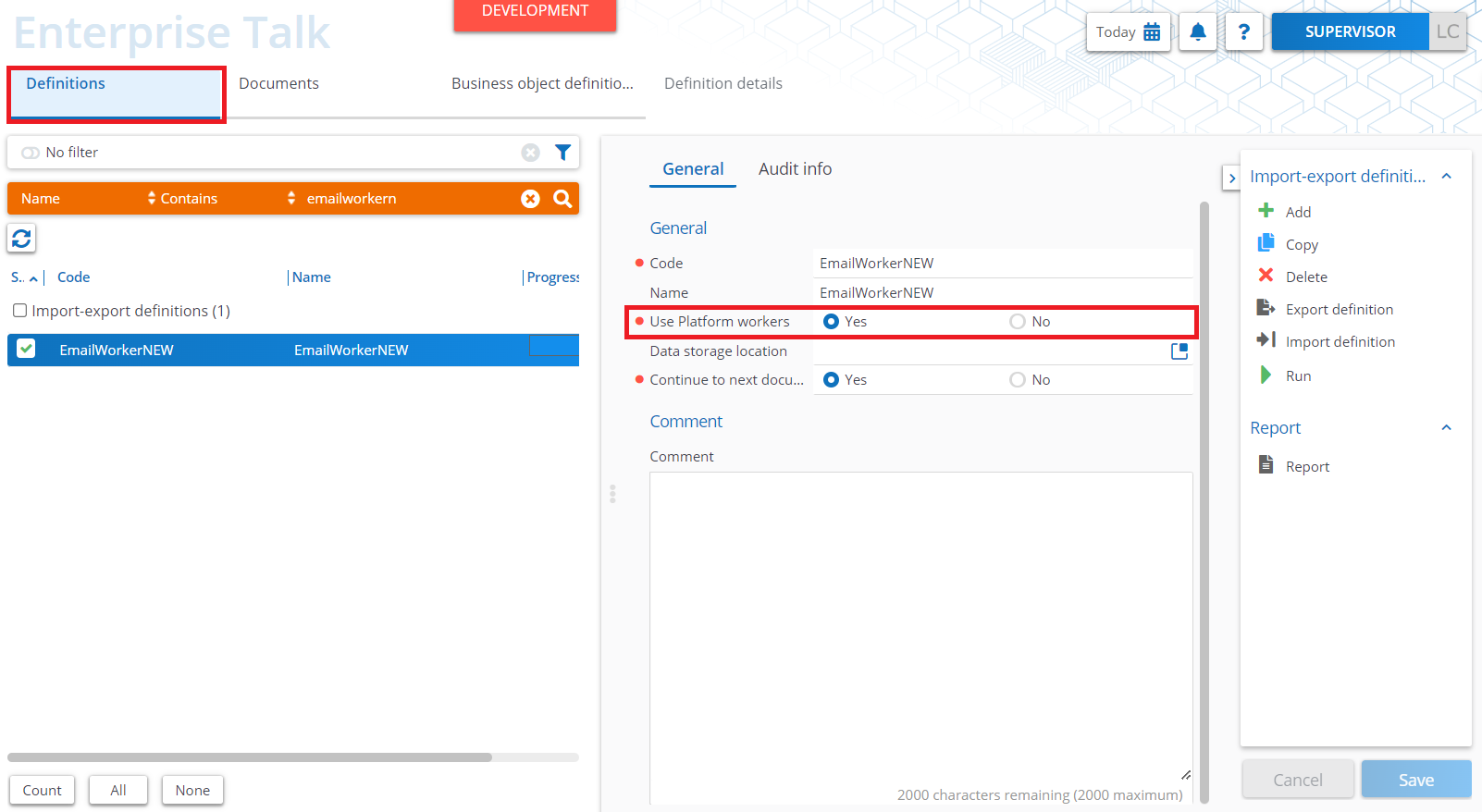
The field Use Platform Workers is added to the layout Enterprise Talk definition.
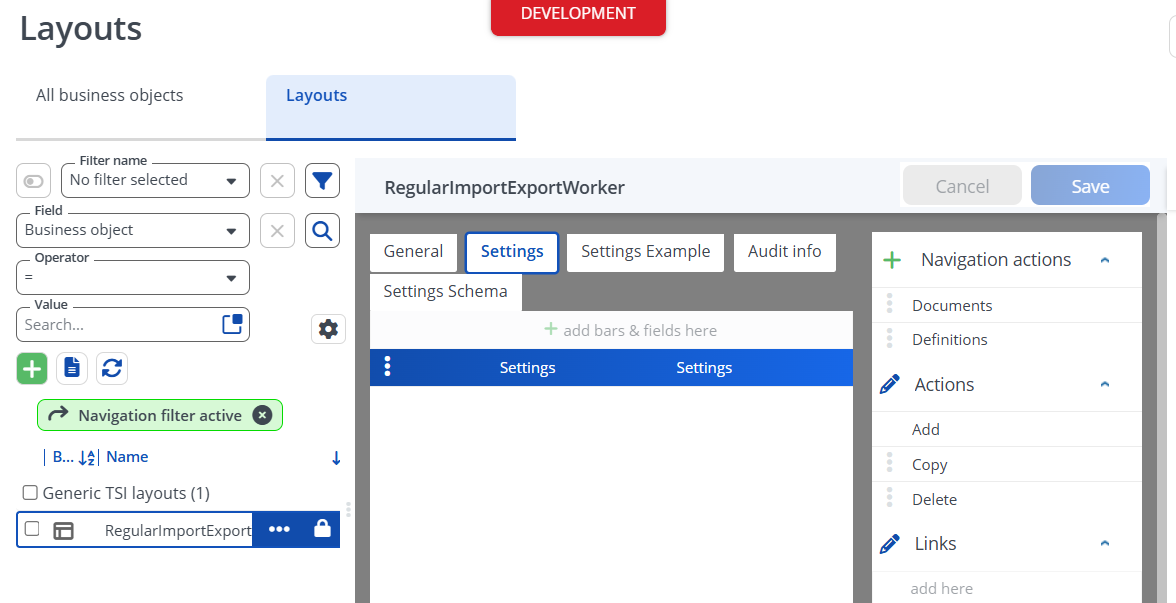
The field with system name Settings on the Business Object RegularImportExportWorker is added to the corresponding layout.
Features
This chapter describes the features that this app contains.
Feature 1 – Send email (EmailWorker)
The EmailWorker in this app can send emails based on configured XML files. This XML file contains the body, subject, receiver and other information. It is also possible to specify attachments to add to the email. The email will be send using the mail configuration in Planon.
Feature 2 – Read emails from a mailbox (MailboxWorker)
The MailboxWorker can connect to a configured mailbox and read the emails. It will convert the emails to XML format and hand it to the next worker for further processing.
Feature 3 – Create/update orders based on xml (MailToTicketWorker)
The MailToTicketWorker can create and update orders in Planon, based on the XML data provided by the MailBoxWorker. It can also create order documents / communication logs for any present attachments.
How does it work
This chapter contains the functional and technical description (if applicable) of the features as described in chapter 3.
EmailWorker
This worker creates and sends an email based on a configured XML file. The XML file contains information on the email body, subject, cc, and receiver. It is also possible to specify attachments in the email.
The worker uses the Planon MailService, which is configured in the TSI ‘Outgoing email’. On non-production environments, the created mails are automatically stopped and logged in the ‘Log viewer’ TSI. The mails will not be sent, but can be retriggered from the ‘Log viewer’ TSI.
Configuration XML file
The emails are based on email configuration (XML) files in a (WebDAV) folder. The email config directory can be set in the worker settings. There is also a setting for the email config file mask, for example *.xml, so it picks every xml file in the given directory.
This is example content of a email config file:
<email>
   <body>
      <h2>Welcome</h2>
   </body>
   <subject>test message</subject>
   <cc>PSECTriage@planonsoftware.com</cc>
   <to>PSECTriage@planonsoftware.com</to>
   <attachment>/data/peet/outbound/EmailConfig/attachments/</attachment>
</email>
MailboxWorker
The mailbox worker connects to a mailbox through POP3, IMAP or GRAPH API mail protocol and retrieves the contents in an XML format. Only emails that match a configurable filter (sender, subject, attachment filename) are processed. This way only expected emails are processed. As soon as an email is read it can be moved to another folder in the mailbox.
Process
Each time the worker is executed it connects to the mailbox using the connection settings specified in the worker settings. The worker checks for emails matching the filter on sender and subject and which contain an attachment that matches the filter. If no filter is set on attachments both emails with and without attachments are processed.
When an email is found the email is moved to another folder in the mailbox and then saved to an XML message with the following structure:
<?xml version="1.0" encoding="UTF-8"?>
<email>
   <to/>
   <cc/>
   <bcc/>
   <sender/>
   <subject/>
   <send_datetime/>
   <receive_datetime/>
   <reply_address/>
   <body/>
   <attachments>
      <attachment>
         <filename/>
         <content/>
      </attachment>
   </attachments>
</email>
For each run a generic logging is added specifying the total number of emails found. The XML is passed to the ‘MailToTicketWorker’ for further processing in Planon.
MailToTicketWorker
The MailToTicketWorker creates or updates an order, based on the data XML provided by the previous MailboxWorker. It is also able to create communication logs and order documents for any attachments in the email.
Process

Installation
This chapter describes the steps required to install this app on your Planon environment.
Installation Process
There are two ways to install the app:
- Using the Marketplace
- Manual installation
Install the app by using the marketplace
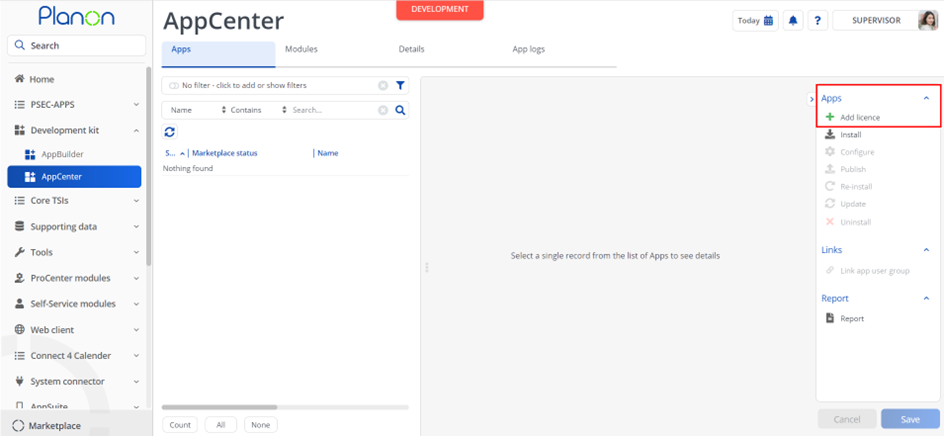
In case your environment is configured to use the Planon app store the only thing required to install the app is to add the app license in the AppCenter TSI. Planon will automatically download and install the app.
Manual installation
In case you want to perform a manual installation follow the steps below.
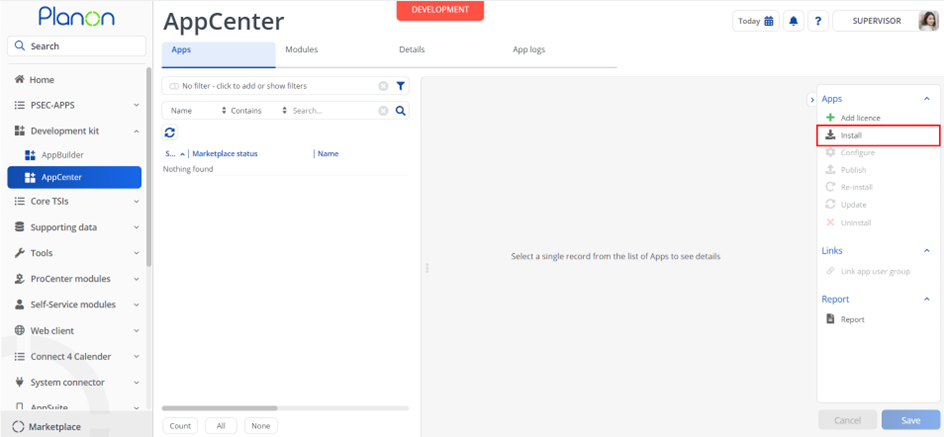
- Open AppCenter TSI from Planon webclient and click on install from action menu
- Browse to the .ppk file
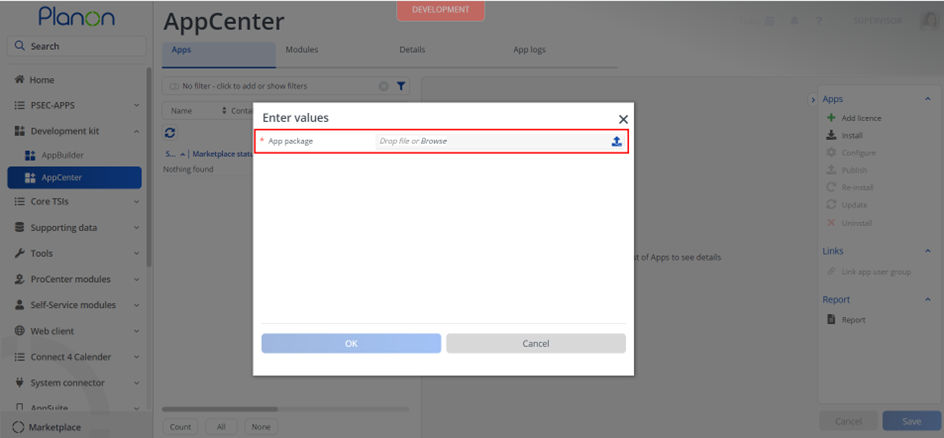
- Click OK to install the app and follow the installation process
- When the app is successfully installed, the app will appear in the AppCenter
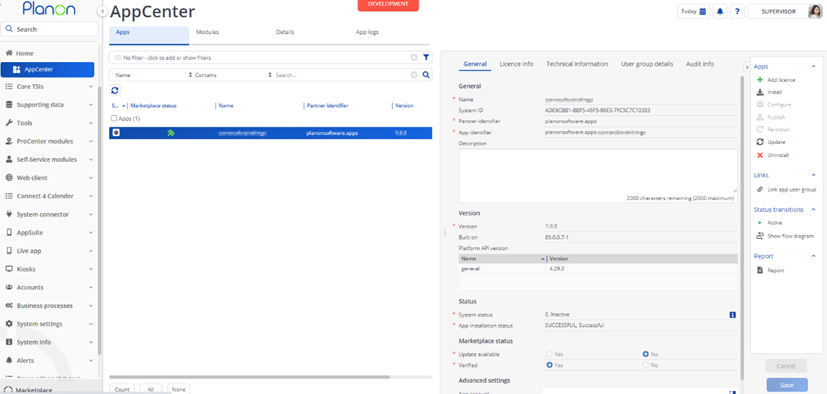
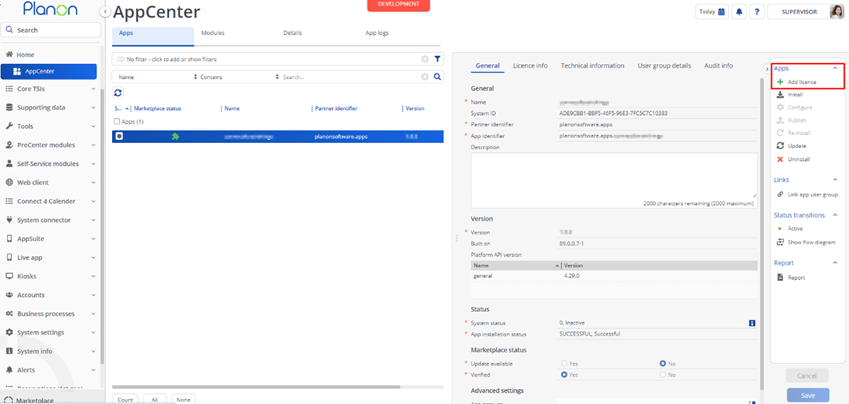
- Add the app license in Apps TSI
Activation
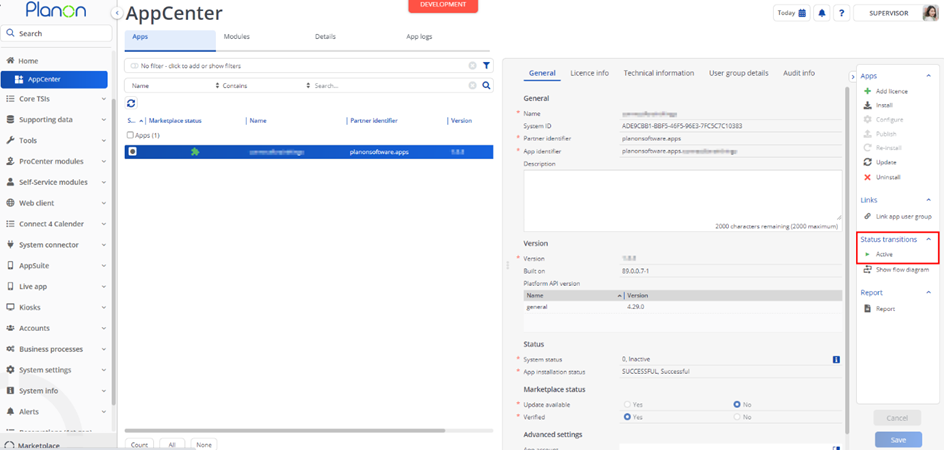
Once the app has been configured, you can activate the app by pressing the Active status transition from the action panel. Always make sure that the required User groups are linked correctly and the Configure action is executed before activating the App.
App settings
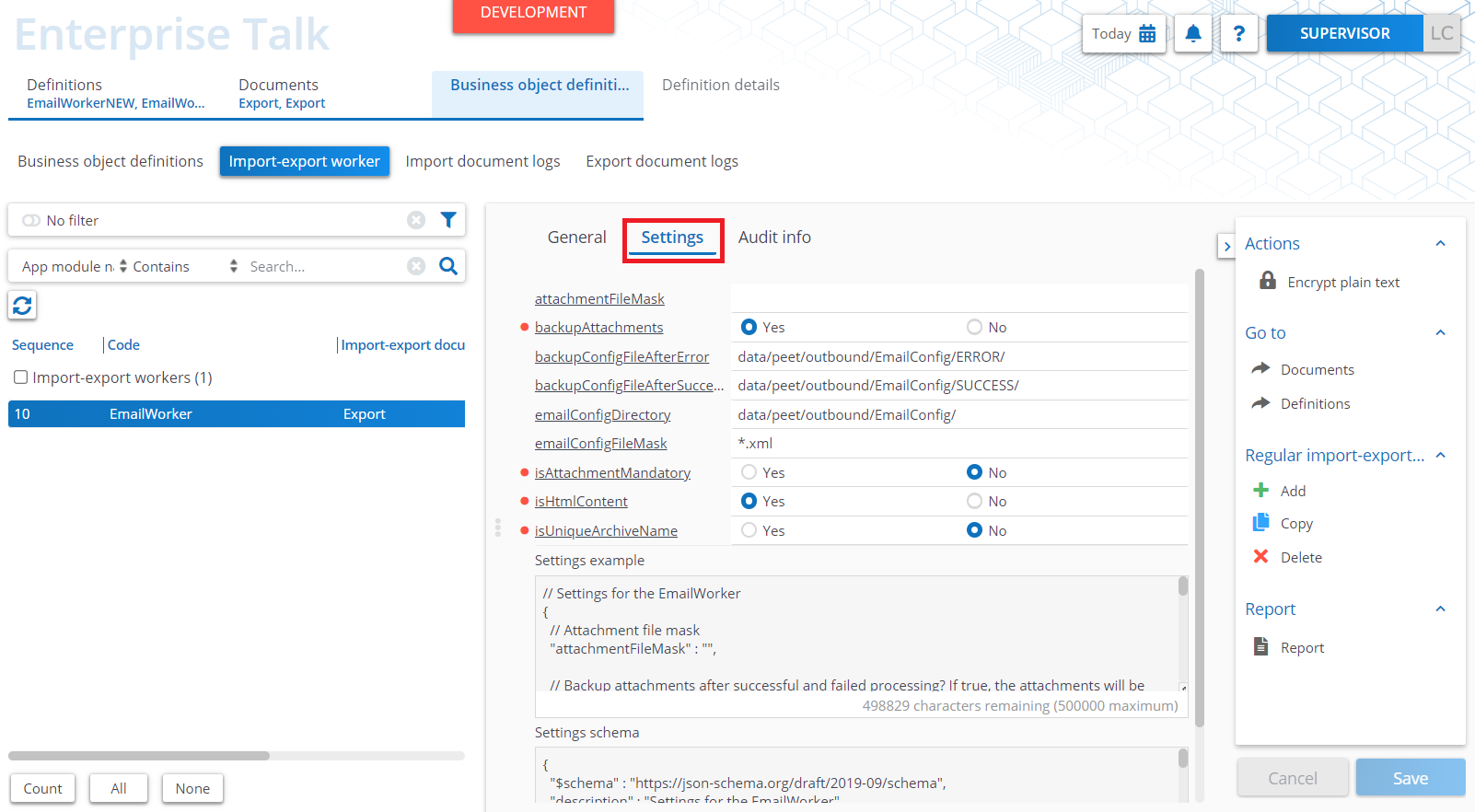
This chapter describes and explains the settings that are available for this app. The EmailWorkers makes use of component settings to define which files, fields to use for what purposes.
EmailWorker settings
| Setting | Mandatory | Example | Description |
|---|---|---|---|
| emailConfigDirectory | Yes | data/peet/outbound/EmailConfig/ | Email configuration files directory. The worker will look for configuration files in this directory. |
| emailConfigFileMask | Yes | *.xml | Email configuration file mask. The worker will only fetch files in the config directory that match this pattern. |
| emailAttachmentMandatory | Yes | No | When this is set to true, the worker will only process mails that have an attachment. |
| emailContainsHtmlContent | Yes | Yes | Sets whether the email contains HTML content |
| attachmentFileMask | No | *_attachment.txt | The worker will look for attachments with a file name that matches this pattern (in the attachment directory that is in the config file). |
| configFileBackupLocationAfterSuccess | No | data/peet/outbound/EmailConfig/SUCCESS/ | Backup the XML email config file to this directory when the email was sent successfully. |
| configFileBackupLocationAfterError | No | data/peet/outbound/EmailConfig/ERROR/ | Backup the XML email config file to this directory when the sending of the email failed due to errors. |
| backupAttachments | Yes | No | If set to ‘yes’, the attachments will be moved to the same folders as the config files (see settings backupConfigFileAfterSuccess and backupConfigFileAfterError). |
| createUniqueArchiveName | Yes | Yes | Set to ‘yes’ to append the current time stamp to the attachment or configuration files so that it is not picked in next run. |
| includeEmptyAttachments | No | Yes | Set to ‘yes’ to include empty attachments in the email. Set to ’no’ to exclude the empty attachment in the email |
MailboxWorker settings
| Setting | Mandatory | Example | Description |
|---|---|---|---|
| onlyGetWhenSubjectContains | No | New order | Only the mails with this value in the subject will be processed |
| attachmentRegularExpression | No | Attachment | The email attachment should match this regular expression. This is only considered when the setting ‘getAttachmentsSeparetely’ is set to ‘yes’. |
| clientID | For GRAPHAPI | - | The client_id is a public identifier for apps |
| clientSecret | For GRAPHAPI | - | The client_secret |
| connectionTimeout | Yes | 120000 | Connection timeout in milliseconds |
| embedImgInHtml | No | No | Embed images in HTML. This only works when the setting ‘getMailAsHtmlText’ is set to ‘yes’. |
| failureAction | No | MOVE-TestFolder/Failed | When processing email fails, do the following action (DELETE, MOVE-foldername or SEEN). For the MOVE action include the target folder after a dash. See ‘handlePostProcessAtEnd’ setting for more information. |
| maximumAttachmentSize | No | 0 | Maximum size of attachment (in bytes) which are attached in the to be processed mail. |
| minimumAttachmentSize | No | 100 | Minimum size of attachment (in bytes) which are attached in the to be processed mail. |
| ignoreAction | No | DELETE | When the email is ignored, do the following action (DELETE, MOVE-folder name or SEEN). For the MOVE action include the target folder after a dash. See ‘handlePostProcessAtEnd’ setting for more information. |
| ignoreWhenSubjectContains | No | Test | The mails with this value in the subject will be ignored by the worker. |
| mailAddress | For GRAPHAPI | planontest@gmail.com | The email address |
| mailFolder | Yes | INBOX | Mail folder. Divide folder and subfolders with a ‘/’. |
| mailHost | For IMAP, POP3 | imap.gmail.com | Mail host |
| mailHostPort | For IMAP, POP3 | 993 | Mail host port number |
| mailProtocol | Yes | IMAP | Mail protocol. This can be one of the supported protocols: POP3, IMAP, GRAPHAPI. |
| getMailBodyAsHtmlTxt | No | Yes | Whether or not the content of the mail will be attached as html or text format in the output xml. |
| getMailAsEml | No | Yes | Whether or not the content of the mail will be attached as eml format in the output xml. |
| getMailAsHtmlText | No | Yes | Add HTML body of email as attachment to xml. |
| getAttachmentsSeparately | No | Yes | Get the attachments separately from the email or not. |
| Password | For POP3, IMAP | Password23##1 | The password of the email account. |
| processUnreadEmailsOnly | No | Yes | Whether to only process unread emails. |
| senderRegularExpression | No | The email sender should match this regular expression | |
| subjectRegularExpression | No | The email subject should match this regular expression | |
| successAction | No | MOVE-TestFolder/Success | When processing email is successful, do the following action (DELETE, MOVE-folder name or SEEN). For the MOVE action include the target folder after a dash. See ‘handlePostProcessAtEnd’ setting for more information. |
| tenantID | For GRAPHAPI | dy34e44a-9865-487t-a2u1 | The graph api tenant ID |
| useSSL | No | Yes | Whether or not to use SSL for POP3 or IMAP. |
| userName | Yes | planontest@gmail.com | The mailbox id of which the mails are to be read |
| handlePostProcessAtEnd | No | Yes | When this worker is followed up by the MailToTicketWorker, the emails can be handled after the MailToTicketWorker processed the email. So if this setting is enabled (Yes), it will be handled based on the process results of the MailToTicketWorker. When this setting is not enabled, post process will be done after the MailboxWorker. The settings failureAction, successAction and ignoreAction should be configured so the worker knows what to do in what situation. |
| includeInlineAttachments | No | Yes | This setting is used to determine if inline attachements needs to be added to the order as a comlog or order document |
MailToTicketWorker settings
| Setting | Mandatory | Example | Description |
|---|---|---|---|
| orderNumberRegex | No | The order number in the subject should match this regular expression for an update. | |
| orderNumberRegexGroupID | No | 0 | Order number regex group ID |
| updateOrders | Yes | Yes | If this is set to ‘yes’, the worker will handle updates when the order number is in the email subject. |
| standardOrderCode | No | FM009 | When it needs to insert a standard order, fill the standard order code in this setting. It is used for inserting new orders |
| insertSubjectFilters | Yes | Yes | Set to ‘yes’ if it needs to insert subject filters. It will get the subject filters from the ‘subjectFilters’ setting. |
| subjectFilters | No | LocationDescription:^[0-9]{7}:0:true | Template for a filter is ‘fieldname:regex:groupId:removeFromSubject’. Multiple filters can be seperated by a comma. |
| insertBodyComment | Yes | Yes | Need to insert body comment |
| insertEmailBodyAsNewCommunicationLogOnUpdate | Yes | Yes | Use this to to insert communication log containing the mail body |
| insertCommunicationLogBOType | No | UsrCommunicationLog | Insert communication log of this BO type |
| defaultBOType | Yes (for insert) | UsrOrder | Create this default business object. This setting is only used when ‘standardOrderCode’ setting is empty and ‘insertDefaultValues’ is not empty. |
| insertOrders | Yes | Yes | If this is set to Yes, the worker will insert new business objects. |
| updateOrderComment | Yes | Yes | Need to update comment field on the order |
| updateOrderDescription | Yes | Yes | Need to update description |
| updateDefaultValues | Yes | Yes | Need to update with default values |
| insertEmailBodyAsNewCommunicationLogOnUpdate | Yes | Yes | Need to update communication log body |
| orderUpdateStatusSystemName | No | UsrOrderAccepted | Set the state to this status when updating orders. If the setting is blank, no status update will be done. |
| attachmentComLogSystemName | No | UsrCommunicationLog | Communication Log BO system name. If this setting is filled, a communication log of the given type will be created to add the attachment to the Order. If the setting is empty, no communication log will be created. |
| attachmentOrderDocSystemName | No | OrderDocument | Order Document BO system name. If this setting is filled, a order document of the given type will be created to add the attachment to the Order. If the setting is empty, no order document BO will be created. |
| subjectFiltersDateFormat | No | yyyy-MM-dd’T’HH:mm:ss | Subject filters date format |
| insertRequestorByEmail | Yes | Yes | Need to insert requestor by email |
| insertRequestorByEmailElseExternal | Yes | No | Get ExternalRequestor BO by emailaddress. |
| defaultRequestor | No | P00001 | Person code of the default requestor |
| createExternalRequestorIfNoRequestorFound | No | Use this setting to configure if an external requestor shoudl be created if no requestor could be found. | |
| insertSubjectFiltersSkipOnError | No | Use this setting to configure if the import process should skip an email in case there is an error in handling the subject filters. | |
| insertDefaultValues | No | Fill fields with these default values when creating an order. Use ‘Code’ value for reference fields. Example: ‘PropertyRef:14,Description:This is an example’ | |
| fieldsToCopyFromFromRequestor | No | Provide the fields to copy from requestor to order BO. Provide the target field and the source field name OR default value (default value should be in square brackets). Example: ‘FreeString11:FirstName,FreeString12:[Test value]’ | |
| trimBodyToEndOfMessageRegex | No | Provide a regex to determine the end of the email. With this functionality we can prevent the entire mail thread from being copied to the order and just select the most recent sent mail in the thread. | |
| archiveMode | No | Set the archive mode in case an order is found but archived in Planon. Possible values are ‘NEW’ to create a new order, ‘DEARCHIVE’ to dearchive the order or ‘NONE’ to do nothing. | |
| onlySaveEmlAttachmentAsCommunicationLog | No | Use this setting to only save EML attachments as communication log and ignore other attachments. | |
| onlySaveEmlAttachmentAsOrderDoc | No | Use this setting to only save EML attachments as order document and ignore other attachments. |
When the app is activated, the workers can be added in the TSI Enterprise Talk.
In the TSI Enterprise Talk, add and/or select a Definition in which you want to add this worker. Make sure the field ‘Use Platform workers’ is set to true.
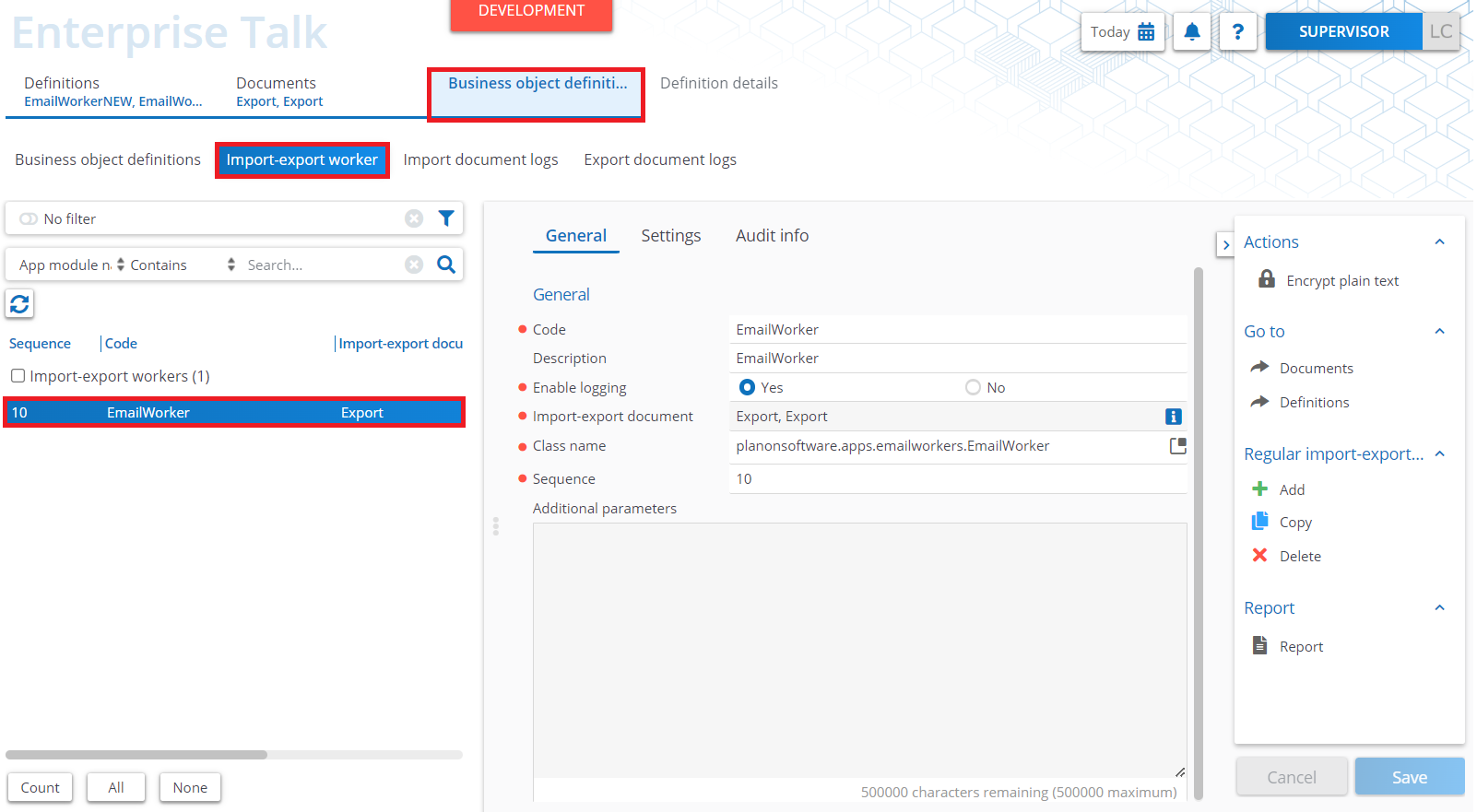
In the ‘Document’ tab, add a document for import or export.
In ‘Business object definition’ 🡪 ‘Import-export worker’ you can add one or more of the workers.
The settings can be configured in the same selection step under the tab ‘Settings’.
Troubleshooting
Error handling
- Errors are recorded in the server logs:
- Tomcat log for web components
- Webpages
- PSS modules
- Stepview
- TSI Action
- JAX-RS webservices
- Wildfly log for server-side components
- Business rules
- Scheduled tasks
- Workers
- Event Connector
- Tomcat log for web components
- UI components (TSI Actions) also display errors in the interface