Planon Extension - Comlog Copy
Introduction
This app contains business rules to copy communication log on the business objects. When a communication log is added for an order, this app can create copies of this comlog and add it to all the sub orders or parent order as per the Business rule configured.
The app consists of six business rules:
CopyComlogFromParentToSubOrders
CopyComlogFromSubOrderToParent
CopyComlogFromSubOrderToSubOrder
CopyComlogCommentToOrder
CopyComlogsToSuborder
CopyCommentToOrderOnComlogCreateOrUpdate
Prerequisites
Environment
This solution will be designed to work with Planon Live L76 and above.
Constraints
The design of this app is based on the following constraints.
- These business rules only work on After Insert
Required (free)fields
This app requires no free fields to be configured in Planon.
Features
This chapter describes the features that this app contains.
Feature 1 – Copy communication log from parent order to suborder(s)
When a communication log is added to an order, this business rule will check if this order contains any suborders. If the suborders are present and their type matches the configured type(as defined in the settings) , the application creates copies of the original communication log and link these to the suborders.
Feature 2 – Copy communication log from suborder to parent order
When a communication log is added to a suborder, this business rule will check if this order has a link to a parent order (ParentRef). If parent order exists and the type of parent order is in the configured type (see settings), the application will create a copy of the original communication log and link it to the parent order.
Feature 3 – Copy communication log from suborder to suborder(s)
When a communication log is added to a suborder, this business rule will check if this suborder has a link to a parent order (ParentRef). If parent order exists, it will get any suborders, and the application will create a copy of the original communication log on the suborders which are in the configured type.
Feature 4 – Copy communication log from parent order to suborder whenever a suborder is inserted.
Whenever a suborder is inserted, this BR copies comlogs of configured type from parent order. If no communication log type is configured, then all comlogs from ParentOrder are copied.
Feature 5 – Copy communication log to order comment field
When the order changes to a configurable trigger status comlogs are copied to the order comment field. It is possible to filter which types of comlogs will be copied based on the BO type and Action. For example, this can be used to automatically copy engineer notes to the order comments when the order is completed.
Feature 6 – Copy comment to order comment field
When a comlog is created or updated, the comments of the comlog are added to the order comment based on the comlog type and action.
Installation
This chapter describes the steps required to install this app on your Planon environment.
Installation Process
There are two ways to install the app:
- Using the Marketplace
- Manual installation
Install the app by using the marketplace
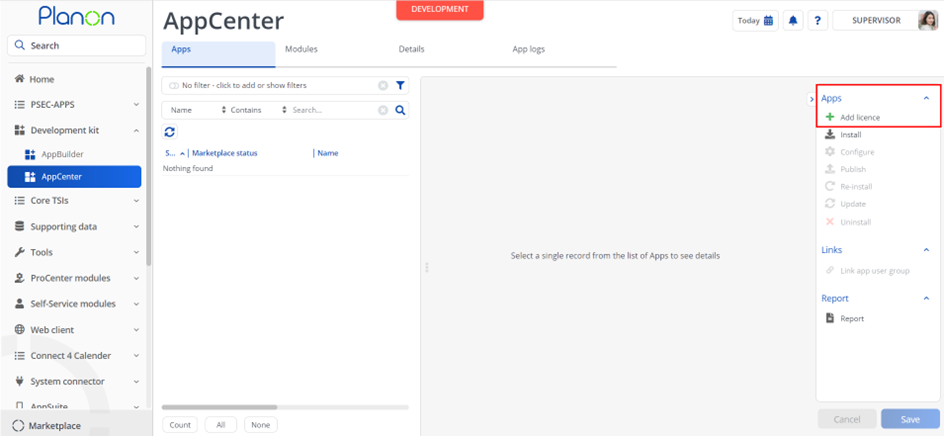
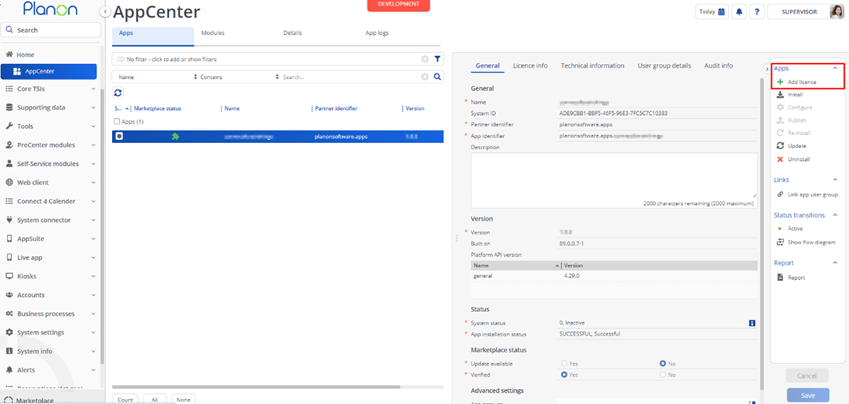
In case your environment is configured to use the Planon app store the only thing required to install the app is to add the app license in the AppCenter TSI. Planon will automatically download and install the app.
Manual installation
In case you want to perform a manual installation follow the steps below.
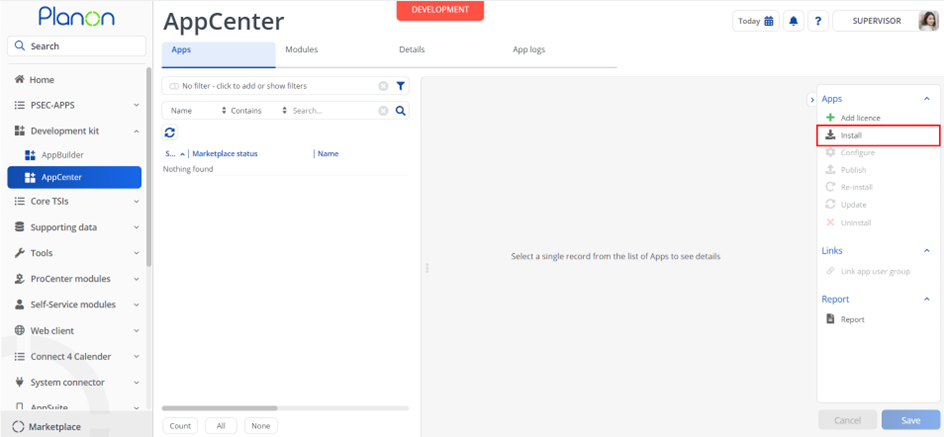
- Open AppCenter TSI from Planon webclient and click on install from action menu
- Browse to the .ppk file
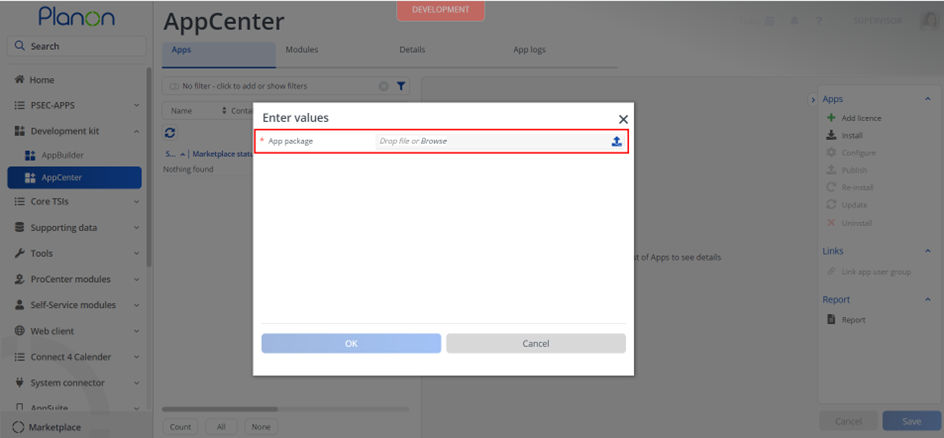
- Click OK to install the app and follow the installation process
- When the app is successfully installed, the app will appear in the AppCenter
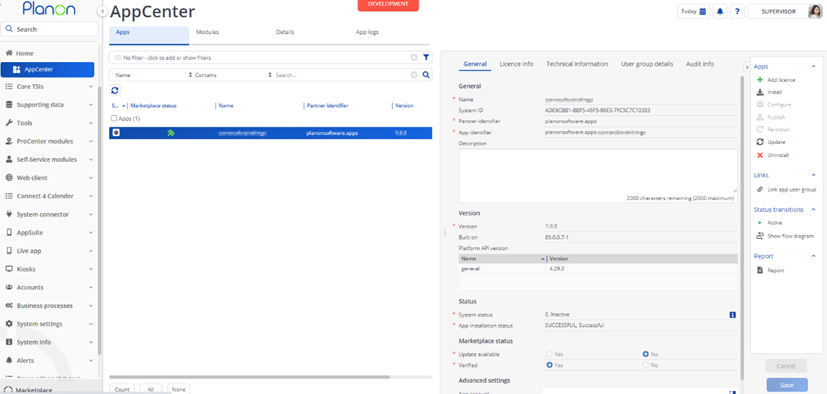
- Add the app license in Apps TSI
Activation
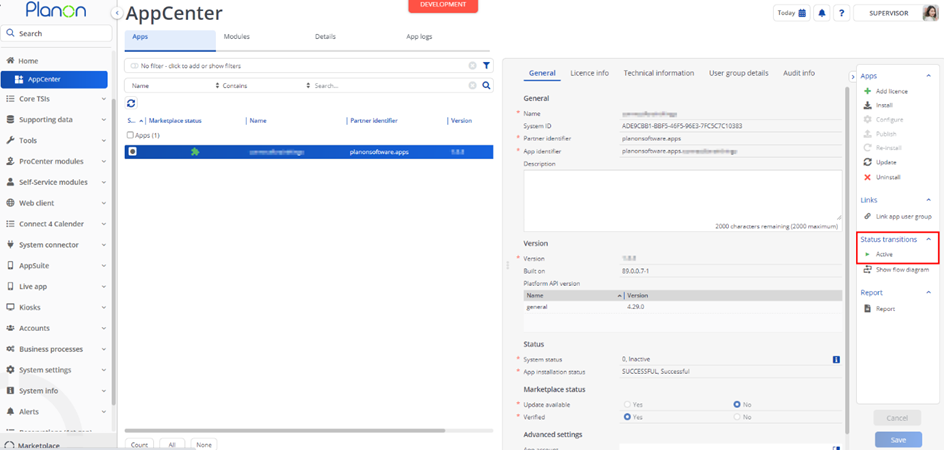
Once the app has been configured, you can activate the app by pressing the Active status transition from the action panel. Always make sure that the required User groups are linked correctly and the Configure action is executed before activating the App.
Planon Configuration
To copy a communication log to sub order when it is added on Parent order
Go to the TSI Field Definer.
Select the business object ‘Communication logs’ and put the status ‘Under construction’.
Select the Communication log UDBO where you want to add the business rule, this can be any Communication log UDBO.
Go to selection step ‘Details’ and then ‘Extensions’. Add an extension here by clicking ‘Add’ in the right action menu.
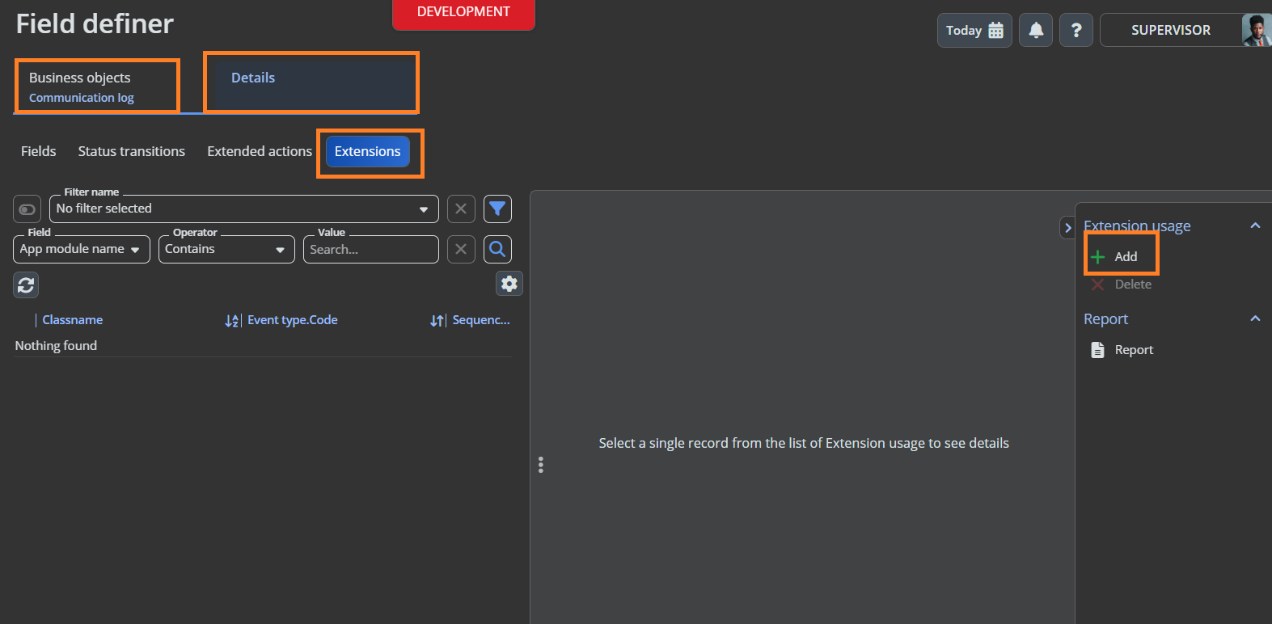
- Select the Business Rule planonsoftware.apps.copycomlogs.CopyComlogFromParentToSubOrders from the popup as shown below
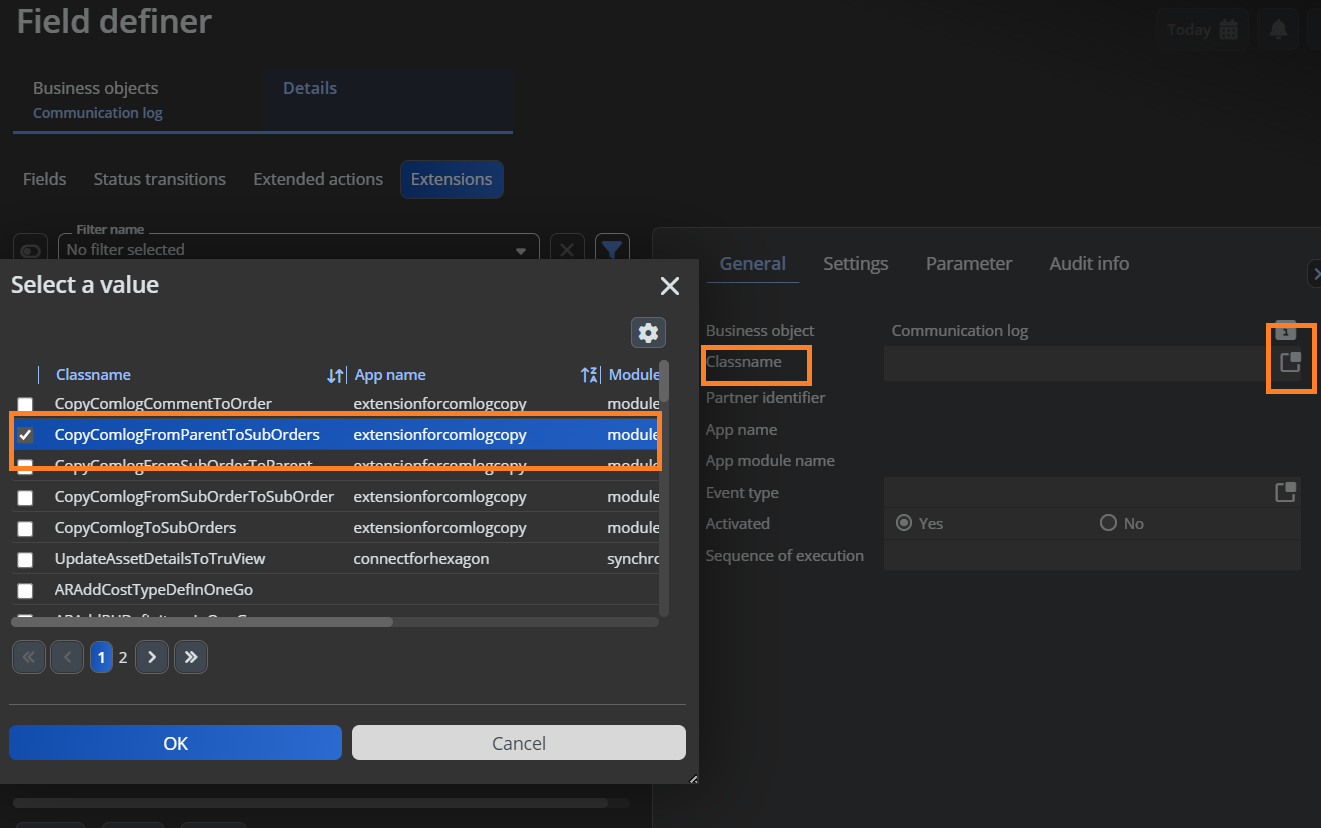
- Add the following information based for the selected business rule:
| Field | Value |
|---|---|
| Class name | planonsoftware.apps.copycomlogs.CopyComlogFromParentToSubOrders |
| Event type | AI, AfterDBInsert |
Fill in the rest of the fields and click ‘Save’.
Go to the tab ‘Settings’ and fill in the settings.
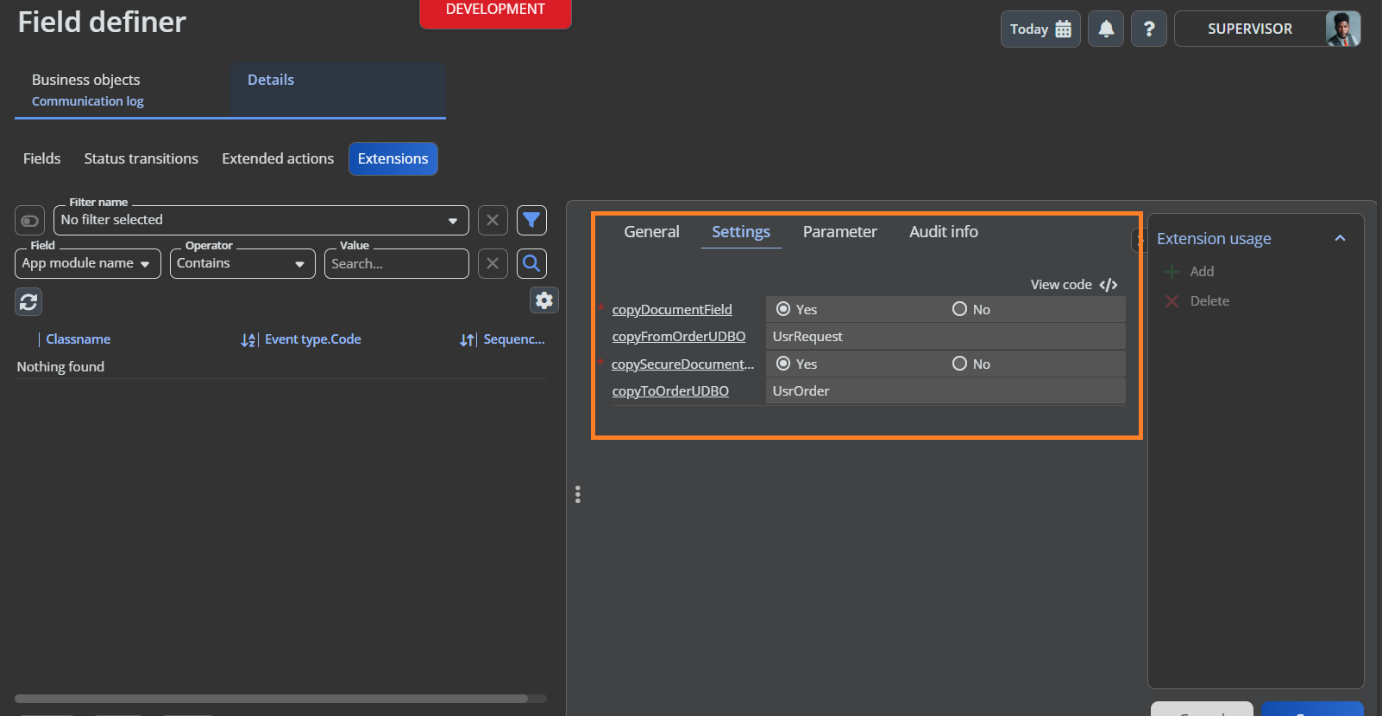
- Click ‘Save’ and go back to the business objects selection step to put the status of the business object from ‘Under construction’ to ‘Completed’.
These configuration steps can be repeated for multiple Communication log UDBO’s.
Settings
These are the settings needed for this business rule
copyDocumentField This setting can be used to control if the document field should also be copied or not.
copyFromOrderUDBO When a communication log is added to this Order UDBO, copy the communication log to the sub or parent orders based on business rule configured. Multiple order types possible, provide the system name separate by comma. When this setting is empty, the communication log will always be copied if there are sub or parent orders.
copySecureDocumentField This setting can be used to control if the secure document field should also be copied or not.
copyToOrderUDBO Copy communication log to sub or parent orders that are of this order type, when a communication log is added based on business rule configured. Multiple order types possible, provide the system name separate by comma. When this setting is empty, the communication log will be copied to all sub or parent orders.
copyImageField This setting can be used to control if the image field should also be copied or not
filter This setting can be used to specify the filter criteria to copy communication log. The comlog is copied when this setting is empty or the communcation log matches the configured filter.
To copy communication log to parent order when it is added on sub order
Go to the TSI Field Definer.
Select the business object ‘Communication logs’ and put the status ‘Under construction’.
Select the Communication log UDBO where you want to add the business rule, this can be any Communication log UDBO.
Go to selection step ‘Details’ and then ‘Extensions’. Add an extension here by clicking ‘Add’ in the right action menu.
- Select the Business Rule planonsoftware.apps.copycomlogs.CopyComlogFromSubOrderToParent from the popup as shown below
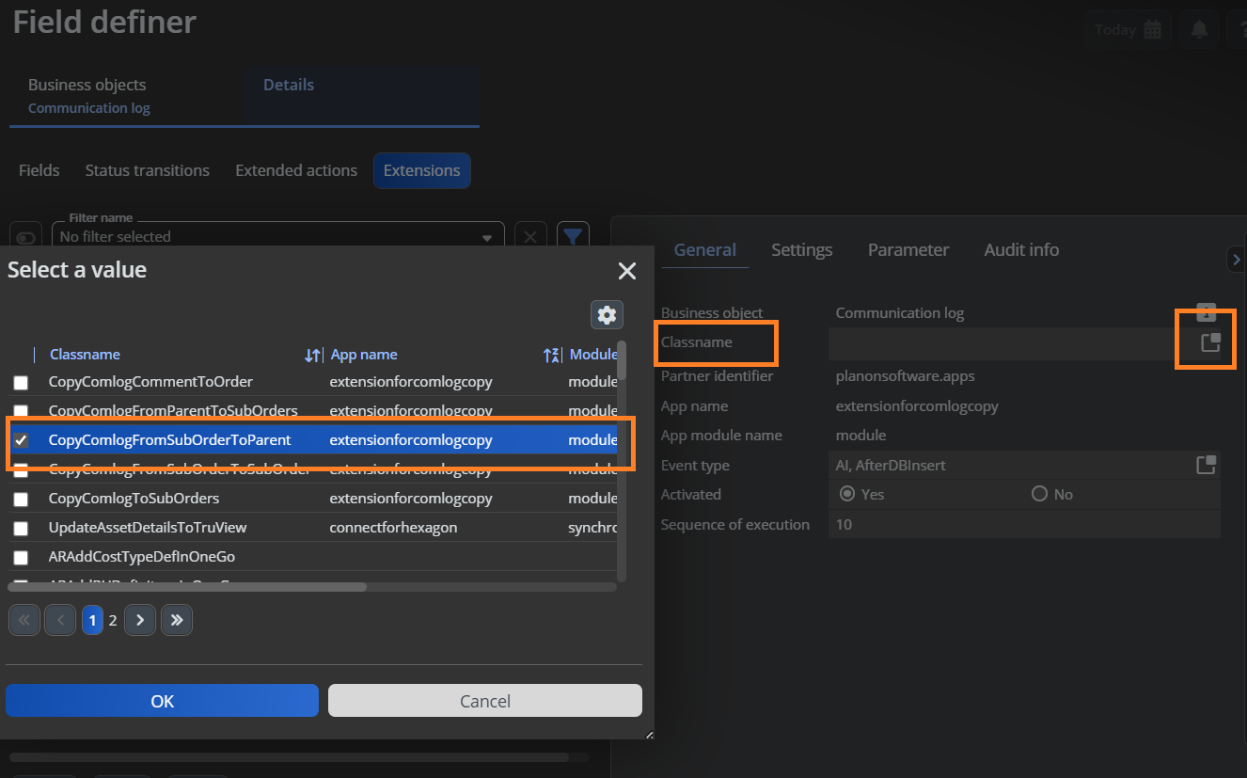
- Add the following information based for the selected business rule:
| Field | Value |
|---|---|
| Class name | planonsoftware.apps.copycomlogs.CopyComlogFromSubOrderToParent |
| Event type | AI, AfterDBInsert |
Fill in the rest of the fields and click ‘Save’.
Go to the tab ‘Settings’ and fill in the settings. See the chapter 4.3.1 for a description of the settings.
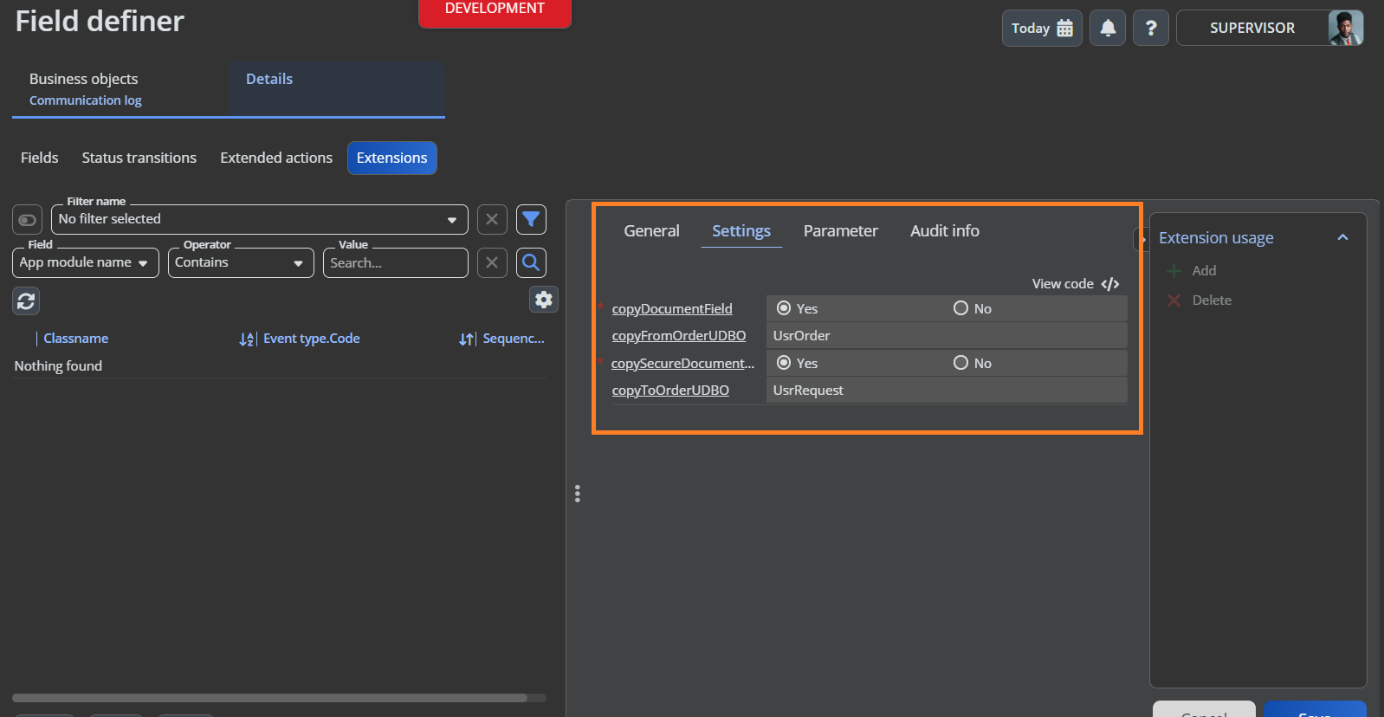
- Click ‘Save’ and go back to the business objects selection step to put the status of the business object from ‘Under construction’ to ‘Completed’.
These configuration steps can be repeated for multiple Communication log UDBO’s.
Settings
These are the settings needed for this business rule
copyDocumentField This setting can be used to control if the document field should also be copied or not.
copyFromOrderUDBO When a communication log is added to this Order UDBO, copy the communication log to the sub or parent orders based on business rule configured. Multiple order types possible, provide the system name separate by comma. When this setting is empty, the communication log will always be copied if there are sub or parent orders.
copySecureDocumentField This setting can be used to control if the secure document field should also be copied or not.
copyToOrderUDBO Copy communication log to sub or parent orders that are of this order type, when a communication log is added based on business rule configured. Multiple order types possible, provide the system name separate by comma. When this setting is empty, the communication log will be copied to all sub or parent orders.
copyImageField This setting can be used to control if the image field should also be copied or not
filter This setting can be used to specify the filter criteria to copy communication log. The comlog is copied when this setting is empty or the communcation log matches the configured filter.
To copy communication log to another sub order when comlog is added on a sub order
Go to the TSI Field Definer.
Select the business object ‘Communication logs’ and put the status ‘Under construction’.
Select the Communication log UDBO where you want to add the business rule, this can be any Communication log UDBO.
Go to selection step ‘Details’ and then ‘Extensions’. Add an extension here by clicking ‘Add’ in the right action menu.
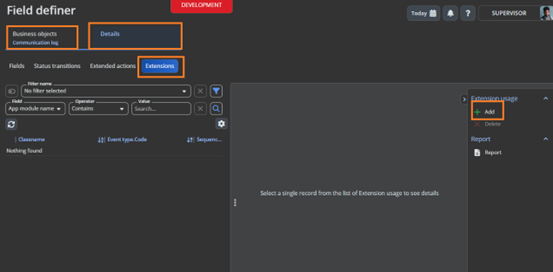
- Select the Business Rule planonsoftware.apps.copycomlogs.CopyComlogFromSubOrderToSubOrder from the popup as shown below
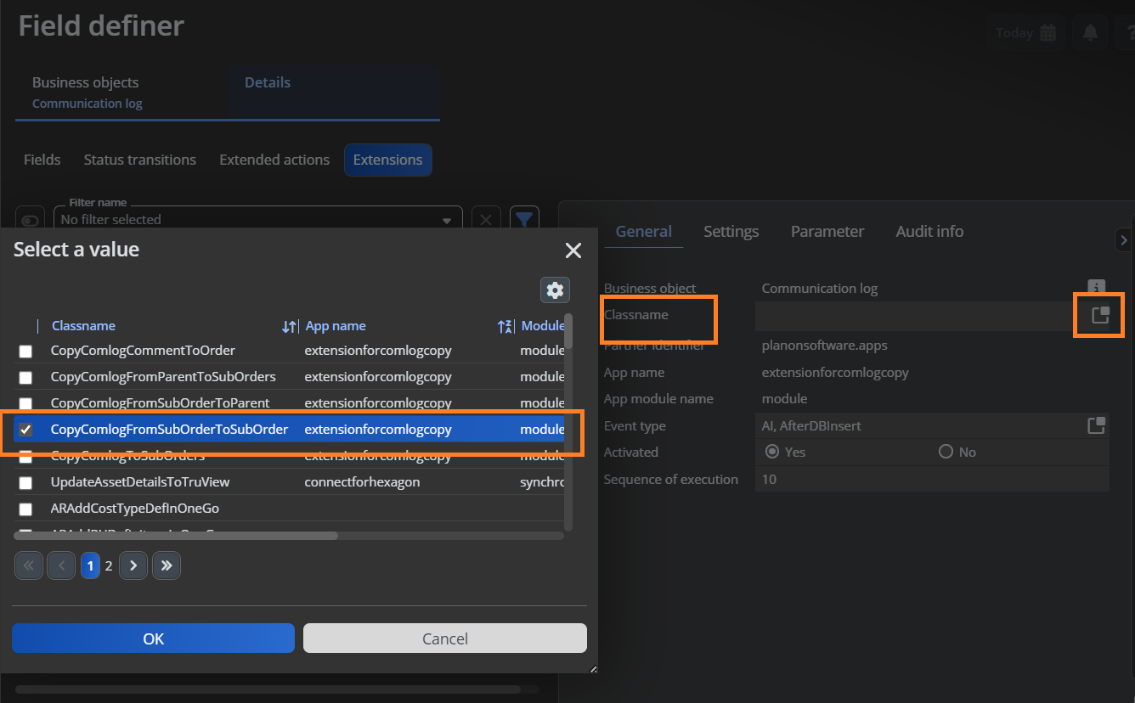
- Add the following information based for the selected business rule:
| Field | Value |
|---|---|
| Class name | planonsoftware.apps.copycomlogs.CopyComlogFromSubOrderToSubOrder |
| Event type | AI, AfterDBInsert |
Fill in the rest of the fields and click ‘Save’.
Go to the tab ‘Settings’ and fill in the settings. See the chapter 4.3.1 for a description of the settings.
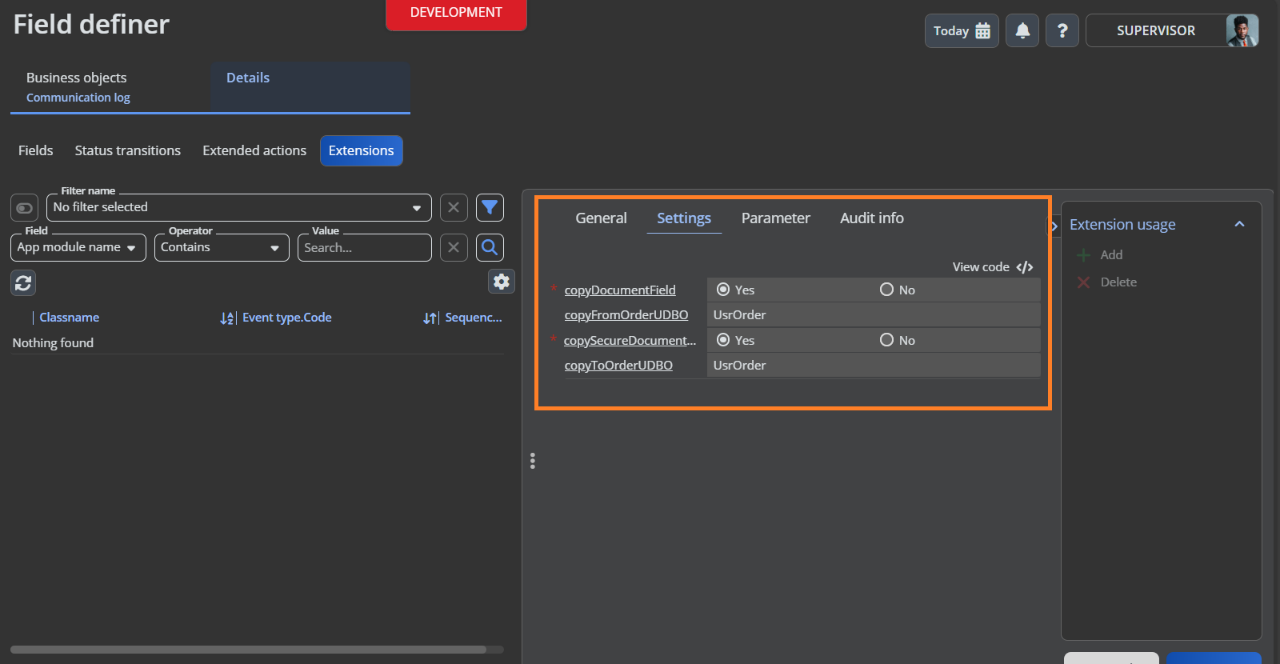
- Click ‘Save’ and go back to the business objects selection step to put the status of the business object from ‘Under construction’ to ‘Completed’.
These configuration steps can be repeated for multiple Communication log UDBO’s.
Settings
These are the settings needed for this business rule
copyDocumentField This setting can be used to control if the document field should also be copied or not.
copyFromOrderUDBO When a communication log is added to this Order UDBO, copy the communication log to the sub or parent orders based on business rule configured. Multiple order types possible, provide the system name separate by comma. When this setting is empty, the communication log will always be copied if there are sub or parent orders.
copySecureDocumentField This setting can be used to control if the secure document field should also be copied or not.
copyToOrderUDBO Copy communication log to sub or parent orders that are of this order type, when a communication log is added based on business rule configured. Multiple order types possible, provide the system name separate by comma. When this setting is empty, the communication log will be copied to all sub or parent orders.
copyImageField This setting can be used to control if the image field should also be copied or not
filter This setting can be used to specify the filter criteria to copy communication log. The comlog is copied when this setting is empty or the communcation log matches the configured filter.
To copy communication logs from parent order to sub order when a suborder is created
Go to the TSI Field Definer.
Select the business object ‘Orders’ and put the status ‘Under construction’.
Select the Order UDBO where you want to add the business rule, this can be any Order UDBO.
Go to selection step ‘Details’ and then ‘Extensions’. Add an extension here by clicking ‘Add’ in the right action menu.
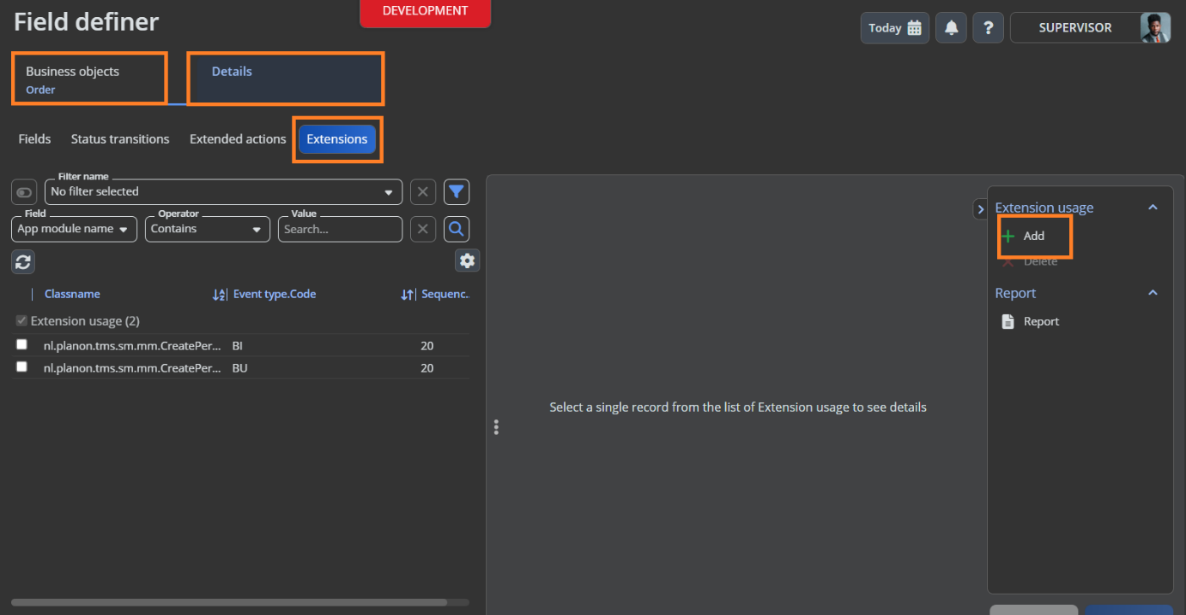
- Select the extension as shown below
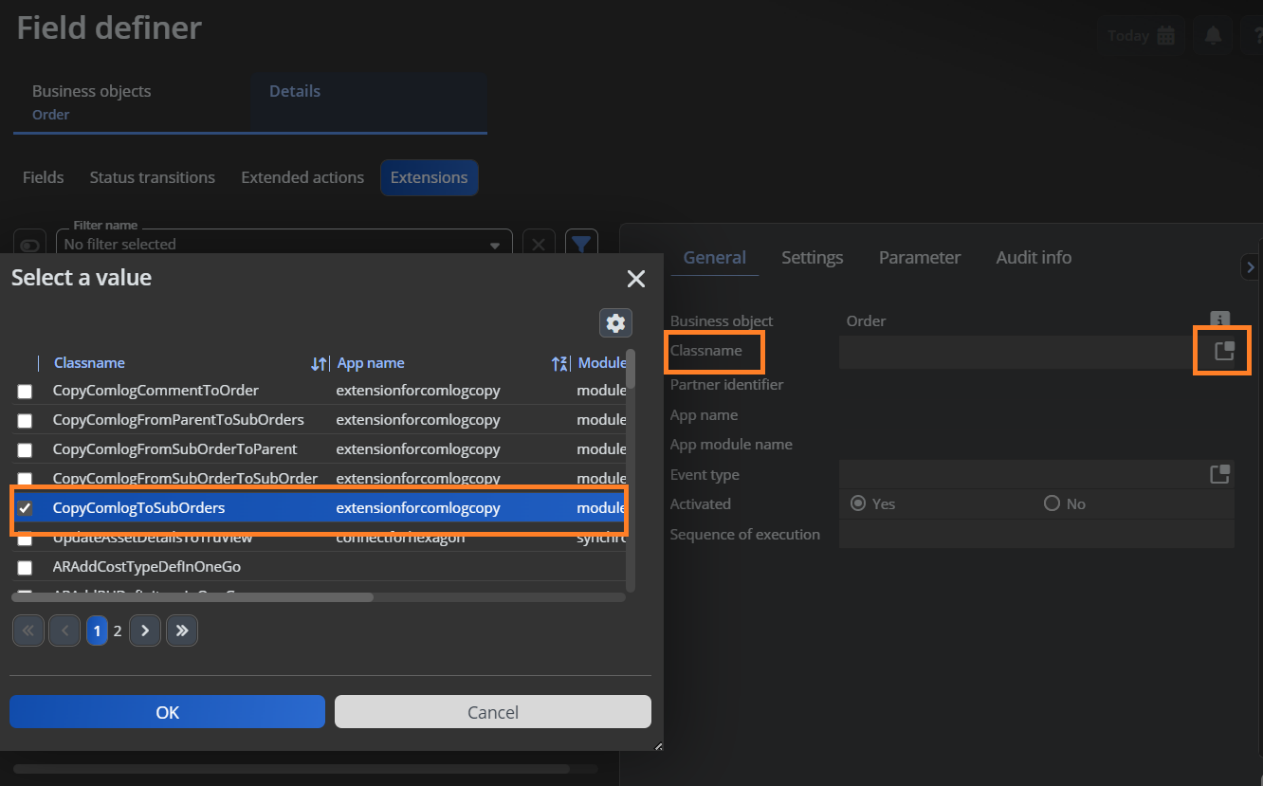
- Add the following information
| Field | Value |
|---|---|
| Class name | planonsoftware.apps.copycomlogs.CopyComlogToSubOrder |
| Event type | AI, After Insert |
Fill in the rest of the fields and click ‘Save’.
Go to the tab ‘Settings’ and fill in the settings. See the chapter 4.3.2 for a description of the settings.
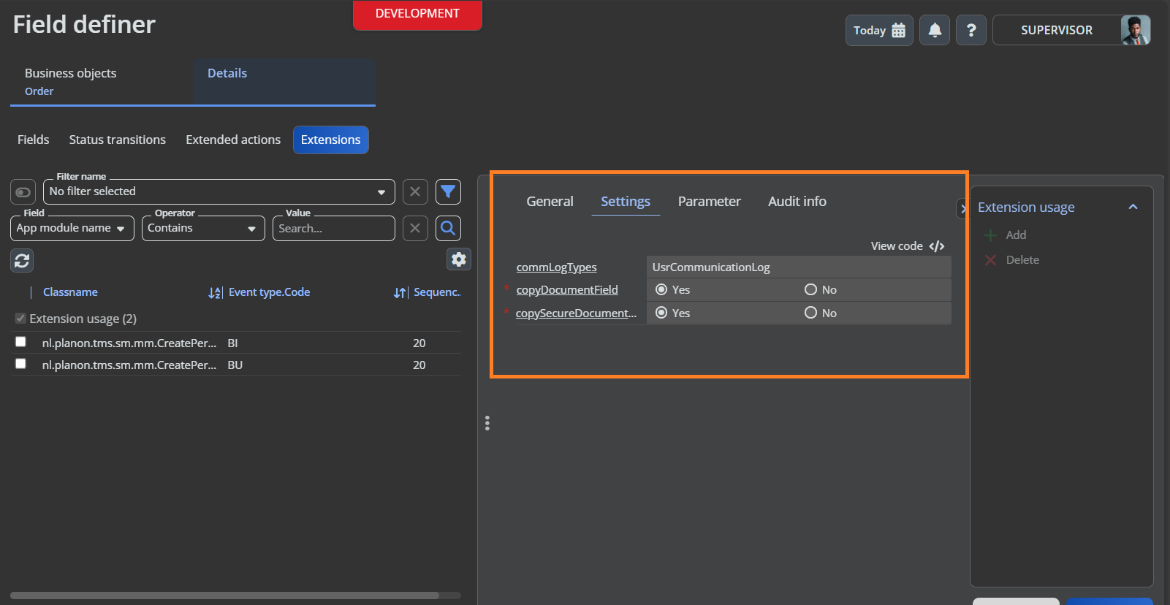
- Click ‘Save’ and go back to the business objects selection step to put the status of the business object from ‘Under construction’ to ‘Completed’.
Settings
These are the settings needed
commLogTypes The comlog type that needs to be copied to suborder. For example, UsrCommunicationLog. Comma separated for multiple values. Default value: UsrCommunicationLog
copyDocumentField This setting can be used to control if the document field should also be copied or not. Default value: true
copySecureDocumentField This setting can be used to control if the secure document field should also be copied or not. Default value: true
copyImageField This setting can be used to control if the image field should also be copied or not
filter This setting can be used to specify the filter criteria to copy communication log. The comlog is copied when this setting is empty or the communcation log matches the configured filter.
To copy communication log comments to order when status of order is changed
Go to the TSI Field Definer.
Select the business object ‘Orders’ and put the status ‘Under construction’.
Select the Order UDBO where you want to add the business rule, this can be any Order UDBO.
Go to selection step ‘Details’ and then ‘Extensions’. Add an extension here by clicking ‘Add’ in the right action menu.
- Select the extension as shown below
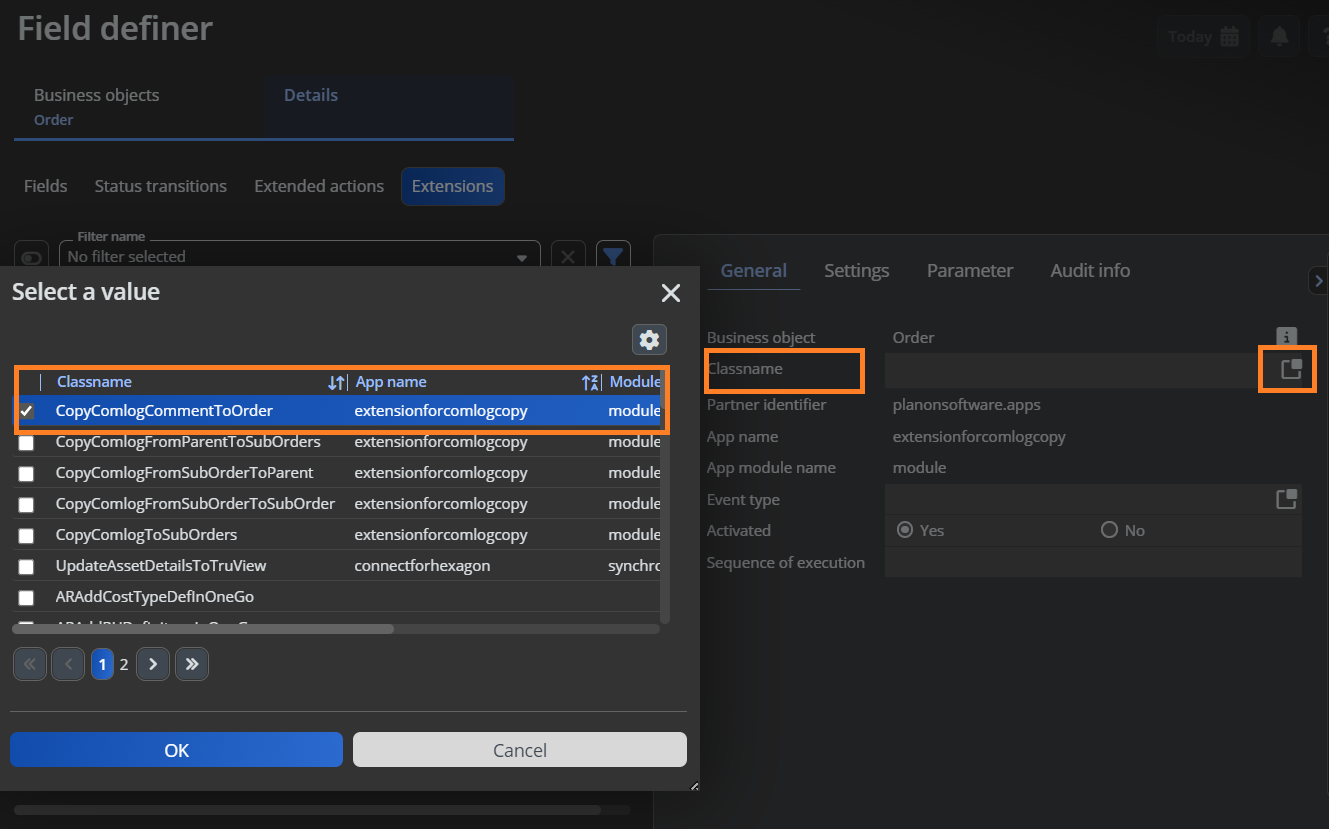
- Add the event type information
| Field | Value |
|---|---|
| Class name | planonsoftware.apps.copycomlogs.CopyComlogCommentToOrder |
| Event type | BU, BeforeUpdate |
Fill in the rest of the fields and click ‘Save’.
Go to the tab ‘Settings’ and fill in the settings. See the chapter 4.3.3 for a description of the settings.
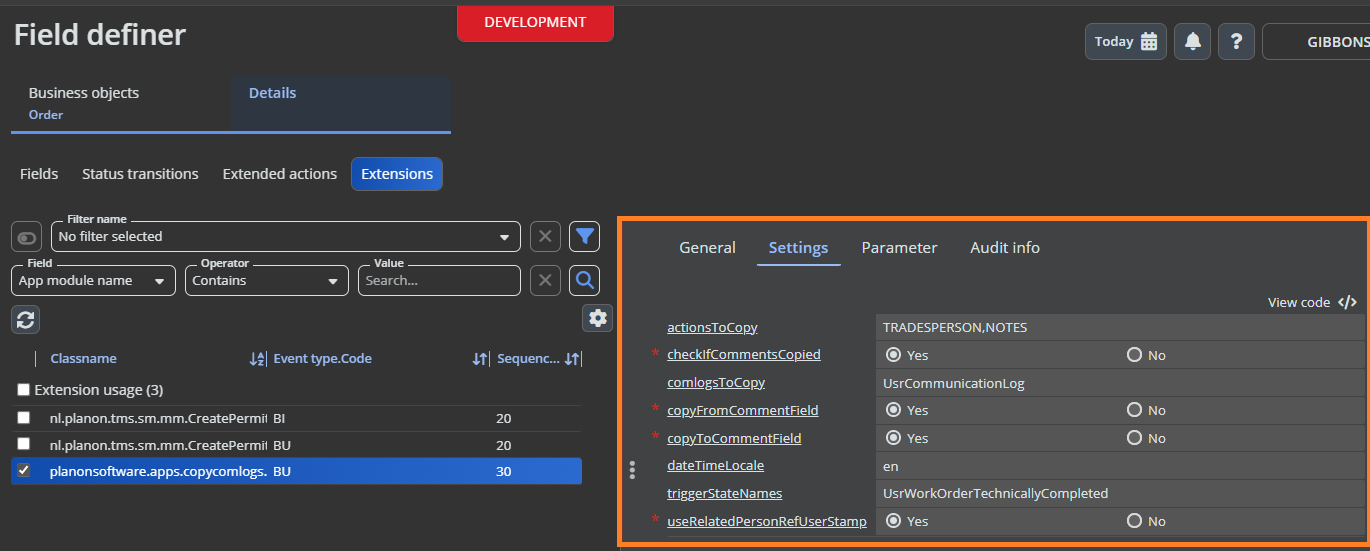
- Click ‘Save’ and go back to the business objects selection step to put the status of the business object from ‘Under construction’ to ‘Completed’.
These configuration steps can be repeated for multiple Order UDBO’s.
Settings
These are the settings needed
actionsToCopy The action of the communication log to copy. For example, ‘TRADESPERSON_NOTES’. Comma separated for multiple values. Leave empty to ignore this filter.
- Since version 2.0.0 of the app, make sure the code of the action is configured instead of Name of the action
checkIfCommentsCopied Set to yes to check if the comments from comlog already copied. When set to No comments from comlogs are copied again.
comlogsToCopy The system names of the communication log BOs to copy, for example UsrCommunicationLog. Comma separated for multiple values. Leave empty to ignore this filter.
copyFromCommentField Set to yes to use the ‘Comment’ field. When set to no the field ‘CommentString’ will be used.
copyToCommentField Set to yes to use the ‘Comment’ field. When set to no the field ‘CommentString’ will be used
dateTimeLocale This setting can be used to control the language of the datetime stamp which is placed in the order comment field. Standard Java local, for example ‘en’. Also see https://www.oracle.com/java/technologies/javase/jdk11-suported-locales.html.
triggerStateNames The states on which this business rule will be triggered. For example, UsrRequestCompleted. Comma separated for multiple values.
useRelatedPersonRefUserStamp Set to yes to use the ‘RelatedPersonRef’ field. When set to no the person linked to the field ‘SysAccountRef’ (Inserted by) will be used.
archiveComlogAfterCopy When this setting is set to ‘Yes’, the comlog that is being copied to the order will be archived once the copy is done.
filter This setting can be used to specify the filter criteria to copy communication log. The comlog is copied when this setting is empty or the communcation log matches the configured filter.
To copy communication log comments to order on create or update of comlog
Go to the TSI Field Definer.
Select the business object CommunicationLog and put the status ‘Under construction’.
Select the Communication log UDBO where you want to add the business rule, this can be any Communication log UDBO.
Go to selection step ‘Details’ and then ‘Extensions’. Add an extension here by clicking ‘Add’ in the right action menu.
- Select the extension as shown below
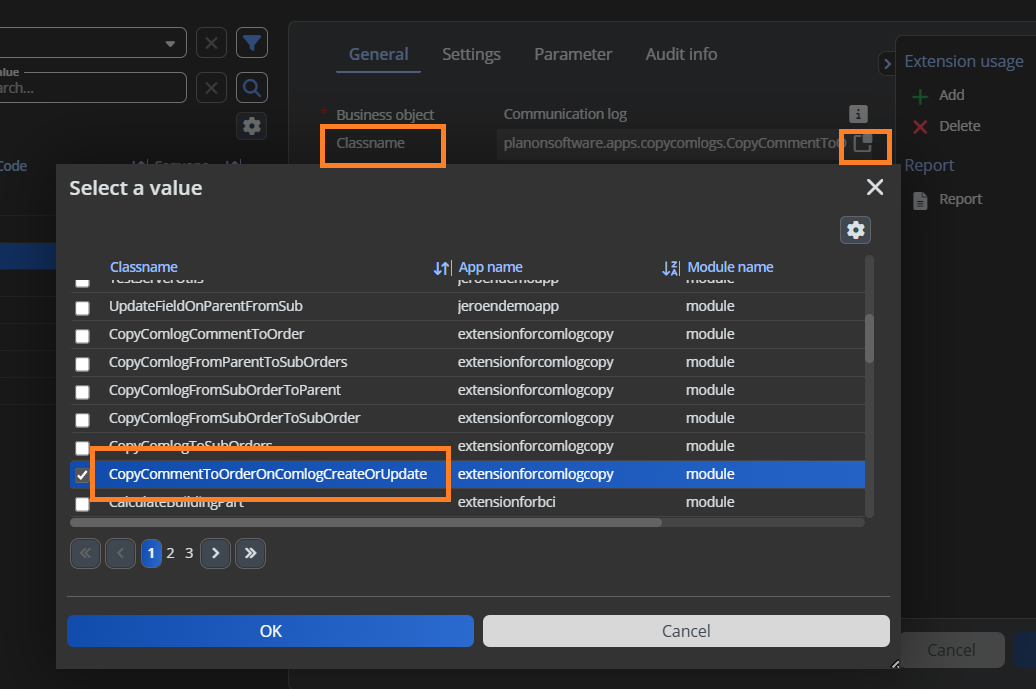
- Add the event type information
| Field | Value |
|---|---|
| Class name | planonsoftware.apps.copycomlogs. CopyCommentToOrderOnComlogCreateOrUpdate |
| Event type | AI, AfterInsert |
Fill in the rest of the fields and click ‘Save’.
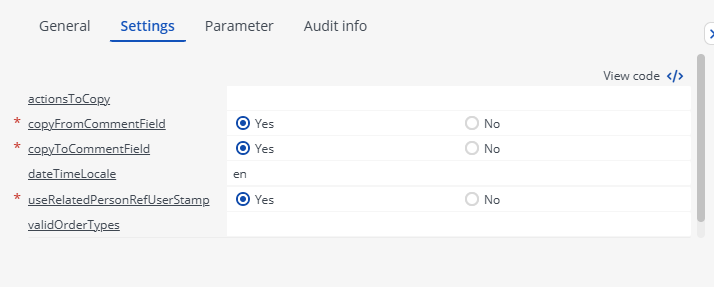
Go to the tab ‘Settings’ and fill in the settings. See the chapter 4.3.4 for a description of the settings.
Click ‘Save’ and go back to the business objects selection step to put the status of the business object from ‘Under construction’ to ‘Completed’.
These configuration steps can be repeated for multiple Communication log UDBO’s.
Settings
actionsToCopy The action of the communication log to copy. For example, ‘24’ which is the copy of the action ‘TRADESPERSON_NOTES’. Comma separated for multiple values. Leave empty to ignore this filter.
copyFromCommentField Set to yes to use the ‘Comment’ field. When set to ‘no’ the field ‘CommentString’ will be used.
copyToCommentField Set to yes to use the ‘Comment’ field. When set to ‘no’ the field ‘CommentString’ will be used
dateTimeLocale This setting can be used to control the language of the datetime stamp which is placed in the order comment field. Standard Java local, for example ‘en’. Also see https://www.oracle.com/java/technologies/javase/jdk11-suported-locales.html.
useRelatedPersonRefUserStamp Set to yes to use the ‘RelatedPersonRef’ field. When set to ‘no’ the person linked to the field ‘SysAccountRef’ (Inserted by) will be used.
validOrderTypes The system names of the order BOs to which comments are to be copied, for example UsrOrder. Comma separated for multiple values. Leave empty to ignore this filter.
filter This setting can be used to specify the filter criteria to copy communication log. The comlog is copied when this setting is empty or the communcation log matches the configured filter.
Details on Filtering
This section provides you details on how to conifgure filter setting
For example, I have copy only the communication logs with Name containing ‘TEST’ Name CONTAINS TEST
To add multiple filters, for example Code containing 000 and Name does not contain Test, below is format Code CONTAINS 000 & Name NOT_CONTAINS Test
Multiple values (in case of IN operator) can be combined using ‘,’.
Multiple filters can be combined using the ‘and’ keyword.
Reference fields will be filtered based on the lookup field of the referenced business object (usually ‘Code’).
Supported operators:
EQUAL, NOT_EQUAL, LESS, LESS_EQUAL, GREATER, GREATER_EQUAL, IN, NOT_IN, CONTAINS, NOT_CONTAINS, STARTSWITH, NOT_STARTSWITH, ENDSWITH, NOT_ENDSWITH, NULL, NOT_NULL.
Troubleshooting
Error handling
- Errors are recorded in the server logs:
- Tomcat log for web components
- Webpages
- PSS modules
- Stepview
- TSI Action
- JAX-RS webservices
- Wildfly log for server-side components
- Business rules
- Scheduled tasks
- Workers
- Event Connector
- Tomcat log for web components
- UI components (TSI Actions) also display errors in the interface