Planon Extension - User Provisioning with SCIM
Introduction
This document describes the guidelines for using the User provisioning app, implemented based on SCIM standard. This app includes the following SCIM methods:
getUserByID
getUserByUserName
createUser
updateUser
updateUserByPatch
getAllUsers
getAllGroups
getGroupByID
updateGroupByPatch
For each method JAX-RS endpoints will be deployed by this app based on the SCIM standard. Using these endpoints this app will handle the following functionality:
Create/Update Person and User
Link person and user group to User
Activation and Deactivation of user
Add or remove users to the user group
The below methods are introduced in new version to retrieve Service Provider Configuration, details of Resource types and Schemas
getServiceProviderConfig
getResourceTypes
getGroupResourceType
getUserResourceType
getSchemas
getGroupSchema
getUserSchema
getUserEnterpriseSchema
Prerequisites
Environment
This app works for Planon L70 and higher
Constraints
It is not possible to create Reference BO’s
The freeValue fields in the Planon schema extension only support the field types String, Boolean, Integer and Reference (based on lookup value)
Make sure steps are taken to not end system accounts
When a lot of (concurrent) requests are being sent from the source system to Planon, this will consume a lot of Planon licenses as well (as package).
It is possible only to link or delink members to a group through Groups PATCH endpoint. No other attributes can be updated.
There is a chance of facing performance issues when getting response from Groups endpoint if there are a very large number of users linked to a Group. This can be solved in two ways.
Avoid listing the members under the groups and we can retrieve the groups from the account endpoint. There is a setting available whether to list the members.
In case of retrieving the details of a particular group using Get by ID endpoint, if there are many members linked, we can use pagination for the members’ attribute. Please refer the link for the details https://datatracker.ietf.org/doc/html/draft-hunt-scim-mv-paging-00#section-2
Required (free)fields
NA
Assumptions
TimezoneRef in Planon is a mandatory field in the User BO. If not provided in the request it will be filled by taking a default value time zone from the app settings. If there is no value provided or the provided value is not found in Planon then it will be set as UTC.
If no property is found based on the work address in the request body, then the default property will be taken from the settings.
PersonTypeRef can be taken/set from the request, Multiple person types can be sent as a comma separated string
You know how to generate a Planon access key to setup authentication for the REST endpoints deployed by this app.
Setting up the third-party system (like Azure, OKTA) is out of scope for this guide.
App has been verified working with Okta, Azure and SailPoint
The existing values will always be replaced with new values when trying to update through PATCH
When using the manager field, it is assumed that a person is only linked to 1 account
Features
Feature 1: CRUD operation of User and Person
This app deploys several JAX-RS endpoints which allow to create user and person BO’s or, if these already exist, update. The app also creates the link between the person and a user. If any default user groups are configured in the app settings these will also be linked.
Read User and Person
Endpoint 1: GET Users
baseurl/sdk/platform/jaxrs/planonsoftware/apps/scimuserprovisioning/scim/v2/Users
This endpoint provides all the users, and the linked person details present in the system. The users which do not have a person linked are also retrieved. The data can be filtered based on the username or active attribute, and the data can also be paginated.
Filtering:
Query Parameter: filter Parameter value: userName eq “TestUser” Note: The userName with which we need to filter always needed to be enclosed between the double quotes.
Query Parameter: filter Parameter value: active eq true Note: By default, all users will be returned.
Pagination:
Query Parameters: count, startIndex Parameter values: any integer.
Description: count is used to limit the number of records for each call. Default count is 50 and minimum limit is 10 startIndex is used for deciding the starting record of the get call. This is 0 based.
Endpoint 2: GET Users by Id
baseurl/sdk/platform/jaxrs/planonsoftware/apps/scimuserprovisioning/scim/v2/Users/{userId}
This endpoint returns the details of the user matched with userId from the Path parameter.
Create User and Person
Endpoint: POST – Create
baseurl/sdk/platform/jaxrs/planonsoftware/apps/scimuserprovisioning/scim/v2/Users
This is POST call that creates user and person in Planon. If you do not want to create a person BO this can be configured in the app settings.
Person can be linked with a default property which can be configured in the settings.
TimeZone is mandatory for a user to be created. Default value can be passed in the settings. If there is no TimeZone passed in the request body and in the settings as well, UTC is the default TimeZone.
The person can also be linked to default user groups that can be passed in the settings.
Update User and Person
Endpoint 1: PUT – Update
baseurl/sdk/platform/jaxrs/planonsoftware/apps/scimuserprovisioning/scim/v2/Users/{userId}
The user and person can be updated through the PUT request by sending the latest details for the user through the request body. If the user is being set to inactive in Planon, then the end date of the user is set to ‘current date -1’. Depending on the app settings the person state might also be changed and/or archived.
Endpoint 2: PATCH – Update
baseurl/sdk/platform/jaxrs/planonsoftware/apps/scimuserprovisioning/scim/v2/Users/{userId}
This endpoint is used to update a particular field of the user/ person.
Delete User
Endpoint: DELETE
baseurl/sdk/platform/jaxrs/planonsoftware/apps/scimuserprovisioning/scim/v2/Users/{userId}
Delete user endpoint is introduced in version 1.2.0 of app supported for Planon version L77 and above. This endpoint performs below operations
Set end date of the user to ‘current date -1’
Depending on the app settings the person state might also be changed and/or archived
Feature 2: Get / Update / Post Groups
Create Groups
Endpoint 1: POST Groups
baseurl/sdk/platform/jaxrs/planonsoftware/apps/scimuserprovisioning/scim/v2/Groups
This is introduced in version 2.1.1 and allows to create groups in Planon.
Read Groups
Endpoint 1: GET Groups
baseurl/sdk/platform/jaxrs/planonsoftware/apps/scimuserprovisioning/scim/v2/Groups
This is introduced in the version 1.1.0 which returns the user groups from Planon and its associated users. The data can be paginated.
Pagination:
Query Parameters: count, startIndex, filter Parameter values: any integer. Description: count is used to limit the number of records for each call. Default count is 50 and minimum limit is 10 startIndex is used for deciding the starting record of the get call. This is 0 based.
We can enable or disable listing of members in the response with the help of the settings. This is added to avoid performance issues if there is many users linked to the Group.
Endpoint 2: GET Groups by id
baseurl/sdk/platform/jaxrs/planonsoftware/apps/scimuserprovisioning/scim/v2/Groups/{id}
This is introduced in the version 1.3.0 supported for Planon L77 and above
This returns the details of the group where id is matched with the System code of group in Planon. This also returns the members linked to the group. We can enable or disable the listing of members in the response by using the app settings.
The members can also be paginated if there is a large number of users linked to the Group. Please refer the below site on how to paginate members
https://datatracker.ietf.org/doc/html/draft-hunt-scim-mv-paging-00#section-2
Update Groups
Endpoint: PATCH
baseurl/sdk/platform/jaxrs/planonsoftware/apps/scimuserprovisioning/scim/v2/Groups/{id}
This endpoint is introduced in the version 1.3.0 supported for Planon L77 and above. This provides the feasibility of adding or removing users from a group.
Feature 3: Get Service Provider Config
This app deploys JAX-RS endpoints to get the details of the Service Provider configuration like type of authentication, number of operations supported etc.
Feature 4: Get Resource Types
This JAX-RS endpoint deployed by the app gives the details of different Resource types used. The details contain like schema type, endpoint, id etc.
Feature 5: Get Schema
The endpoint for Schema gives us the information about the different fields used by the different Resource types.
How does it work
SCIM is a REST and JSON-based protocol that defines a client and server role. A client is usually an identity provider (IDP), like Okta, Azure that contains a robust directory of user identities. The server / service provider (SP) is Planon in this case, that needs a subset of information from those identities.
When changes to identities are made in the IdP, including create, update, and delete, they are automatically synced to the SP according to the SCIM protocol. To provide this functionality this app deploys several REST endpoints on the Planon system.
The IdP can also read identities from the SP to add to its directory and to detect incorrect values in the SP that could create security vulnerabilities. For end users, this means that they have seamless access to applications for which they’re assigned, with up-to-date profiles and permissions.
Examples of operations that can be carried out:
GET = Retrieve
POST = Create / Update records
PUT = Update records
PATCH = Update records
DELETE = Delete records
Each of these can use parameters to define what needs to be done. So, a request could be made to find all the users whose displayName equals “David Guest”. If the request was more generic and produced multiple results, these can be sorted by any available attribute by adding a sort order to be ascending or descending.
Field mapping User and Person
The table below show the field mapping used by the SCIM connector.
| SCIM | Planon | Condition |
|---|---|---|
| userName | Account.AccountName | |
| timezone | Account.TimeZoneRef | |
| preferredLanguage | UserSetting.P5Language | |
| name (familyName, givenName, middleName) | Person.LastName, Person.FirstName, Person.Prefix | |
| emails (type, value, primary) | Person.Email, UserSetting.BccEmailAddress, UserSetting.ExchangeEmailAddress, UserSetting.ReplyEmailAddress, UserSetting.SenderEmailAddress | Where ’type = work’ & ‘primary = true’ |
| phoneNumbers (value, type) | Person.PhoneNumber, Person.MobilePhoneNumber | Where ’type = work’ Where ’type = mobile' |
| addresses (streetAddress, locality, region, postalCode, type, primary) | Person.PropertyRef | Where ’type = work’ & ‘primary = true’. Lookup on Property BO |
| userType | Person.PersonTypeRef | |
| urn:ietf:params:scim:schemas:extension:planon:2.0:User (userDescription, userDepartment, property, position, propertySet, freeValue1/2/3/4/5/6/7/8, beginDate, endDate, personBOSystemName, previousLogInTime) | Account.Description, Account.DepartmentRef, Person.PropertyRef, Person.PositionRef, Account.DataSectionRef, Person.x, Person.BeginDate, Account.BeginDate, Person.EndDate, Account.EndDate, Person.RefBODefinitionUserDefined, Account.LastLogonDateTime | Based on configuration |
| urn:ietf:params:scim:schemas:extension:enterprise:2.0:User (department, costCenter, employeeNumber, manager, value) | Person.DepartmentRef, Person.CostCentreRef, Person.Code, Person.x |
Additional logic based on field values
If field ‘active’ is set to false ‘end date’ on User BO will be set since it is not possible to remove a User in Planon
All fields provided in the custom Planon extension will overrule other logic / fields set
By default, all reference fields in the custom Planon extension should be filled based on the ‘Code’ (lookupvalue) of the referred BO in Planon
preferred Language attribute must be provided like ‘en_GB’
Lookup of property is based on the following system fields of the Property BO
streetAddress: Address
locality: CityReference
region: District
postalCode: PostalCode
Field mapping groups
| SCIM | Planon | Condition |
|---|---|---|
| id | AccountGroup.Syscode | |
| displayName | AccountGroup.Description or AccountGroup.PnName | Based on configuration in app settings |
| members | The members in the group | Will only list members if this is configured in app settings. Might cause performance problems. |
Installation
This chapter describes the steps required to install this app on your Planon environment.
Installation Process
There are two ways to install the app:
- Using the Marketplace
- Manual installation
Install the app by using the marketplace
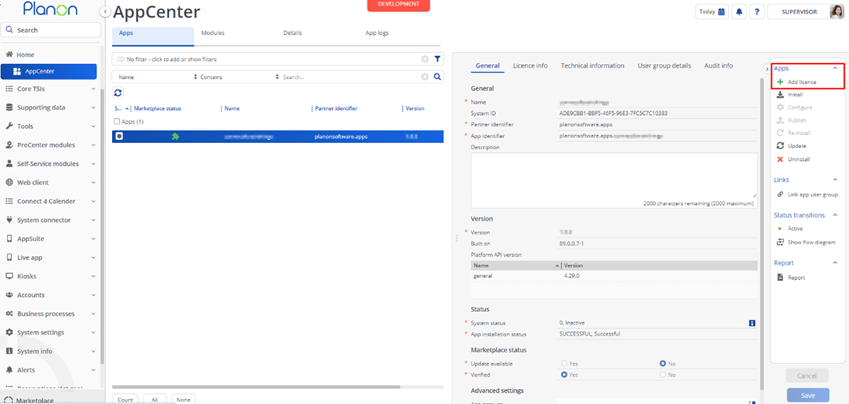
In case your environment is configured to use the Planon app store the only thing required to install the app is to add the app license in the AppCenter TSI. Planon will automatically download and install the app.
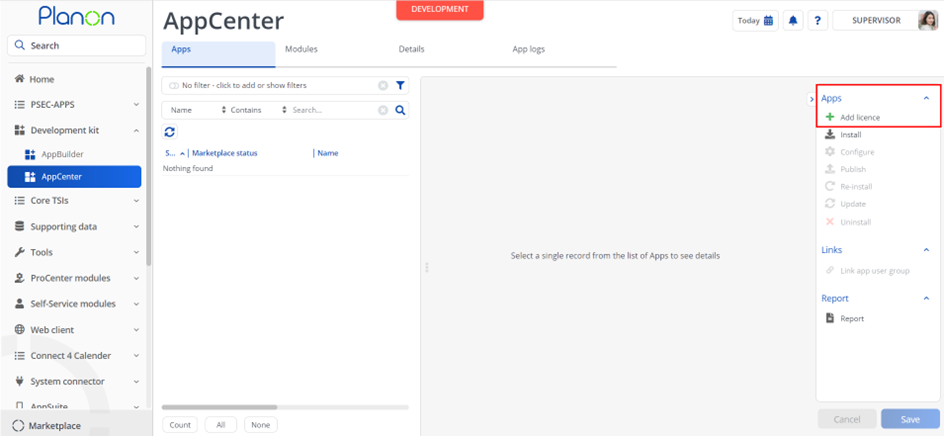
Manual installation
In case you want to perform a manual installation follow the steps below.
- Open AppCenter TSI from Planon webclient and click on install from action menu
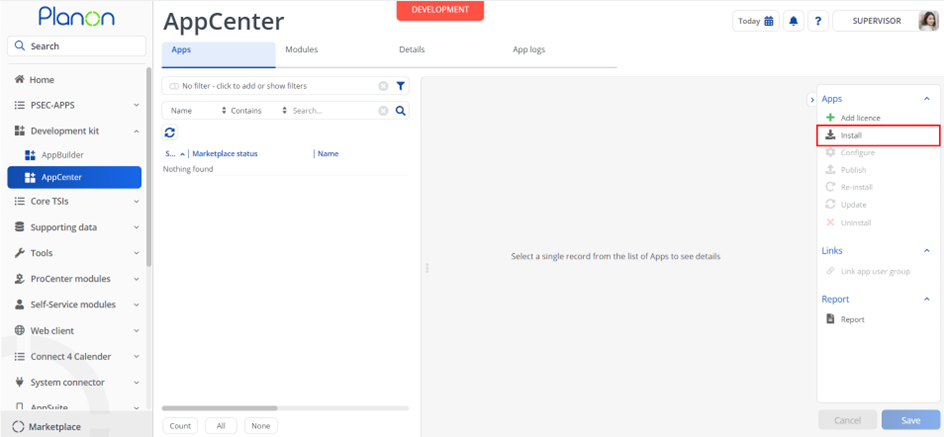
- Browse to the .ppk file
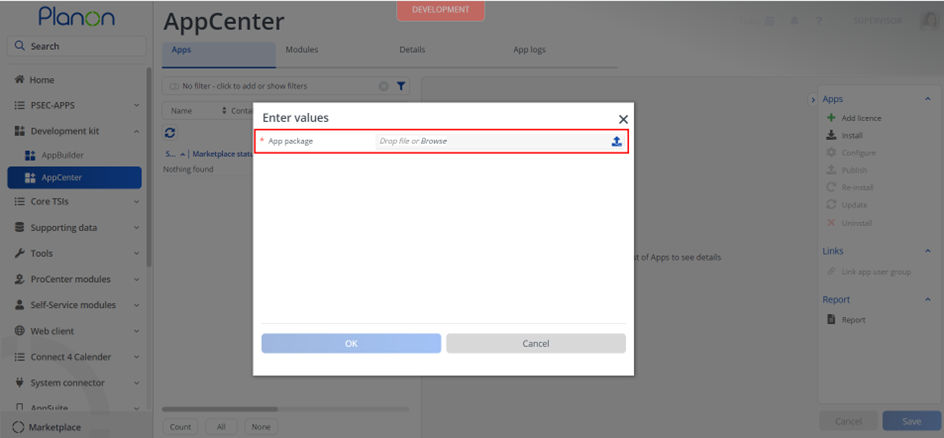
- Click OK to install the app and follow the installation process
- When the app is successfully installed, the app will appear in the AppCenter
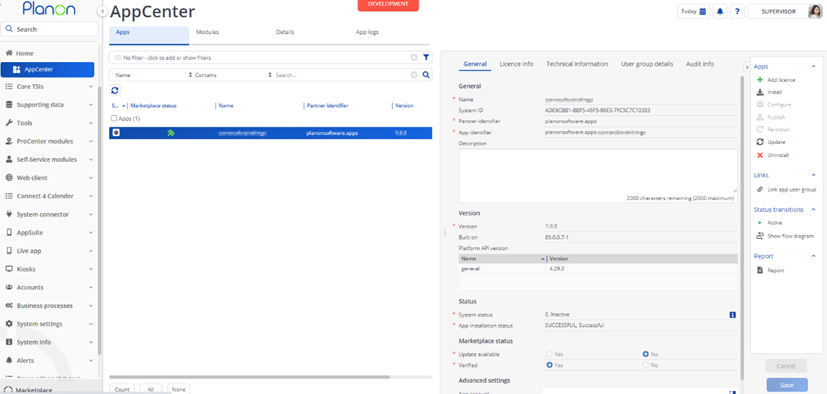
- Add the app license in Apps TSI
Link user group
Link a user group to the app use the action ‘link app user group’ action. The user group linked should contain the user to which the access key used for authenticating on the endpoints is linked to. An access key is required for any source system to authenticate on the Planon endpoints.
Information on how to generate an access key within Planon can be found on: https://webhelp.planoncloud.com/en/index.html#page/Authorization/t_generating_access_keys.html
Make sure the user group is linked to the solution license PA0055 - Planon Extension - User provisioning SCIM. This can be done from the User groups TSI via the link Solution License
Module settings
Provide module settings which are available in the Details section
Module settings details
| Parameter Key | Example Value | Description |
|---|---|---|
| useUserNameAsID | true | True to use the Planon username as SCIM ID, false to use the Planon user syscode as SCIM ID |
| activeUserPersonState | UsrActive | The active status of the person to be set when linked to user. Leave it empty when nothing to do with person status |
| archivePersonOnDeactivatingUser | true | Boolean flag to archive person during the deactivation of user |
| allowInsertPerson | true | Boolean to enable / disable person insert |
| allowUpdatePerson | true | Boolean to enable / dsable person update |
| defaultLanguage | en_GB | Default language code to set for user |
| fillUserSettingBCCEmail | true | Boolean to enable / disable filling of this field |
| fillUserSettingContactEmail | true | Boolean to enable / disable filling of this field |
| fillUserSettingReplyEmail | true | Boolean to enable / disable filling of this field |
| fillUserSettingSenderEmail | true | Boolean to enable / disable filling of this field |
| freeValue1Field | FreeString10 | System name of field on Person BO to fill with freeValue1 from custom Planon schema. Not mandatory. |
| freeValue2Field | FreeString1 | System name of field on Person BO to fill with freeValue2 from custom Planon schema. Not mandatory. |
| freeValue3Field | Freestring2 | System name of field on Person BO to fill with freeValue3 from custom Planon schema. Not mandatory. |
| freeValue4Field | FreeString5 | System name of field on Person BO to fill with freeValue4 from custom Planon schema. Not mandatory |
| freeValue5Field | FreeString8 | System name of field on Person BO to fill with freeValue5 from custom Planon schema. Not mandatory |
| freeValue6Field | FreeString12 | System name of field on Person BO to fill with freeValue6 from custom Planon schema. Not mandatory |
| freeValue7Field | FreeString13 | System name of field on Person BO to fill with freeValue7 from custom Planon schema. Not mandatory |
| freeValue8Field | FreeString14 | System name of field on Person BO to fill with freeValue8 from custom Planon schema. Not mandatory |
| inactiveUserPersonState | UsrInactive | The deactive status of the person to be set when linked to user. Leave it empty when nothing to do with person status |
| lookupDepartmentByName | true | Set to true to lookup department on name instead of code. |
| lookupCostCentreByName | true | Set to true to lookup costcentre on name instead of code. |
| lookupPositionByName | true | Set to true to lookup position based on function field instead of code. |
| personBOSystemName | UsrEmployee | System name of the person BO to create |
| property | 14 | Code of default property to link property with Person |
| timezone | America/Los_Angeles | Default timezone ID to set in case not provided in the SCIM request |
| userGroups | Default user group system names. multiple user group can be added separated by comma(,) | |
| requestAndPersonFieldMap | Mapping of IDP system and Planon person field of Planon. Below is the detailed description provided. | |
| showMembersUnderGroupByIDEndpoint | Flag to display the list of members linked to Groups in the response of specific Group endpoint | |
| showMembersUnderGroupsEndpoint | Flag to display the list of members linked to Groups in the response of Groups | |
| updatePersonBeginEndDate | true | Boolean flag to set the Begin Date and End date fields on the person |
| usePersonSyscodeAsEmployeeNumber | false | Set to yes to use the person syscode instead of the code in the employeenumber field. Only allowed when ‘allowInsertPerson’ and ‘allowUpdatePerson’ are set to false. |
| managerField | Provide the systemname of the field on the Person BO that refers to the manager. This field should be of type ‘PersonRef’. For this feature to work properly we assume the person is only linked to one Planon user. The person used is the person linked to the User that is provided as the manager in the SCIM request. | |
| suppressWarnings | true | Set to Yes to suppress all the warnings raised from Planon when modifying an user |
| suppressConfirmations | true | Set to Yes to suppress all the confirmations raised from Planon when modifying an user |
| useDescriptionAsGroupDisplayName | true | Set to Yes to show Description of the Group as displayName. Set to No to show System Name of the Group as displayName |
Activation
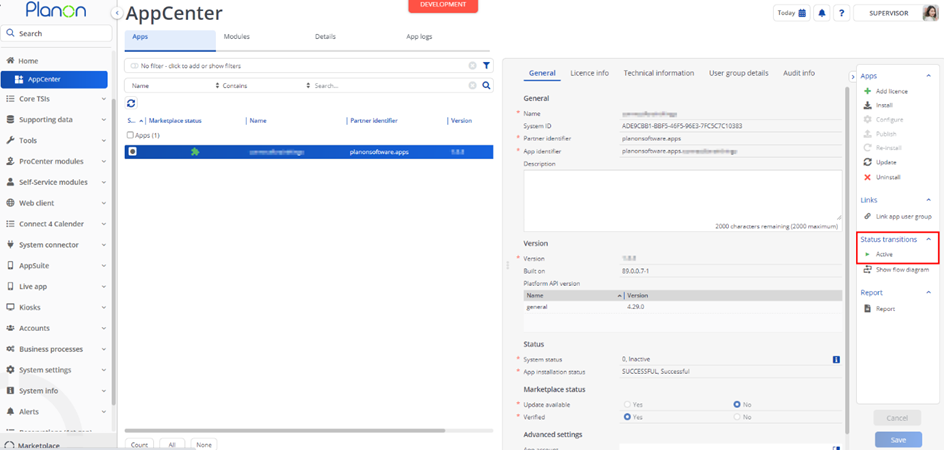
Once the app has been configured, you can activate the app by pressing the Active status transition from the action panel. Always make sure that the required User groups are linked correctly and the Configure action is executed before activating the App.
Configuration of Planon REST endpoint in source system
To configure the Planon SCIM endpoints deployed by this app you will need to provide the URLs to the source system. The URLs can be found on the ‘technical information’ tab in the AppCenter TSI.
Example URL:
{domainname}/sdk/platform/jaxrs/planonsoftware/apps/scimuserprovisioning/scim/v2/
For authentication Planon requires header authentication, for that we must configure the URL with a header parameter as per the example below. For more information, please consult the Planon web help.
Header:
Content-Type: application/scim+json Authorization: PLANONKEY accesskey={{keyvalue}} Keyvalue: The access key generated from Planon for a specific user.
Access Key: Information on how to generate an access key within Planon can be found on: https://webhelp.planoncloud.com/en/index.html#page/Authorization/t_generating_access_keys.html
How to manually test endpoints with Postman?
When the SCIM app is installed and configured, you can test if the SCIM endpoints on the Planon environments are available by calling the endpoints manually from Postman
Make sure you have the program Postman: https://www.postman.com/downloads/
In Postman, import the attached file SCIM_requests_postman_collection.json
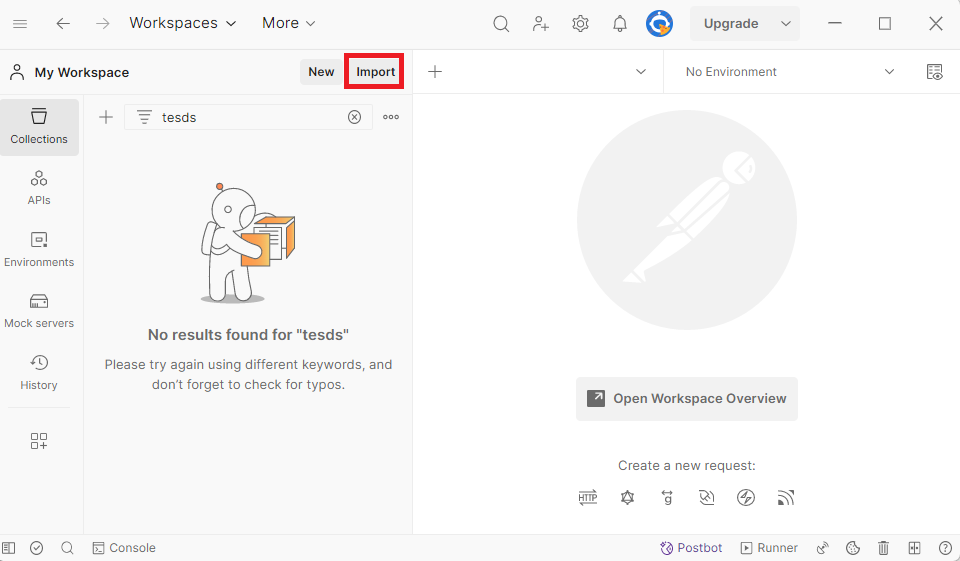
When the collection is added, edit the collection (right click on collection ‘SCIM requests’) so that the variables are set to the Planon environment you are trying to test and the access key in this environment.
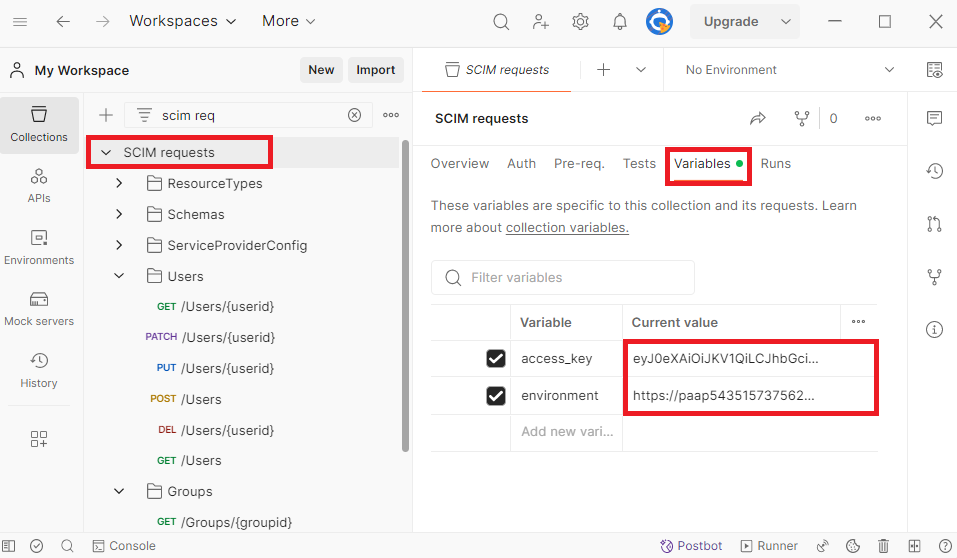
Go to the endpoint you want to test. I would suggest to test the /Groups and /Users GET endpoints, to see if the endpoints are available and the user has sufficient rights.
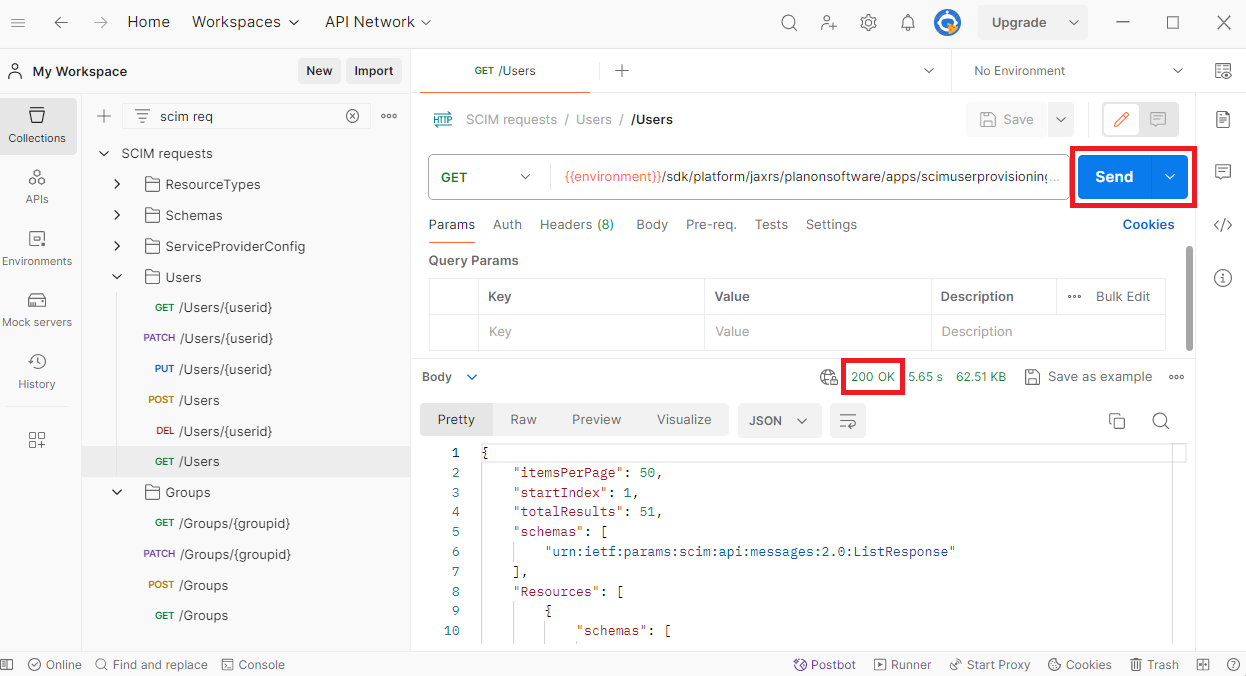
When the request is successful, you will get a response in the 2xx range.
Troubleshooting
Error handling
In case of any functional or technical errors an event log will be created in log viewer
Event log will contain details of the error and request body
Planon REST services will respond with error code 500 in case of any errors.
Debugging
In case the SCIM app is not working as expected, the first step would be to active DEBUG logging. This usually gives more detailed log information about incoming SCIM requests and helps in finding out when the error occurs.
In the TSI-AppCenter, the app log level can be set to DEBUG.
Test the app by calling the endpoint from the user provisioning system or an application like Postman.
Check the webserver (Tomcat) log in the Planon environment. All incoming requests are logged if the DEBUG logging is activated. In case of an error, you will see the incoming request with an error log or stack trace immediately after.
Common issues
Usergroup is not linked to the application
Problem Calling the Planon SCIM endpoints are authorized by using an access key or OAUTH access token of a Planon user. This user should be part of a user group. This user group must be linked to the SCIM app in the Planon AppCenter TSI.
Possible error messages: “403 Forbidden”, “Access denied.”, “The user ‘x’ is not linked to the App ‘scimuserprovisioning.”.
How to check? Go to the TSI AppCenter in the Planon webclient, select the scimuserprovisioning app and click ‘Link app user group’. Make sure the user group of the user that is being used to call the SCIM endpoints is linked here.
Solution If the user group is not linked, add the user group and save this.
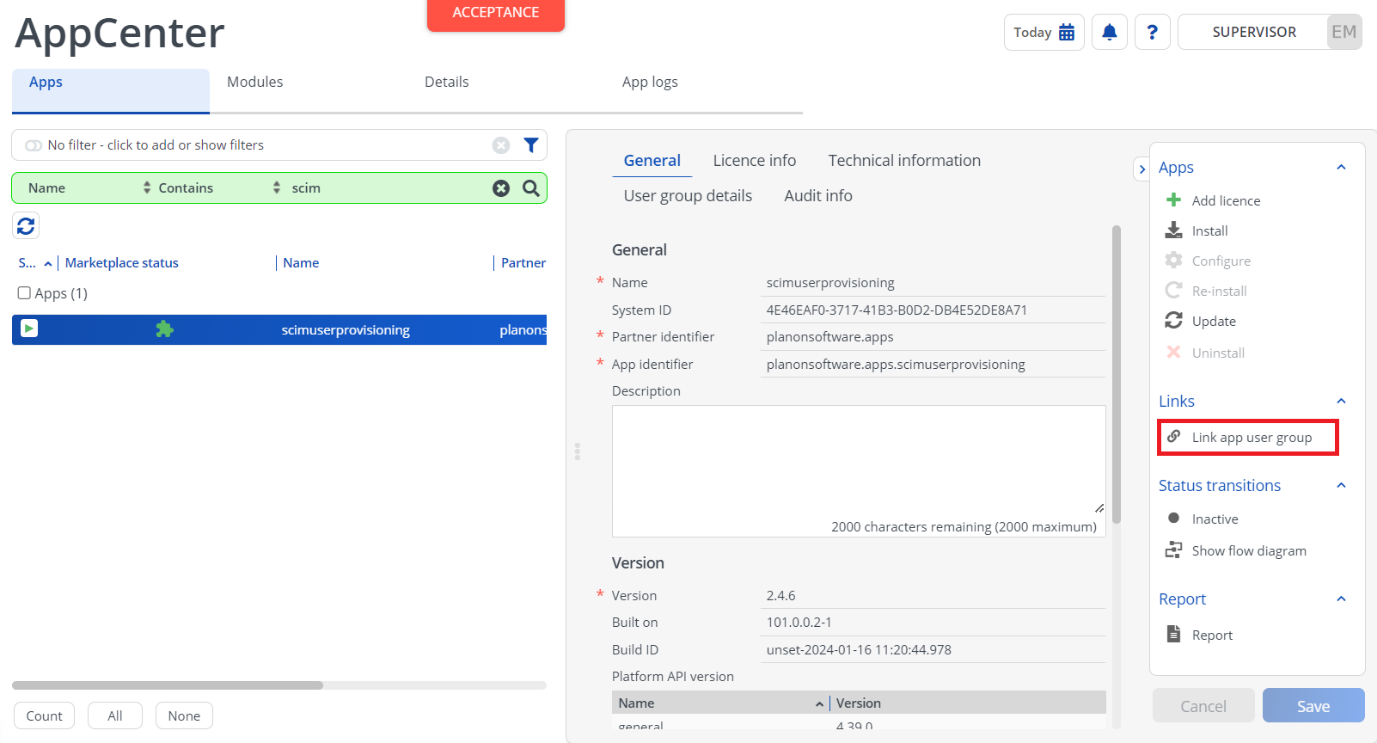
User does not have enough rights
Problem The user that is being used to authorize the SCIM requests, does not have enough authorization rights in Planon. The user can not access the business object in Planon.
Possible error message: “Field x x is not found.”.
How to check? It is possible you will see errors about business objects or fields not existing. These might exist, but the user is not allowed to see them.
To check if this is the case, a quick way would be to try to call the endpoint with a different user that has access to everything (for example Supervisor account). Create a temporary access key for this administrator user and call the endpoint again. If using a different user solves the issue, we can conclude that it is an authorization issue.
Solution To solve this, make sure the following items are configured correctly:
The user group of the user needs to have a function profile which has sufficient rights.
The product definition ‘JsonServices’ must be linked to the user group.
The user is part of a User group
Access key / token not used correctly
Problem Requests to the Planon SCIM endpoints must include the ‘Authorization’ header together with the access key or OAUTH token.
Possible error messages: “401 Unauthorized”, “Unable to login. Consult your system administrator.’”, or Planon login page as a response.
How to check? In case the external system gets the request response that the authorization did not work, or they get the Planon login page as the response, or there is an error message saying that the access key is not valid or recognized.
Solution Make sure that the following authorization header is sent with the request, depending on the authorization method:
When using Planon access key ‘Authorization’: PLANONKEY accesskey=<key>
When setting up the SCIM connection in Azure AD, the customer needs to fill in the SCIM base URL and access token. In the access token field, the prefix (PLANONKEY accesskey=) together with the key must be filled in. If only the key is used (without prefix), this will not work.
When using Planon OpenID Connect / OAUTH2 token
‘Authorization’: Bearer <key>
App module settings are not configured
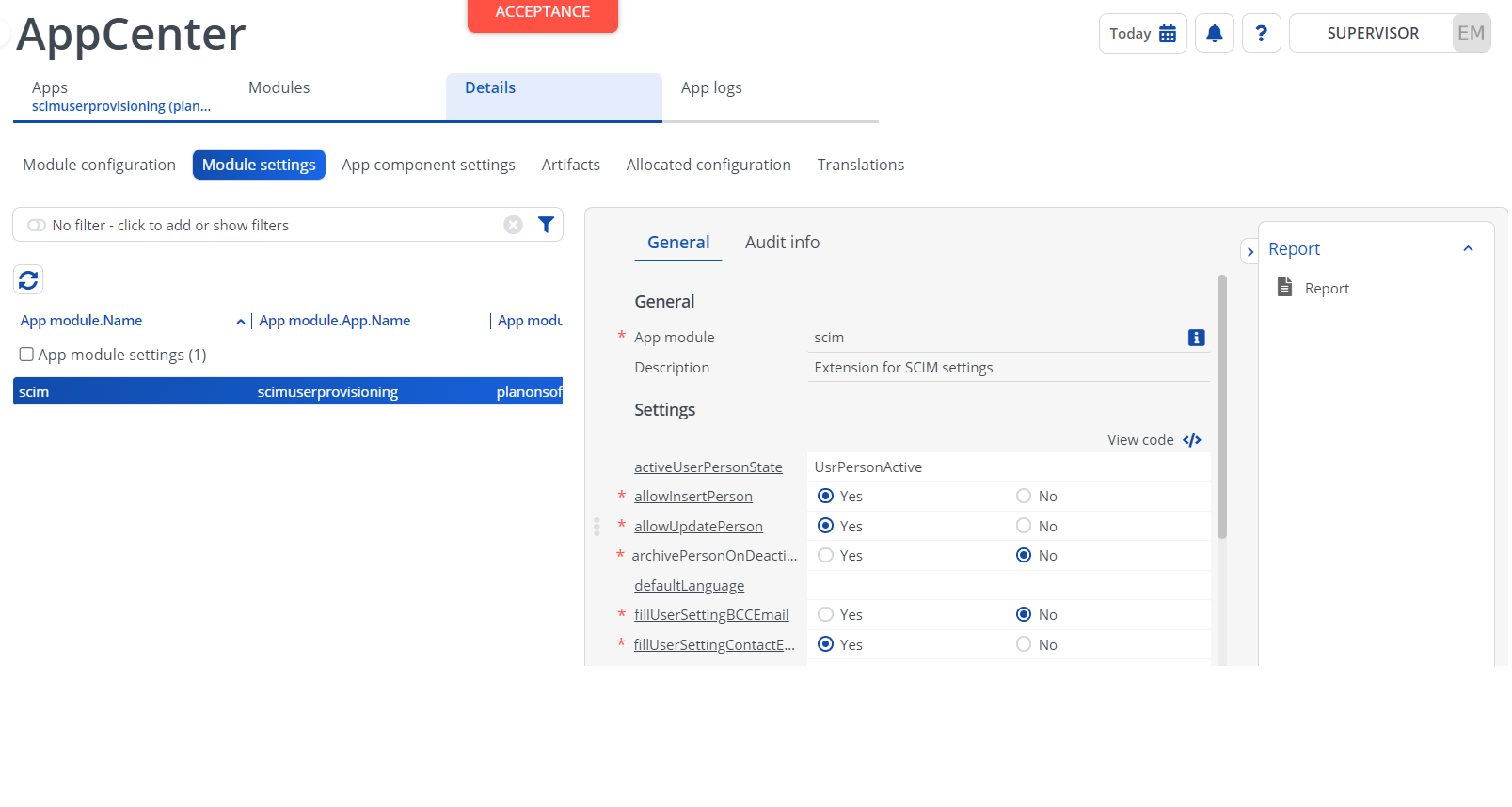
Problem The module settings of the SCIM app in Planon are not configured, or they are incorrect.
How to check? Check the app module settings in the TSI AppCenter. Select the app scimuserprovisioning and go to Details 🡪 Module settings. Go through all the settings and check if they are filled in as expected.
Solution Fill in the app module settings.
The app returns – 415 Unsupported Media Type
Problem When calling a SCIM endpoint of the HTTP method POST, PUT or PATCH, it is expected to receive a JSON message body. The ‘Content-Type’ header in the request must be ‘application/scim+json’.
Error: “415 Unsupported Media Type”.
How to check? If the customer is testing the SCIM implementation from an external system, ask them if they can see the outbound messages in the external system and if they can check if this ‘Content-Type’ header is present in the request.
In case you are testing yourself from Postman, check the tab ‘Headers’ in the request.
Solution Add the header ‘Content-Type’: ‘application/scim+json’ to the request.
Usage of incorrect webservice endpoint
Problem The SCIM app publishes REST endpoints in the Planon environment in two containers: root (/services) and SDK (/sdk).
The root (/services) container is stateful and has throttling. This container must not be used for interfaces between systems. When a lot of consecutive requests are sent to the endpoint, the access will be denied. This results in some messages coming through, and some will run into errors.
Possible error messages: “403 Forbidden”, “Access denied”, “Unable to login. Consult your system administrator.”
How to check?
Check the SCIM base URL that is being used in the external system. The base URL
<environment>/services/sdk/platform/jaxrs/planonsoftware/apps/scimuserprovisioning/scim/v2 is incorrect.
Solution
Replace the incorrect SCIM base URL with the correct base URL:
<environment>/sdk/platform/jaxrs/planonsoftware/apps/scimuserprovisioning/scim/v2