Planon Mobile Time Registration
Introduction
Planon Mobile Time Registration is a app module that supports time and item registrations for the payroll process including the approval by a manager. It can also import time from other sources in Planon like a work order or a resource activity. The module consists of two main elements. A module in the PMFS Live framework for time registration and an approval TSI for the manager.
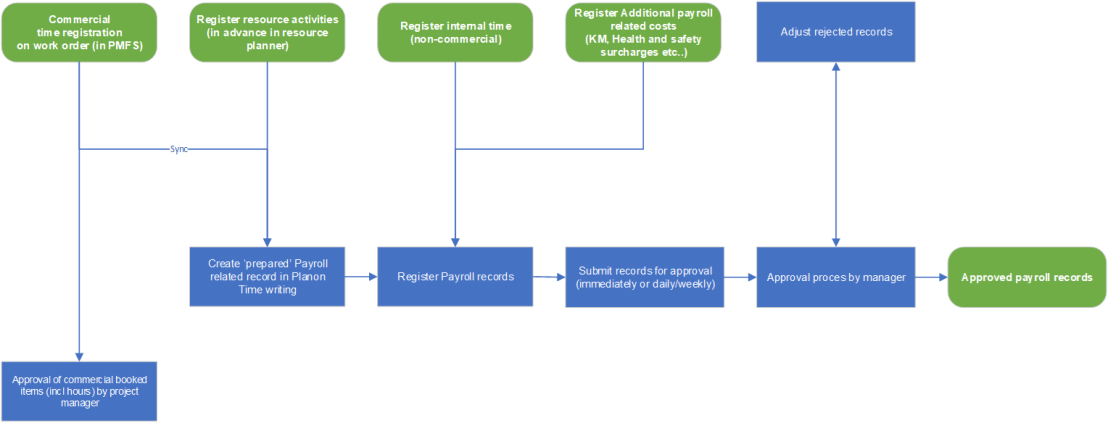
There are multiple types of payroll records that can be created in the mobile app and reviewed by the manager in the approval TSI;
Internal time records: to register time that is non commercial, not related to a work order. (e.g. internal meetings, leave, etc…)
Resource Activity Time records: Similar to Internal time records but synced from the resource planner as proposed time record when booked in advance.
Commercial Time Records: Synced from the workorder process to complete the time registration for the payroll process.
Additional Costs: Additional elements with a unit that require registration because they have an effect on payroll amounts (e.g. driven KM’s, or surcharges for Health and Safety)
Commercial Additional Costs: Additional elements with a unit that require registration because they have an effect on payroll amounts that need to be linked to a workorder.
Each record type has his own characteristics and is determined by the selected special tariff line in combination with the origin of the record. (manually created or synced from another module in Planon)
Prerequisites
Environment
This solution is designed to work with Planon Live L107 and above.
Constraints
The app is based on below constraints
Special Tariff Lines are used as indicator on the payroll records, the Planon environment should have a license to use this BO.
Some functionalities are linked to Workorders and Resource Activities. To be able to use that the Planon environment should have these items configured.
Date time picker icons are not visible in Apple devices for Start Time and End date time fields on the time records. But the values can be entered by clicking on the fields
Required free BOs & free fields
The app requires below free Bos & fields
Free Business Objects need to be available in the Planon environment, preferred with history features.
A free reference field needs to be available on the person BO
Optional a free string field on the person BO (to register weekly contracted hours)
A free string field needs to be available on the order BO
A free reference field is needed on the resource activity BO
free strings fields, 1 free integer field and 1 free decimal field on special tariff lines
Assumptions
This design and functionality of the solution is based on the following assumptions.
The customer has mobile devices running Android or IOS with the Planon app installed. The customer has a license to use Planon Mobile Time Registration.
The Planon Mobile Time Registration module can be used on tablets. However, currently the app is designed and optimized to be used on a mobile phone.
Planon Mobile Time Registration is an online module within the Planon app, so an internet connection is required to make use of the module
Features
Overview and navigation
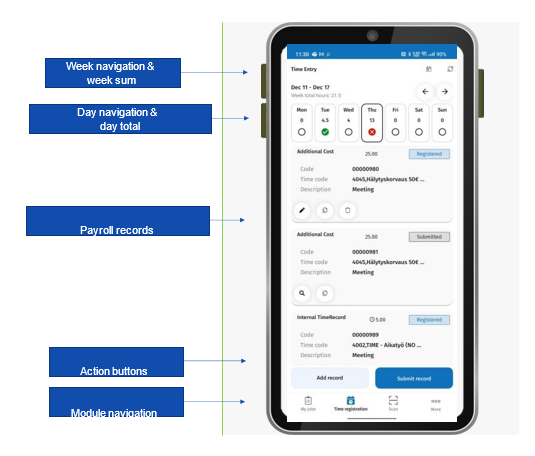
Action buttons
Add record: Create a new payroll record
Submit record: Submit records for today or for the whole week
Day navigator
Open bullet: Not all records have been submitted for this day
Green check mark: All records are submitted or approved for this day
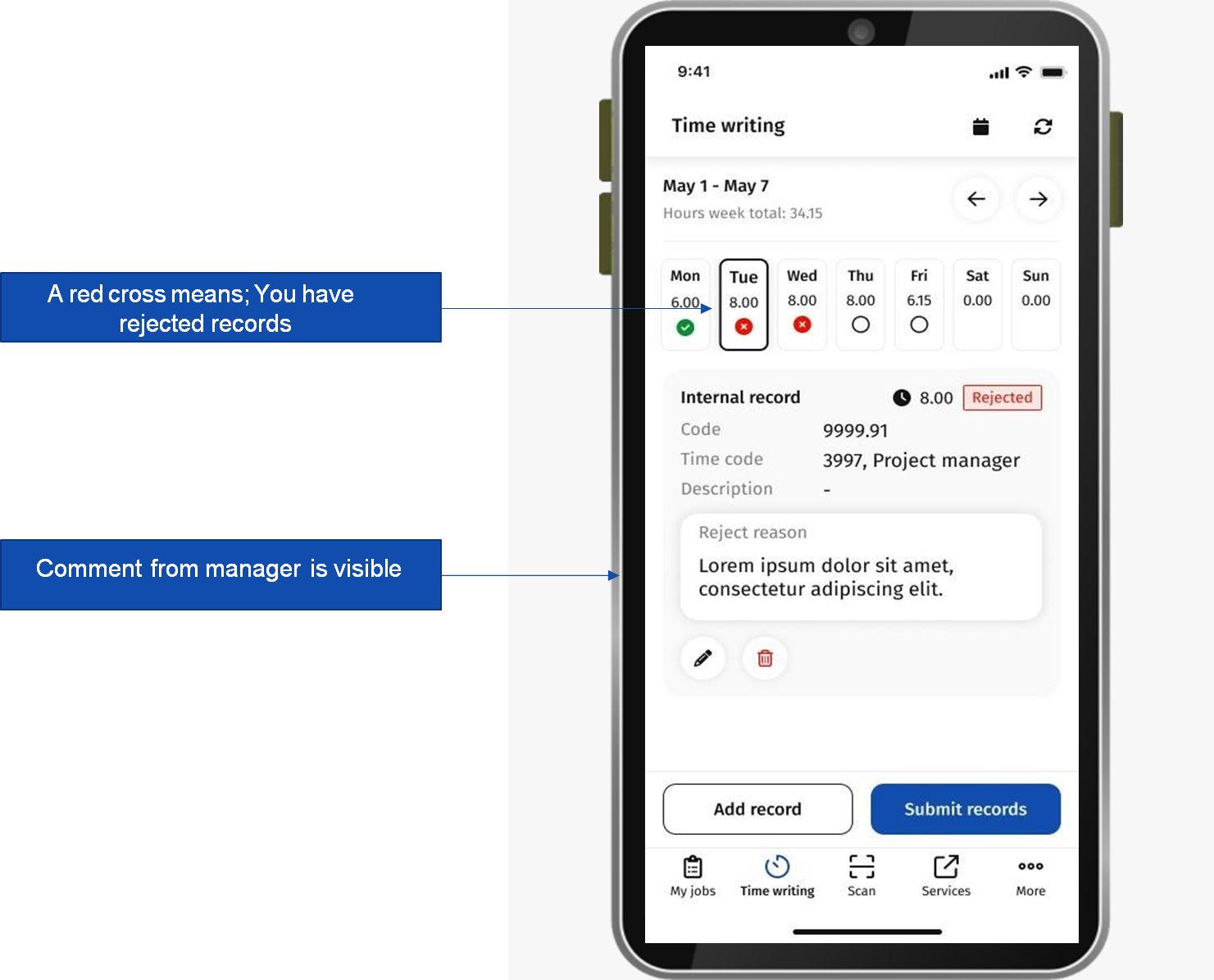
Red cross icon: You have at least one rejected record that requires your attention
Icons


Pencil = edit record
Double pages = copy record
Dustbin = delete record
Magnifying glass = view record
Calander = Change the selected date
Two round arrows = refresh page
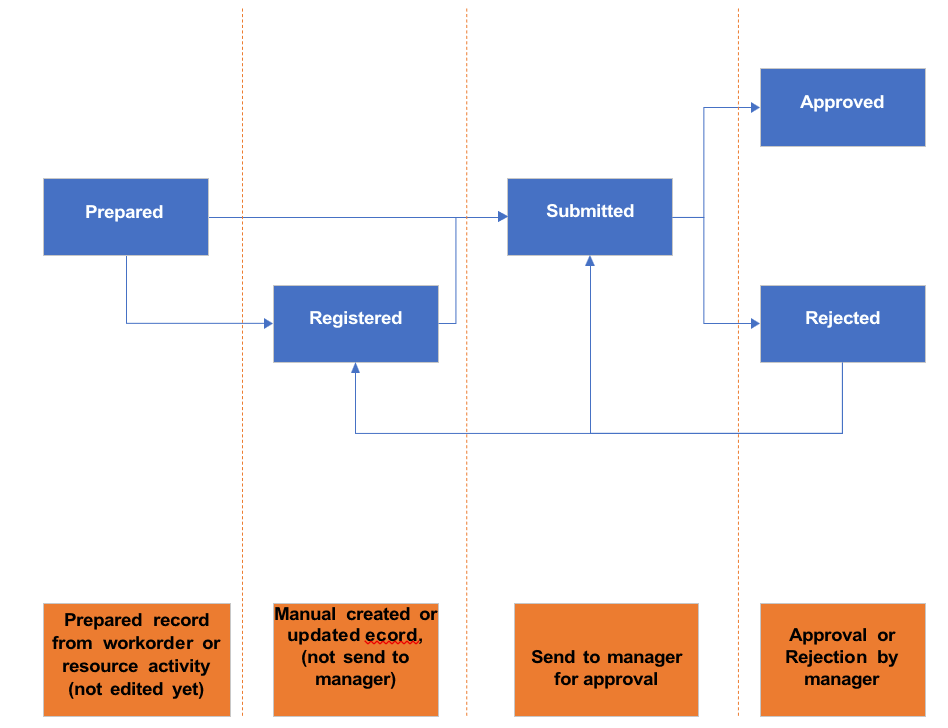
Status flow of a record in Planon Mobile Time Registration:
Booking different type of time records & cost elements
By hitting the ‘add record’ button a user can create a new record registered on a certain day.
The first action is to select a special tariff line (or time/project code, if renamed).
The selected line will determine which type of record is created, a internal time record or an additional costs record. In addition, special tariff lines determine whether you can change the rate field when you create a record
Time records
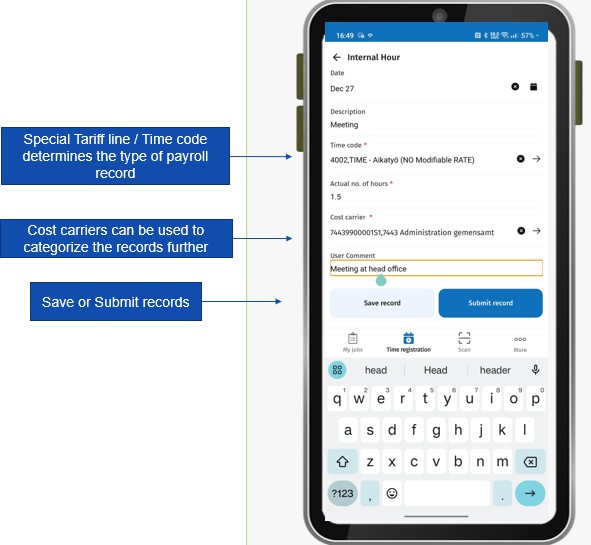
Time records are booked in hours and are added to the day and week total of that user. In this way the user can keep track of the day and week total that should be booked for his labour contract.
Additional costs
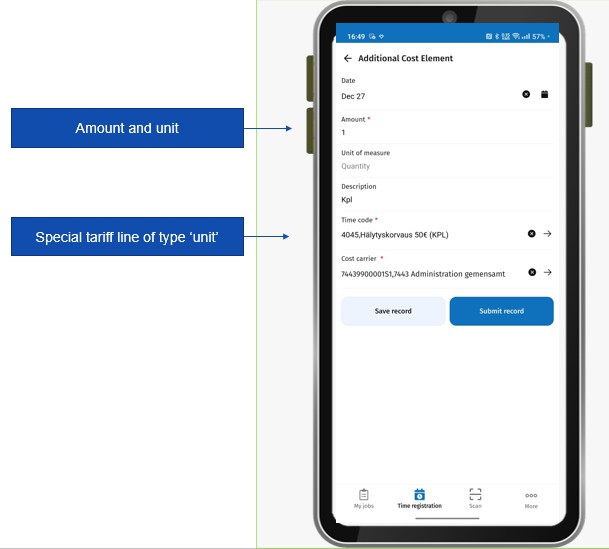
Additional costs are often surcharges to the salary and can be booked in a pre-defined unit (currency, distance, units, time, etc…)
Note: Additional costs can also have the unit ‘hours’ these are NOT summarized in the day and week total as additional costs records are not seen as ‘worked time’.
Save and Submit
When the user hits the save button the record is saved for himself. The record is not submitted to a manager yet.
When the user hits the submit button the record is submitted to the manager for review directly.
Import and complete resource activity time records
When configured, a pre-booked resource activity can be synced with Planon Mobile Time Registration. This can be done for resource activities that are booked for the future only or also for all records (setting). Information from the resource activity is passed on to the resource activity time record. Resource activity time records are treated the same as internal time records. Difference is that the first status of the record is ‘prepared’ instead of ‘registered’ meaning that the record hasn’t been edited by the user after sync. Once submitted no data is kept in sync between the resource activity and the resource activity time record.
Options:
When configured it is possible to indicate a special tariff line on the resource activity already before creating a time record. (manual or with a default value on the Lay-out or UDBO)
When configured it is possible to only trigger the creation of a (Resource activity related) time record after the resource activity is set to a certain status. (see settings)
When set resource activities that are created for the past, will also create a time record. (see settings)
The status of the resource activit can be shown in the resource planner, updating the description of the resource activity.
Note: Resource Activities are often registered in the resource planner or created in the Person TSI. More information about resource activities can be found in the Web Help.
Import and complete labour hour records from orders
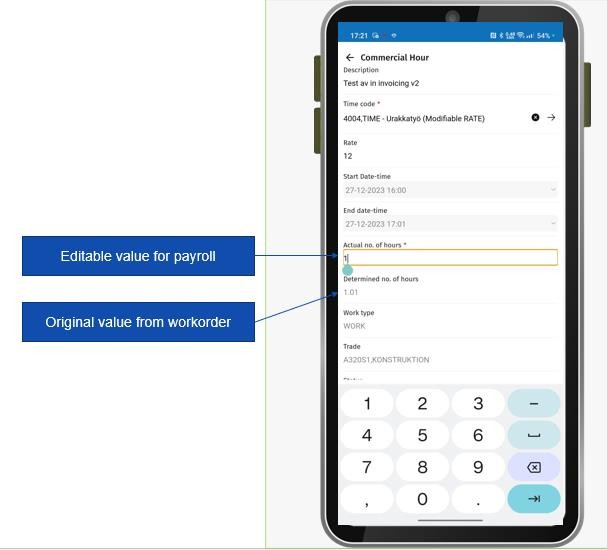
When a user of the time registration app also processes work orders/assignments where he is tradesperson for, the time writing module will create a linked record for payroll administration. The payroll record will be kept in sync with the labour hour records of the work order. For the workorder time-amount and for payroll time-amount different values exist on the payroll record. A user has to possibility to update the payroll amount e.g. for rounding off purposes, when configured. The manager linked to the user can approve these deviations. In addition, a user can complete the record with other information if required, such as a special tariff line to categorize the time for payroll purposes.
Submit hours
A user can submit records to his manager. This can be done with individual records in the form or for the whole day or week in the home screen of the module.
When a user hits the ‘submit button’ while editing a record. The record is directly submitted to his manager.
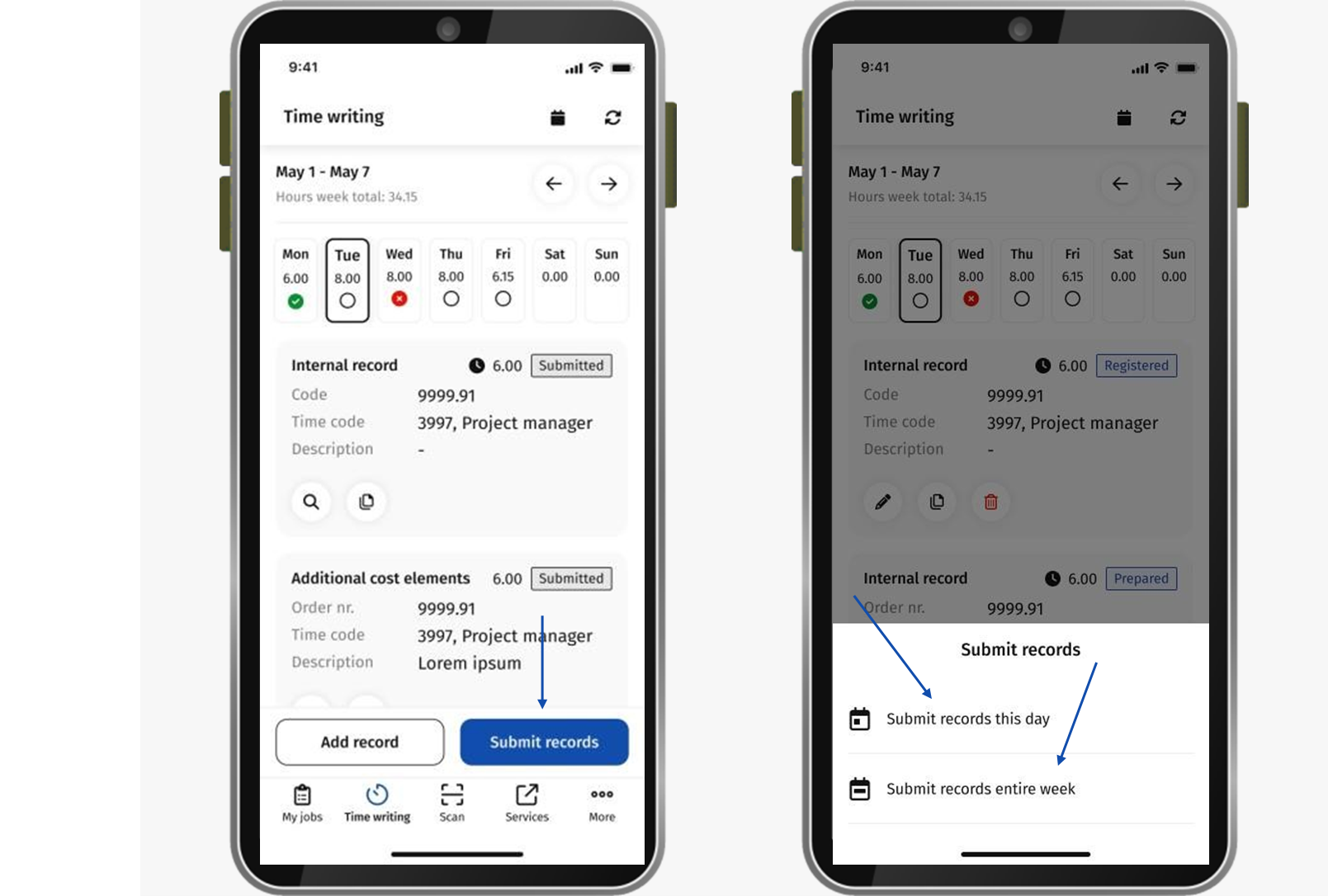
When a user hits the ‘Submit records’ button in the home screen, the user can choose to submit all hours and costs elements of the selected day or the selected week
Approve and Reject hours
Each Activity definition may have list of ‘tasks’ to be done while working on the activity. The task data of each schedule is considered as a Check list item of the activity definition. So, whenever we create or update schedules, the correspnding tasks are also created or upadated in Planon as Check list items associated to the Activity definition.
Planon Web client
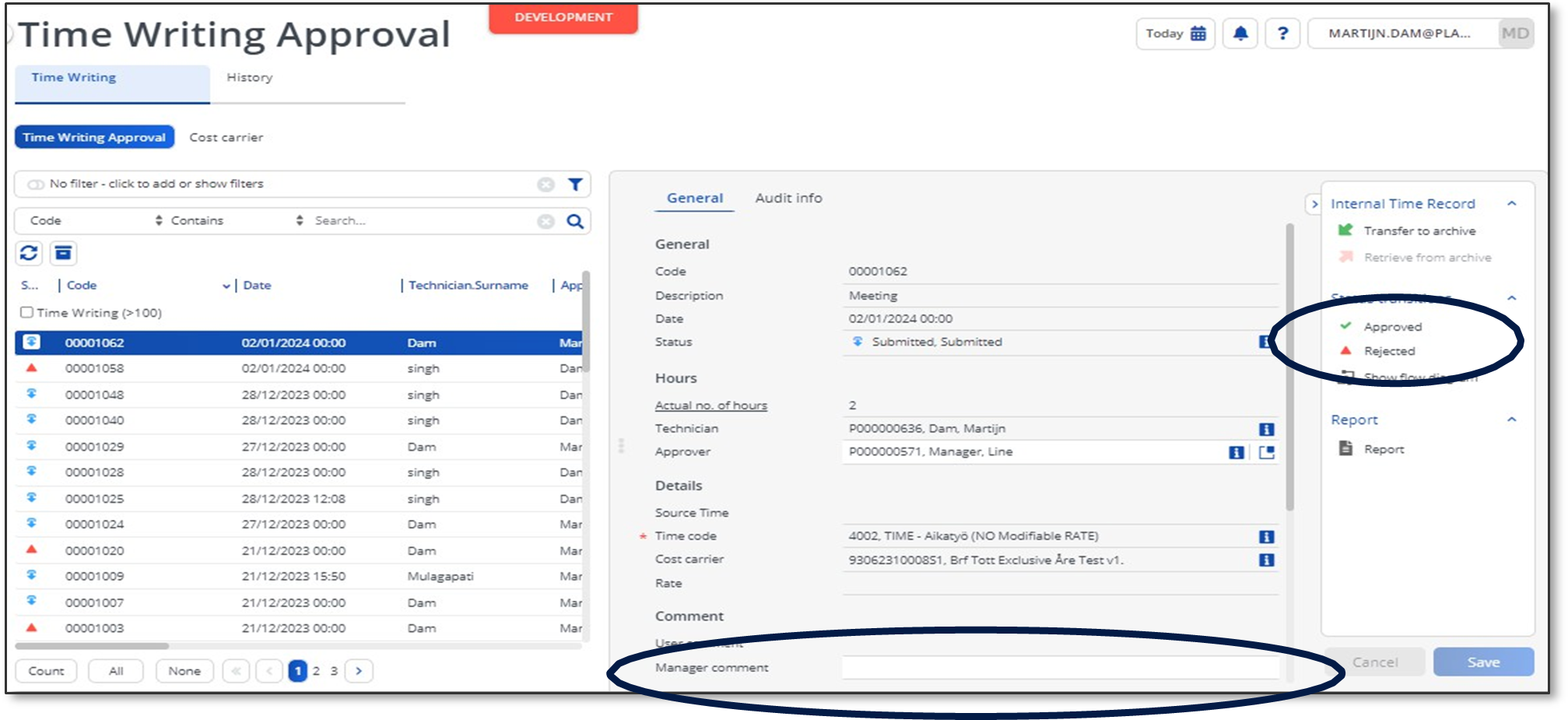
The manager that is responsible for reviewing the payroll records has its own user interface in the Planon web client to approve or reject time and additional cost records.
When a record is approved the record cannot be edited anymore and is seen as ‘final’.
When a record is rejected, the manager has to provide a comment. The field worker (the mobile user) can correct the record accordingly in the app and submit again.
Correction mode: Synchronise backwards to a labour hour record of an order.
Optionally, when approving a commercial time record, it is possible to sync the values of the actual number of hours field OR the determined number of hours field ‘backwards’ to the labour hour record linked to the (work)order. In the module settings of the app (see settings chapter), the setting syncHoursWithOrders can be set to enable the ‘correction mode’. This allows the user to update labour hour records linked to the workorder after the workassignment is set to done and removed from the mobile device in PMFS. In addition to the number of hours also trade and worktype can be updated on the time record and synced back.
With this setting enabled it is recommended that the status transisition on the order that completelty closes the workorder is blocked when not all related time records are approved. (see chapter 7 paragraph business rules)
To explain this functionality more in detail a short example;
An employee processes a workassignment in PMFS. This employee booked a record for travel and a record for work on the job with start and stop actions. When setting the assingment to done the workassignment is removed from the mobile device. In Planon Mobile Time Registration the employee reviews his time records at the end of the day. When reviewing his day the employee notices that he stopped the job too early. He edits the time record and changes the start and end date time and the determined number of hours to the correct values. With the correction mode enabled this value is updated on the workorder as well when the manager of this employee approves his time records in the approval TSI. Because correction mode is enabled the project manager keeping track of the progress of the workorder cannot set the workorder to administrative completed before all time records are approved by the manager.
Rejected records in Planon Mobile Time Registration
When a record is rejected the user of the mobile app sees directly what record is rejected. In addition the day navigator indicates that there is a rejected record on that day.
Push Notifications
When a record is rejected the field worker receives a push notification from the Planon app.
By default the message is configured in this format: ‘Time record {0} recorded on {1} is rejected. Please review your registered record.’ One can modify the message in the translation section of the app when desired. See last paragraph.
To configure push notifications, see chapter Planon Configuration post installation of App.
Sync Hours back to base records.
When ever a time record of type Commercial Time Record or Resource Time Record is approved, the data from the time record is updated on the source record ie Order Hour or Resource Activity based on the type.
Fields synchronized for the Commerical Time Records
Actual Number of Hours (configurable through the setting syncHoursWithOrders).
Start Date
End Date
Trade
Work Type
Note: Data is synced only when this setting is provided via value
Fields synchronized for the Resource Activity Time Records
Start Date
End Date
Till the version 1.x.x, this rules has to be configured on the order BO which is explained in the chapter Planon Configuration post installation of App
From version 2.x.x, this is now changed to a new business rule. More details can be found under the chapter Planon Configuration post installation of App
Sync Order data to commercial time records
Whenever the fields External Order Number, Property or Customer is changed on the order, the corresponding fields of the related time entries are updated.
Note: Property and Customer are updated only if the setting showFields contains Property and Customer
Till the version 1.x.x, this rules has to be configured on the order BO which is explained in the chapter Planon Configuration post installation of App
From version 2.x.x, this has now become a pre-defined rule. More details can be found under the chapter Planon Configuration post installation of App
Block Order Status transition
The app comes with a rule that can block the status transition if the order has any time records that are not approved. The status of the order is configurable.
Till the version 1.x.x, this rules has to be configured on the order BO which is explained in the chapter Planon Configuration post installation of App
From version 2.x.x, this has now become a pre-defined rule. More details can be found under the chapter Planon Configuration post installation of App
Splitting time records
Whenever time records span into multiple days, either multiple days, or just 2 midnights past midnight, the time record will be splitted into a single time record per day. This will not impact resource activities and/or labour hours.
Identifying overlapping time records
It is possible to have multiple time records for the same person at the same time. Sometimes this indicates a mistake and sometimes it is on purpose. To easily identify which time records are overlapping, there is now a field “UsrOverlap” that will tell you whether a time record is overlapping with another time record for the same person.
Miscellaneous
Favourites
The Special tariff line and Cost carrier fields contain a favorites function. When the star icon is enabled, the indicated value is always displayed at the top for the user. This way, values that are used regularly are easily accessible.
Copying records & Commercial Additional Costs
It is possible to copy records using the double paged icon. When copying it is only possible to select a special tariff line of the same type (unit or time). Exception on the rule is when a commercial time record is copied. When in that case a special tariff line of the type unit is selected a ‘commercial additional cost record’ will be created.
Edit and view records
Records that are in the status of prepared, registered or rejected can be edited with the pencil icon in the app.
Records that are in the status of submitted or approved can only be viewed using the magnifying glass icon in the app.
Deleting records
Records that are in the status prepared or registered can be deleted with the dustbin icon. An exception are commercial time records that are linked to a labour hour record from a work order, these cannot be deleted.
Upload files
The version of app 2.1.0, now provides the feasibility to upload document on the time records. User can decide to use this feature based settings.
Prevent Approval of Overlap Records
When the setting is set to ‘No’ and a time record is set to the status approved in the TSI an additional check will be performed if the record overlaps with an existing record. If so, the status transition will be blocked.
Handle Overlap flag
When the time records are updated or deleted overlap field on the associated overlapping timerecords is updated.
Planon Configuration
Business Objects
Cost Carrier
A free BO is needed to configure Cost Carrier records. This needs a User Defined BO with system name UsrCostCarrier
Below tables shows the fields required on the Cost Carrier business object
| Description | System name | Field Type | Mandatory | In Selection | Unique | Inherit | History |
|---|---|---|---|---|---|---|---|
| Code | Code | Text | No | Yes | Yes | No | No |
| Name | Name | Text | No | Yes | No | No | No |
Time Writing records
Another free business object which is needed to store the time records.
Fields
Below tables shows the list of fields and the type needed on the business object
| Description | User-defined system name | Field type. System name | Nr of decimals | System name | Mandatory | Unique |
|---|---|---|---|---|---|---|
| Actual no. of hours | UsrActualNumberOfHours | BigDecimal | 3 | FreeDecimal4 | No | No |
| Amount | UsrAmount | BigDecimal | 3 | FreeDecimal10 | No | No |
| Approver | UsrApprover | Person | FreeString2 | No | No | |
| Budgeted Hours | UsrBudgetedHours | BigDecimal | 3 | Any free field | No | No |
| Cost Carrier | UsrCostCarrier | Cost Carrier Free BO | Any Free Integer | No | No | |
| Cost element | UsrCostElement | String | FreeString22 | No | No | |
| Customer | UsrCustomer | Customer | FreeInteger11 | No | No | |
| Date | UsrDate | Date Time Neutral | FreeDateTime10 | No | No | |
| Determined no. of hours | UsrDeterminedNumberOfHours | BigDecimal | 3 | FreeDecimal2 | No | No |
| Document | UsrDocument | Document | Any free field | No | No | |
| End date-time | UsrEnddatetime | Date Time Neutral | FreeDateTime4 | No | No | |
| Is First | UsrIsFirst | CodesCodeName YESNO | Any Free String field | No | No | |
| Is Last | UsrIsLast | CodesCodeName YESNO | Any Free String field | No | No | |
| Labour hours | UsrLabourHoursRef | OrderHours | FreeInteger2 | No | No | |
| Manager comment | UsrManagerComment | StringExt ended | FreeRemark2 | No | No | |
| Order | UsrOrderRef | BaseOrder | FreeInteger13 | No | No | |
| Order no. Planon | UsrOrderNumberPlanon | String | FreeString30 | No | No | |
| Overlap | UsrOverlap | CodesCodeName YESNO | FreeString1 | No | No | |
| Rate | UsrRate | Money | 3 | FreeDecimal13 | No | No |
| Resource Activity | UsrResourceActivityRef | ResourceActivity | Any Free String field | No | No | |
| Source time | UsrSourceTimeRef | Free X | FreeInteger4 | No | No | |
| Start date-time | UsrStartdatetime | Date Time Neutral | FreeDateTime3 | No | No | |
| Technician | UsrTechnician | Person | FreeString20 | No | No | |
| Time code | UsrSpecialTariffLine | SpecialTariffLine | FreeInteger3 | No | No | |
| Total actual hours | UsrTotalActualHours | BigDecimal | 3 | FreeDecimal11 | No | No |
| Total amount | UsrTotalAmount | BigDecimal | 3 | FreeDecimal14 | No | No |
| Total deviation | UsrTotalDeviation | BigDecimal | 3 | FreeDecimal12 | No | No |
| Trade | UsrTrade | Trade | FreeInteger12 | No | No | |
| Unit of measure | UsrUnitOfMeasure | UnitOfMeasure | FreeInteger1 | No | No | |
| User comment | UsrUserComment | StringExt ended | FreeRemark1 | No | No | |
| Work assignment | UsrWorkAssignment | OrderResourceActivity | FreeInteger14 | No | No | |
| Work type | UsrWorkType | CodesCodeName | FreeString8 | No | No |
Statuses
Below are the statuses needed on the time writing business object
| Code | System name |
|---|---|
| Approved | UsrApproved |
| Registered | UsrRegistered |
| Rejected | UsrRejected |
| Submitted | UsrSubmitted |
| Prepared | UsrPrepared |
Note: Make sure to keep name and system name exactly the same
UDBO’s
Below are the list of UDBOs with system name and the default status for the corresponding BO
UsrAdditionalCostElements (default status = registered)
UsrCommercialAddCostElements (default status = prepared) for integration with orders and ppm orders
UsrCommercialTimeRecord (default status = prepared)
UsrInternalTimeRecord (default status = registered)
UsrResActTimeRecord (default status = prepared) for integration with resource activities
Note:
Make sure to configure the default value for the code field for the above BO’s with “&CODEGEN(########,T,1)”
The default status advised is the setting for the best practice configuration. It is allowed to modify this value to a different state (e.g. set Commercial Time Records by default to the status submitted)
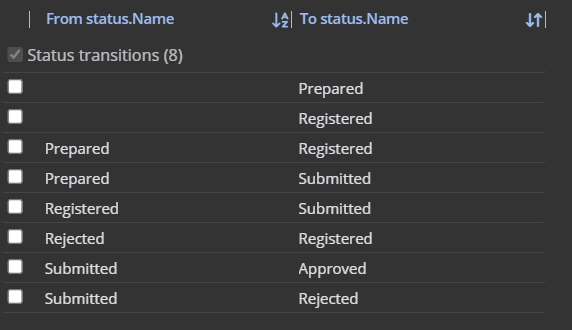
Status transitions on all UDBO’s
Below image shows you the required status transitions for all the UDBOs configured above
SpecialTariffLine
This section describes you the list of free fields needed on the System business object SpecialTariffLine
| Description | User-defined system name | Field type | Mandatory | In selection | Unique | Inherit | History |
|---|---|---|---|---|---|---|---|
| CSS Classes | UsrCSSClasses | Free field | No | No | No | No | No |
| Time or unit? | UsrTimeOrUnit | Free field (link to yesno code descriptive picklist) | No | Yes | No | Yes | Yes |
| Modifiable rate? | UsrModifiableRate | Free field (link to yesno code descripti ve picklist) | No | Yes | No | No | Yes |
| Unit of measure | UsrUnitOfMeasure | Free integer (refrence to UnitofMeasure BO) | No | Yes | No | No | Yes |
| Rate | UsrRate | Free numerical field | No | Yes | No | No | Yes |
| Fixed number of hours | UsrFixedNrOfHours | BigDecimal | No | Yes | No | No | No |
| Fixed amount | UsrFixedAmount | BigDecimal | No | Yes | No | No | No |
Person
This section describes you the list of free fields needed on the System business object Person
| Description | User-defined system name | Field type | Mandatory | In selection | Unique | Inherit | History |
|---|---|---|---|---|---|---|---|
| Manager | UsrLineManager | Free field (reference to Person) | No | No | No | No | No |
| Weekly Contract Hours* | UsrWeeklyContractHours | Free field (Bigdecimal) | No | No | No | No | No |
| Weekly hours | UsrNumberHrsWeek | Free field (Bigdecimal) | No | No | No | No | No |
BaseOrder
This section describes you the list of free fields needed on the System business object BaseOrder
| Description | User-defined system name | Field type | Mandatory | In selection | Unique | Inherit | History |
|---|---|---|---|---|---|---|---|
| External order number | UsrExternalOrderNumber | Free field | No | No | No | No | No |
OrderHours (Optional)
This section describes you the list of free fields needed on the System business object OrderHours
| Description | User-defined system name | Field type | Mandatory | In selection | Unique | Inherit | History |
|---|---|---|---|---|---|---|---|
| Work assignment | UsrWorkAssignment | Free field (reference to Work Assignment) | No | Yes | No | No | No |
ResourceActivity (Optional)
This section describes you the list of free fields needed on the System business object ResourceActivity
| Description | User-defined system name | Field type | Mandatory | In selection | Unique | Inherit | History |
|---|---|---|---|---|---|---|---|
| Time code | UsrSpecialTariffLine | Free field (reference to Work Special Tariff line) | No | Yes | No | No | No |
If desired, it is possible to define statuses and status transitions for the different Resource activities UdBOs to build an approval process for example:
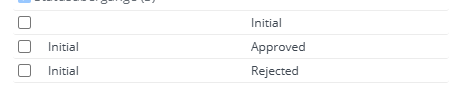
In the app settings, it is then possible to define from which status an RA time record is then created
Code / descriptive picklists
WorkType
A code descriptive pick list needs to be created and linked to the field ‘work type’ in the time writing business object
| List | Code | Description |
|---|---|---|
| Work_type | Work | Work |
| Work_type | Travel | Travel |
| Work_type | Waiting | Wait |
TIME_OR_UNIT
A code descriptive pick list needs to be created and linked to the field ‘Time or unit?’ in the special tariff line business object
| List | Code | Description |
|---|---|---|
| Time_or_unit | T | Time |
| Time_or_unit | U | Unit |
| Time_or_unit | CT | Commercial Time |
| Time_or_unit | IT | Internal Time |
| Time_or_unit | RAU | Resource Activity Unit |
YESNO
If not present yet, a code descriptive YESNO pick list needs to be created and linked to the fields ‘modifiable rate’ in the time writing line business object
| List | Code | Description |
|---|---|---|
| YESNO | Y | Yes |
| YESNO | N | No |
Layouts
Now the business objects are configured and the app has been installed. The only thing left is to configure the Approval TSI for the ‘management’ user group.
The following paragraph shows an example of that. One can make your own choices in what to view to the end user, what is read only y/n, what is mandatory etc…
Basic knowledge of configuring TSI’s and Layouts is required. More information about this can be found from Planon Webhelp
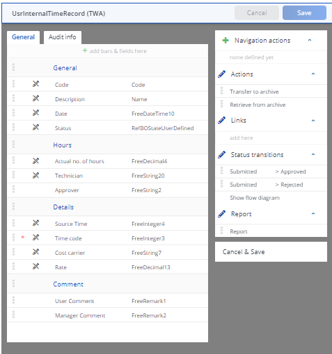
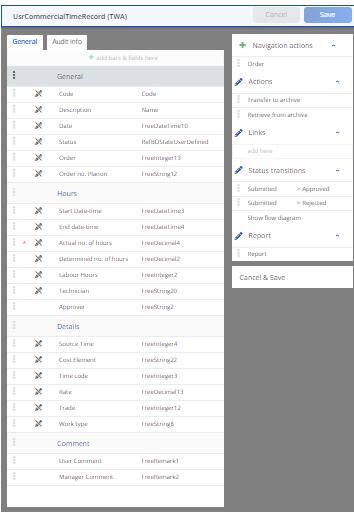
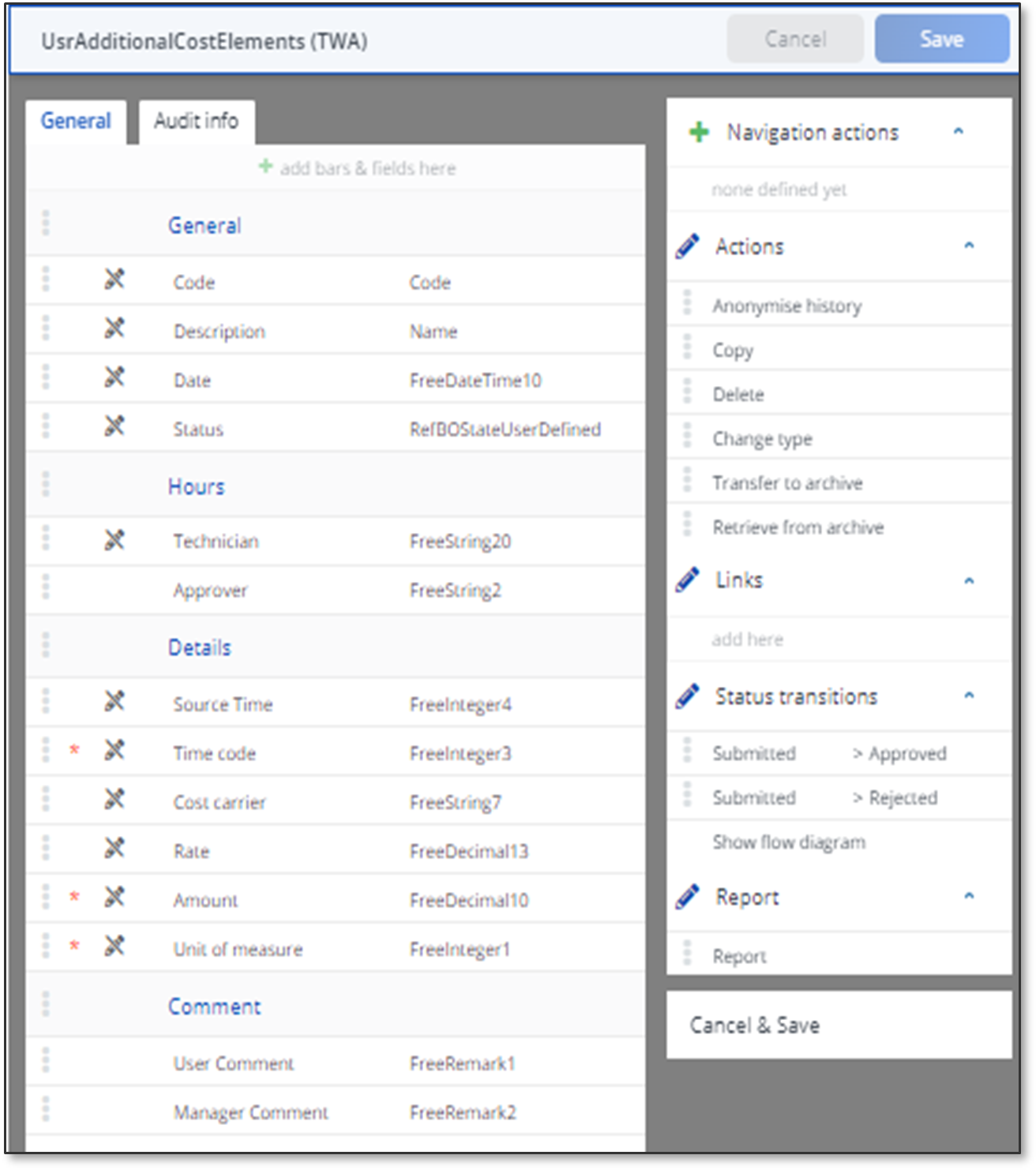
Create a lay-out for every UDBO. Most fields need to be read-only. Exceptions are the ‘Manager Comment’ field and the ‘Approver’ field.
Make the status transitions ‘Submitted > Approved’ and ‘Submitted > Rejected’ available on each lay- out.
Internal Time Record
Commerical Time Record
Additional Cost Elements
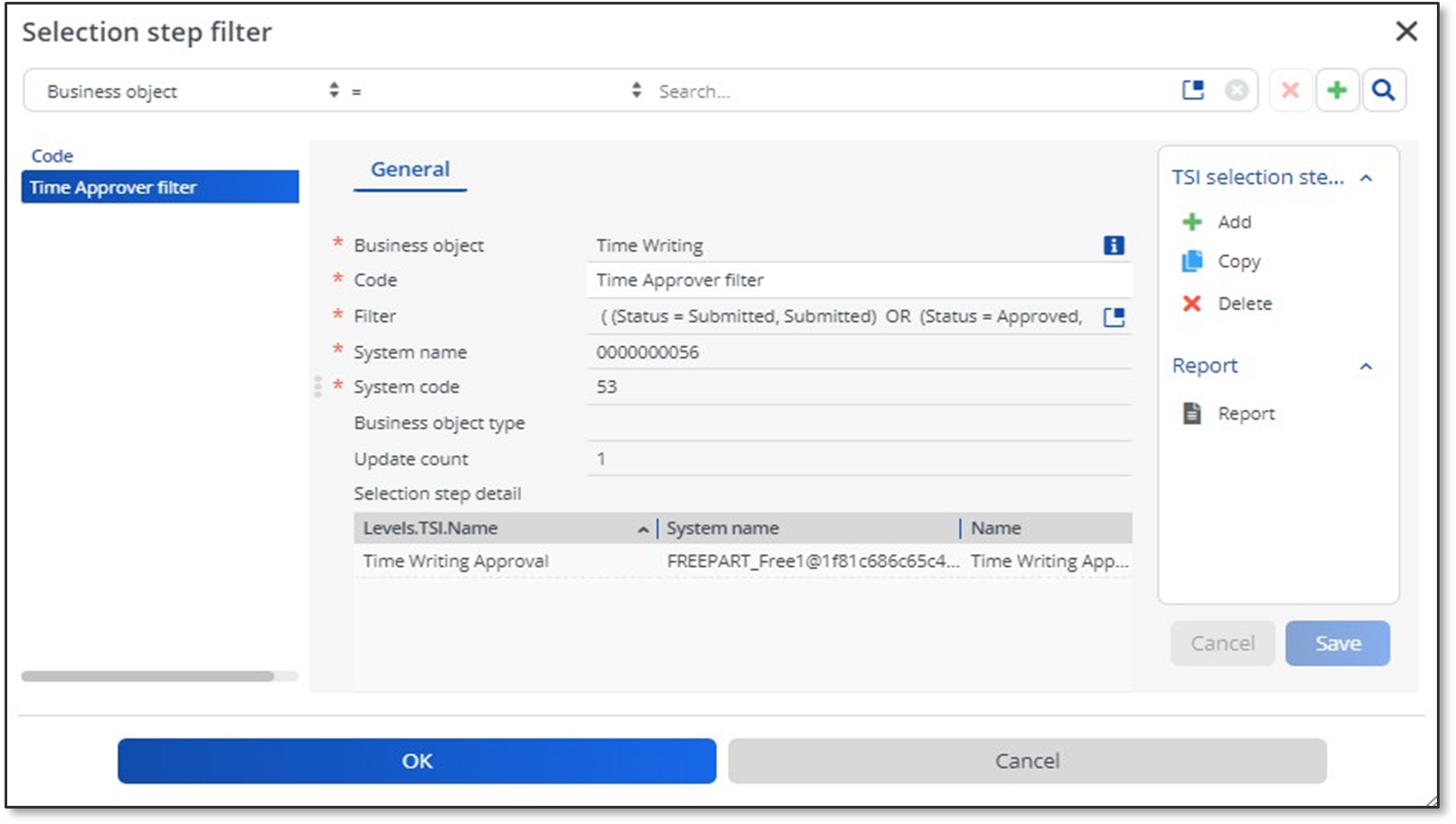
TSI filter
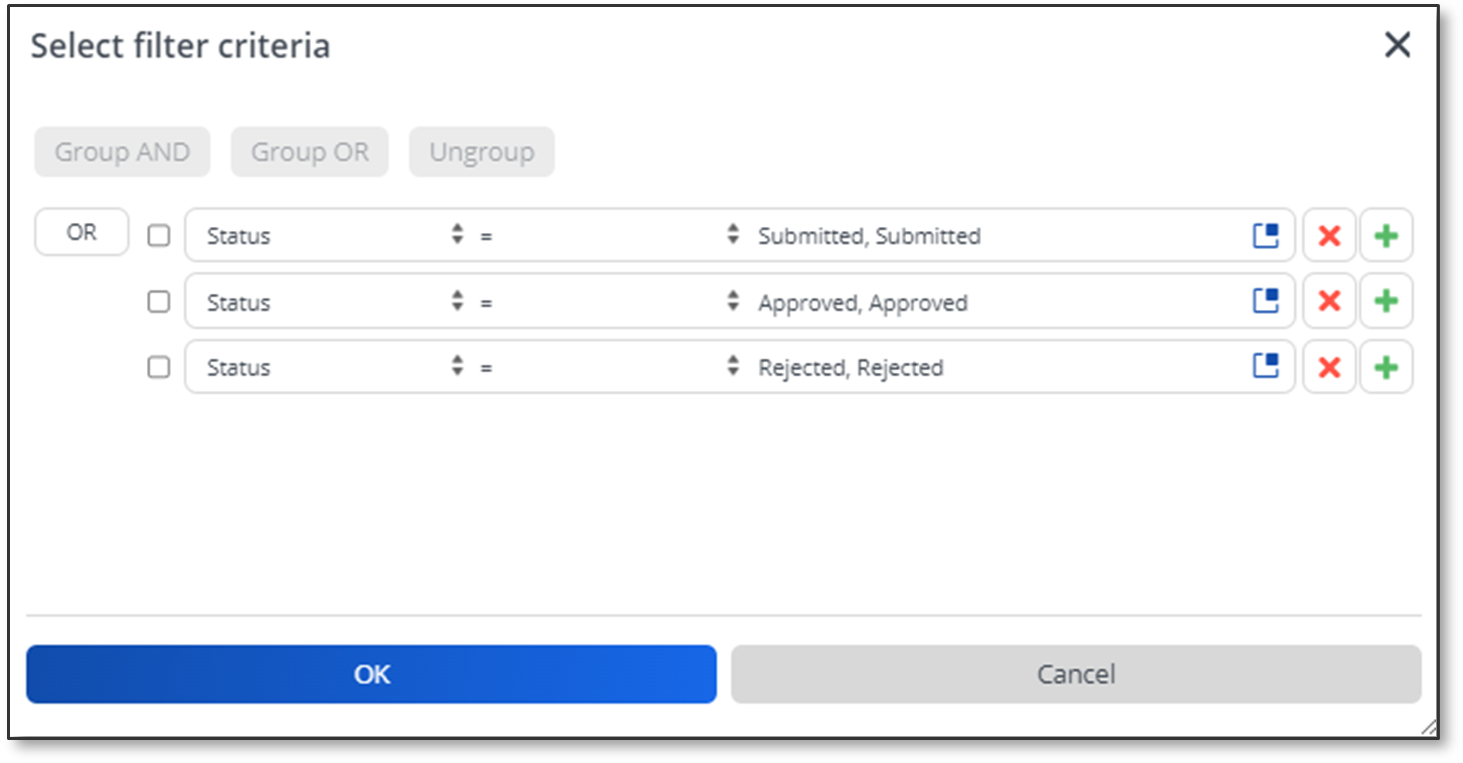
Create a TSI filter for the payroll record approval TSI
Business object = Time Writing
Code = Time Approver filter Filter = (Status = Rejected OR Approved OR Submitted)
TSIs
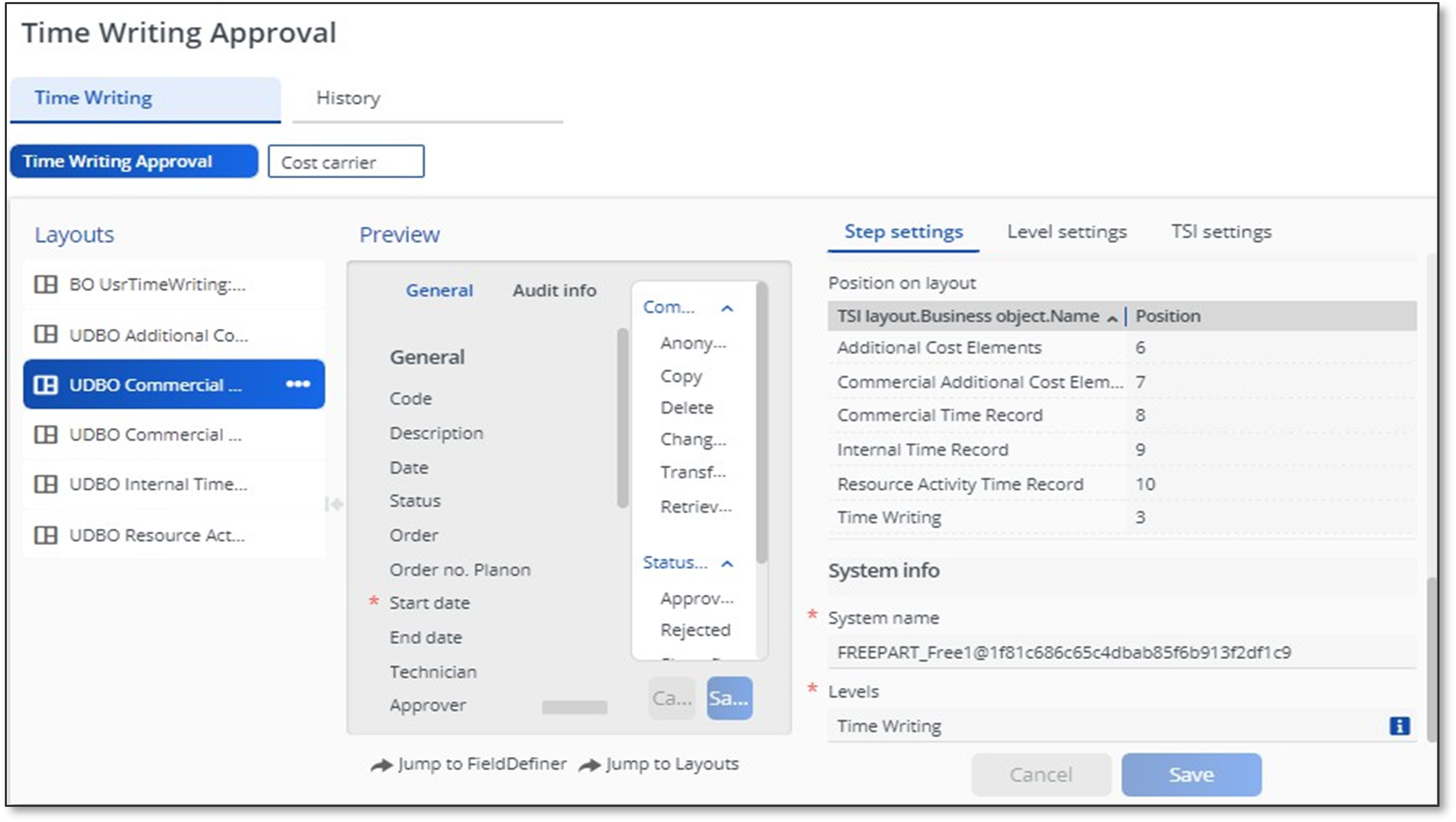
Create a TSI for the FreeBusinessObject you have used for the business object ‘UsrTimeWriting’ using the Free option in the TSI manager.
More info from Planon Webhelp
For example for Free1 and the history of free1. In our example we also included Free3 (our cost carrier BO) in the same TSI.
Link the TSI filter to the Payroll (or Time Writing) Approval selection step. It is also recommended to define a customizable list and some user filters
Navigation Panel
It is recommended to create a separate navigation panel ‘Payroll processing’ (or Time writing’) for this add-on with at least these 3 TSI’s
Personnel, to ‘jump to all-time records of a selected person’ and to change the manager linked to a person when needed.
Special Tariffs and special tariff lines, to manage the special tariffs and special tariff lines.
Payroll approval, for approving and rejecting payroll records
Data Management
After configuration of this add-on two new main business objects are added. In addition, the special tariff line and person business objects are extended with some additional fields.
Special Tariff Lines (extended) to indicate a code and a type to payroll records.
Person (extended) to link a manager to an employee
Cost Carrier to categorize payroll records with a financial cost carrier if required.
Data management of special tariff lines
In Planon there are special tariffs and special tariff lines. A special tariff is a category holding multiple special tariff lines. Special tariff lines are used to indicate the internal tariff and tariff indicator for a specific payroll record. A special tariff can be linked to an employee record. By doing so the amount available tariff lines will be limited by that special tariff (category) for the user of the Planon Mobile Time Registration app. If no special tariff is linked to a person all special tariff lines will be shown to the user according to its authorisation.
More information about special tariffs and lines can be found from Planon Webhelp
Specifically for this add on additional fields are added to the special tariff lines to trigger business logic in Planon Mobile Time Registration:
Time or Unit
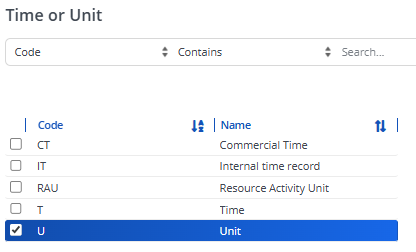
IF set to time: The special tariff line will be seen as a ‘time’ tariff line. Records that are recorded with this type are added to the day and week balance of the user, to indicate if the amount of contractual hours are met. This type of special tariff line is applicable for all types of time records, but not for cost elements.
IF set to commercial time: The special tariff line will also be seen as a ‘time’ tariff line, but will only be applicable for commercial time records.
IF set to Internal time: The special tariff line will also be seen as a ‘time’ tariff line, but will only be applicable for Internal time records.
IF set to unit: The special tariff line will be seen as an additional costs tariff line. Records that are recorded with this type are seen as additional costs with a specific unit. (E.g. Distance, amounts, units etc..) These types or records are often used to register an appliable surcharge to payroll. This type of special tariff line is applicable for all types of Additional cost element records.
IF set to Resource Activity Unit: The special tariff line will also be seen as a additional costs tariff line, but will only be applicable for resource activty time records.
Unit of Measure
Indicates the unit of a special tariff line, most important for special tariff lines of the type ‘unit’
Fixed number of hours
It is possible to set a fixed number of hours for records with this special tariff line. The user cannot change the value in the app.
Fixed amount
It is possible to set a fixed amount for additional cost elements with this special tariff line. The user cannot change the value in the app.
Rate
To indicate a rate to the special tariff line, if applicable Modifiable Rate
If set to yes: The user can provide a rate in the ratefield
If set to no: The user doesn’t see the rate field
Data management of cost carriers
Cost Carriers can be used to indicate the financial cost carrier to a payroll record when required. Some organizations use different classification names like WBS element or PSP. For this add-on it is only required to register a code and a description for a cost carrier. If required one can also use other free fields from the business object to register additional values e.g. cost center references or legal entity
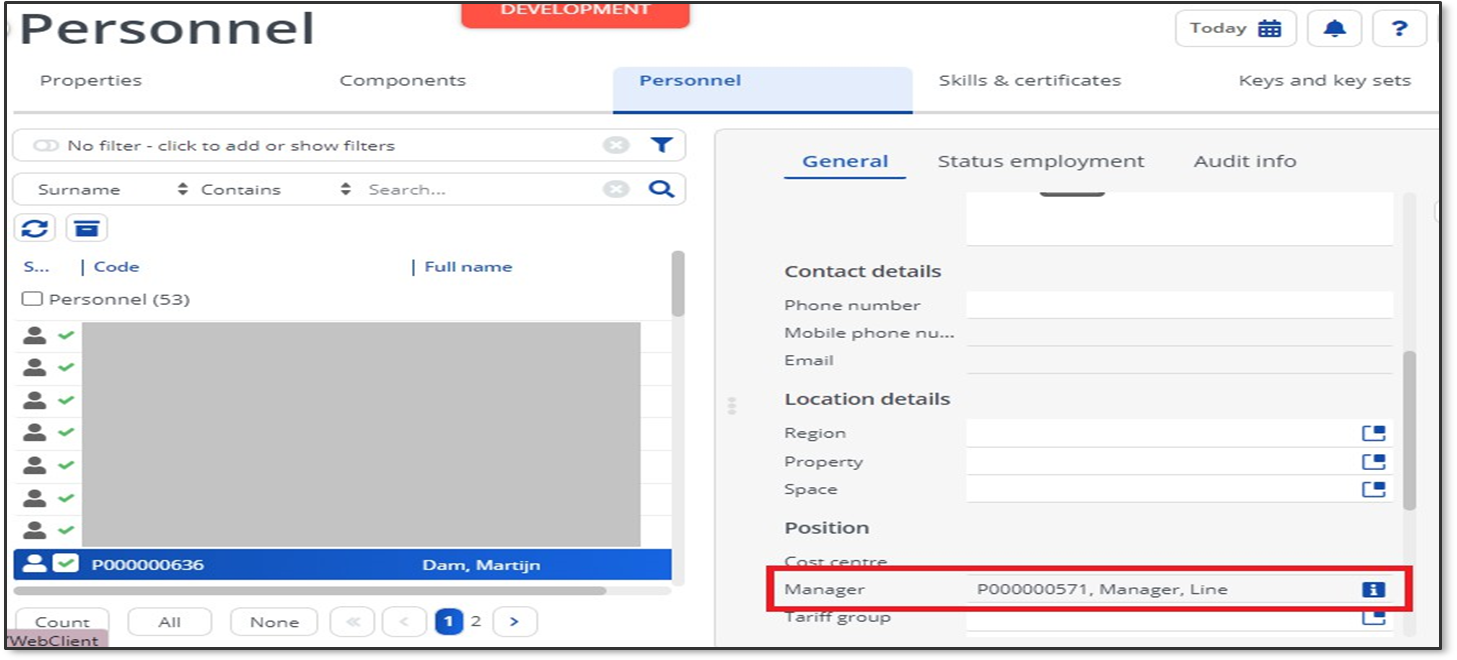
Manager registration on employee (person)
To indicate which person is responsible for approving payroll records, a new field has become available on the employee record. In the field ‘manager’ of the employee record is registered who is responsible for reviewing Payroll records. When a payroll record is created the approver will be assigned to this person by default.
Installation
This chapter describes the steps required to install this app on your Planon environment.
Installation Process
There are two ways to install the app:
- Using the Marketplace
- Manual installation
Install the app by using the marketplace
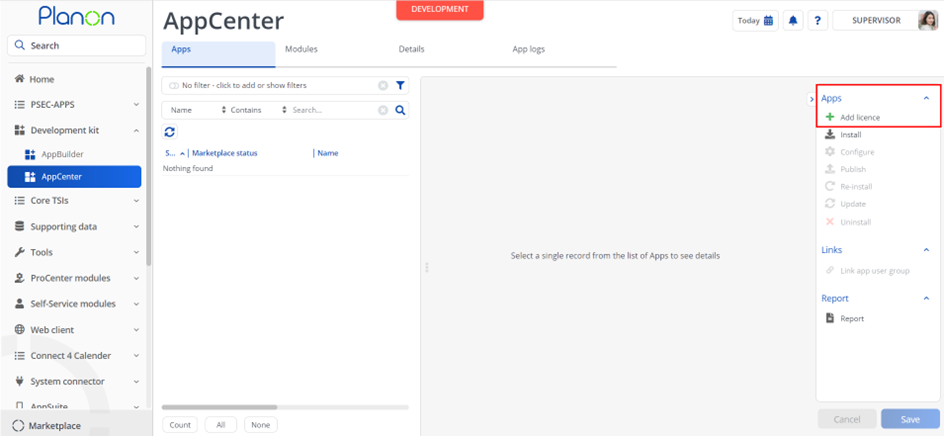
In case your environment is configured to use the Planon app store the only thing required to install the app is to add the app license in the AppCenter TSI. Planon will automatically download and install the app.
Manual installation
In case you want to perform a manual installation follow the steps below.
- Open AppCenter TSI from Planon webclient and click on install from action menu
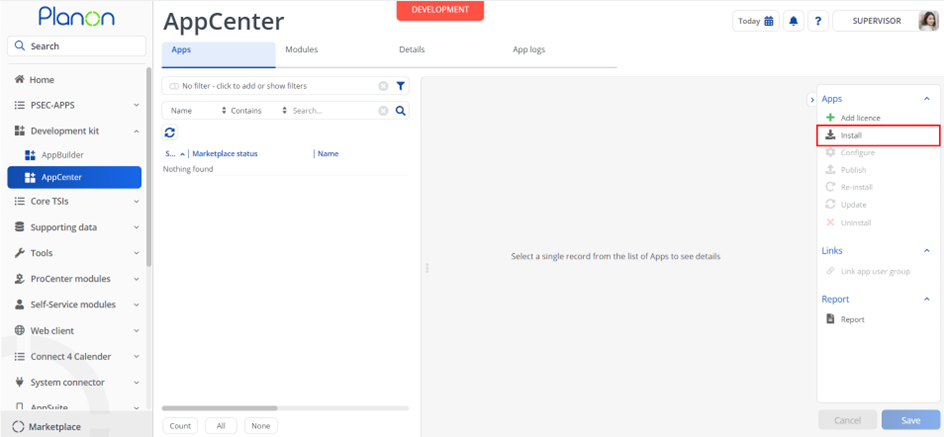
- Browse to the .ppk file
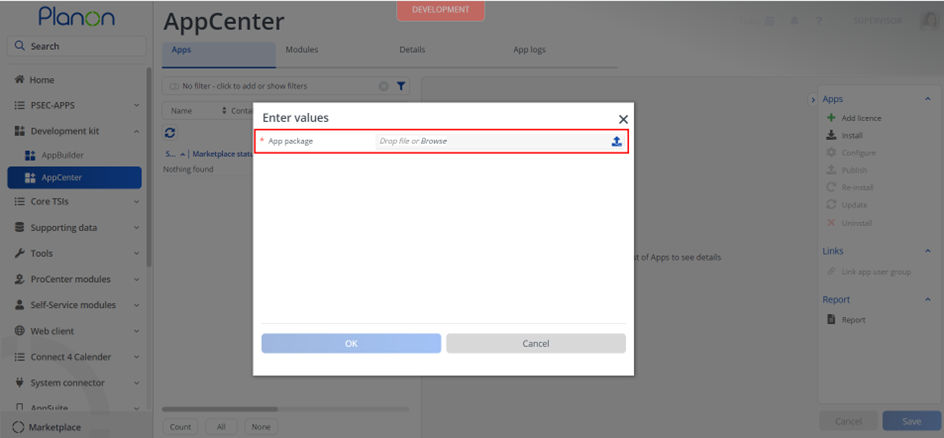
- Click OK to install the app and follow the installation process
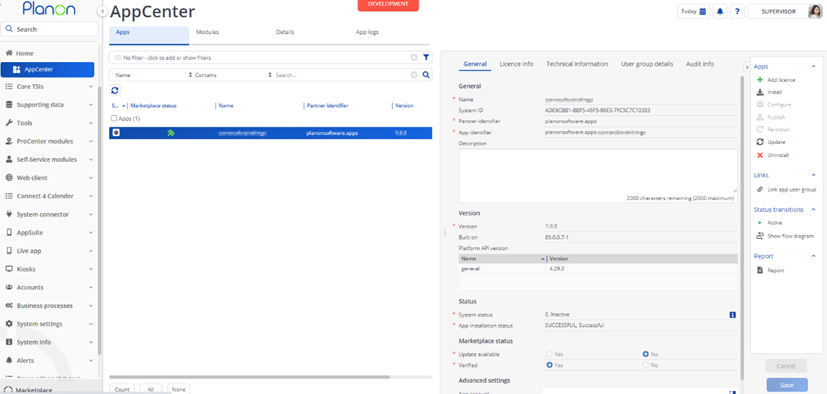
- When the app is successfully installed, the app will appear in the AppCenter
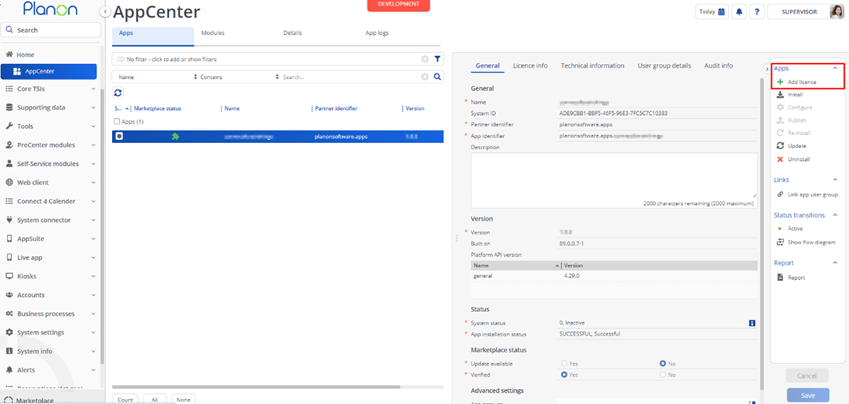
- Add the app license in Apps TSI
Activation
Once the app has been configured, you can activate the app by pressing the Active status transition from the action panel. Always make sure that the required User groups are linked correctly and the Configure action is executed before activating the App.
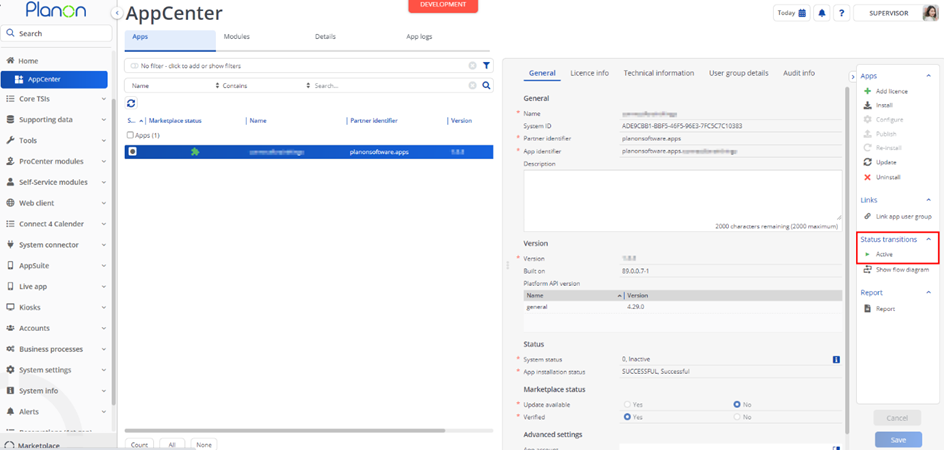
App Level Configuration
Add module settings
- Provide the module settings which are available in the Module Settings section. Here is an example:
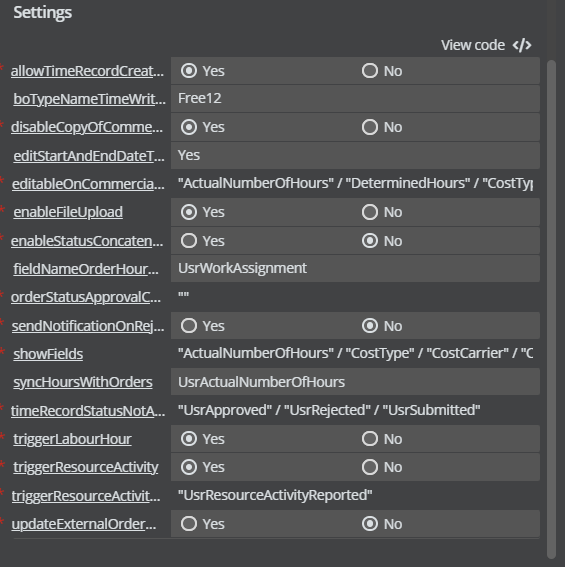
- Click the Save button after populating the module settings values.
Module Setting details
| Parameter | Example Value | Description |
|---|---|---|
| allowTimeRecordCreationInPast | Yes | ‘Yes’ if you want to allow creation of time records in the past from resource activities, else ‘No’ |
| boTypeNameTimeWriting | Free20 | System name of the FreeBO used for TimeWriting BO |
| disableCopyOfCommercialTime | No | Set this to Yes to disable the copy of commerical time records in the mobile app |
| editStartAndEndDateTime | Yes | This is to define whether the start date and end date fields are editable on the time records. CT – Editable only on Commerical time records IT – Ediatble only on Internal Time records Yes – Editable on all types No – Not editable on any type |
| editableOnCommercialTime | “ActualNumberOfHours", “DeterminedHours”, “Trade,“Worktype”,“Description”,“TimeCode” | This is to define the fields that are editable on the Commercial time record. Supported fields : ActualNumeberOfHours, DeterminedHours, Trade, Worktype, Description, TimeCode |
| editableOnInternalTime | “ActualNumberOfHours” | This is to define the fields that are editable on the Commercial time record. Supported fields : ActualNumberOfHours |
| enableStatusConcatenationToDescription | Yes | Status of ResourceActivity to be concatenated on Update/Insert of a RA? |
| enableFileUpload | No | This setting enables the system to support upload of file on the time record BO. |
| fieldNameOrderHourWorkAssignment | UsrWorkAssignment | (User-defined) system name of the field referring to the work assignment on the order hours BO |
| orderStatusApprovalCheckStatuses | TBD | Order Status To Be Checked |
| sendNotificationOnRejection | No | Send a notification to the Planon app when a TimeRecord is rejected |
| showFields | ActualNumberOfHours”, “CostType”,“CostCarrier | List of fields that are to be displayed on the time record in the mobile app Supported fields: CostCarrier, CostType, ActualNumberOfHours, DeterminedHours, Customer, Property |
| syncHoursWithOrders | UsrActualNumberOfHours | User defined system name of the actual number of hours field on the Time Record BO Possible values: UsrActualNumberOfHours UsrDeterminedNumberOfHours No ! Also setup business rule form paragraph 6.5.2. and 6.5.4 when enabled |
| timeRecordStatusNotAllowedToUpdate | “UsrApproved” / “UsrRejected” | Mention the statuses for which the TimeRecord shouldn’t be allowed to update |
| triggerLabourHour | Yes | Set this to Yes if the app needs to sync Labour Hours from workassignments to time records |
| triggerResourceActivity | Yes | Set this to Yes if the app needs to sync Resource Activities to Time records |
| triggerResourceActivityStatus | UsrResourceActivityReported | Mention the Resource Activity statuses for which the related TimeRecord should be allowed to be created. Make sure this is set always set |
| updateExternalOrderNumber | No | Set this to Yes to update the External Order number from Order to the Time records ! Also setup business rule from paragraph 6.5.3 when enabled. |
| onlyTimeRecords | [UsrInternalTimeRecord,UsrCommercialTimeRecord,UsrResActTimeRecord ] | The system name for time record types |
| allowOverlapping | Yes | Allows overlapping of time records. |
| statusedToIgnoreForOverlapRecords | [UsrRejected] | the status check to be ignored for overlapping records |
| additionalLabourHoursFieldMapping | Additional Field Mapping for Labour Hours, FieldLabourHours1:FieldTimeRegistration1,FieldLabourHours2:FieldTimeRegistration2 Here ValuePresent in FieldLabourHours1 is copied to FieldTimeRegistration1( i.e sourceField-from labourhour to target Field- from timeentry BO) | |
| additionalResourceActivitiesfieldMapping | Additional Field Mapping for Resource Activites,FieldResourceActivites2:FieldTimeRegistration1,FieldResourceActivites2:FieldTimeRegistration2 Here ValuePresent in FieldResourceActivites1 is copied to FieldTimeRegistration1( i.e sourceField-from resourceactivity to target Field- from timeentry BO) | |
| disableSubmitOnTimeEntryForm | No | Set this setting to Yes to disable the Submit option on individual time entry meaning users can submit only for whole day or whole week. Set to No to be able to submit each time entry |
| disableCopyOfInternalRecord | No | Set this to Yes to disable the copy of internal records in the mobile app |
Note:
By default the time registration module gives the user the option to register different time values on labour hours (workorder records) and commercial time records. The workorder value (determined no of hours) is always kept in sync on the commercial time record as well as information for the user.
The setting syncHoursWithOrders allows you to sync back data to a linked labour hour record of a commercial time record, when desired. (Correction mode for labour hours). The hours are synced back to the labour hour record of the workorder when the status of the time record reaches the state of ‘approved’. You can choose to sync the determined number of hours field when you choose to keep payroll and commercial hour values separated. If you sync back the actual number of hours payroll and commercial time is always equal to each other.
With this setting activated it is recommended to block the status transition of the workorder to a admin completed status before all linked time records are approved. To enable this set the business rule in the field definer.
Translations
Error messages, field lables on the time record on mobile device are translatable. The translations for each language can be provided under the Translations selection step of the Details level of the App in APP Centre TSI
Planon Configuration post installation of App
Please follow the sections in this order from top to bottom.
PMFS (Live) – App configuration TSI
Go to the PMFS (Live) – App configuration TSI
Select the TimeRegistrationMobileModule
Add the PSS definition ‘Time Record’
Fill in a appropriate navigation name (in several languages), code, description and icon. These will be visible in the mobile app
Fill in a sequence to indicate the position of Planon Mobile Time Registration in the Planon app.
Business Rules – till version 1.x.x
Push Notification Configuration
This Buiness Rule sends notification to the Mobile device when the Time Record is moved to the configured status
Go to TSI Field Definer
Select the BO configured for Time records
Set the BO to Under Construction
Go to Details selection level and Extension Selection step.
Click on Add extension
Select the extension PushNotificationStatusChange
Select the event Before Update
Provide any sequence
Go to settings tab and provide below settings
| Parameter | Value | Description |
|---|---|---|
| fieldDate | FreeDateTime10 | System name of the Date Time field on the Time record |
| fieldPerson | FreeString20 | System name of the Person field on the Time record |
| status | UsrRejected | Status for which notifications to be received |
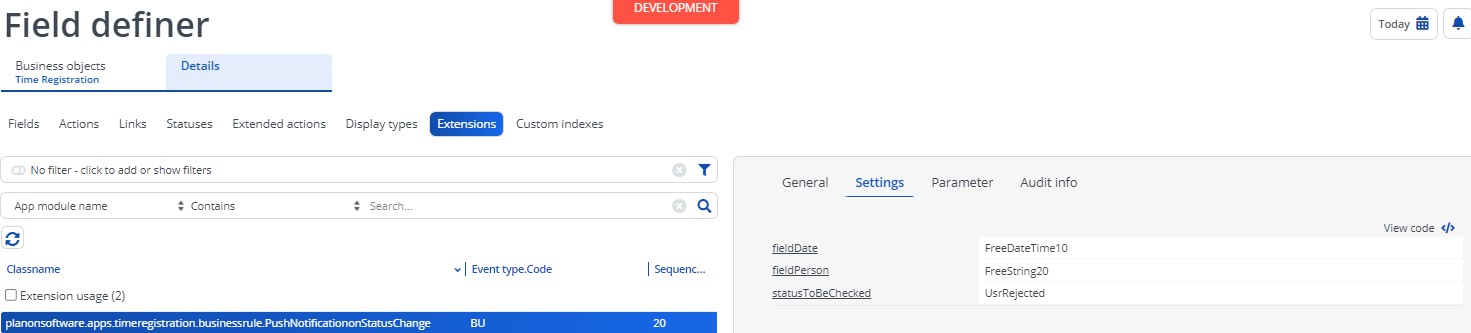 |
- Save the changes
- Go back to Business Objects level and set the BO back to completed state.
SyncHoursBusinessRule
This business rules syncs data from Time records to the corresponding Labour Hour records when the Time records are approved.
Go to TSI Field Definer
Select the BO configured for Time records
Set the BO to Under Construction
Select the BO with system name UsrCommercialTimeRecord
Go to Details selection level and Extension Selection step.
Click on Add extension
Select the extension SyncHoursBusinessRule
Select the event Before Update
Provide any sequence
Save the changes
Go back to Business Objects level and set the BO back to completed state.
SyncOrderDataBusinessRule
This business rule syncs the data like External Order Number and Trade from the Order to the Time records of the order.
Go to the TSI Field Definer
Select the BO BaseOrder
Set the BO to Under Construction
Select the UDBO
Go to Details selection level and Extension selection step
Click on Add extension
Select the extension SyncOrderDataBusinessRule
Select the event BU
Provide required sequence
Save the changes
Go back to BO level and set the BO to completed state
BlockOrderStatusTransition
This business rule blocks the status change on the order when there are time records for the order that are not in the conifgured statuses.
Go to TSI Field Definer
Select the BO configured BaseOrder
Set the BO to Under Construction
Select the UDBO
Go to Details selection level and Extension Selection step.
Click on Add extension
Select the extension BlockOrderStatusTransition
Select the event Before Update
Provide any sequence
Go to settings tab and provide below settings
| Parameter | Example Value | Description |
|---|---|---|
| orderStatusToBeChecked | UsrWorkOrderTechnicallCompleted,UsrWorkOrderAdministrativelyCompleted | System name of the status each separated by comma |
| timeRecordStatusToBeChecked | UsrSubmitted | System name of the status of Time Record |
- Save the changes
- Go back to Business Objects level and set the BO back to completed state.
Business Rule since version 2.x.x.
TimeRecordRejectionNotificationRule
This business rule sends notification to the Technician whenever the time record is rejected provided the notifications are enabled via the setting sendNotificationOnRejection in the app centre.
Go to TSI Field Definer
Select the BO configured for Time records
Set the BO to Under Construction
Select the UDBO required and add extension as shown in below table under the Extensions selection step
| Business Objects | Business Rules | Event Type | Sequence |
|---|---|---|---|
| UsrAdditionalCostElements | TimeRecordRejectionNotificationRule | BU | Any sequence |
| UsrCommercialAddCostElements | TimeRecordRejectionNotificationRule | BU | Any sequence |
| UsrCommercialTimeRecord | TimeRecordRejectionNotificationRule | BU | Any sequence |
| UsrInternalTimeRecord | TimeRecordRejectionNotificationRule | BU | Any sequence |
| UsrResActTimeRecord | TimeRecordRejectionNotificationRule | BU | Any sequence |
- Go back to Business Objects level and set the BO back to completed state.
SyncApprovedTimeRecordToOrderComponentsRule
This business is needed to sync the time record to Order Hour or Resource activity when the record is approved.
Go to TSI Field Definer
Select the BO configured as Time Record BO
Set the BO to Under Construction
Select the UDBO and add extensions as shown in below table
| Business Objects | Business Rules | Event Type | Sequence |
|---|---|---|---|
| UsrCommercialTimeRecord | SyncApprovedTimeRecordToOrderComponentsRule | AU | 15 |
| UsrResActTimeRecord | SyncApprovedTimeRecordToOrderComponentsRule | AU | 15 |
Once the extensions are configured, set the BO back to completed state.
Now make sure the setting syncHoursWithOrders from App Centre is filled such that value from this field is sycned with hours on the Labour Hour BO.
SyncOrderFieldsToCommercialTimeRecordsRule
This rule synchronizes the data between Order and its commerical time records
This business rule is already pre-configured when updating to the app of version 2.x.x by replacing the rule SyncOrderDataBusinessRule which needs to be removed from the field definer.
BlockOrderStatusTransitionRule
This rule blocks the status change of the order if there are any time records that are not approved.
The statuses of order is configurable through the setting approvalTriggerStatuses in the App Centre.
This business rule is already pre-configured when updating to the app of version 2.x.x by replacing the rule BlockOrderStatusTransition which needs to be removed from the field definer
UpdateActualHoursFromDeterminedHoursRule
This rule updates the Actual Number of Hours field with the Determined Number of Hours field on the Time record when the time record is set to status “Submitted” or “Approved”. This rule will never override Actual Number of Hours field, it will only populate it if it is still empty.
Go to TSI Field Definer
Select the BO configured as Time Record BO
Set the BO to Under Construction
Select the UDBO and add extensions as shown in below table
| Business Objects | Business Rules | Event Type | Sequence |
|---|---|---|---|
| UsrResActTimeRecord | UpdateActualHoursFromDeterminedHoursRule | BI | 15 |
| UsrResActTimeRecord | UpdateActualHoursFromDeterminedHoursRule | BU | 15 |
| UsrCommercialTimeRecord | UpdateActualHoursFromDeterminedHoursRule | BI | 15 |
| UsrCommercialTimeRecord | UpdateActualHoursFromDeterminedHoursRule | BU | 15 |
| UsrInternalTimeRecord | UpdateActualHoursFromDeterminedHoursRule | BI | 15 |
| UsrInternalTimeRecord | UpdateActualHoursFromDeterminedHoursRule | BU | 15 |
- Once the extensions are configured, set the BO back to completed state
TimeEntryAutoUpdateRule
To have the data related to Technician and Special Tariff lines to be updated on the time record, this rules needs to be configured on the Time Record BO.
So whenever a time record is created or technician is changed, the approver field of the Time Record is update with Manager of the Technician.
And whenever a time record is created or Special Tariff line is changed, the fields Unit of Measure, Fixed Amount of Hours and Fixed Amount of the tariff line are carried to the fields Unite Of Measure, Actual Number of Hours and Amount on the time record respectively.
Go to TSI Field Definer
Select the BO configured as Time Record BO
Set the BO to Under Construction
Select the UDBO and add extensions as shown in below table
| Business Objects | Business Rules | Event Type | Sequence |
|---|---|---|---|
| UsrAdditionalCostElements | TimeEntryAutoUpdateRule | BU | 20 |
| UsrAdditionalCostElements | TimeEntryAutoUpdateRule | BI | 15 |
| UsrCommercialAddCostElements | TimeEntryAutoUpdateRule | BI | 20 |
| UsrCommercialAddCostElements | TimeEntryAutoUpdateRule | BU | 25 |
| UsrCommercialTimeRecord | TimeEntryAutoUpdateRule | BI | 25 |
| UsrCommercialTimeRecord | TimeEntryAutoUpdateRule | BU | 30 |
| UsrInternalTimeRecord | TimeEntryAutoUpdateRule | BI | 30 |
| UsrInternalTimeRecord | TimeEntryAutoUpdateRule | BU | 35 |
| UsrResActTimeRecord | TimeEntryAutoUpdateRule | BI | 25 |
| UsrResActTimeRecord | TimeEntryAutoUpdateRule | BU | 30 |
- Once the extensions are configured, set the BO back to completed state
CalculateNumberOfHours
This rule makes sure the hours field on the time records are always updated based on the Start date and end date fields during the creation of time records. Also the Date field is updated whenever the Start date field is updated on the time record. The purpose of this business rule is to mainly handle the updates done in the Web client.
Go to TSI Field Definer
Select the BO configured as Time Record BO
Set the BO to Under Construction
Select the UDBO and add extensions as shown in below table
| Business Objects | Business Rules | Event Type | Sequence |
|---|---|---|---|
| UsrCommercialTimeRecord | CalculateNumberOfHours | BI | 10 |
| UsrCommercialTimeRecord | CalculateNumberOfHours | BU | 10 |
| UsrInternalTimeRecord | CalculateNumberOfHours | BI | 10 |
| UsrInternalTimeRecord | CalculateNumberOfHours | BU | 10 |
| UsrResActTimeRecord | CalculateNumberOfHours | BI | 10 |
| UsrResActTimeRecord | CalculateNumberOfHours | BU | 10 |
- Once the extensions are configured, set the BO back to completed state
SplitTimeRecordOnMidnight
This rule makes sure the hours field on the time records are always updated based on the Start date and end date fields during the creation of time records. Also the Date field is updated whenever the Start date field is updated on the time record. The purpose of this business rule is to mainly handle the updates done in the Web client.
Go to TSI Field Definer
Select the BO configured as Time Record BO
Set the BO to Under Construction
Select the UDBO and add extensions as shown in below table
| Business Objects | Business Rules | Event Type | Sequence |
|---|---|---|---|
| Time registration root BO | SplitTimeRecordOnMidniht | BI | 100 |
| Time registration root BO | SplitTimeRecordOnMidniht | BU | 100 |
- Once the extensions are configured, set the BO back to completed state
CompareBudgetAndActualHours
If total budgeted hours AND total actual hours have a value AND (total budgeted hours OR total actual hours is changed): Set total deviation to total budgeted hours MINUS total actual hours.
Go to TSI Field Definer
Select the BO configured as Time Record BO
Set the BO to Under Construction
Select the UDBO and add extensions as shown in below table
| Business Objects | Business Rules | Event Type | Sequence |
|---|---|---|---|
| UsrCommercialTimeRecord | CompareBudgetAndActualHours | BI | 45 |
| UsrCommercialTimeRecord | CompareBudgetAndActualHours | BU | 45 |
- Once the extensions are configured, set the BO back to completed state
OverlappingOfTimeRecords
This business rule checks whether the time record overlaps with another time record for the same person. If so, it will mark both records with overlap = yes. This business rule is also responsible for marking records with overlap = no when the overlap is resolved.
Go to TSI Field Definer
Select the BO configured as Time Record BO
Set the BO to Under Construction
Select the UDBO and add extensions as shown in below table
| Business Objects | Business Rules | Event Type | Sequence |
|---|---|---|---|
| UsrCommercialTimeRecord | OverlappingOfTimeRecords | BI | 50 |
| UsrCommercialTimeRecord | OverlappingOfTimeRecords | BU | 50 |
| UsrInternalTimeRecord | OverlappingOfTimeRecords | BI | 50 |
| UsrInternalTimeRecord | OverlappingOfTimeRecords | BU | 50 |
| UsrResActTimeRecord | OverlappingOfTimeRecords | BI | 50 |
| UsrResActTimeRecord | OverlappingOfTimeRecords | BU | 50 |
- Once the extensions are configured, set the BO back to completed state
TotalHoursAggregator
When the field “Actual hours” is updated, it will gather all time records for the work assignment of this time record. It will then calculate the total of all actual hours and store this value on all of the corresponding time records.
Go to TSI Field Definer
Select the BO configured as Time Record BO
Set the BO to Under Construction
Select the UDBO and add extensions as shown in below table
| Business Objects | Business Rules | Event Type | Sequence |
|---|---|---|---|
| UsrCommercialTimeRecord | TotalHoursAggregator | BI | 40 |
| UsrCommercialTimeRecord | TotalHoursAggregator | BU | 40 |
- Once the extensions are configured, set the BO back to completed state
UpdateTotalHoursOnDelete
This business rule is closely linked to the TotalHoursAggregator rule. This rule will recalculate the total actual hours on the related records when a time records is deleted.
Go to TSI Field Definer
Select the BO configured as Time Record BO
Set the BO to Under Construction
Select the UDBO and add extensions as shown in below table
| Business Objects | Business Rules | Event Type | Sequence |
|---|---|---|---|
| UsrCommercialTimeRecord | UpdateTotalHoursOnDelete | BD | 40 |
- Once the extensions are configured, set the BO back to completed state
PreventApprovalOfOverlappingRecords
When overlapping of records are not allowed, this rule blocks the user from “UsrApproved”. And a error message is shown in the Tsi.
Go to TSI Field Definer
Select the BO configured as Time Record BO
Set the BO to Under Construction
Select the UDBO and add extensions as shown in below table
| Business Objects | Business Rules | Event Type | Sequence |
|---|---|---|---|
| Time registration root BO | PreventApprovalOfOverlappingRecords | BU | 105 |
HandleOverlapFlag
When Time records are updated or deleted or inserted the time records are checked for overlapping, the corresponding overlap field is updated.
Go to TSI Field Definer
Select the BO configured as Time Record BO
Set the BO to Under Construction
Select the UDBO and add extensions as shown in below table
| Business Objects | Business Rules | Event Type | Sequence |
|---|---|---|---|
| Time registration root BO | HandleOverlapFlag | BU | 110 |
Troubleshooting
Error handling
- Errors are recorded in the server logs:
- Tomcat log for web components
- Webpages
- PSS modules
- Stepview
- TSI Action
- JAX-RS webservices
- Wildfly log for server-side components
- Business rules
- Scheduled tasks
- Workers
- Event Connector
- Tomcat log for web components
- UI components (TSI Actions) also display errors in the interface