Extension for Webhook
Introduction
This document outlines the functionality of the ‘Extension for Webhook’ app.
The Extension for Webhook app is used to send outbound messages from Planon to external systems when specific events occur. Its primary purpose is to notify an external system when a Business Object in Planon is created or updated.
The app is configured through a Business Rule on a Business Object. When the rule is triggered (for example on insert or update), a webhook message is sent via the Event Connector to a configured external endpoint.
The webhook message can include standard information such as the message ID, event type, and resource URL, as well as Business Object data like syscode, code, and insert or modification date. It is also possible to include additional fields depending on the configuration.
Prerequisites
Environment
This app is designed to work with Planon Live L129 and above.
Required (free) fields
- N/A
Features
This chapter describes the features of the Extension for Webhook app.
Send outbound webhook message on insert or update
This app makes it easy to a message to an external system when something happens in Planon. The goal is to notify the external system of an insert or change event in Planon. You simply configure a business rule on a Business Object to decide when the message should be sent; when a record is created or updated. When the rule is triggered, the app sends out a webhook message using the Event Connector.
The webhook message can include data such as the message ID, event type, resource URL, and business object information, including syscode, code, insert- or modification date and additional business object fields.
Example webhook messages
Simple message
This is an example of a default webhook message.
{
	"MessageID": "61f379e0-d8b2-45a7-b86d-dd930e6bbeb6",
	"EventType": "AFTERDBUPDATE",
	"BusinessObject": {
		"Syscode": 908,
		"OrderNumber": "519.00",
		"Type": "UsrPurchaseOrder",
		"ModificationDateTime": "2026-07-28 09:20"
	}
}
Detailed message
This example shows a detailed webhook message that includes selected field values and a generated resource URL. The resource URL can be used to retrieve additional business object information, for example by using the Planon REST API.
{
	"MessageID": "bac8526c-a2d0-4ae0-9d50-3e67f5286dc0",
	"EventType": "AFTERDBUPDATE",
	"ResourceUrl": "https://planonapi.nl/Orders/908",
	"BusinessObject": {
		"Syscode": 908,
		"OrderNumber": "519.00",
		"Type": "UsrPurchaseOrder",
		"ModificationDateTime": "2026-07-28 09:16",
		"PropertyRef.Code": "14",
		"Description": "Vendor selection for Heating pumps",
		"RefBOStateUserDefined.PnName": "UsrPurchaseOrderCancelled"
	}
}
How does it work?
This chapter contains the functional and technical description of the feature.
Send outbound webhook message on insert or update
The Webhook app is designed to simplify outbound integrations from Planon by allowing Planon to notify an external system when relevant events occur.
Instead of requiring external systems to poll Planon for changes, the Webhook app enables a push-based integration. When a configured event takes place on a specific Business Object, such as the creation or update of a record, a webhook message is automatically sent to a configured external endpoint.
This can, for example, work in combination with the (generic) Planon REST API. When a webhook message is sent to an external system to notify it that a new business object has been created in Planon, the external system can subsequently call the Planon REST API endpoint to retrieve the complete business object. The resource URL can be included in the webhook message so that the external system knows exactly where to retrieve the full object.
The triggering of the webhook is controlled through a Business Rule, which can be configured on the desired Business Object. This makes it possible to:
- Select which Business Object triggers the webhook
- Define when the webhook is sent, for example, after create or update.
- Control under which conditions the outbound message is triggered, for example only only when a specific field is changed.
The actual sending of the webhook message is handled by the Planon Event Connector framework, which provides a traceable mechanism for outbound communication. This ensures that outbound messages are processed in a controlled way and can be monitored within Planon.
Technical details
The app uses standard Planon components:
Business Rule
- Triggers the outbound webhook
Event Connector (Outbound)
- Handles creation, transformation, and sending of messages
The overall flow is as follows:
- A change occurs on a configured Business Object in Planon.
- The configured Business Rule ‘SendWebhookMessageBR’ is triggered.
- The Business Rule creates an outbound Event Connector message.
- The Event Connector transforms the message to JSON and sends it as a webhook to the configured external endpoint.
Deployment
Once the app is installed, a Business Rule must be configured on the required Business Object.
Installation
This chapter describes the steps required to install this app on your Planon environment.
Installation Process
There are two ways to install the app:
- Using the Marketplace
- Manual installation
Install the app by using the marketplace
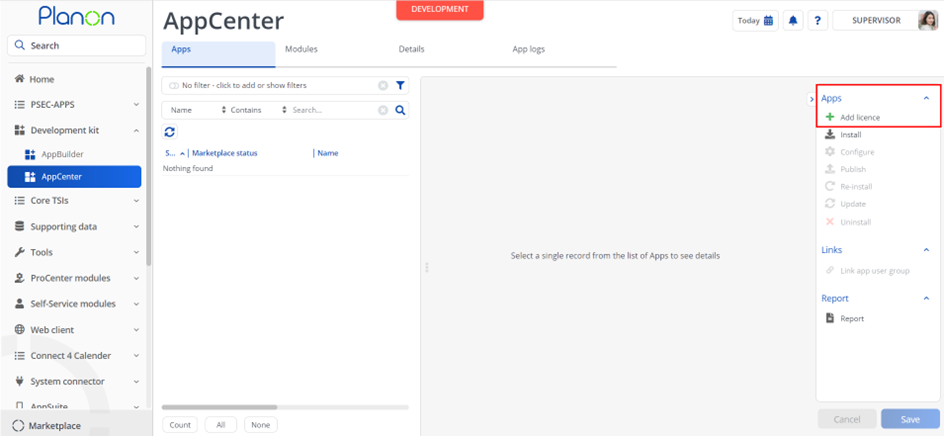
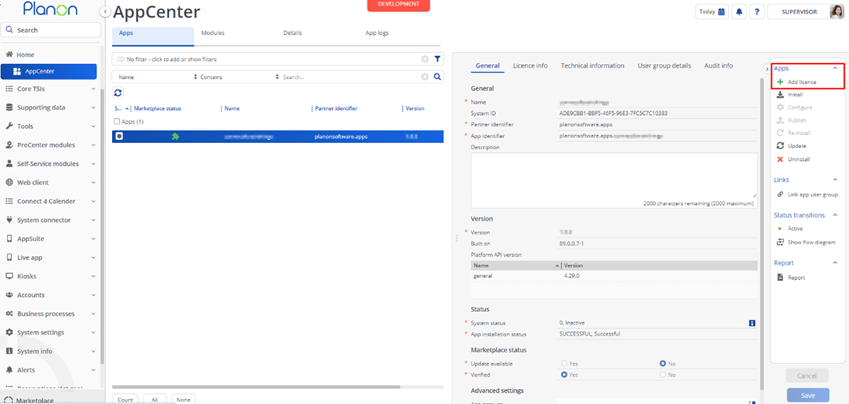
In case your environment is configured to use the Planon app store the only thing required to install the app is to add the app license in the AppCenter TSI. Planon will automatically download and install the app.
Manual installation
In case you want to perform a manual installation follow the steps below.
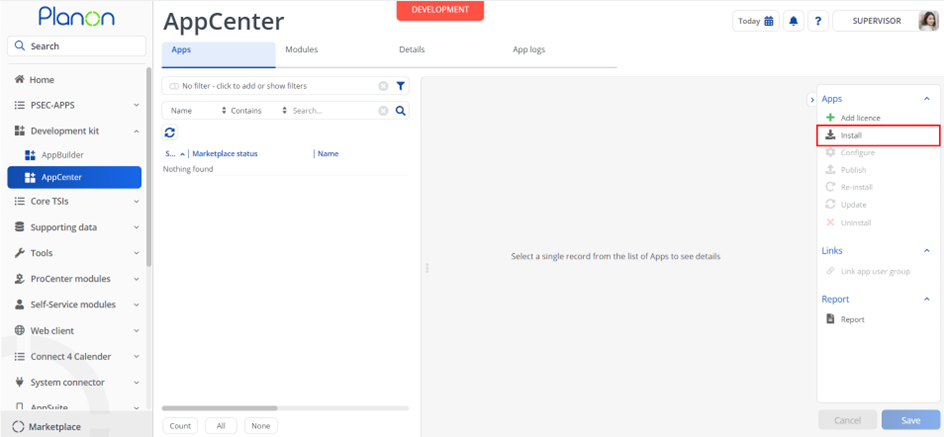
- Open AppCenter TSI from Planon webclient and click on install from action menu
- Browse to the .ppk file
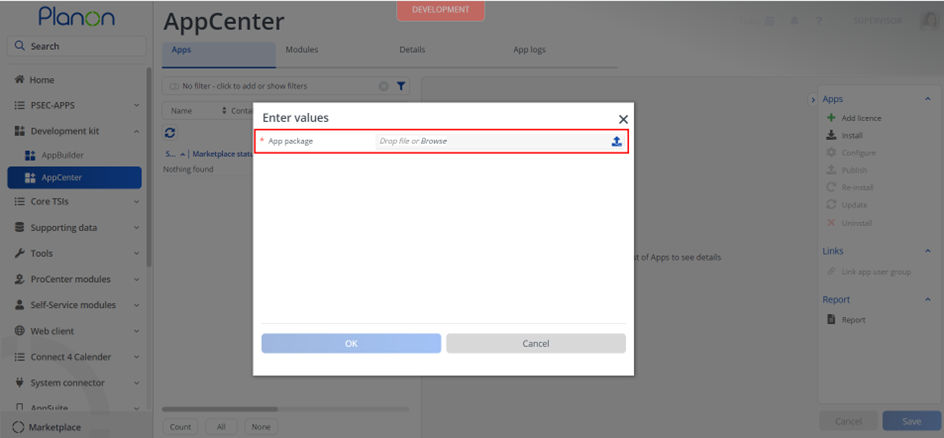
- Click OK to install the app and follow the installation process
- When the app is successfully installed, the app will appear in the AppCenter
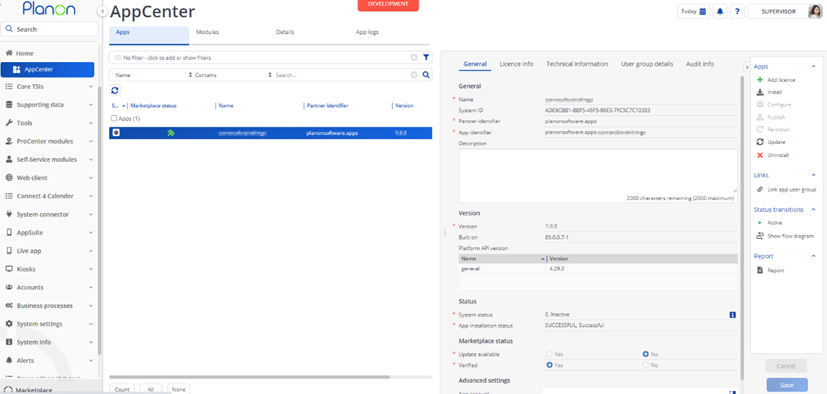
- Add the app license in Apps TSI
App settings
This chapter describes the settings that are available for this app.
| Setting | Description |
|---|---|
| encryptionKey | Secret key used to encrypt authorization data in Business Rule settings. For security, use a long, random string (16+ characters). Avoid common words or passwords. |
Activation
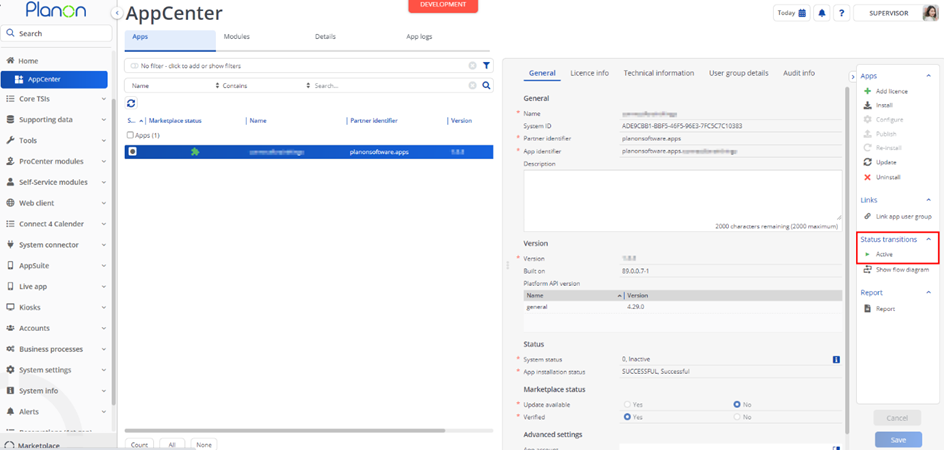
Once the app has been configured, you can activate the app by pressing the Active status transition from the action panel. Always make sure that the required User groups are linked correctly and the Configure action is executed before activating the App.
Business rule configuration
This app contains a business rule that should be configured on a business object, so that the business rule gets triggered.
- Go to the TSI Field Definer.
- Select the business object on which the webhook message should be sent (so when this business object is created or updated).
- Set the status to ‘’In construction’.
- Go to the tab ‘Extensions’ and add a new Extension.
- Select the classname ‘planonsoftware.apps.extensionforwebhook.SendWebhookMessageBR’ and select the event on which you want to message to be sent, ‘AfterDBInsert’ to notify the external system of a new business object, or ‘AfterDBUpdate’ to notify of a change.
- Fill in the settings (see next chapter).
- Save the new Extension.
- Go back to the tab ‘Business objects’ and put the status of the business object to ‘Completed’.
Business rule settings
| Setting | Description |
|---|---|
| url | Target endpoint URL. |
| httpMethod | HTTP method (e.g. POST). |
| authorizationHeaderValue | Authorization header value. This will be added in the outbound request in the HTTP header ‘Authorization’. |
| httpHeaders | List of HTTP headers to include in the outbound message, in the following format: ‘headerKey=headerValue’. |
| receivingSystem | The EventConnector ‘To’ value. Name of the receiving system. |
| triggerWhenFieldIsChanged | System names of BO field(s), when one of these fields is changed the webhook message will be sent. Multiple fields possible. Leave empty if the message should be sent on every change. |
| includeFieldsInMessage | System names of the BO fields that should be included in the webhook message, together with their (new) values. It is possible to get a String value of a referenced BO, by giving the template: ‘ReferenceField.StringField’, for example ‘RefBOStateUserDefined.PnName’. |
| includeResourceUrlInMessage | Optional URL to include in the webhook message. You can use Planon fieldname placeholders in { } to compose a URL (e.g. https://api.example.com/orders/{Syscode}), which will be replaced with actual values. Leave empty to send no URL. |
| modificationDateTimeField | ModificationDateTime field name. In case the BO on which this extension is configured, has a different systemname for the modification date field. Default value is ‘SysMutationDateTime’. |
| insertDateTimeField | InsertDateTime field name. In case the BO on which this extension is configured, has a different systemname for the insert date field. Default value is ‘InsertDateTime’. |
| boFilter | Possibility to add BO filter, so only when the triggering BO matches the filter, the webhook message will be sent. For example: ‘PropertyRef IN 14,28 AND Name NOT_CONTAINS test AND ItemGroupRef EQUAL 01.01’. |
Example settings
{
  "authorizationHeaderValue": {
    "secure": "encrypted-value"
  },
  "boFilter": "PropertyRef IN 14,28 AND Name NOT_CONTAINS test",
  "httpHeaders": [
    "Accept=application/json",
    "Content-Type=application/json"
  ],
  "httpMethod": "POST",
  "includeFieldsInMessage": [
    "RefBOStateUserDefined.PnName",
    "Comment"
  ],
  "includeResourceUrlInMessage": "https://your-instance/rest/v2/lookup/BaseOrder/{OrderNumber}",
  "insertDateTimeField": "InsertDateTime",
  "modificationDateTimeField": "SysMutationDateTime",
  "receivingSystem": "Postman",
  "triggerWhenFieldIsChanged": [
    "Description"
  ],
  "url": "https://example.com/webhook"
}
Troubleshooting
Error handling
The application logs errors and execution details in the following locations:
Server logs
- Contains technical errors and runtime issues during webhook execution
TSI Outbound Messages
- Provides an overview of outbound messages created by the Event Connector
- Shows whether messages were successfully transformed
TSI Outbound Raw Messages
- Contains the actual payload sent to the external system
- Useful for validating message content and structure
- Shows whether messages were successfully processed