Planon Extension - Feedback tool
Introduction
The Feedback Tool is designed to collect feedback for an assigned order when the order reaches a configured status. The feedback is collected in the form with five smiley options.
Environment
This app is compatible with Planon L98 and above
Constraints
- The feedback tool business rule should trigger only from the main order. If it is in main order, the application works.
- A Feedback Item UDBO is created.
- Feedback Score is stored in a Picklist-type feedback field.
- Feedback Key is stored as a String in feedback field
- An Notify once definition has been configured.
Required (free) fields
The feedback tool requires at least two free fields to be available on either the order documents or communication log BO (depending on configuration) to store the fields Feedback Score and Feedback Key and a Feedback Business Object created under Communication Logs or Order Documents. Based on further desired configuration more fields could be required.
End to End Functional Flow
Order completed in Planon
Business Rule creates Feedback Item
Notification email will be sent by alerts through Notify once definition
User opens feedback link
Feedback stored in Planon
Follow-up logic triggered based on configuration
Features
This chapter summarizes the different features supported by this app.
Collect feedback on order handling
The app collects feedback either as a communication log or order document linked to an order/request. The feedback is configurable. The most basic way is just requesting a generic score (1-5) on how a requestor would rate the handling of an order. If desired this can be extended with additional questions (for example ‘How would you rate the speed in which this request was handled’) and an additional text field that can be filled out by the provider of the feedback.
Multilanguage support
The feedback tool offers extensive configuration through which you can provide multi-language support. All the textual components can be configured in the languages desired and by passing a language parameter to the feedback tool URL, the corresponding language will be loaded.
Automatically trigger follow up based on feedback score
It is possible to mark a field on the feedback item based on a certain score threshold. For example, any feedback score below ‘3’ can be marked as an item that requires follow up. This functionality allows you to configure an alarm on such items so that a follow up can be planned to improve service.
How does it work?
This chapter describes the functioning of the app.
The feedback tool consists of a business rule and a webpage. The business rule is to generate a feedback item (Which is a configured Free BO) when an order passes a certain state (ideal is an ‘order completed’ state). Besides storing the feedback as Feedback Score, the feedback item also contains a ‘feedback key’ which is used for security purposes.
The flow can be summarized as follows:
When a request is completed in Planon, the business rule that comes with the app configured on the Request BO creates a feedback record with a feedback key either as a communication log or order document based on the configuration.
A Notify Once definition triggers an email with the template configured on it for such requests to the requestor.
The email contains the feedback score options in the form of smileys rating 1 to 5. When the requestor clicks on any smiley (that contains link to the feedback page), the score attached to the corresponding smiley will be recorded on the feedback record.
User can decide if the score has to be recorded on the request too and if a follow up is required.
The configuration of the app and the template is explained in the further chapters.
Installation
This chapter describes the steps required to install this app on your Planon environment.
Installation Process
There are two ways to install the app:
- Using the Marketplace
- Manual installation
Install the app by using the marketplace
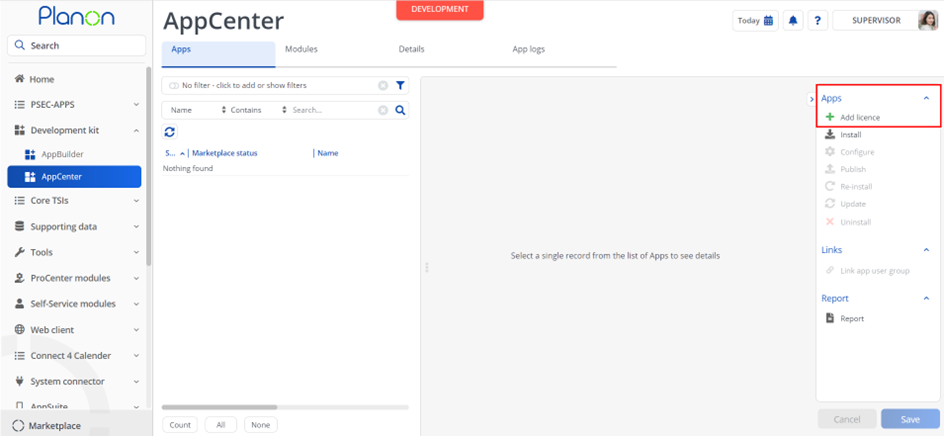
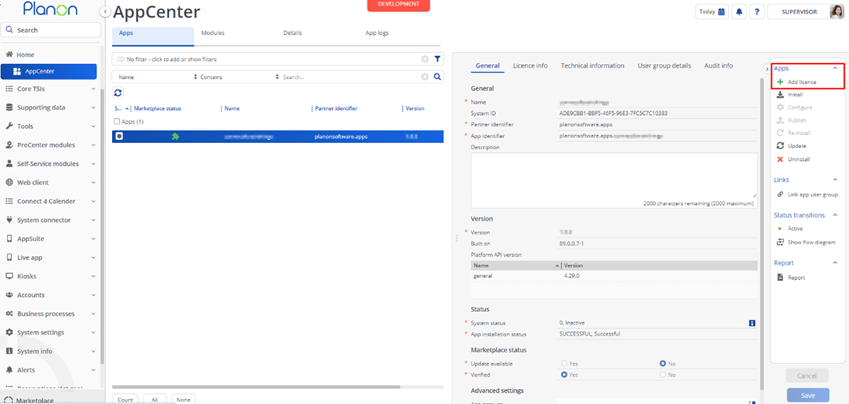
In case your environment is configured to use the Planon app store the only thing required to install the app is to add the app license in the AppCenter TSI. Planon will automatically download and install the app.
Manual installation
In case you want to perform a manual installation follow the steps below.
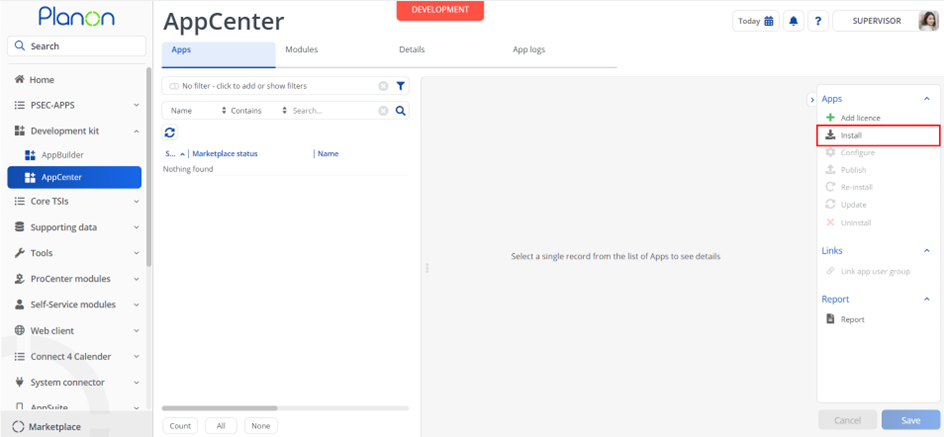
- Open AppCenter TSI from Planon webclient and click on install from action menu
- Browse to the .ppk file
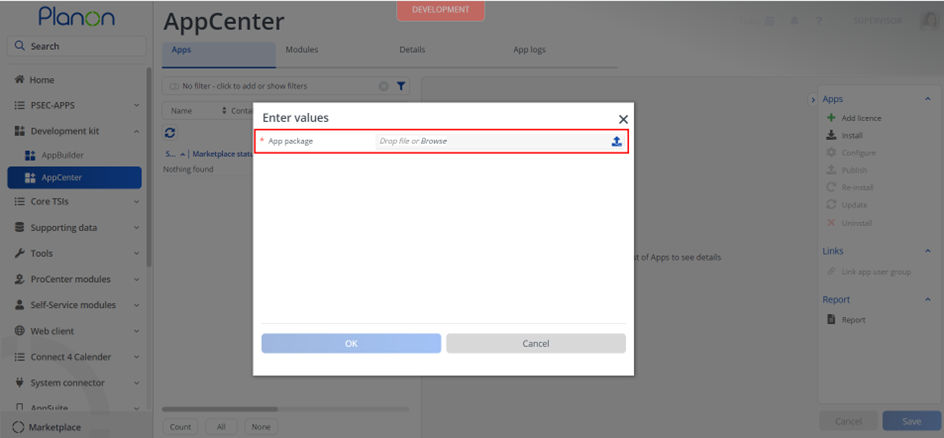
- Click OK to install the app and follow the installation process
- When the app is successfully installed, the app will appear in the AppCenter
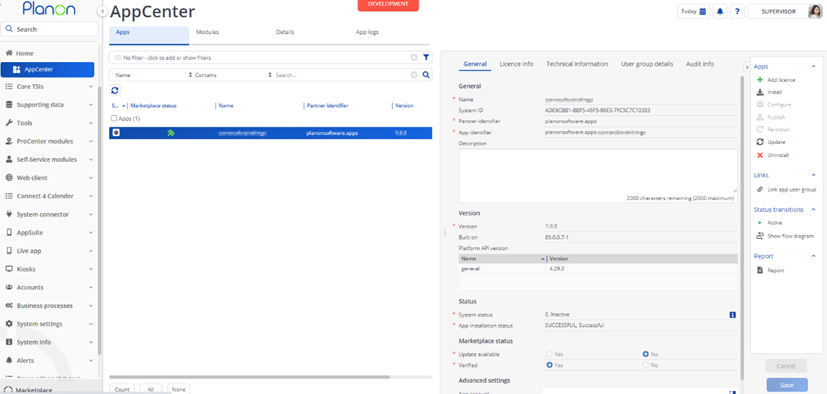
- Add the app license in Apps TSI
Feedback page settings
The settings for the feedback tool are stored in the app settings. These are the settings related to the behaviour of the feedback page. The following settings can be entered, by default all settings are mandatory.
| Setting | Explanation |
|---|---|
| additionalQuestionsFieldTarget | This setting is used to link the additional questions to the fields where the answers should be stored. Additional questions can be added in additional questions parameter in translations tab from appcenter TSI. Eg format: 1:This is an additional question;2:This is another additional question If only one additional question then mention FreeString3.1 or if two then FreeString3.1;FreeString9.1 In above case you have to take one more freestring for the second question feedback These additional questions feedback will be in the form of smileys Example: “additionalQuestionsFieldTarget” : “FreeString3.1” |
| allowFeedbackUpdate | This setting is used to control if a user is allowed to update already provided feedback. When set to true the feedback link can be used multiple times to update the feedback. When set to false feedback can only be provided once. |
| askAdditionalQuestions | This parameter indicates if additional questions should be asked (true/false). |
| autoSaveFeedback | When set to true the feedback will directly be saved when a user opens the feedback page. When set to false the user has to press the submit button to save. |
| feedbackCommentField | This parameter contains the system name of the field on the feedback item udbo that is going to contain the additional question textual feedback. |
| feedbackField | This is to configure the system name of the feedback score field on the feedback item udbo. |
| feedbackFieldOnOrder | This is to configure the system name of the feedback field on the Order BO. Leave empty to not store the feedback on the order. |
| feedbackFollowUpField | Provide the system name of the field used to store whether follow up is required. This can be used to for example send an alert in case bad feedback is received. Leave empty to ignore. |
| feedbackKeyField | This is to configure the system name of the feedback key field on the feedback item udbo. |
| followupRequiredValue | The value to set in the feedbackFollowUpField in case follow up is required. Example: “followupRequiredValue” : “Y” |
| followupScoreThreshold | Set the score threshold for which follow up is required. 0 to disable. In the example all scores 4 and below will required follow up. Example: “followupScoreThreshold” : 4 |
| logoutAutomatically | Set to Yes to to automatically logout after providing feedback. Set to No to not logout after providing the feedback |
| logoutWithinDurationInSeconds | This parameter will decide the time for automatically logout and redirect. Example: “logoutWithinDurationInSeconds” : 10 |
| noFollowupRequiredValue | The value to set in the feedbackFollowUpField in case no follow up is required. Example: “noFollowupRequiredValue” : “N” |
| processArchivedOrders | Set to Yes to provide feedback for the requests/orders that are archived. Setting to Yes will dearchive the order, feedback item, then updates the feedback and archives them back. Set to No to not process archived orders |
| redirectURL | Once the feedback is submitted, the page will be redirected to the configured URLExample: “redirectURL” : “https://www.planonsoftware.com” |
| storeDateTimeOnFeedbackScore | When set to Yes a datetime stamp will be saved on a configured field. This date time stamp will be set on the moment a feedback item receives a score. |
| storeDateTimeFieldOnFeedbackScore | This parameter is used to set a target field to store datetime moment when a feedback item receives a score. |
| storeFeedbackAsOrderDocument | Set to Yes to store feedback on Order documents. Set to No to store documents on the communication logs. |
| highestScoreNumberIsBestScore | Use this setting to control how the feedback score is interpreted. When set to ‘yes’, the score 1 is very bad, 5 is very good. When set to ’no’, the score 1 is very good, 5 is very bad |
| commentRequiredThreshold | Set the threshold for which providing a comment is required. 0 to disable. In the example all scores 4 and below will required follow up. Example: “commentRequiredThreshold” : 4 |
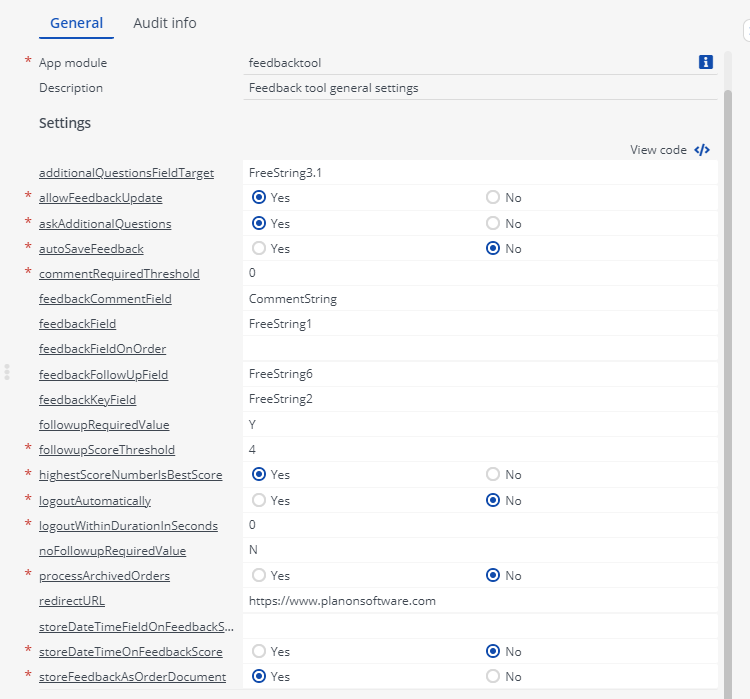
Example settings
The following settings example should give you an example of how the app can be configured.
Translations
All the text that is visible on the feedback page can be translated. By default only an English translation is provided. To configure your own translations navigate to the ‘Translations’ section on the ‘Details’ navigation level in the AppCentre.
| Translation Key | Explanation |
|---|---|
| additionalFeedbackRemark | The explanation above the text field which can be used to provide additional explanation on the score. |
| additionalQuestions | This translation contains the additional questions (if askAdditionalQuestions is set to true). Example “1:This is an additional question; 2:This is another additional question” |
| errorButtonText | The text on the close button which is displayed on error pages. |
| errorMessageCountdown | The text displayed in front of the logout countdown. |
| errorMessageFeedbackAlreadyProvided | The message displayed in case a user tries to provide feedback on an order for which feedback was already given. |
| errorMessageFeedbackItemArchived | The message displayed in case the feedback item is archived. |
| errorMessageInvalidKey | The message displayed in case the feedback key is invalid. |
| errorMessageNoFeedbackItemFound | The message displayed in case no feedback item is found. |
| errorMessageNoOrderFound | The message displayed in case no order is found. |
| errorMessageOrderArchived | The message displayed in case the order is archived. |
| feedbackSavedMessage | The message to display on the feedback saved page. The value can be different for each score provided. Example 1:Your feedback has been saved. We are sorry our service has not been as expected, we will contact you shortly.;2:Your feedback has been saved. We are sorry our service has not been as expected, we will contact you shortly.;3:Your feedback has been saved.;4:Your feedback has been saved. We are glad to see you are satisfied!;5:Your feedback has been saved. We are glad to see you are very satisfied! |
| infoText | The info text displayed on the top of the feedback page. |
| overallScoreQuestion | The overall score question to display in case the setting ‘autoSaveFeedback’ is set to false. |
| pageTitle | The title of the page as displayed in the browser. |
| saveButtonText | Textual value on the submit button. |
Activation
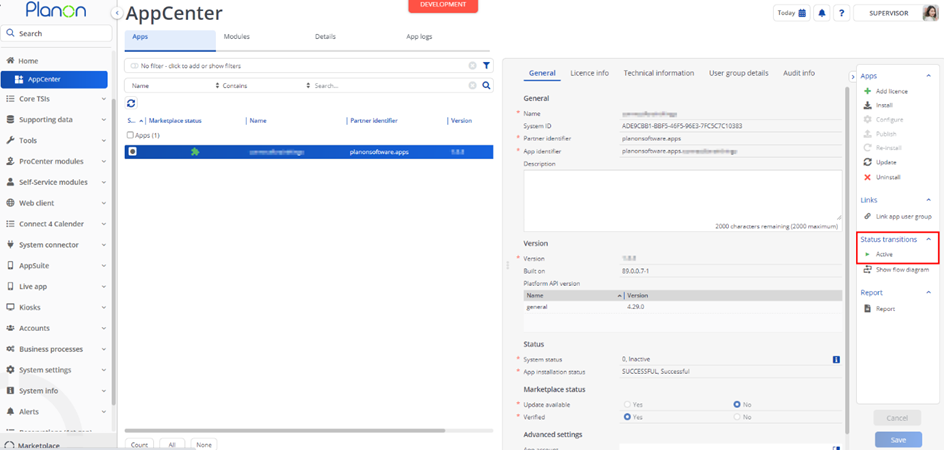
Once the app has been configured, you can activate the app by pressing the Active status transition from the action panel. Always make sure that the required User groups are linked correctly and the Configure action is executed before activating the App.
Troubleshooting
Error handling
- Errors are recorded in the server logs:
- Tomcat log for web components
- Webpages
- PSS modules
- Stepview
- TSI Action
- JAX-RS webservices
- Wildfly log for server-side components
- Business rules
- Scheduled tasks
- Workers
- Event Connector
- Tomcat log for web components
- UI components (TSI Actions) also display errors in the interface