Planon Extension - OpenURL
Introduction
This document outlines the specification of the OpenURL App.
The OpenURL app allows users to open an external URL from Planon based on values from selected business object records. The configured URL can contain placeholders that are resolved at runtime using values from the selected business object, referenced business objects, or associated business objects.
This document also describes the installation and configuration of the app, including the required configuration within Planon.
Prerequisites
Environment
This app works for Planon Live L133 and higher.
Constraints
- The action constructs a single URL based on one selected business object..
- The
urlsetting is mandatory. - URL placeholders must use valid syntax.
- The action must be executed from a business object context.
Required (free) fields
No additional free fields are required.
The app uses existing fields from the configured business object that are referenced in the URL placeholders.
Assumptions
- The default language of messages shown to the user is English.
- Translation keys are available in
language.properties. - The configured URL template is valid.
- The action is executed from a business object with a valid selection.
Features
The purpose of this app is to provide a reusable mechanism for opening external applications from Planon using information from business object records.
Feature 1: Open dynamic URLs
The app introduces a new action that opens an external URL.
The configured URL may contain placeholders that are replaced with values from the selected business object record.
Example:
https://external-app.example/[OrderNumber]
Feature 2: Resolve placeholder values
The app supports resolving values from multiple field types.
| Placeholder | Description |
|---|---|
[OrderNumber] | Reads a field from the selected business object |
[PropertyRef.Code] | Reads a field from a referenced business object |
[OrderHours|OrderRef.Code] | Reads a field from an associated business object |
Example:
https://external-app.example/orders/[Code]?description=[Description]
Feature 3: Validate URL placeholders
Before constructing the URL, the app validates the configured placeholders.
The following validations are performed:
- Balanced brackets
- Empty placeholders
- Nested placeholders
- Invalid characters in placeholder names
- Duplicate placeholders
If validation fails, processing stops and an error is shown.
Feature 3b: Validate panel show time limit
The panelShowTimeLimit setting is validated before the URL is constructed.
- A negative value is not allowed and results in a validation error.
- A value of
0opens the URL without displaying the confirmation panel. - A positive value shows the confirmation panel for that number of seconds before it closes automatically.
Feature 4: Optional field conversion
Optional field conversion can be configured using fieldSettings.
Currently supported conversion:
field.Location.type=gps_rd
This converts GPS coordinates into RD coordinates before replacing the placeholder.
An optional field.<fieldName>.format setting controls how the converted X and Y
coordinate values are combined into the resulting string. If not configured, it
defaults to %s,%s.
field.Location.format=%s,%s
| Format string | Example output (x=155000.0, y=463000.0) | Notes |
|---|---|---|
%s,%s (default) | 155000.0,463000.0 | General conversion, works for any type. |
%.2f,%.2f | 155000.00,463000.00 | Fixed 2 decimal places. |
%.0f;%.0f | 155000;463000 | No decimals, semicolon separator. |
%f/%f | 155000.000000/463000.000000 | Default float precision (6 decimals). |
%,.2f,%,.2f | 155,000.00,463,000.00 | Adds thousands grouping. |
Feature 5: Empty field validation
When errorOnEmptyFields is enabled, every configured placeholder must resolve to a value.
If one or more placeholders are empty, the app displays a validation message and stops processing.
Feature 6: Error handling
Whenever a validation or runtime error occurs, the app displays a translated error dialog using the configured translation keys.
Solution Approach
This chapter describes the proposed solution.
The app contains a TSI Action responsible for constructing a URL from a configurable template and opening it in the user’s browser.
The TSI Action can be registered on any business object where navigation to an external application is required.
For this implementation the action can be registered on:
- Orders [UsrOrder]
- Any user-defined business object under Orders
Supported placeholder types
| Placeholder | Behaviour |
|---|---|
[OrderNumber] | Reads a value from the selected business object |
[PropertyRef.Code] | Reads a value from a referenced business object |
[OrderHours|OrderRef.Code] | Reads a value from an associated business object |
Example URL templates
https://external-app.example/orders/[OrderNumber]

https://external-app.example/orders/[OrderNumber]?description=[Description]

https://external-app.example/requestor/[PropertyRef.Code]
How does it work
When the action is executed, the following steps are performed:
- Read the configured Component Settings.
- Validate the URL template.
- Resolve placeholder values from the selected business object.
- Apply optional field conversions.
- Validate empty placeholder values.
- Construct the final URL.
- Open the generated URL.
Installation
This chapter describes the steps required to install this app on your Planon environment.
Installation Process
There are two ways to install the app:
- Using the Marketplace
- Manual installation
Install the app by using the marketplace
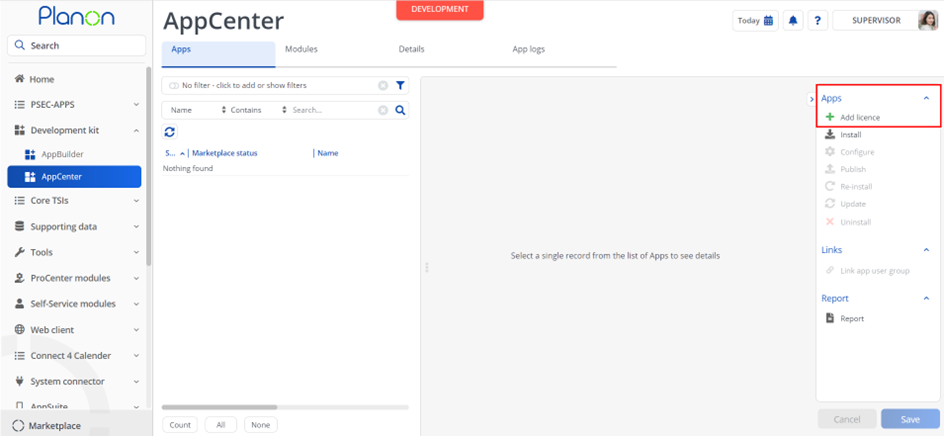
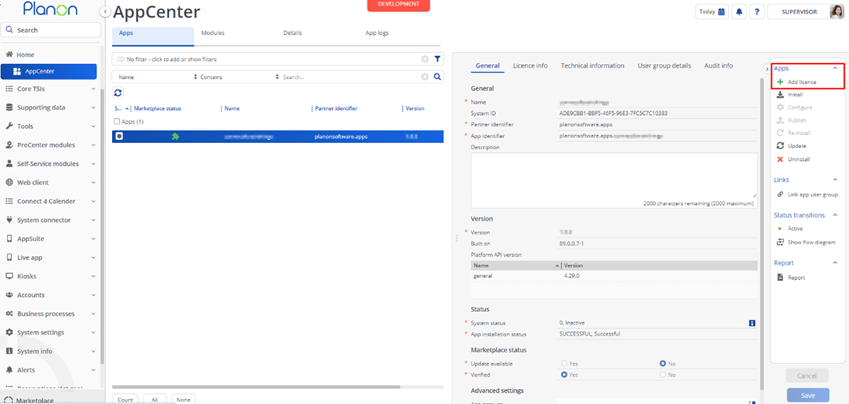
In case your environment is configured to use the Planon app store the only thing required to install the app is to add the app license in the AppCenter TSI. Planon will automatically download and install the app.
Manual installation
In case you want to perform a manual installation follow the steps below.
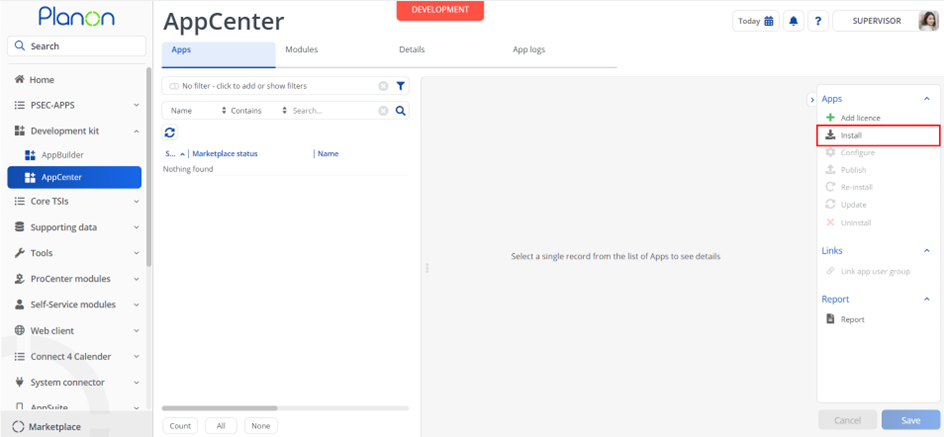
- Open AppCenter TSI from Planon webclient and click on install from action menu
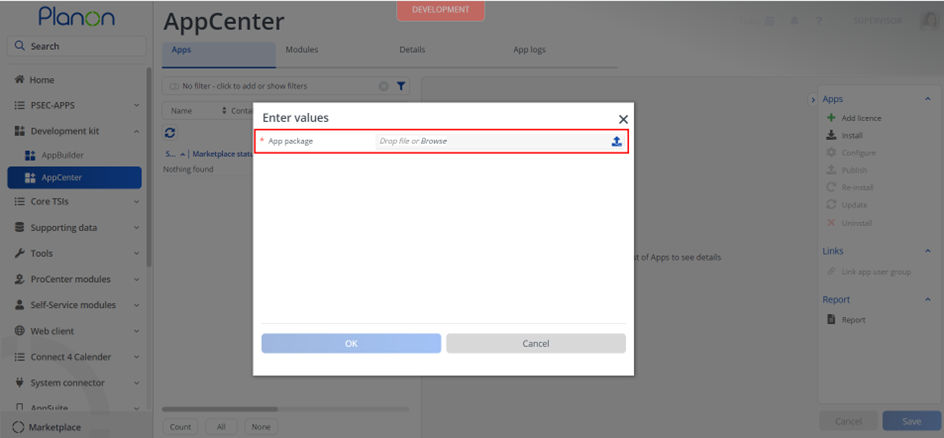
- Browse to the .ppk file
- Click OK to install the app and follow the installation process
- When the app is successfully installed, the app will appear in the AppCenter
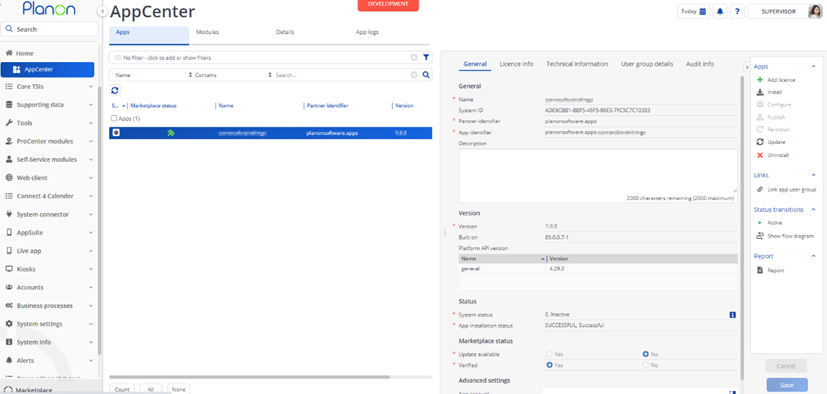
- Add the app license in Apps TSI
Component Settings
The OpenURL app uses Component Settings.
These settings are configured on the Extended Action in the Field Definer.
Description of settings
| Setting | Mandatory | Example | Description |
|---|---|---|---|
url | Yes | https://external-app.example/orders/[Code] | URL template to open. Placeholders are replaced with resolved values. The URL must include a scheme (e.g. https://) and must have a valid, resolvable host. |
errorOnEmptyFields | No | true | When true, processing stops and an error is displayed if any placeholder resolves to an empty or invalid value. When false (default), empty placeholders are replaced with an empty string and URL generation continues. false. |
fieldSettings | No | field.Location.type=gps_rd | Optional field conversion settings. |
panelShowTimeLimit | No | 10 | Number of seconds the information panel is displayed before it closes automatically. Only positive values greater than 0 are allowed. Negative values are not allowed and result in a validation error. |
openInNewWindow | No | true | Opens the generated URL in a new browser tab or window. |
Activation
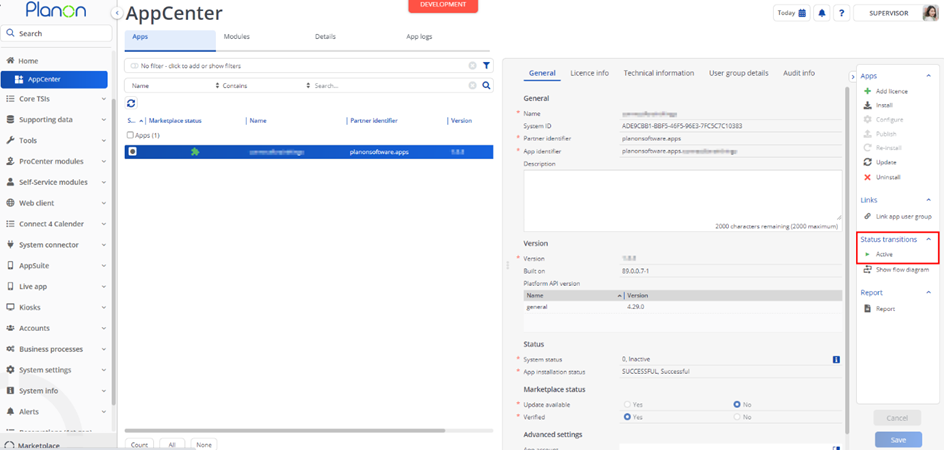
Once the app has been configured, you can activate the app by pressing the Active status transition from the action panel. Always make sure that the required User groups are linked correctly and the Configure action is executed before activating the App.
Planon Configuration
Field definer
Log in to Planon ProCenter using the supervisor account (or any account with sufficient rights to UI Configuration).
Open the Field definer.
Configure Orders BO
Find the business object with system name Orders.
- Set the status of the Business Object to Under construction via the action menu.
Apply the following steps:
Go to the selection level Details and select the selection step Extended Actions.
Click Add in the action menu and create the action with the following details.
| Property | Value |
|---|---|
| Web2Client class name | planonsoftware.apps.openurl.OpenURL |
| System name | OpenURL |
Go back to the selection level Business objects.
Set the status of the Business Object with system name Orders to Completed via the action menu.
Repeat the above steps for any user-defined business object under Orders where you want to use the OpenURL feature.
Add TSI Action button to layout
Navigate to the TSI Layouts.
Select the business object Orders and go to the Layouts selection step.
Choose the layout in which you want to add the button and set it Under construction by clicking the lock icon.
Click Actions in the layout and add the OpenURL action by dragging it into the Actions section.
Save the layout and set it to Completed by clicking the open lock.
Repeat the above steps for any user-defined business object under Orders where you want to use the OpenURL feature.
Translation keys
| Key | Default value |
|---|---|
applicationTitle | Open Application |
errorTitle | Error |
errorFieldsInvalid | One or more configured fields are invalid. |
errorUrlNotConfigured | Configuration parameter ‘url’ is not configured or contains an invalid value. |
errorUrlConfigurationFailed | An unexpected error occurred while reading the URL configuration: |
errorOnNoneSelectionOfBO | Please select exactly one BO. No BO is currently selected. |
errorOnMultipleSelectionOfBO | Please select exactly one BO. Multiple BOs are currently selected. |
errorFieldEmptyOrInvalid | Field ‘%s’ is empty or contains an invalid value |
errorPanelShowTimeLimitNegative | Configuration parameter ‘panelShowTimeLimit’ cannot be negative. Use positive value to specify the number of seconds the panel is shown. |
errorUrlPlaceholderUnbalancedBrackets | URL placeholder syntax is invalid: unbalanced brackets in URL template. |
errorUrlPlaceholderEmpty | URL placeholder syntax is invalid: empty placeholder [] is not allowed. |
errorUrlPlaceholderNestedBrackets | URL placeholder syntax is invalid: nested brackets are not allowed. Use a single placeholder format. |
errorUrlPlaceholderInvalidChars | URL placeholder syntax is invalid for placeholder ‘[%s]’. Only letters and digits are allowed. Dots (.) are allowed in the Reference field, and pipes ( |
errorUrlPlaceholderDuplicateFields | Duplicate field placeholders are not allowed in the URL: %s |
errorAssociationFieldNotAvailable | Association field ‘%s’ is invalid or not available on business object type ‘%s’, used in placeholder ‘[%s]’. Check that the association field name is correct. |
errorAssociationBOTypeInvalid | Association business object type ‘%s’ in placeholder ‘[%s]’ is invalid or does not exist. |
errorAssociationFieldMissing | URL placeholder syntax is invalid for placeholder ‘[%s]’. An association must be followed by a field name, separated by a dot, for example ‘[%s.FieldName]’. |
errorAssociationMultipleItems | Multiple items found on association ‘%s’. |
errorReferenceFieldNotFound | Field ‘%s’ not found in BO ‘%s’. |
errorNotReferenceField | Field ‘%s’ is not a reference field. |
Troubleshooting
Error handling
- Errors are recorded in the server logs:
- Tomcat log for web components
- Webpages
- PSS modules
- Stepview
- TSI Action
- JAX-RS webservices
- Wildfly log for server-side components
- Business rules
- Scheduled tasks
- Workers
- Event Connector
- Tomcat log for web components
- UI components (TSI Actions) also display errors in the interface