Planon Extension - Standard Workers
Introduction
This document describes the installation and configuration of the standard workers as known as workers that are standard available in Planon. How to use enterprise and the standard workers are described within the Planon Webhelp.
About Enterprise Talk (planoncloud.com)
Working with Enterprise Talk (planoncloud.com)
The following workers are the standard workers of Planon.
(Import workers)
XMLReaderWorker
XMLToPOJOWorker
PlanonDataWriterWorker
CSVReaderWorker
ExcelReaderWorker
(Export workers)
PlanonDataReaderWorker
POJOToXMLStringWorker
FileXMLWriterWorker
CSVWriterWorker
MarkExportWorker
ExcelWriterWorker
(Bi-directional Workers)
XMLChunkXSLTTransformationWorker
FileXSLTTransformationWorker
(Delete Workers)
- PlanonDataDeleteWorker
Prerequisites
Environment
This app is designed to work with Planon L106 and above.
Constraints
Enterprise Talk cannot be used to delete data from Planon.
Users can be authorized for using Enterprise Talk. The data imported into or exported from Planon ProCenter , however, is not subject to authorization.
Always make sure, the FileXSLT Worker is not combined with other workers in a single document.
Required (free)fields
N/A
Assumptions
This document is intended for Planon Software Suite users.
This document only describes the installation and configuration of the standard workers.
Features and properties
The standard workers (software code that performs a specific operation on data) enables users to
Import data from another application or data into Planon
Export data from Planon to an XML/CSV
Transform data
Import workers (Import data)
The data to be imported into Planon ProCenter may come from various sources and formats. To be able to import and export data of different formats, Planon ProCenter comes with a number of workers that perform a specific operation on the data file.
(Using standard workers data can be imported from and exported to XML and CSV file formats.)

XMLReaderWorker
This worker uses a STaX parser to extract main business objects one at a time when the execute API is called by the Worker Manager. This component reads data from the XML files for importing data into Planon ProCenter .
XMLToPojoWorker
The Workers associated with the Planon Writer and Reader work with a POJO. This system worker converts an XML string to a POJO that is required by the Planon Workers.
PlanonDataWriterWorker
This worker interacts on the POJO corresponding to the source’s main business object that is passed to it and persists this in Planon ProCenter . The writer also applies the import policy defined in the definition to load the details into Planon ProCenter .
CSVReaderWorker
A CSV file is converted into XML data. This component reads data from the CSV files for importing data into Planon ProCenter
ExcelReaderWorker
A Excel file is converted into XML data. This component reads data from the Excel files for importing data into Planon ProCenter.
Export workers
Planon ProCenter features two default workers for export:

PlanonDataReaderWorker
The PlanonDataReaderWorker is used for exporting data from Planon ProCenter. It identifies the main business object and exports the required fields, associations and referenced business object details. This worker reads a main business object as defined in the Enterprise Talk configuration, creates the POJO, and passes it back to the Worker Manager via the context.
POJOToXMLStringWorker
The Workers associated with the Planon Writer and Reader work with a POJO. This system worker converts an POJO to XML string allowing the data to be used by other Planon Workers.
FileXMLWriterWorker
A worker that writes the exported details from Planon ProCenter . It uses a STaX parser to write details into an XML file.
CSVWriterWorker
A worker that is capable of writing data (XMLString) to a CSV file.
MarkExportWorker
This worker should not be manually added to the worker chain. It will be automatically added (or removed) once it is needed. This is only in case of exporting data whilst having marking enabled in the export document.
ExcelWriterWorker
This worker is capable of exporting the data from Planon to an excel file either user a pre defined template or a pretty new excel file. Also, this worker can be used to convert an XML file of the flat XML data to excel file.
Key features:
Supports both horizontal and vertical orientations
Supports both template based and non-template based excel file generation
Supports evaluation of formulas in case of template based generation
Supports the configuration of column order
Supports configuration of numerical & date time columns or rows
Supports both streaming and non-streaming approaches.
- Streaming is supported only when evaluation of formulas is not opted
Constraints:
System resources are limited the non-streaming approach to data export may increase the risk of encountering an Out of Memory error. During periods of high user activity or when other resource-intensive processes are running this limit might be encountered faster.
Bidirectional Workers (Transform data)
This section lists the workers that can be applied to both the import as the export process.
XMLChunkXSLTTransformationWorker
This worker transforms an XML file using the transformation file supplied in the parameters and converts this to an XML string. This worker operates on one main business object at a time. For a description of these fields, refer to XSL Transformation.
FileXSLTTransformationWorker
This worker can be used to perform an XSL transformation. This worker operates on an entire file. Typically, this will be the first worker in the worker configuration. For a description of the fields that are available for this worker, refer to XSLT Transformation Worker.
Delete Workers
PlanonDataDeleteWorker
This worker can be used to delete business objects in Planon. This is used in combination with XMLReaderWorker which takes an xml file containing the list of business objects to be deleted as input. Then the PlanonDataDeleteWorker receives the xml node and deletes the business object based on the data.
Installation
This chapter describes the steps required to install this app on your Planon environment.
Installation Process
There are two ways to install the app:
- Using the Marketplace
- Manual installation
Install the app by using the marketplace
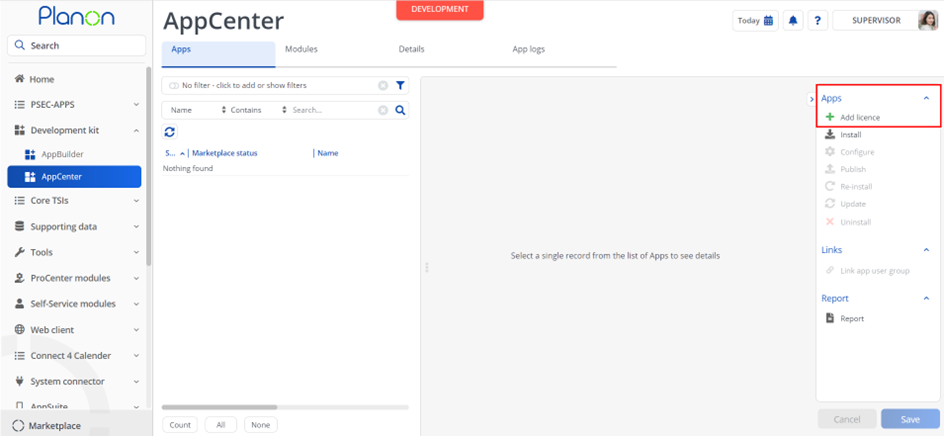
In case your environment is configured to use the Planon app store the only thing required to install the app is to add the app license in the AppCenter TSI. Planon will automatically download and install the app.
Manual installation
In case you want to perform a manual installation follow the steps below.
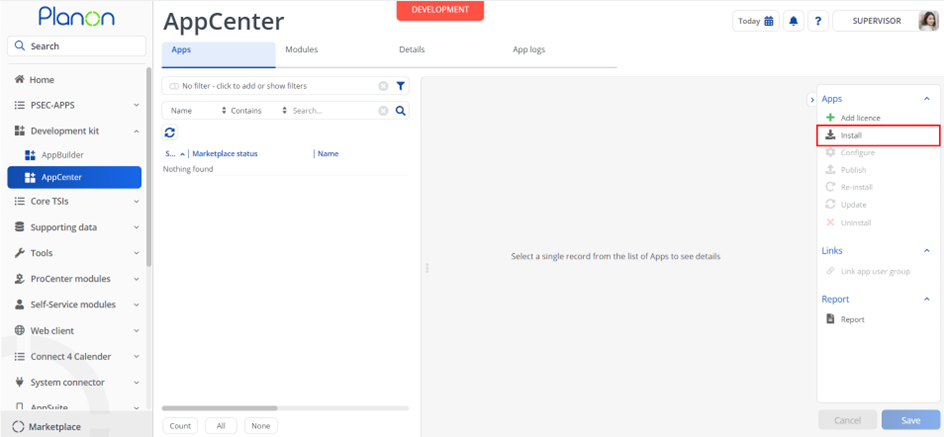
- Open AppCenter TSI from Planon webclient and click on install from action menu
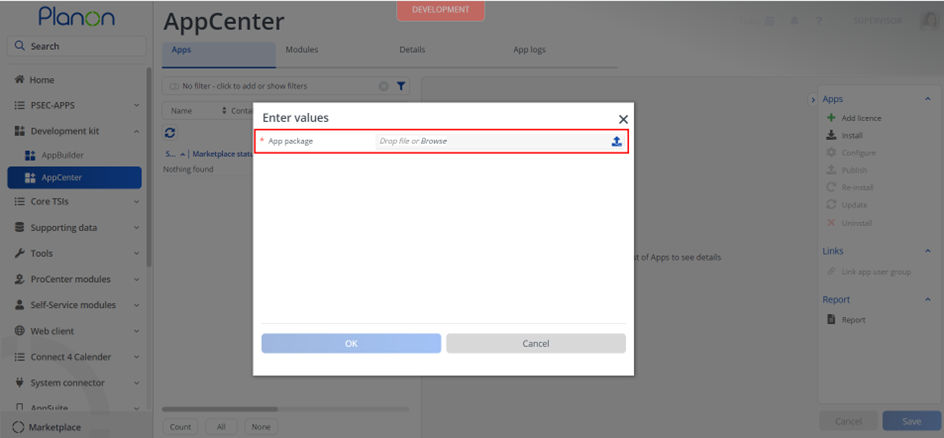
- Browse to the .ppk file
- Click OK to install the app and follow the installation process
- When the app is successfully installed, the app will appear in the AppCenter
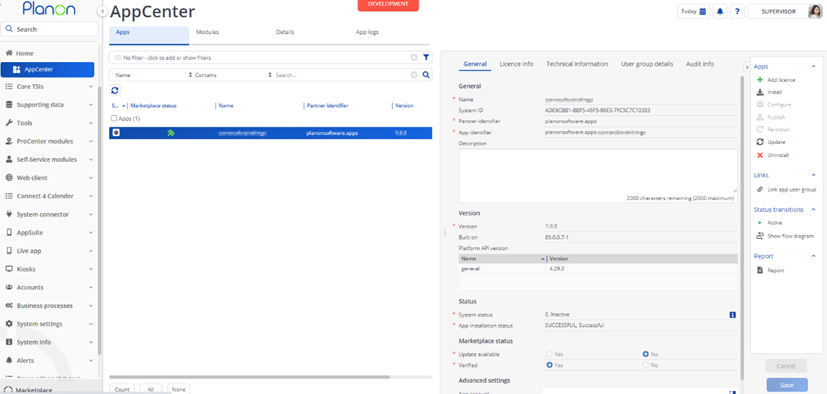
- Add the app license in Apps TSI
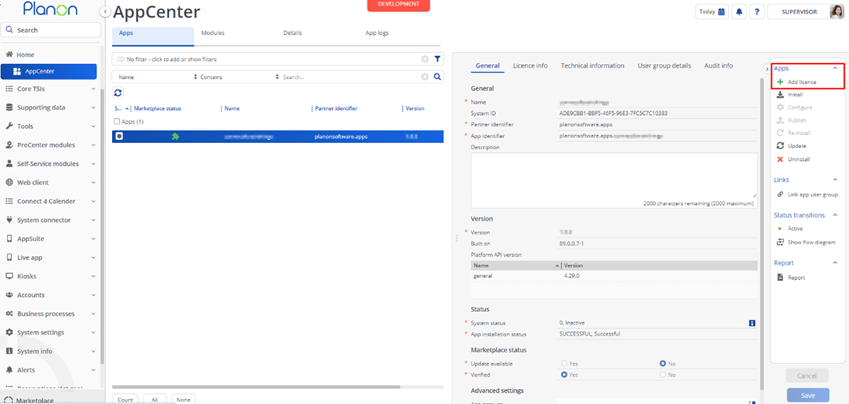
Activation
Once the app has been configured, you can activate the app by pressing the Active status transition from the action panel. Always make sure that the required User groups are linked correctly and the Configure action is executed before activating the App.
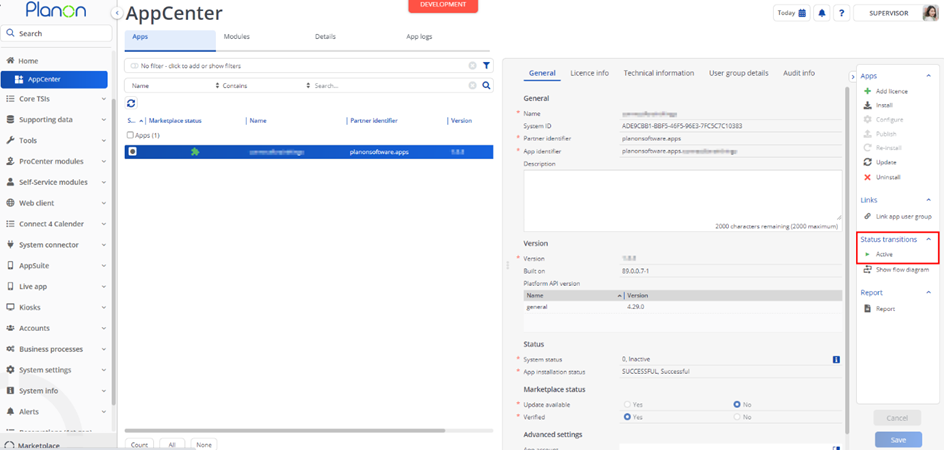
Configuration
Now that the app is installed we can add a worker instance in an import-export document. This is done in the TSI ‘Enterprise Talk’:
Select or create a definition, make sure ‘use platform workers’ is set to ‘yes’ (If this field is not available add this to your import-export definition layout).
Drilldown to ‘Documents’ and select or create a document
Drilldown to ‘Business Object Definitions’, ‘Import-export worker’
Click add in the action panel
You should be able to select the workers with the App name standardworkers.
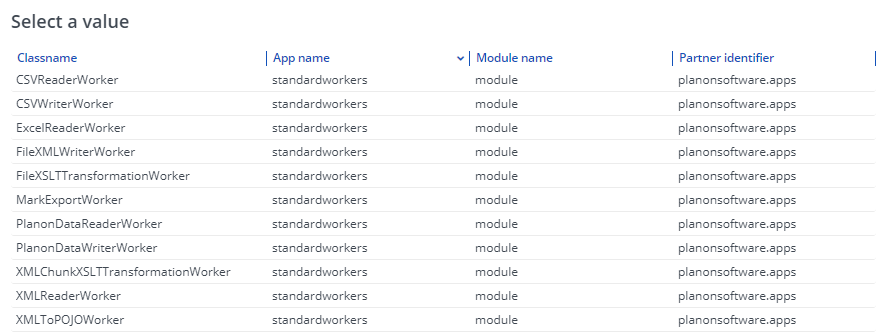
Configuration Export workers
When the App is activated the workers can be used within Enterprise talk. For usage the workers must be configured. Configuration is done by settings and parameters within the Enterprise talk TSI;
PlanonDataReaderWorker
The PlanonDataReaderWorker is used for exporting data from Planon ProCenter. It identifies the main business object and exports the required fields, associations and referenced business object details. This worker reads a main business object as defined in the Enterprise Talk configuration, creates the POJO, and passes it back to the Worker Manager via the context.
FileXMLWriterWorker
A worker that writes the exported details from Planon ProCenter . It uses a STaX parser to write details into an XML file. This worker contains the following settings which can be used.
| Setting | Description |
|---|---|
| generateFilePerBO | Specify true or false. Default is false. If set to true then an XML file will be generated for each row. The name of each XML will be equal to the name specified in the document data source with an extra underscore [_] and a sequence number added to the name |
| elementPerLine | Specify true or false. Default is false. If set to true then each line in a multiline field will be enclosed in separate XML tags. Example - false: \\xml <property><comment>this is a multiline</comment></property>\<br> Example - true: \\xml <property><comment><TEXTLINE>this</TEXTLINE><TEXTLINE>is</TEXTLINE><TEXTLINE>a</TEXTLINE><TEXTLINE>multiline</TEXTLINE></comment></property>\\ |
CSVWriterWorker
If you need to export to a CSV file, the workers needed are:
PlanonReaderWorker
CSVWriterWorker
| Setting | Description |
|---|---|
| addHeader* | Specify whether or not a CSV header should be written. |
| columns* | Names of the columns will be taken from the XML element tags. This setting will determine the order or you can specify the subset of the XML element tags. If this parameter is not entered, the order from XML is used and all elements are exported. The column names are case-sensitive. (String) |
| delimiter* | The valid values for a delimiter are: ;, semi tab, space, comma and any literal symbol. Semi-colon ; is the default value of the delimiter. (String) |
| generateFilePerBO* | Specify true or false. If set to true, a CSV file will be generated for each row. The name of each CSV will be equal to the name specified in the document data source with an extra underscore [ _ ] and a sequence number added to the name. |
| textQualifier* | Valid values for a text qualifier are: ’ or apostrophe or apos ” or quote or quote. |
| writeutf8Bom* | This BOM is written only if the file encoding is UTF-8. This indicates that the UTF-8 order mark should be written. |
POJOToXMLStringWorker
The Workers associated with the Planon Writer and Reader work with a POJO. This system worker converts the data from this POJO to an XML string. This way the data can be shared with other workers outside of the workers in this app as well. For example using the PlanonDataReaderWorker to feed data to your custom worker.
(No configurable settings).
ExcelWriterWorker
If you need to export Planon data into an Excel file, the workers needed are:
PlanonReaderWorker
ExcelWriterWorker
If you need to convert an xml file to an Excel file, the workers needed are:
XMLReaderWorker
ExcelWriterWorker
The ExcelWriterWorker comes with below settings
| Setting | Description |
|---|---|
| colStartData | This setting determines the column from where the data starts in the horizontal orientation. This is a zero based index that is if data has to start from first column, the value to be passed is ‘0’ |
| columnOrder | This defines the order of columns based on the xml data of the business object exported. If nothing is defined, the order of xml exported is considered. Example: XMLNode1-0,XMLNode2-1 |
| dateTimeColumns | This defines the list of columns that are date time type in the excel output file. |
| evaluateFormulas | When set to true, it validates the formulas defined in the template file of the excel file. |
| headerRow | This determines the titles of the columns or rows based on the orientation. This is considered only when template is not provided. |
| inputDateFormat | Date time format of date time fields in the exported data |
| numericalColumns | This defines the list of columns that are numeric type in the excel output file. |
| outputDateFormat | Date time format of date time fields to be shown in the excel file |
| outputFileLocation | Path of the output excel file to be generated |
| rowStartData | Index of the row from where the data starts. (This is zero based index) |
| sheetName | Name of the sheet in the excel file |
| templateFileLocation | Path of the template excel file |
| useVerticalOrientation | Set this to true to generate excel file in vertical orientation |
| verticalOrientationColStartData | Index of the column from where the data starts in the vertical orientation |
| verticalOrientationRowStartData | Index of the row from where the data starts in the vertical orientation |
| useExistingOutputFile | When this is set to ‘Yes’, one output file is created. If PEET definition has the Excel Writer worker configured in multiple Documents, then multiple sheets will be created in the same output file. This is needed when data of different BOs need to be exported into a single file. Setting this to ‘No’ will create one output file per Document. |
Configuration Bidirectional workers
This section lists the workers that can be applied to both the import as the export process. Valid file paths for the workers are:
data/peet/transform/chunktransform.xsl
or
C:/temp/budget.xsl
XMLChunkXSLTTransformationWorker
This worker transforms an XML file using the transformation file supplied in the parameters and converts this to an XML string. This particular worker operates on one main business object at a time. For a description of these fields, refer to XSL Transformation.
A default setup to use this worker is:
XMLReaderWorker
XMLChunkXSLTTransformationWorker
If the XSLT already provides the right input to the POJO, no further worker is required. However, in most cases, the chunk worker will require a custom Data Reader, because the default Planon Reader assumes that the <document> tag indicates the start of the document and the <businessobjects> tag indicates the main business object entries.
| Setting | Description |
|---|---|
| additionalParameters | (Optional) Additional parameters passed to the XSL transformation. Separate with new line. |
| encoding* | The encoding to be used, default is UTF-8. |
| inputFile | (Optional) The location of the input xml file. Only mandatory when using file XSL Transformation. |
| outputFile | (Optional) The location of the output file. Only mandatory when using file XSL Transformation. |
| transformationFormat* | The format to be used for the transformation. The default is xml; other valid values are html, xhtml and text. |
| xslFile* | The XSL transformation file to be used. |
FileXSLTTransformation
This worker can be used to perform an XSL transformation. This particular worker operates on an entire file. This worker functions independently and is only dependent on files.
| Setting | Description |
|---|---|
| additionalParameters | (Optional) Additional parameters passed to the XSL transformation. Separate with new line. |
| encoding* | The encoding to be used, default is UTF-8. |
| inputFile* | The location of the input xml file. |
| outputFile* | The location of the output file. |
| transformationFormat* | The format to be used for the transformation. The default is xml; other valid values are html, xhtml and text. |
| xslFile* | The XSL transformation file to be used. |
Configuration Import workers
XMLReaderWorker
This worker uses a STaX parser to extract main business objects one at a time when the execute API is called by the Worker Manager. This component reads data from the XML files for importing data into Planon ProCenter .
The output of this Worker is an XML string corresponding to the main business object in the XML.
(No configuration settings).
XMLToPojoWorker
The Workers associated with the Planon Writer and Reader work with a POJO. This system worker converts an XML string to a POJO that is required by the Planon Workers.
(No configurable settings).
PlanonDataWriterWorker
This worker interacts on the POJO corresponding to the source’s main business object that is passed to it and persists this in Planon ProCenter . The writer also applies the import policy defined in the definition to load the details into Planon ProCenter.
With the Approval feature in Planon, you can configure that important changes must always be approved by a second person before the changes are actually implemented. See Approvals Four eyes principle (planoncloud.com). When importing data via Enterprise Talk or SDI configuration, it is possible to bypass the triggering of the approval process for changes that normally require approval. Via the triggerApproval parameter on the import worker, the triggering of approvals can be skipped for the data to be imported via this worker.
| Setting | Description |
|---|---|
| additionalParameters | For the PlanonDataWriterWorker, in the Additional parameters box, add the following line:triggerApproval = Yes/NotriggerApproval = Yes: to explicitly define that approvals are triggered when importing/updating data through this worker. triggerApproval = No: to skip triggering approvals when importing/updating data through this worker. Even if an approval is required by the approval definition, data is simply changed and no approval is generated. If the triggerApproval parameter is not registered, approvals are triggered if necessary. |
CSVReaderWorker
If you need to import from a CSV file, the workers needed are:
CSVReaderWorker
XMLToPOJOConvertor
PlanonWriterWorker
A CSV file is converted into XML data. This component reads data from the CSV files for importing data into Planon ProCenter. The output of this Worker is an XML string corresponding to each main business object in the CSV.
An example file of CSV data is used to explain the effect of the CSVReaderWorker with the terminology used to describe its parameters.

1 = text qualifier (“)
2 = delimiter ( ,)
3 = an escaped text qualifier
If parameter mainElementName=Person, the resulting XML file would be:
<Person>
<Code>00123</Code>
<LastName>Jackson</LastName>
<Comment>Comment, with a delimiter in it</Comment>
</Person>
<Person>
<Code>00124</Code>
<LastName>Johnson</LastName>
<Comment>Comment with an “escaped” qualifier</Comment>
</Person>
| Setting | Description |
|---|---|
| columns* | The name given to the XML element tags of the columns if no header is available. If a header is available, it specifies the order or a subset of columns that must be imported. If not specified and the CSV has a header row, the order from the header is used and all columns are imported. If not specified and the header is absent, the default column names are column-1, column-2, etc. |
| delimiter* | The valid values for the delimiter are:; or semi-colon or semicolon or semi,tab or \t,space or \s,, or comma,any literal symbol. Semi-colon is the default value of the delimiter. |
| fileEncoding | If not specified, utf-8 is used if the file encoding is detected automatically. Otherwise, the file encoding specified is used. |
| header | Specify Yes or No if the CSV to import contains a header row with the names of the column in it. By default, the value is set to Yes if this attribute is not specified. |
| mainElementName | The main element name that will be used in the XML generated by the CSVReaderWorker. If this value is not specified, the value will be taken from the Node name of the BO definition if there is only one, or by default it is element. |
| strict | Flag that determines whether data containing text qualifiers must be qualified. If this flag is set to true and a text qualifier symbol is encountered within unqualified data, CSV parsing will throw a Exception. If the flag is set to false, parsing will continue as if nothing had happened, but qualifiers will still need to be escaped. |
| textQualifier* | Valid values for a text qualifier are:' or apos or apostrophe," or quote or quote or any literal symbol |
| trim | Set the value to No. This indicates that the leading and trailing whitespace around the CSV data should not be trimmed. |
ExcelReaderWorker
The ExcelReaderWorker reads Excel sheets (xls, xlsx) with data so as to import them into Planon ProCenter .
The output of the ExcelReaderWorker is XML. The ExcelReaderWorker allows you to specify a cell containing the reference date using the ‘referenceDateCell’ parameter. There are three ways to specify a reference date in Excel:
- Use ‘referenceDateCell’
When you specify the parameter ‘referenceDateCell’ and you do not specify parameter ‘referenceDateElementName’ a BeginDate attribute will be added containing the fixed date value from ‘referenceDateCell’.
- Use ‘referenceDateCell’ and ‘referenceDateElementName’
In the XML a tag will be added with the name specified in the ‘referenceDateElementName’ the tag will be populated with the ‘referenceDateCell’ value. The position of this tag is by default the last exported field in the XML. If a different order is required, you can specify the order with parameter ‘columns’ and add the value of the ‘referenceDateCell’ parameter at the right location.
| Setting | Description |
|---|---|
| columnForStopDef | Column name to stop reading of rows. If this column is empty the reader will stop reading. Default value: ‘A’ |
| columns | Columns to process separated by ;. |
| getEmptyFields | Convert empty fields from the Excel file to XML |
| mainElementName | The Business object name |
| nrOfEmptyRowsToStop | Number of empty rows to stop reading of rows. Default value: ‘5’ |
| numberOfRows | Number of rows to process. Default value: process all the rows available in the excel sheet. |
| referenceDateCell | Cell reference containing the reference date. Default value: System date. When a reference date is filled in the document, this reference date will be used. |
| referenceDateElementName | XML node name containing the reference date from the referenceDateCell. |
| rowHeader | Row that contains the header. Default value: ‘1’ |
| rowStartData | Row number from where the data starts. |
| tabSheet | Excel sheet name. |
Configuration Delete workers
PlanonDataDeleteWorker
If you need to delete a BO in Planon, the workers needed are:
XMLReaderWorker
PlanonDataDeleteWorker
This worker is configured after the XMLReaderWorker in the import document. The XMLReaderWorker reads the xml and sends xml string corresponding to main business object one at a time.
The expected xml file format is as below
<?xml version=‘1.0’ encoding=‘UTF-8’?> <document> <businessobjects> <BaseOrder> <OrderNumber>644.00</OrderNumber> </BaseOrder> <BaseOrder> <OrderNumber>645.00</OrderNumber> </BaseOrder> </businessobjects> </document>
In the above example,
BaseOrder is the system name of the order BO
OrderNumber is system name of the lookup field of the order BO
OrderNumber can be replaced with Syscode which is the system name of the primary key field.
This worker reads the xml, gets the BO name, Lookup field and the value. Below validations are performed before deleting the business object
The BO name provided in the xml string is a valid BO
The Lookup field name provided is same as the lookup field from the API or Syscode is provided
There is only one BO record present with provided details
In case of any failure of above checks, the BO is not deleted and proceeded to next record in the file.
Note: The worker can handle either system code or the lookup field. And do not support search on multiple fields.
The worker can also handle warnings and confirmations during the deletion of Business object.
User can decided to auto approve confirmations and warning by setting the field “AutoApproveConfirmationAnswer” to yes on the Import Document as shown below
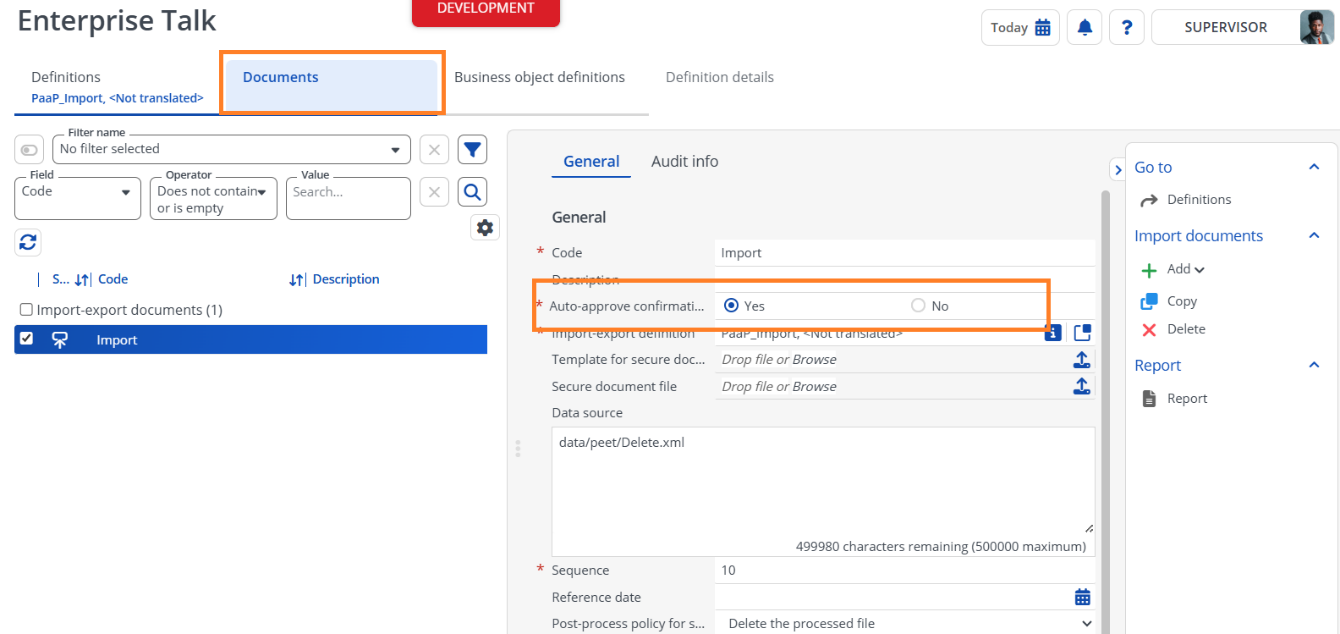
Troubleshooting
Error handling
- Errors are recorded in the server logs:
- Tomcat log for web components
- Webpages
- PSS modules
- Stepview
- TSI Action
- JAX-RS webservices
- Wildfly log for server-side components
- Business rules
- Scheduled tasks
- Workers
- Event Connector
- Tomcat log for web components
- UI components (TSI Actions) also display errors in the interface